Laptop Plugged In but Not Charging? Diagnose the Adapter, Battery, and Charge Limits
Work through safe checks for a laptop that is plugged in but not charging, from outlets and USB-C power to charge limits and service.
A laptop that says “plugged in, not charging” does not automatically need a new battery. The same message can appear when the wall outlet, adapter, cable, USB-C port, charging settings, battery, or internal charging hardware is the actual problem.
Start with the simplest distinction: does the laptop run from the adapter, does it charge only to a fixed level, or does power cut in and out? Check the physical power path before changing software settings or considering a battery replacement. If the adapter or cable is damaged, the laptop becomes unusually hot around the charging connection, or the battery appears swollen, stop using it and arrange manufacturer-supported service.
First, identify which charging symptom you have
Write down the exact laptop model, its charger type, the battery percentage, and the wording of any battery message. Those details matter because charging ports, charger requirements, firmware options, and service procedures vary substantially between models.
Then place the problem in one of these groups:
| Symptom | What it can indicate | Safest next check |
|---|---|---|
| The laptop will not turn on, even with its adapter connected | No incoming power, an adapter or outlet problem, or an internal fault | Check the outlet and entire adapter connection path |
| The laptop runs while connected to power but the battery percentage does not increase | A charge limit, inadequate power input, battery issue, or charging-system issue | Verify adapter, cable, port, and battery-protection settings |
| Charging always stops at the same percentage | A configured battery-health limit is possible, but not proven | Check the exact model’s battery settings documentation |
| Charging begins and stops when the cable moves | A loose or damaged cable, connector, port, or dock connection is possible | Stop flexing the connection and inspect it externally |
| The battery drains while the laptop is connected | The charger, cable, dock, or USB-C power source may not meet current demand | Compare documented power requirements and supported charging ports |
An operating-system notification is useful evidence, but it is not a complete diagnosis. It cannot by itself distinguish a worn battery from an underpowered USB-C source, a disabled charging configuration, a damaged port, or a fault in the laptop’s charging circuitry.
If the laptop works only while connected to the adapter, do not assume the battery is definitely the failed part. Record whether it can start on battery power, whether its charge percentage changes, and whether the manufacturer’s diagnostics report a specific issue.
Perform low-risk power, cable, and charging-port checks
Work from the wall outlet toward the laptop. This sequence avoids unnecessary software changes and does not require opening the computer.
- Save work and shut down the laptop if it is behaving unpredictably. If it remains stable, you can note whether the battery indicator changes while connected.
- Test the wall outlet with another known-working device. If possible, test the laptop adapter in a different known-working outlet. Dell includes outlet testing in its adapter troubleshooting guidance.
- Reconnect every detachable part of the power chain. That includes the wall-side AC cable, the power brick connection where applicable, and the connector at the laptop. Push connectors in normally; do not force them.
- Inspect the cable and adapter exterior. Look for fraying, exposed conductors, crushed insulation, cracked plastic, bent pins, discoloration, or an unusually loose connector. MSI likewise recommends checking the wall socket, cord, and power connector for damage and secure connection in its battery charging guidance.
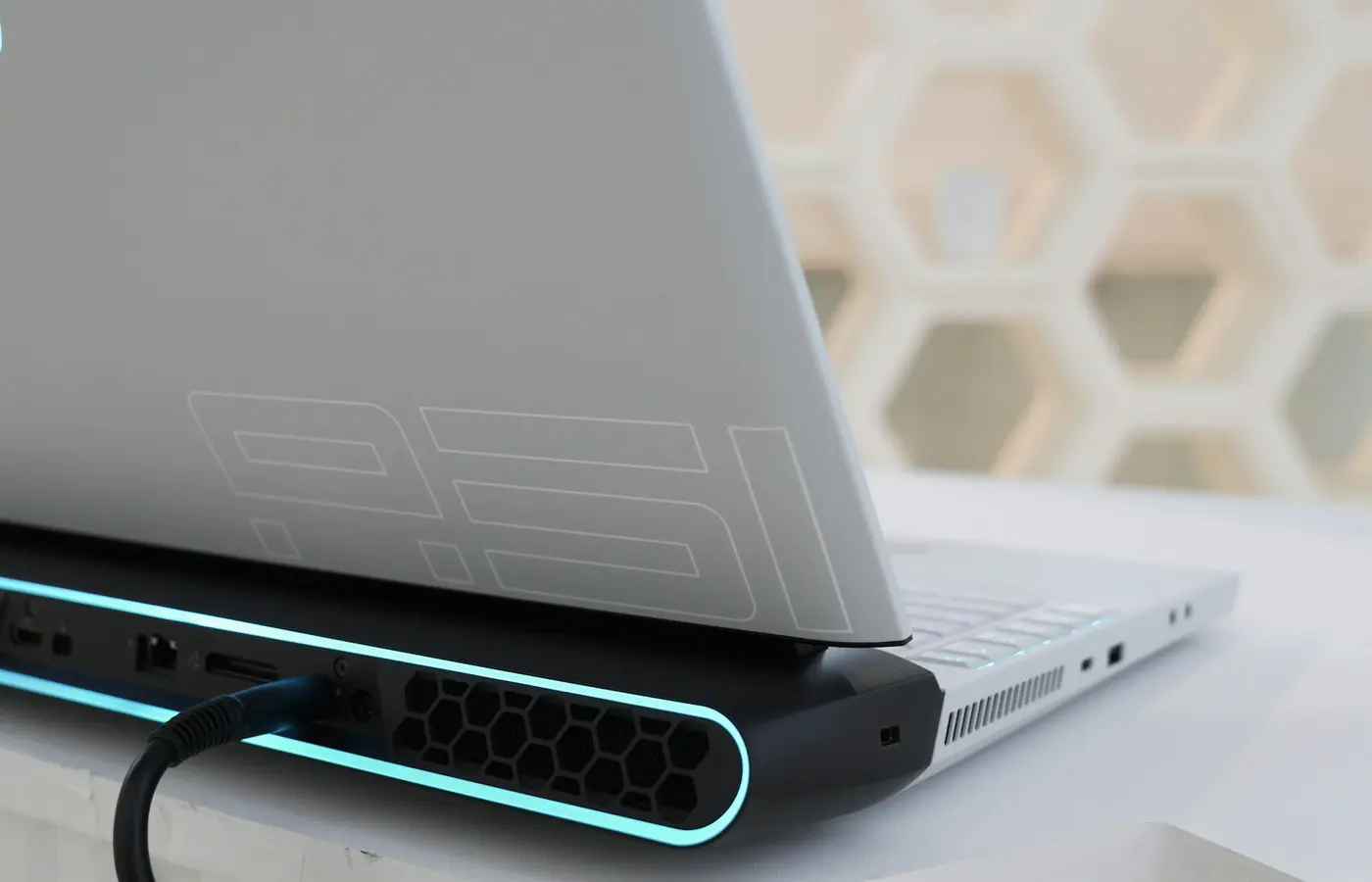
- Inspect the charging port without inserting tools. A visibly obstructed, bent, loose, scorched, or damaged port needs professional assessment. Do not scrape inside the port, add liquids, or attempt to reshape contacts.
- Remove nonessential power intermediaries for the test. Disconnect a dock, monitor, hub, extension device, or adapter chain. Connect the manufacturer-supplied or manufacturer-approved charger directly to the laptop, if available.
For USB-C laptops, verify that the cable is connected to a port that actually accepts charging input. USB-C describes a connector shape, not a universal promise that every USB-C port can charge the battery. HP specifically advises confirming that power is connected to the correct port in its charging troubleshooting guide.
Stop here if you find damage, a burning smell, sparking, excessive heat, liquid exposure, or a port that moves in the chassis. Do not continue repeated charging tests with suspect equipment.
Verify the adapter, cable, and USB-C power requirement
A laptop can sometimes stay on with a USB-C charger yet fail to charge the battery, particularly when the computer is under load. That does not make every non-original charger unsafe or unsuitable, but it does mean the complete power path must match the laptop’s documented requirements.
Check these four items against the documentation for your exact laptop model:
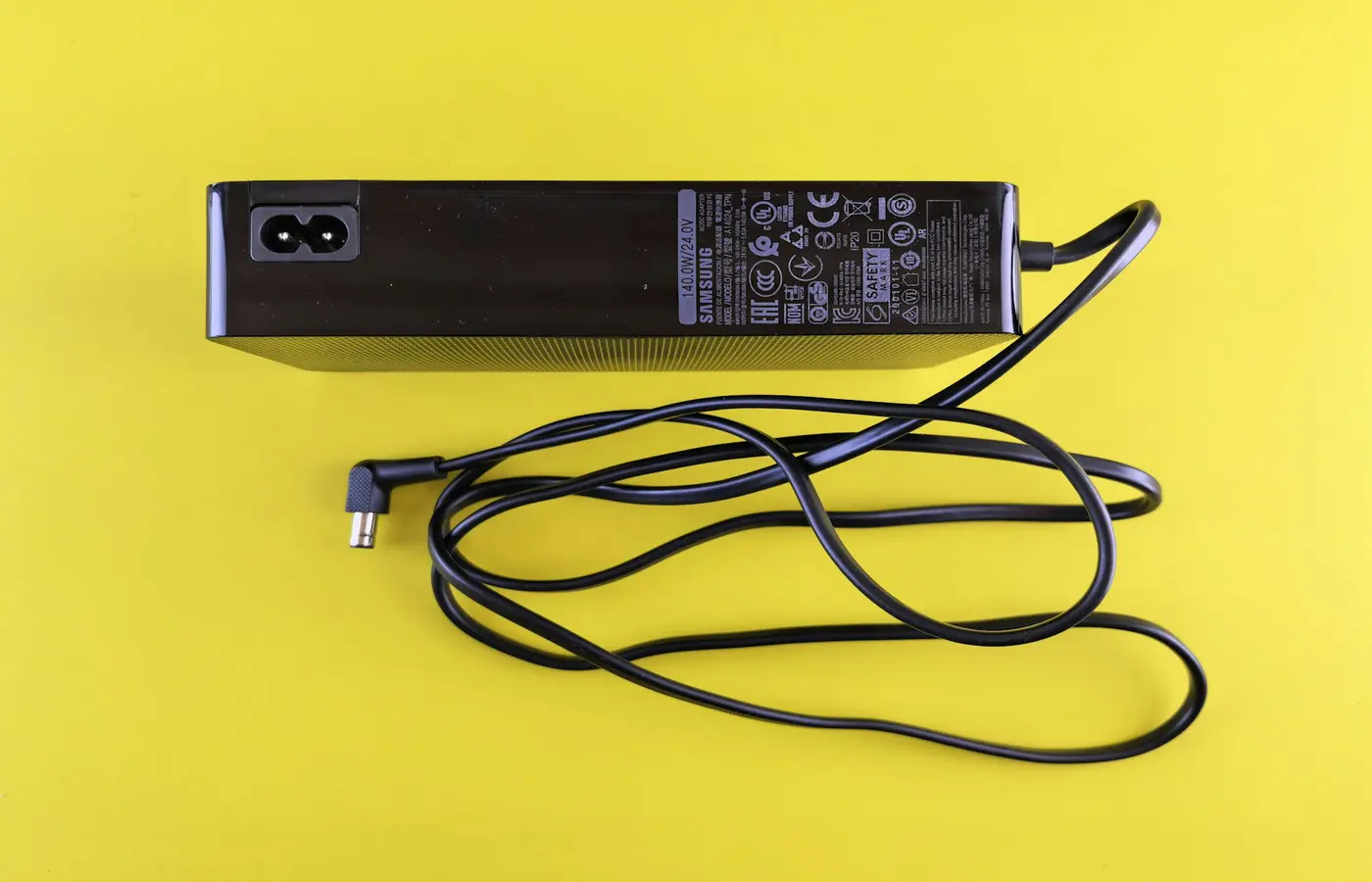
- Adapter output: Read the output rating on the adapter label and compare it with the laptop manufacturer’s specified charger or supported USB-C input requirement.
- Charging port: Confirm which physical port supports battery charging. Some USB-C ports may support data, video output, or accessories without accepting charging input.
- Cable capability: A USB-C cable is not interchangeable in every use case. Use the cable supplied with the charger when possible, or verify that a replacement cable supports the required power delivery arrangement.
- Dock or monitor pass-through: Check the dock or display’s documented power-delivery output, not just its own power-brick rating. A device can pass through less power than its adapter is capable of providing.
MSI advises that a non-original adapter used through external devices should provide output at least equal to the laptop’s original charger, while LG lists inadequate adapter output and system demand exceeding a USB-C adapter’s supply as possible reasons charging may not occur. See MSI’s adapter guidance and LG’s battery support article.
Do not turn that into a universal wattage rule. The required power depends on the model, processor and graphics configuration, battery state, attached devices, firmware behavior, and workload. A charger that is adequate for light use may not behave the same way while the laptop is running a demanding task or powering peripherals.
For an ASUS laptop, the company directs owners to the model-specific manual to confirm whether a USB-C port supports battery charging. Its official troubleshooting page is a useful reminder not to infer charging support from the port shape alone.
Check whether a battery-protection setting is limiting the charge
If the battery consistently stops at a defined percentage—especially near 80 percent—a battery-health feature may be intentionally limiting the charge. This can be useful for laptops that spend long periods connected to AC power. It is a setting to verify, not proof that the battery is healthy or that the setting is responsible.
Manufacturers use different names and locations for these controls. Dell documents BIOS battery charge configuration modes that can limit capacity, and notes that the location varies by model in its battery troubleshooting article. MSI documents Battery Protection Technology on some laptops, while LG documents an Extend Battery Life feature that can stop charging at 80 percent. Review the applicable MSI guidance or LG guidance only as a starting point; your model may use a different control or none at all.
Use your laptop manufacturer’s support site and search for the full model number plus terms such as “battery health,” “charge limit,” or “battery charging configuration.” Check the current manual before changing firmware, BIOS, or vendor-app settings.
If you find an enabled charge limit and it matches the behavior you see, decide based on your use:
- Keep the limit enabled if the laptop is normally used at a desk and the manufacturer presents it as a battery-care option.
- Change it only if you need a fuller charge for upcoming portable use and the official documentation describes how to do so.
- Re-enable your preferred setting after the trip or project, if the model supports it.
A charge cap that has no corresponding documented setting, changes unexpectedly, or is accompanied by other faults still needs further diagnosis.
Use built-in diagnostics and software checks without guessing
After confirming the outlet, adapter, cable, and correct charging port, use the laptop maker’s supported tools. This is preferable to generic instructions that remove drivers, reset firmware, or recalibrate a battery without regard to the specific model.
First, restart the laptop normally. A restart can clear a temporary operating-system or embedded-controller state, but it does not repair physical damage or establish that the battery is healthy.
Next, visit the manufacturer support page for the exact model—not just the product family—and look for:
- Battery or power diagnostics
- Charger or adapter status messages
- Firmware, BIOS, or power-management updates explicitly listed for that model
- Current troubleshooting steps for the operating system installed on the laptop
- Warranty and authorized repair options
Install only updates that the manufacturer identifies for the exact device. Keep AC power connected if the official update procedure requires it, and do not interrupt a firmware update. Avoid a universal “BIOS reset,” battery disconnect, or calibration sequence from a forum or video: the correct procedure can differ by model, and some laptops have sealed batteries or special service requirements.
If the laptop presents a diagnostic code or adapter warning, photograph or write down the exact text. That record is more useful to support staff than a general description such as “battery problem.” Dell’s battery troubleshooting page and ASUS’s official support guidance both direct owners toward manufacturer-specific troubleshooting rather than treating all charging behavior as the same fault.
Stop and arrange service when the fault may be unsafe or internal
Do not open a laptop, disconnect an internal battery, or attempt port repair unless the manufacturer’s model-specific service documentation clearly supports user service and you understand the applicable safety and warranty terms.
Stop using the charger and seek support promptly if you notice any of the following:
- Frayed cable insulation, exposed wiring, bent pins, cracked adapter housing, scorch marks, or a burning odor
- A swollen battery, lifted keyboard or trackpad, separated chassis seams, or other physical deformation
- Liquid exposure near the laptop, adapter, or port
- A charging port that is loose, hot, visibly damaged, or only works when held at an angle
- Repeated power dropouts after testing a known-working outlet and the documented compatible charging setup
- A laptop that will not charge or run on AC power after basic checks
- Manufacturer diagnostics that identify a battery, adapter, or charging-system fault
Use the manufacturer’s official support or authorized-service route for the exact model. Keep the adapter available for inspection, preserve the cable if it is safe to do so, and provide the model number, charger label details, battery behavior, diagnostic messages, and the checks already completed.
When a battery replacement makes sense
Battery replacement is a reasonable service question when the manufacturer’s diagnostics identify a battery problem, the battery has physical swelling, or the laptop cannot run on battery power after compatible-power and settings checks. It is not the first conclusion to draw from a “plugged in, not charging” message.
Before authorizing service, ask whether the diagnosis identifies the battery itself, the adapter, the charging port, the DC-in board, USB-C charging hardware, or another internal connection. The repair path and whether the part is user-serviceable depend on the laptop model and warranty status.
The practical default is simple: verify the power source and correct port, test the documented compatible charging setup directly, check for a model-specific charge limit, then use official diagnostics. If that sequence does not isolate the problem, service is safer than repeated experimentation.
Frequently asked questions
Why does my laptop say plugged in but not charging at 80%?
A battery-health or charge-limit feature may be enabled, especially if the laptop always stops at the same level. LG, for example, documents an Extend Battery Life setting that can stop charging at 80 percent. Check the official documentation for your exact model before changing anything. A fixed percentage alone does not prove that a charge limit is the cause.
Can the wrong USB-C charger make a laptop run but not charge its battery?
Yes, it can be a possibility when the available USB-C power is insufficient for the laptop’s current demand, or when a dock, monitor, cable, or port does not provide the required charging capability. Verify the laptop’s documented input requirements, the charging port, the adapter output, the cable, and any dock pass-through specification.
How can I tell whether my laptop’s charging port supports USB-C charging?
Use the manual or official support page for the full laptop model number. Do not rely only on the USB-C connector shape or an icon that is unclear. ASUS specifically advises checking the device manual when USB-C charging support is uncertain.
Should I replace the battery if my laptop works only when plugged in?
Not without a model-specific diagnosis. A failed battery is one possibility, but so are charging settings, adapter problems, port faults, and internal charging hardware issues. Run the manufacturer-supported diagnostics and arrange service if the result is unclear or the equipment shows any safety warning signs.