Will a USB-C Dock Work with Your Laptop? Check Display, Data, and Port Limits
Learn how to verify USB-C dock compatibility for your exact laptop, monitors, peripherals, and charging needs before you buy.
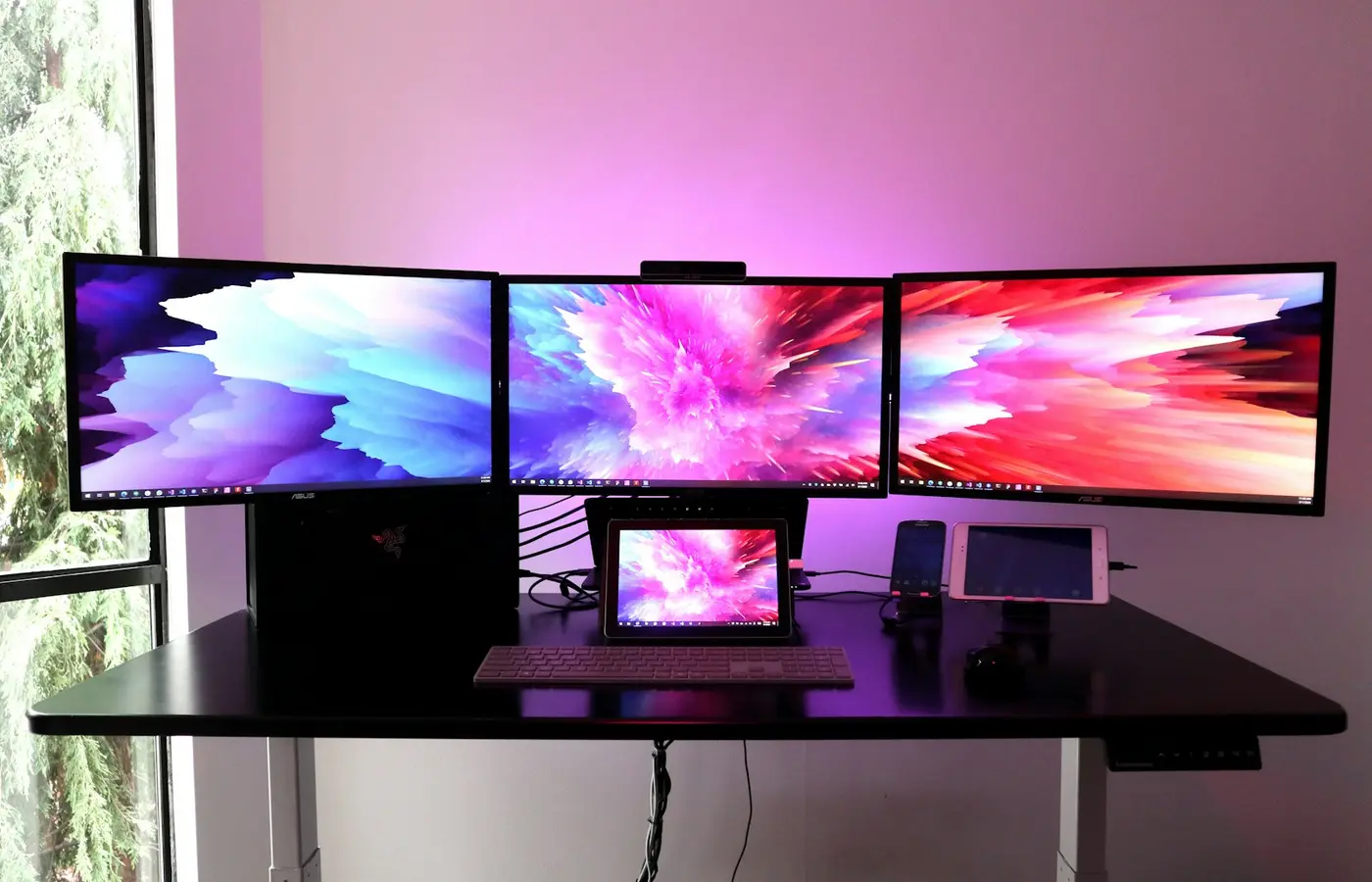
A USB-C connector does not prove that a laptop will work fully with a USB-C dock. The same oval-shaped port may support basic USB data only, video output, charging input, USB4, Thunderbolt, or a different combination of those features.
The safe approach is to verify your exact laptop configuration, the exact dock model, and the complete setup you want to connect: monitors, storage, Ethernet, charging, and other peripherals. A dock can be physically compatible yet still fail to provide the display count, refresh rate, port speed, or charging capacity you expected.
Before buying, start with the laptop’s official specifications or manual—not the dock’s connector photo or a retailer compatibility label.
The Quick Answer: Start With the Laptop Port, Not the Dock
A dock needs a suitable host connection from the laptop. Its USB-C plug may fit your laptop while providing only limited functionality.
For example, a laptop may have a USB-C port that supports:
- USB data for a flash drive or keyboard
- USB Power Delivery charging input
- DisplayPort Alt Mode for native video output
- USB4 or Thunderbolt for higher-bandwidth dock features
- Some, but not all, of the above
Those are separate capabilities. A port supporting USB-C charging does not automatically support external displays. A port supporting video does not automatically support every multi-monitor arrangement advertised by a dock. And a laptop with Thunderbolt or USB4 still has graphics, operating-system, dock, cable, and display limits to consider.
Use the laptop maker’s support page, setup guide, or technical specification sheet for the complete model number. Match the documentation to the laptop’s generation, processor platform, graphics option, and region when those details are listed separately.
Dell’s documentation for the XPS 13 9350 external display connection guide, for example, treats the computer’s graphics configuration, connection method, and port behavior as part of the display decision. That is the right model for any brand: check the system first, then assess the dock.
Identify What Your USB-C Port Actually Supports
Start by locating the exact language used for each USB-C port in your laptop documentation. Do not rely only on the physical connector or a label such as “USB-C.”
Look for these terms.
USB-C: the connector, not the complete specification
USB-C describes the port shape. It does not tell you the maximum data speed, whether it carries DisplayPort video, whether it accepts charging, or whether it supports Thunderbolt.
A USB-C dock can still provide useful USB ports on some laptops with a basic USB-C data connection. But its video outputs, Ethernet speed, card reader, high-speed storage ports, or charging passthrough may be unavailable or constrained.
USB data capability
The laptop documentation may describe a port by its USB generation or transfer-rate class. This affects how much data the dock can move between the laptop and connected devices.
For light peripherals—keyboard, mouse, headset receiver, and occasional flash drive use—a lower-speed connection may be adequate. A dock connected to fast external storage, Ethernet, webcams, audio equipment, and several USB devices needs more careful bandwidth planning.
Do not assume every downstream port on a dock can run at its printed maximum at the same time. The dock’s upstream connection is shared among attached devices, and its manual may identify specific port-sharing restrictions.
DisplayPort Alt Mode
DisplayPort Alt Mode is the feature commonly needed for a USB-C dock to send native video from the laptop to a monitor through the dock’s HDMI, DisplayPort, or USB-C display outputs.
Check whether the laptop maker explicitly says that the relevant USB-C port supports DisplayPort output, DisplayPort Alt Mode, or an equivalent external-display function. If the specification does not say so, ask the manufacturer before treating a conventional USB-C video dock as compatible.
USB4 and Thunderbolt
USB4 and Thunderbolt are high-bandwidth connection technologies that can support advanced docks and multiple devices, but they are not interchangeable product labels. The exact version, implementation, port capability, dock requirements, and laptop graphics limits still matter.
A dock manufacturer may require a Thunderbolt host for its full display or data feature set, while allowing reduced functionality on other USB-C hosts. Read the dock’s host requirements and compatibility notes rather than assuming that “USB4” or “Thunderbolt” guarantees the same result across laptops.
USB Power Delivery
USB Power Delivery concerns charging over USB-C. It is separate from display support and data speed. A laptop can accept USB-C charging but have no native video output on that port; another laptop can output video but require its original charger for full performance.
Check Whether the Laptop Can Drive Your Intended Monitor Setup
Multi-monitor compatibility is a chain, not a single dock specification. The chain includes:
- The laptop’s graphics configuration and output routing
- The laptop port’s display capability
- The dock’s host-connection requirement
- The dock’s documented display combinations
- Each monitor’s resolution, refresh-rate, and input options
- The cable or adapter used for every connection
- The operating system, drivers, firmware, and display settings
Document your desired setup before comparing docks:
- Number of external monitors
- Exact monitor model numbers
- Target resolution and refresh rate for each screen
- Connection type available on each monitor
- Whether you want the laptop’s built-in display active at the same time
- Whether you need HDR, variable refresh rate, or another specific display feature
Then find the laptop maker’s external-display documentation for your exact system. Some manufacturers publish tables showing different limits for integrated and discrete graphics, or for different graphics modes. Dell’s Precision 5770 external-display guide illustrates why this matters: the supported display arrangement can depend on graphics hardware, whether the internal panel is enabled, graphics-controller settings, and the dock itself.
That Dell guide applies to the named Dell model, not to other laptops. Its useful lesson is methodological: monitor limits must be verified for the actual laptop and graphics configuration.
Native video docks versus software-driven display docks
Many docks rely on native DisplayPort or Thunderbolt display output from the laptop. Others use software-driven display technology, which may have different driver, operating-system, and feature requirements.
Do not treat those approaches as equivalent. If a dock uses software-driven display output, read the dock maker’s current operating-system requirements, driver instructions, and stated limitations before purchase. Confirm that the required software is acceptable for your work environment, especially if you use managed business devices, secure systems, high-refresh displays, specialist applications, or protected video playback.
Why a two-monitor dock may only detect one display
A dock’s “dual display” label usually describes what the dock can provide under stated host conditions. It does not override the laptop’s graphics or port limits.
Common reasons for a one-display result include:
- The laptop USB-C port lacks native video output.
- The laptop supports video output but not the required display combination.
- The dock requires Thunderbolt, USB4, or a specific display mode for two monitors.
- The laptop is using a graphics mode with different output limits.
- A monitor, cable, adapter, or dock port does not support the requested signal.
- The dock requires software or firmware that is not installed or supported on the current operating system.
Use the dock maker’s display-support matrix together with the laptop maker’s external-display guide. A dock is only a good fit when both documents support the complete arrangement you intend to use.
Match the Dock to Your Data, Ethernet, Storage, and Peripheral Needs
Displays are often the most visible compatibility issue, but they are not the only one. Check the dock’s upstream connection—the cable or port linking dock to laptop—against the laptop’s supported port mode and data capability.
For each device you plan to connect, list what it needs:
| Device or feature | What to verify |
|---|---|
| External SSD | Upstream bandwidth, dock port speed, cable specification, and whether other dock devices share bandwidth |
| Ethernet | Dock Ethernet speed, driver or operating-system support if specified, and whether the laptop needs a managed-network configuration |
| Webcam or capture device | Required USB bandwidth, port type, software support, and whether the dock documentation identifies restrictions |
| SD or microSD card reader | Supported card format, rated interface, and whether the reader shares a controller with other ports |
| Keyboard, mouse, printer, headset receiver | Available port count, power needs, and any required legacy adapters |
| Audio | Dock audio connectors, operating-system support, and whether you need microphone input as well as headphone output |
A dock with many ports is not necessarily a replacement for separate high-speed storage or networking hardware. If fast external storage is central to your work, check whether the dock documentation describes bandwidth sharing, reduced speed with multiple devices, or ports intended primarily for lower-demand peripherals.
Also verify cable requirements. The cable included with a dock may be appropriate for its advertised use, but replacement cables are not automatically equivalent. A USB-C cable can fit while supporting a different data rate, charging level, or display function.
Treat Charging Through a Dock as a Separate Compatibility Check
A dock that connects monitors and USB devices may still be unable to charge your laptop, or may provide less power than the laptop expects under load.
Check these items separately:
- Does the laptop accept charging through this USB-C port? Find explicit confirmation in the laptop’s specifications or power documentation.
- What power input does the laptop require? Check the supplied adapter rating and any manufacturer notes for the exact graphics or workstation configuration.
- What power does the dock deliver to the host? Use the dock maker’s specification, not a retailer title.
- Does the dock reserve power for its own ports and accessories? Some docks distinguish between their power supply rating and power available to the connected laptop.
- Does the laptop maker warn about reduced performance or require a proprietary adapter? This can matter especially for higher-power systems.
Dell’s XPS 14 DA14260 setup and specifications is an example of the kind of official document to consult: it separates external ports from power-adapter requirements. Use the corresponding documentation for your laptop rather than assuming that a dock’s wattage label establishes support.
If the dock supplies less power than the laptop’s original adapter, do not assume the result will be harmless or sufficient. Check the laptop maker’s guidance. A practical setup may still work for light use, but only the manufacturer can confirm whether the laptop supports that charger arrangement and what limitations may apply.
Use This Model-Specific Dock Compatibility Checklist Before You Buy
Complete this checklist using official documentation for the laptop, dock, and monitors. Save the product pages or manuals with your notes; listings can change.
Laptop record
- Full manufacturer model name and SKU or service tag
- Processor and graphics configuration
- Operating-system version
- Every USB-C, USB4, or Thunderbolt port and its documented capabilities
- Explicit support for DisplayPort output, if required
- Official external-display limits and relevant graphics-mode notes
- USB-C charging support and original adapter rating
Dock record
- Exact dock model and manufacturer part number
- Required host-port type and supported operating systems
- Upstream bandwidth and included host cable specification
- Native or software-driven display method
- Official display matrix for your target monitor arrangement
- Downstream USB speeds, Ethernet, card reader, audio, and other required ports
- Host charging output and dock power-supply rating
- Firmware requirements and update instructions
Display and accessory record
- Exact monitor models, input ports, resolutions, and target refresh rates
- Required display cables or adapters
- External storage, Ethernet, camera, audio, and USB device requirements
- Any work software, security policy, or operating-system restriction that could affect drivers or displays
Purchase safeguards
- Confirm that the retailer’s product code matches the manufacturer’s dock part number.
- Read the retailer’s return policy before opening the package.
- Keep the original laptop charger available until charging compatibility is confirmed.
- If documentation is unclear, contact the laptop or dock manufacturer with the exact laptop SKU, dock part number, monitor models, and desired display modes.
The safest default is simple: buy a dock only when the official documentation supports the entire setup, not merely the fact that the plug fits. If either manufacturer cannot confirm an important requirement, choose a dock with a workable return policy or use a simpler, documented connection path.
FAQ
Will any USB-C dock work with a laptop that has a USB-C port?
No. The connector shape alone does not establish video output, charging input, USB speed, Thunderbolt support, or multi-monitor capability. Check the laptop port description and the dock’s host requirements.
How can I tell whether my laptop’s USB-C port supports DisplayPort video output?
Look for an explicit statement in the official laptop specifications, setup guide, or support documentation that names DisplayPort output, DisplayPort Alt Mode, Thunderbolt display support, or an external-display capability for that port. Do not rely solely on the USB-C shape or a retailer listing.
Why does a dock support two monitors when my laptop only detects one?
The dock’s dual-display claim may require a host connection or graphics capability that the laptop does not provide. Check the laptop’s documented external-display limits, the dock’s display matrix, graphics mode, operating-system requirements, and the cables and monitors in use.
Can a USB-C dock charge a laptop even if the laptop came with a larger power adapter?
Possibly, but it must be verified separately. Confirm that the laptop accepts USB-C charging, compare the dock’s stated host power output with the laptop’s requirements, and check the laptop manufacturer’s guidance for warnings, reduced-performance conditions, or proprietary charging requirements.