2-in-1 vs. Clamshell Laptop: Which Form Factor Fits Your Work?
Choose between a convertible 2-in-1 and a clamshell laptop by comparing touch, pen support, tablet modes, keyboard use, portability, and total cost.
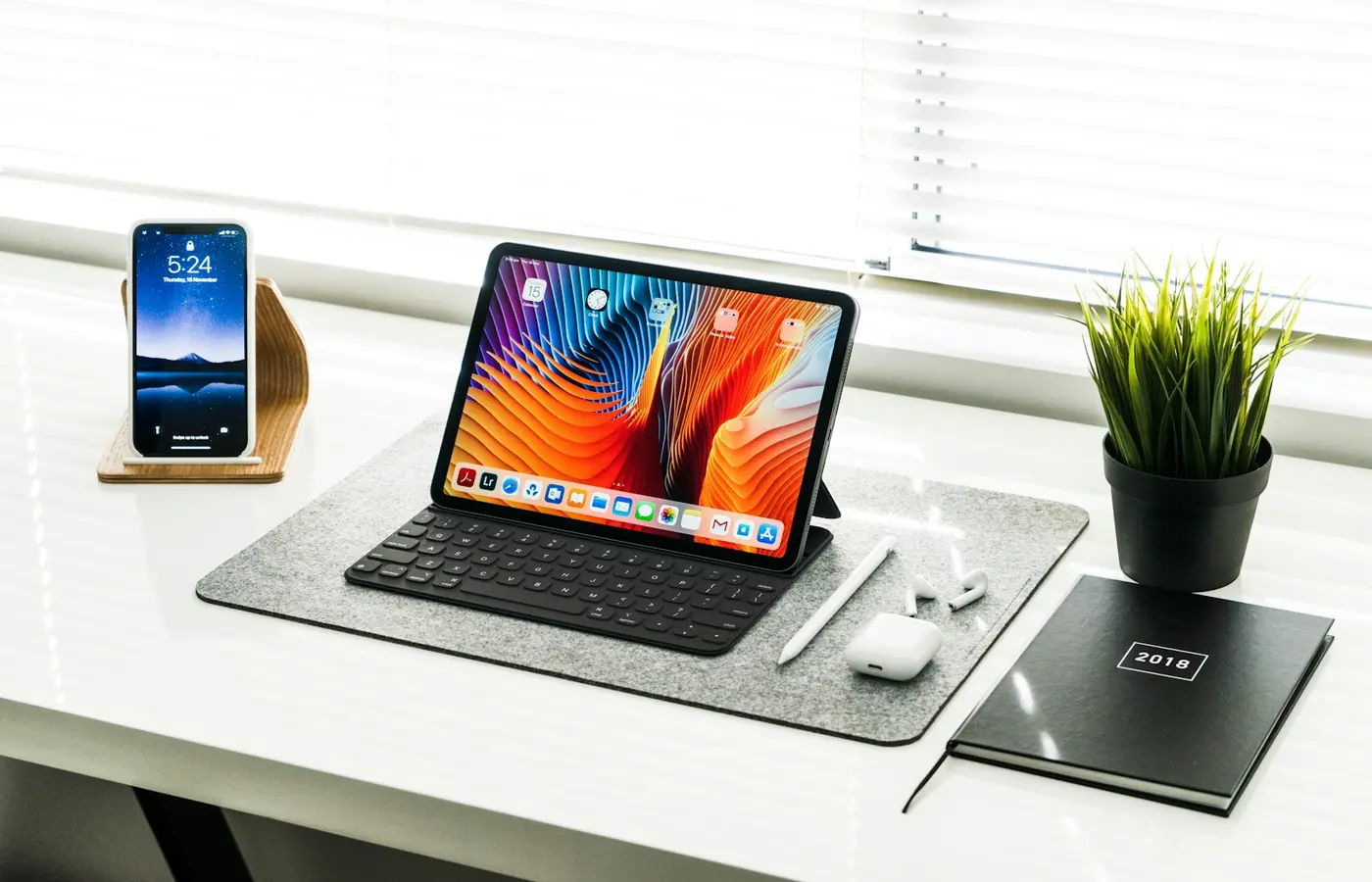
A 2-in-1 laptop is worth paying for when you will use touch, pen input, or alternate screen positions as part of your normal work. If most of your day involves typing at a desk, working on your lap, managing spreadsheets, writing, coding, or running demanding software, a traditional clamshell is usually the safer default.
The important distinction is not whether a laptop has a touchscreen. It is whether the device’s design changes how you can realistically use it. A convertible 2-in-1 can solve a genuine problem for someone who marks up PDFs, writes handwritten notes, presents to clients, or reads reference material while standing. For everyone else, the extra flexibility may be a feature that remains unused while affecting price, weight, accessory choices, or configuration options.
The short answer: choose the form factor around how you work
Choose a convertible 2-in-1 if one or more of these tasks is frequent enough to matter:
- Handwriting notes, annotating documents, or marking up PDFs with a compatible active pen.
- Presenting slides, videos, diagrams, or dashboards across a table.
- Reading, reviewing, or referencing material where touch scrolling and a folded-back screen are more convenient than a keyboard.
- Working in classrooms, meetings, clinics, shops, or other spaces where a conventional laptop position is awkward.
- Carrying one Windows laptop instead of a separate laptop and occasional-use tablet.
Choose a clamshell laptop if your priority is primarily:
- Long writing, coding, spreadsheet work, email, or other keyboard-led tasks.
- Stable lap use and a familiar fixed keyboard deck.
- Comparing the broadest range of performance, port, display, and upgrade configurations.
- Buying the strongest configuration that fits a set budget.
- Keeping a laptop and tablet as separate tools because you already use a capable tablet regularly.
Microsoft describes a 2-in-1 as an evolution of the notebook that can move between laptop and tablet use, generally as either a convertible or detachable design. That ability to change modes—not touch capability alone—is the defining feature. Microsoft’s 2-in-1 form-factor guidance is useful background, but the exact modes and accessories still depend on the individual model.
What a convertible 2-in-1 changes—and what it does not
“2-in-1” covers two designs that should not be treated as interchangeable.
| Form factor | What changes | Best fit | Main check before buying |
|---|---|---|---|
| 360-degree convertible | The screen folds behind the attached keyboard | Buyers who mostly need a laptop but occasionally want tent, stand, or tablet modes | Confirm hinge modes, pen support, and whether the pen is included |
| Detachable 2-in-1 | The screen separates from a keyboard cover or dock | Buyers who genuinely want a lighter tablet portion | Check keyboard inclusion, lap stability, ports, and total weight with keyboard |
| Touchscreen clamshell | The screen accepts touch but does not fold into tablet mode | Buyers who want occasional touch input without a convertible design | Verify whether touch is useful to your software and whether pen support exists |
| Standard clamshell | Fixed keyboard and display arrangement | Keyboard-first work and straightforward value comparisons | Compare the complete CPU, memory, display, port, and storage configuration |
A 360-degree convertible keeps its keyboard attached and folds it behind the display. A detachable removes the screen from its keyboard section. HP’s overview of convertible and detachable 2-in-1 designs explains why detachables can feel more tablet-like while convertibles tend to resemble conventional laptops more closely in laptop mode.
A touchscreen clamshell is different. It may let you tap controls, scroll webpages, or sign a document, but it is not automatically a 2-in-1. It usually cannot stand in tent mode, fold into a presentation position, or become a tablet.
Likewise, do not assume every touchscreen supports a proper active pen. A product listing should explicitly state the compatible pen model or protocol, whether pressure-sensitive input is supported, how the pen charges, and whether it comes in the box. A passive capacitive stylus that imitates a finger is not the same thing as an active pen intended for handwriting or drawing.
Buy a 2-in-1 only if touch, pen, or alternate modes are useful often enough
The best reason to buy a 2-in-1 is not versatility in the abstract. It is a repeated task that becomes easier when the keyboard moves out of the way.
Handwritten notes and PDF annotation
A convertible can make sense for students, teachers, consultants, and professionals who regularly write on slides, diagrams, forms, or PDFs. This use case depends on more than the screen being touch-enabled. Before treating a laptop as a note-taking device, verify:
- The exact pen model the laptop supports.
- Whether the pen is bundled in your region or sold separately.
- How the pen charges or stores.
- Whether the software you use supports handwriting, ink annotation, or pen shortcuts.
- Whether the screen size and aspect ratio suit the documents you will annotate.
If handwritten work is only occasional, a touchscreen clamshell or a separate tablet may be enough. Paying for a convertible design is easier to justify when pen input replaces printing, carrying paper notes, or switching between devices several times each week.
Tent and stand modes
Tent and stand modes can be practical for presentations, video calls, recipe viewing, training material, or touch-based reference work. They can also place the screen closer to eye level when paired with an external keyboard.
But they do not turn a Windows laptop into the same experience as a purpose-built tablet. Application interfaces, keyboard shortcuts, window management, battery behavior, and software design remain those of the operating system and apps you choose. A convertible should be viewed as a laptop with useful alternate positions, not automatically as a replacement for every tablet workflow.
Tablet mode
Tablet mode is most convincing on a detachable because the tablet section leaves the keyboard behind. With a 360-degree convertible, the keyboard remains attached on the back of the display. That can be perfectly workable for reading, browsing, and note-taking, but the device still carries the keyboard’s size and weight.
If you expect to hold the device in one hand for long periods, compare the manufacturer’s stated tablet-section weight on a detachable—or the complete system weight on a convertible—rather than relying on the 2-in-1 label.
Keyboard comfort, lap use, and portability can favor a clamshell
A clamshell’s fixed design has a simple advantage: it is built for the position most laptop owners use most often. The keyboard stays below the screen, the bottom half provides a stable base, and there is no need to decide whether to fold, detach, or prop up the display.
That does not mean every clamshell keyboard is better than every convertible keyboard. Key travel, layout, palm-rest size, hinge stiffness, chassis rigidity, and screen size all vary by model. Keyboard comfort is personal, so it is better to test a return policy and inspect the exact layout than to trust a form-factor rule.
Still, the design trade-offs are predictable:
- Convertibles usually work much like clamshells in normal laptop mode, but their keyboards sit on the back when folded into tablet mode.
- Detachables can be lighter in tablet use because the keyboard separates, but the screen-heavy arrangement may be less convenient on an unstable lap or small surface.
- Clamshells keep the most conventional typing and lap-use arrangement, with fewer mode changes to manage.
Portability also has to be compared model by model. Screen size, battery capacity, materials, cooling hardware, graphics options, and regional configurations can all change the listed weight. A 14-inch convertible is not automatically heavier than every 14-inch clamshell, and a detachable’s tablet weight is not its weight when the keyboard is attached.
Do not assume a 2-in-1 is weaker, heavier, or less upgradeable
Form factor is a poor substitute for comparing specifications that affect ownership. There are thin clamshells with soldered memory and limited ports; there are convertibles with strong processors and useful connectivity. There are also detachable designs that make sense only when their keyboard cover and pen are included in the budget.
Before choosing either category, compare the complete configuration using the manufacturer’s specification sheet and service documentation where available.
Check the parts that affect your real workload
- Processor: Compare the full CPU name, not just its brand or generation.
- Graphics: Determine whether the exact SKU uses integrated graphics or a discrete GPU, and do not assume a GPU badge tells you its power limits.
- Memory: Check capacity, whether it is soldered, and whether future expansion is supported.
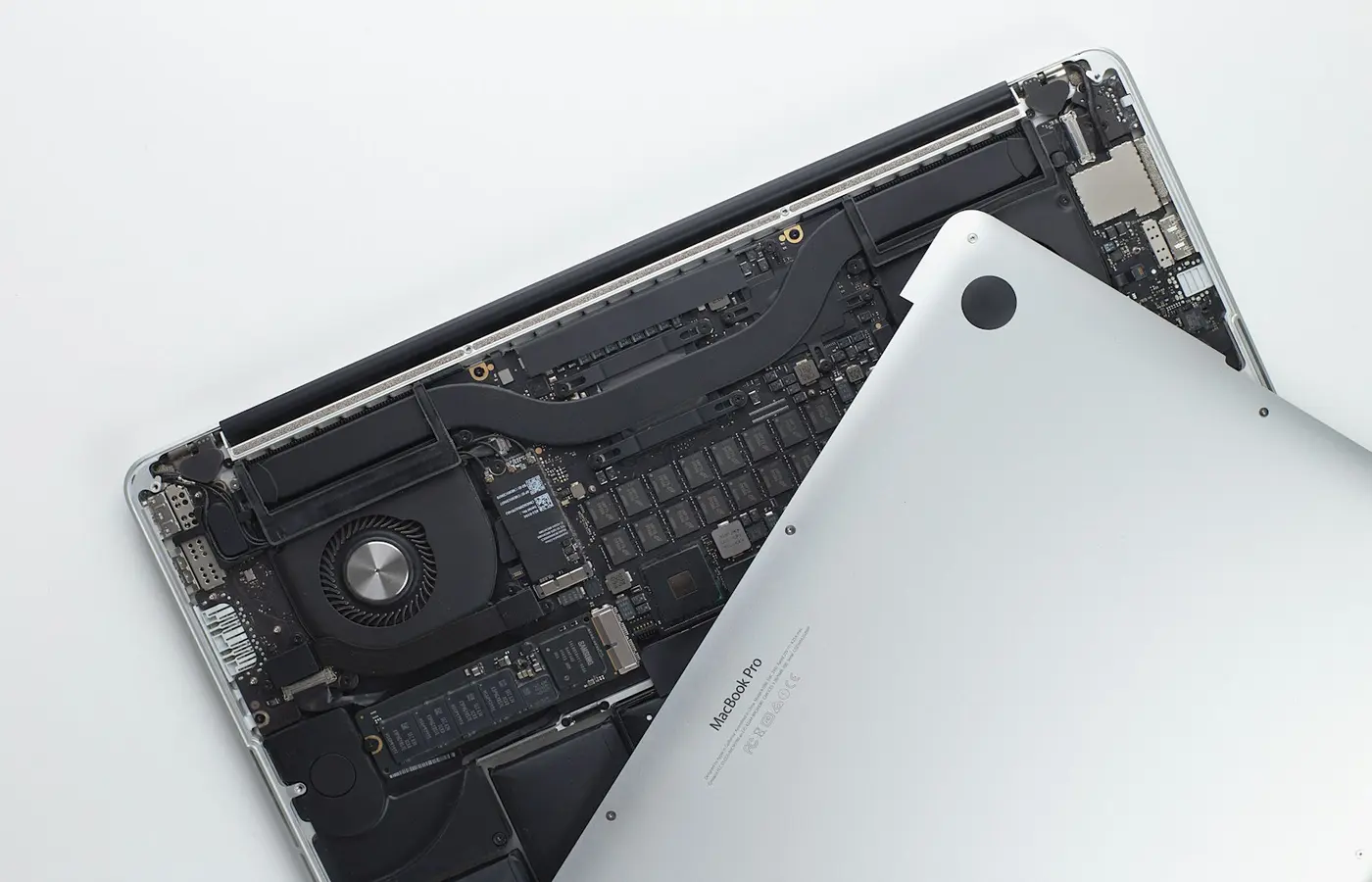
- Storage: Confirm capacity and whether the SSD is accessible through a documented service procedure.
- Display: Verify screen size, resolution, panel type, touch support, refresh rate, and any privacy or finish option.
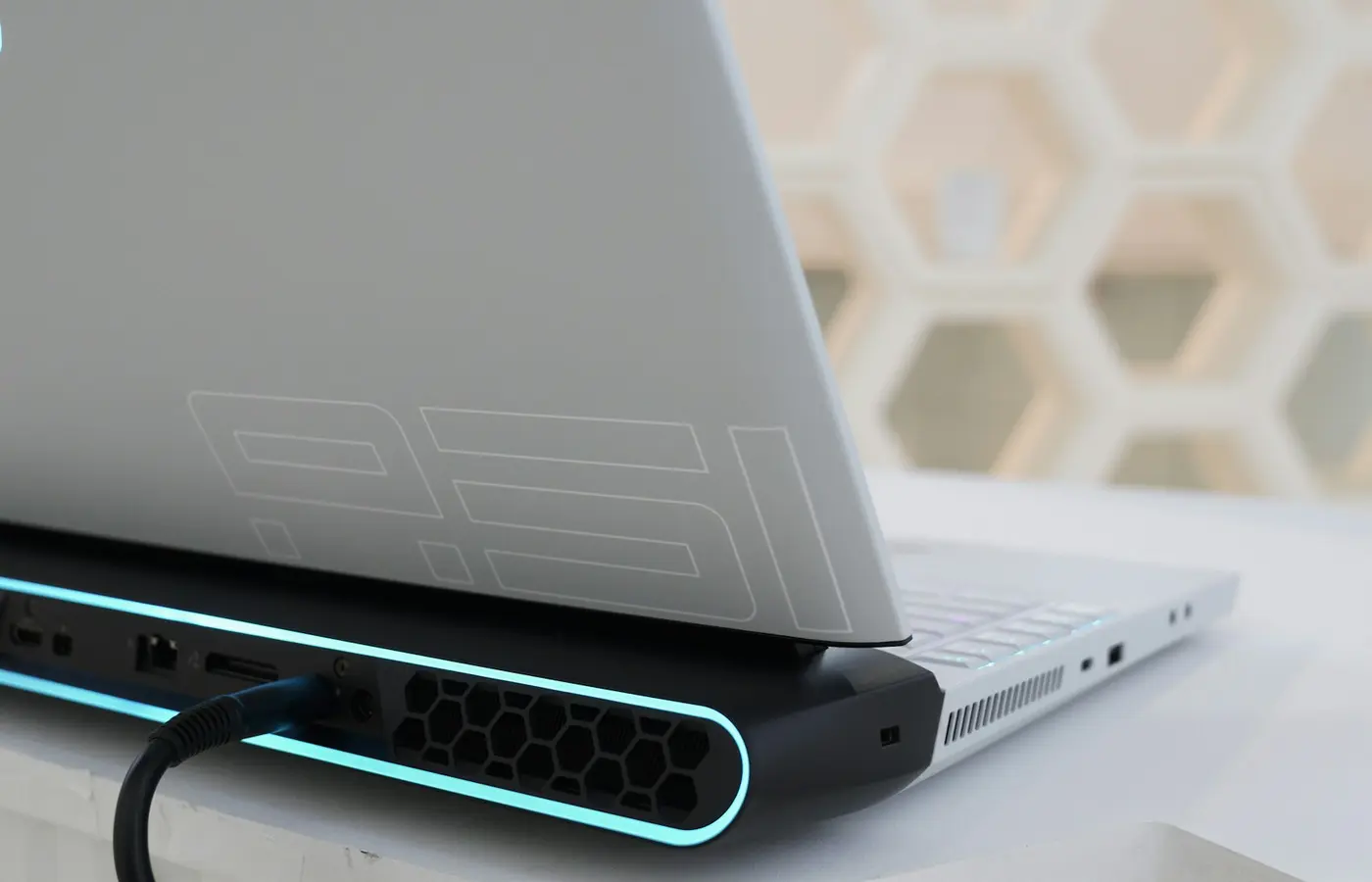
- Ports and charging: Count the exact USB, video, card-reader, and audio connections. Check whether charging requires a proprietary adapter or supports USB-C charging.
- Wireless and docking needs: Verify your existing dock, monitor, adapter, and network requirements against the laptop’s documentation.
- Warranty and repair path: Review local warranty terms, parts availability, and the service manual before assuming a component is user-replaceable.
This is especially important when retailer listings group several configurations under one product name. A single model family may include different displays, storage sizes, processors, wireless cards, chargers, or memory arrangements. Match the part number at checkout to the specification page rather than relying on the family name alone.
Price the complete setup, not the headline laptop
A 2-in-1 comparison becomes misleading when it stops at the laptop’s listed price. The usable setup may require accessories that are optional, region-dependent, or configured separately.
For a fair comparison, build a checkout list for each candidate:
- Exact model number or SKU.
- Processor, memory, storage, and display configuration.
- Whether touch is included.
- Exact compatible active pen and whether it is in the box.
- Keyboard cover or detachable keyboard inclusion.
- Charger type and included wattage.
- Protective case, dock, adapter, or external keyboard needs.
- Warranty length, accidental-damage options, and return window.
Do not assume that a 2-in-1 always costs more or that a clamshell always delivers better value. Those outcomes depend on the configurations available in your market at the time you buy. Check current manufacturer listings first, then reconcile reputable retailer listings with the same part number. Treat a sale price and included accessory bundle as dated conditions, not permanent product traits.
The safer default by buyer type
A clamshell is the sensible starting point for many buyers because most laptop work is still keyboard-led. The convertible premium is easiest to justify when alternate modes are part of the job rather than a pleasant extra.
Choose a 2-in-1 if you are:
- A frequent note-taker or annotator: Buy only after confirming active-pen compatibility, included accessories, and handwriting software support.
- A presenter or client-facing worker: Stand and tent modes can be genuinely useful for sharing a screen in small meetings.
- A student who writes digital notes: A convertible can consolidate note-taking and laptop work, provided the pen experience is verified for the exact model.
- A touch-first reference user: The design can be useful for reading, scrolling, forms, and documents away from a desk.
- A buyer replacing both an older laptop and an occasional-use tablet: A convertible may reduce the number of devices you carry, though it will not necessarily replace a dedicated tablet for every purpose.
Choose a clamshell if you are:
- A writer, coder, analyst, or remote worker: Prioritize keyboard layout, screen size, ports, memory, webcam needs, and external-monitor support.
- A buyer focused on performance-oriented work: Compare exact CPU, GPU, cooling, memory, and charger specifications rather than assuming either form factor is inherently faster.
- A gamer or creator with demanding software: Start with the performance and display requirements, then see whether a convertible configuration actually meets them.
- An occasional touch user: A touchscreen clamshell may provide enough convenience without paying for folding hardware you will rarely use.
- Someone who already owns a good tablet: A conventional laptop may complement that tablet better than duplicating its role.
Frequently asked questions
Is a touchscreen clamshell laptop the same as a 2-in-1?
No. A touchscreen clamshell can accept touch input, but it usually keeps a conventional laptop hinge and cannot convert into tablet, tent, or stand modes. A 2-in-1 is designed to change between laptop and tablet-oriented use, either through a 360-degree hinge or a detachable keyboard.
Are 2-in-1 laptops good for handwritten notes and PDF annotation?
They can be, but only when the exact model supports a suitable active pen and the pen works with the apps you use. Confirm the compatible pen model, whether it is included, charging method, and software support before buying. Touchscreen support alone does not guarantee a good handwriting experience.
Is a 2-in-1 laptop practical to use on your lap?
A 360-degree convertible is generally used like a normal laptop when its screen is in the standard position. Detachables can be less straightforward because their display section may be heavier than the keyboard portion and their kickstand needs space behind the device. If lap use is important, try the exact design or buy from a seller with a workable return policy.
Should I buy a 2-in-1 if I already own a tablet?
Usually only if the 2-in-1’s pen, touch, and alternate modes would replace a repeated laptop task. If your tablet already handles reading, handwriting, media, or casual touch use well, a clamshell may be the better complement because it lets you focus your budget on keyboard comfort, ports, display, memory, and performance.
The practical conclusion is simple: buy a 2-in-1 for a workflow, not for the possibility of one. If you can name when you will use pen input, tablet mode, tent mode, or stand mode each week, compare convertible configurations carefully. If you cannot, a well-configured clamshell is usually the more straightforward and lower-risk choice.