Why Your Laptop Battery Drains in Sleep Mode—and What to Check
Learn why a laptop battery can drain in sleep mode, how to check for Modern Standby activity, and when to use hibernate or contact support.
A small amount of battery use while a laptop is asleep is not automatically a fault. Many current Windows laptops use Modern Standby, a low-power screen-off state that can still perform limited background work. But a laptop that loses a large, repeatable amount of charge, becomes warm in a bag, or appears to wake itself needs closer attention.
Start by identifying which sleep state your laptop supports, then test its behavior in a controlled way. Do not assume every Windows laptop can use the same sleep settings, switch to legacy sleep, or safely stay asleep during travel.
First, separate normal standby use from a problem
Sleep is not the same as shutting down. In a traditional sleep state, the computer preserves your work in memory while reducing power use. On many newer Windows systems, Modern Standby keeps the device ready to resume quickly and may permit short periods of background activity.
Microsoft describes Modern Standby as a screen-off state in which the system can remain connected and perform controlled work when required. A laptop does not need to look awake for this activity to occur; the display can remain off while the system responds to network, software, or platform events. Microsoft’s Modern Standby overview explains that a Modern Standby session includes more than one low-power condition rather than one fixed level of inactivity.
That means there is no universal percentage of sleep-mode battery loss that is acceptable for every laptop. Results can vary with:
- The laptop’s supported sleep design and firmware
- Battery age and condition
- Wi-Fi, Ethernet, mobile broadband, or Bluetooth activity
- USB devices, docks, storage drives, and chargers
- Installed drivers and background software
- Windows updates or scheduled maintenance
- Whether the laptop was placed in a bag before it had fully entered its low-power state
Treat the issue as worth investigating when you see a repeatable pattern rather than one isolated result. Unexpected warmth matters more than a single battery reading: a warm laptop in a closed bag may be doing work when it should be idle, and trapped heat is not something to dismiss as normal sleep behavior.
Check which sleep state your laptop supports
The available troubleshooting path depends on the laptop’s supported power states. Before changing settings, open Command Prompt as a normal user and run powercfg /a.
Windows will list the sleep states available on that particular device and those that are unavailable. If the output lists Standby (S0 Low Power Idle), the laptop uses Modern Standby. It may be listed as connected or disconnected standby depending on the platform and configuration.
Microsoft identifies powercfg /a as a way to confirm whether a system supports Modern Standby. On a compatible system, the output can show either Standby (Connected) or Standby (Disconnected). See Microsoft’s Modern Standby energy-efficiency guidance for the terminology.
Do not try to force a sleep state that powercfg /a says is unavailable. Guides that recommend registry edits or BIOS changes to restore older S3 sleep are not safe as general advice. Sleep-state support depends on the laptop platform, firmware, drivers, and manufacturer design. A setting that works on one model can cause failed sleep, unreliable waking, missing devices, or support complications on another.
If you need model-specific information, search the manufacturer support site using the exact model or product number from the laptop’s underside label, support app, invoice, or firmware information page. A product-family name alone may not be precise enough because different configurations can use different wireless cards, firmware, or power behavior.
Run a safe sleep-drain check before changing settings
A controlled check gives you more useful information than changing several settings at once. It also helps distinguish sleep drain from ordinary battery aging or a laptop that never actually entered sleep.
Prepare the laptop
- Charge the laptop to a convenient level and note the battery percentage and current time.
- Save your work and close applications that are not needed for the test.
- Disconnect nonessential accessories, especially USB hubs, external drives, dongles, docks, controllers, and wired Ethernet adapters.
- If you normally use a dock, test once without it before blaming the laptop itself.
- Place the laptop on a hard, ventilated surface rather than inside a sleeve, drawer, backpack, or car.
- Put the laptop to sleep using the Start menu or the power button only if the power button is configured for sleep.
Leave it undisturbed for a period that is useful for comparison. Record the battery level when you wake it, along with whether the chassis was noticeably warm and whether it resumed immediately or appeared to have restarted.
Repeat the same test once if the first result is unusual. Keep the conditions similar: use the same location, disconnect the same accessories, and avoid comparing a quiet overnight period with a day when updates or downloads may have been active.
Then run a separate comparison using hibernation, if your laptop offers it. Hibernation saves the session to storage and powers down more completely than sleep. If battery loss is much lower in hibernation under otherwise similar conditions, sleep behavior—not necessarily the battery itself—becomes the more likely area to investigate.
Do not run this test inside a bag. If the laptop wakes unexpectedly while enclosed, it can become hot because airflow is restricted. If it is already warm, shut it down, move it to a clear hard surface, and allow it to cool before continuing.
Find signs of wake activity and background work
Modern Standby is designed to spend as much time as possible at a very low-power level. Microsoft refers to the deepest runtime idle platform state as DRIPS. When the computer is doing background work, receiving network-related activity, or responding to an activator, it may spend time outside that deepest state. Microsoft’s standby debugging guidance explains why more time spent doing active work can reduce standby efficiency.
Possible causes of unwanted activity include:
- A network connection that wakes the platform for supported communication
- A wireless, USB, Bluetooth, or dock accessory
- A driver that does not handle low-power transitions correctly
- Background software, sync tools, updates, or scheduled tasks
- Firmware behavior specific to the laptop model
Windows can provide power-related diagnostic information on supported systems, but report availability and detail vary by Windows version and sleep model. If you use built-in diagnostics, save the report and note the date, battery level, connected accessories, and whether the laptop was on battery power. That context is often more useful to manufacturer support than a statement that the battery “drained overnight.”
You can also review whether the laptop is waking when you do not expect it to. Check the timing of the battery drop against Windows updates, security software activity, cloud sync, newly installed peripherals, or a recently connected dock. If the behavior started immediately after a driver, firmware, or Windows update, record that timeline rather than assuming the battery has failed.
Modern Standby wake sources can include platform devices and networking behavior. Microsoft notes that connected Modern Standby systems can remain available for network-related events while appearing off. Read its wake-source documentation before interpreting all background activity as a defect.
Review power, network, and peripheral settings carefully
Start with reversible Windows settings rather than device-manager changes, registry edits, or firmware modifications.
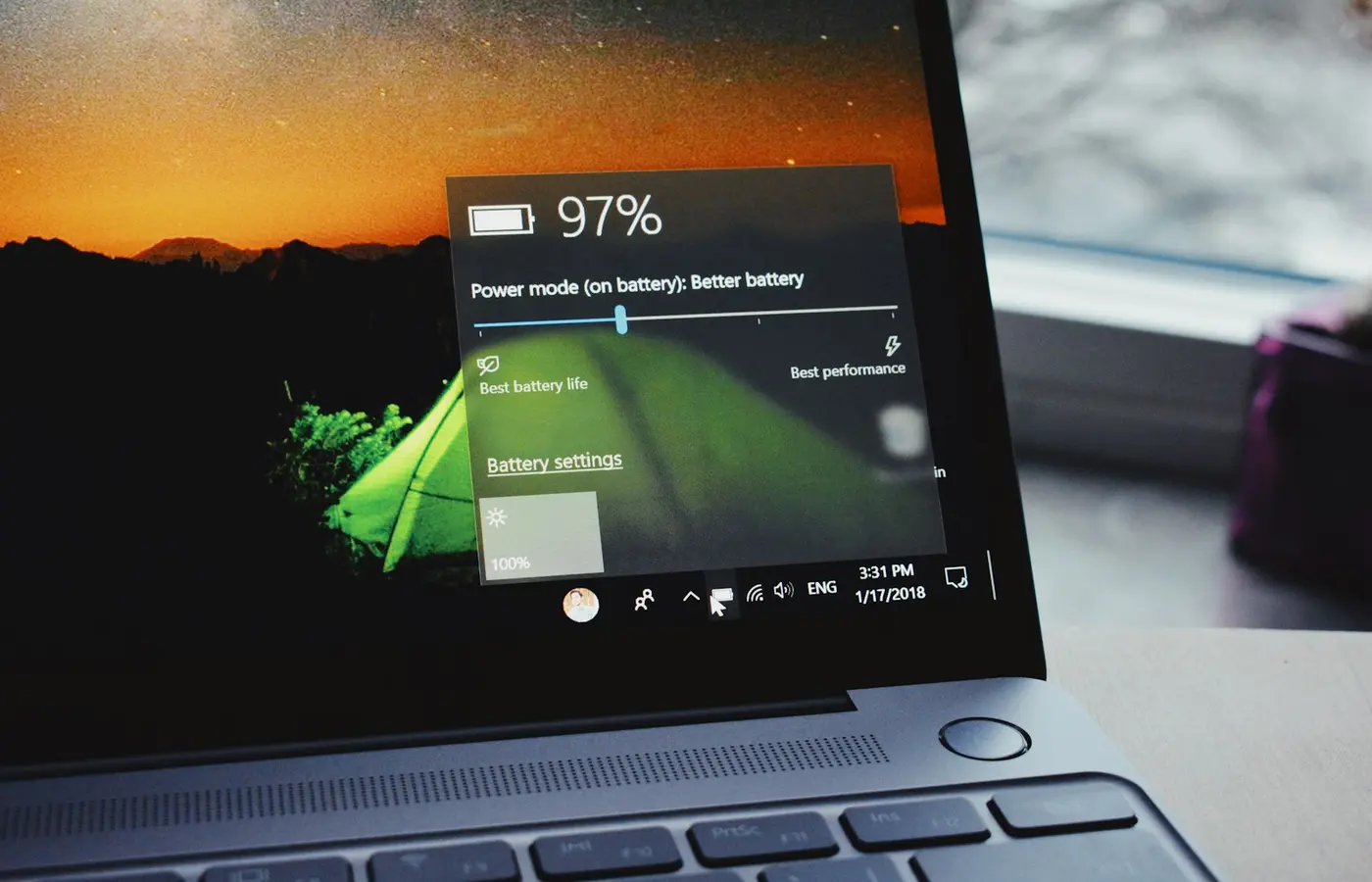
Open Settings > System > Power & battery and review the available options. Windows 11 may expose Power mode, Energy saver, and screen, sleep, and hibernate timeouts. Microsoft notes that a more efficiency-focused power mode can limit background activity, while shorter screen and sleep timeouts reduce idle time before the laptop sleeps. See Power settings in Windows 11.
These settings do not guarantee that every Modern Standby laptop will use identical power. They are still useful checks because they let you confirm that the computer is actually entering sleep when you think it is.
Work through the following in order:
- Confirm the sleep timeout. Make sure the laptop is set to sleep after a period that matches your expectations when on battery power.
- Check hibernation availability. If hibernate is available, consider using it for longer gaps between sessions.
- Disconnect accessories for comparison. A dock or USB device can change wake behavior or keep a component active.
- Review recent changes. Note newly installed software, VPN tools, remote-access tools, drivers, or Windows updates.
- Use the laptop maker’s update path. If the manufacturer has a model-specific BIOS, wireless-driver, chipset-driver, or power-management update that explicitly addresses sleep, battery, or heat behavior, follow its instructions exactly.
Avoid disabling random devices merely because they appear in a forum post. Network adapters, input devices, and USB controllers can be essential to normal wake behavior. If a manufacturer support article identifies a specific setting for your exact model, follow that guidance and document the original setting before changing it.
Use hibernate or shut down when sleep is not the right mode
Sleep is useful when you need a fast resume and will return to the laptop soon. It is less suitable for every situation.
Use hibernate when you want to preserve open work but expect a longer break, are travelling, or have observed repeatable sleep drain. Use shut down when the laptop will be stored for an extended period, packed tightly for travel, or behaving unpredictably in sleep.
This is a practical trade-off:
| Situation | Safer default |
|---|---|
| Short break at a desk with ventilation | Sleep may be appropriate |
| Overnight away from a charger | Test sleep first; hibernate is a lower-risk fallback |
| Backpack, laptop sleeve, or travel day | Hibernate or shut down |
| Laptop is warm after sleeping | Shut down and investigate before carrying it |
| Repeatable battery loss during sleep | Use hibernate while diagnosing the cause |
If hibernate is missing, check the Windows power settings and the manufacturer’s support guidance for your exact model. Do not assume the absence of a visible option means the laptop is defective; availability can depend on system configuration and administrator policies.
When to stop troubleshooting and contact support
Power settings are not the right answer to every battery issue. Stop experimenting and seek manufacturer service or qualified repair support if you notice any of the following:
- The laptop becomes very warm while asleep, especially in a bag or closed space
- The battery swells, the case separates, or the trackpad or keyboard begins to lift
- You notice an unusual odor, deformation, leakage, or charging abnormalities
- The battery drains rapidly even while the laptop is fully shut down
- Sleep drain began after a documented firmware, driver, or operating-system change and persists after following the maker’s official guidance
- The laptop repeatedly wakes despite basic settings checks and disconnected accessories
- The computer will not wake reliably, restarts instead of resuming, or reports battery errors
A swollen or damaged battery is a safety issue, not a tuning project. Stop using and charging the laptop if you suspect physical battery damage, and follow the manufacturer’s battery-service instructions for the exact model.
When contacting support, provide the full model number, Windows version, BIOS or firmware version if available, connected accessories, and a short record of your controlled sleep and hibernation tests. That gives support a better starting point than a general complaint about poor battery life.
FAQ
Is it normal for a laptop battery to drain in sleep mode?
Some battery use can be normal, particularly on a Windows laptop using Modern Standby. The important question is whether the loss is repeatable and accompanied by warning signs such as unexpected warmth, wake events, or much better results in hibernation.
How can I tell whether my laptop uses Modern Standby?
Run powercfg /a in Command Prompt. If Windows lists Standby (S0 Low Power Idle), the laptop supports Modern Standby. Do not assume that an unavailable older sleep state can be enabled safely.
Why does my laptop get warm while it is asleep in a bag?
The laptop may have been doing background work, waking unexpectedly, or not fully entering its lowest-power condition before it was packed. Remove it from the bag, shut it down if it is warm, and test sleep again on a hard, ventilated surface. Repeated warmth warrants manufacturer support guidance.
Should I use hibernate instead of sleep when travelling?
Usually, yes. Hibernate is a sensible option when the laptop will be in a backpack, sleeve, or other enclosed space, or when you need to preserve battery over a longer break. Shut down is the safer choice if the laptop has shown unpredictable sleep or heat behavior.
A laptop battery that drains in sleep mode is not always evidence of a failing battery. First identify the supported sleep state, test the behavior under controlled conditions, and remove accessories from the equation. If the laptop remains warm, wakes unexpectedly, or loses charge rapidly even when shut down, stop treating it as a settings problem and use model-specific manufacturer support.