Laptop GPU TGP Explained: Check Power Limits Before Comparing Graphics Cards
Laptop GPU TGP can change how the same graphics chip performs. Learn what to check in specs, modes, cooling, and independent tests before buying.
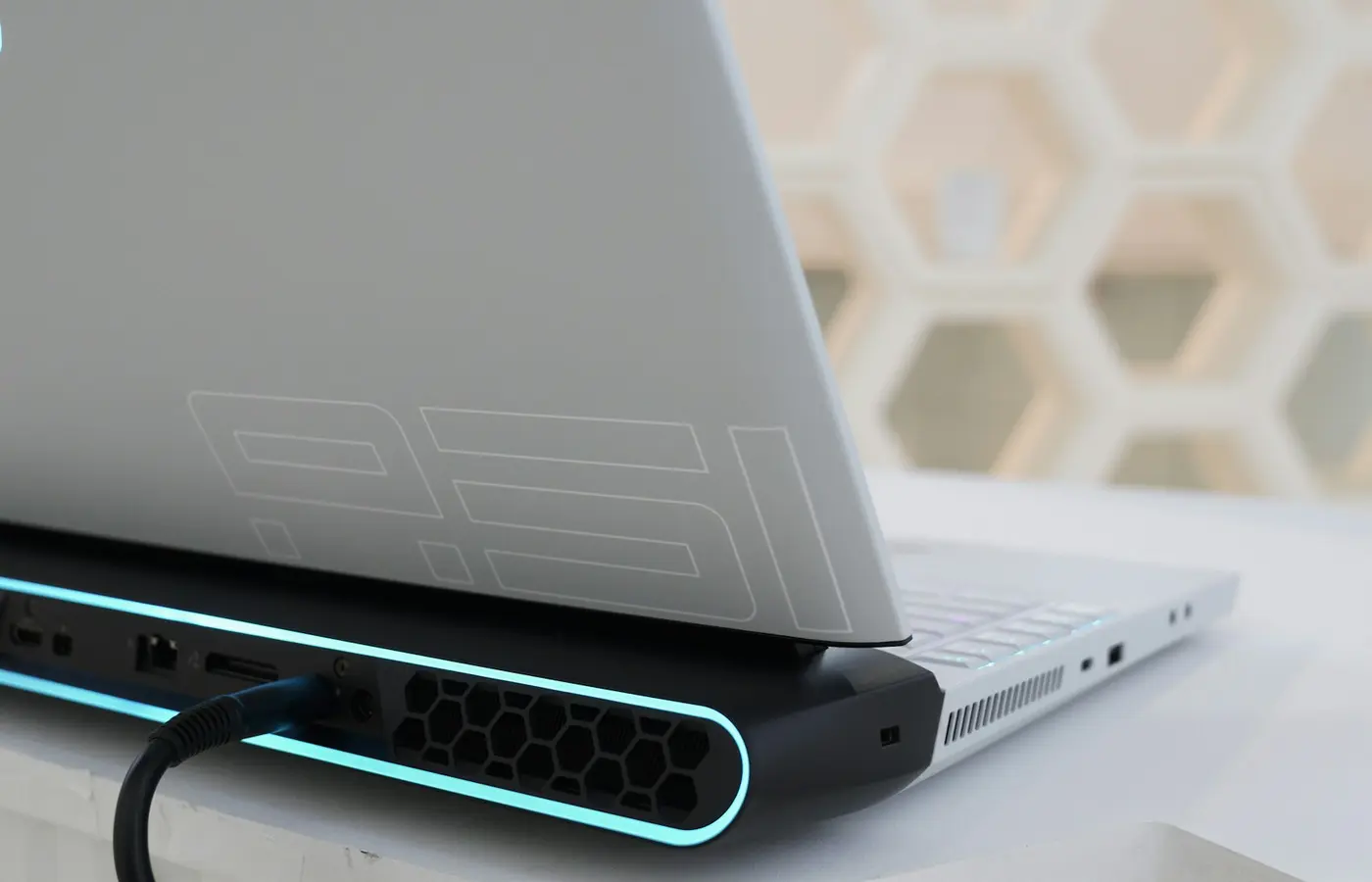
A laptop GPU name is not a complete performance specification. Two laptops advertised with the same GeForce RTX or Radeon GPU may have different configured power limits, cooling capacity, CPU pairings, firmware profiles, chargers, and displays. Treating them as automatic equivalents can lead to a poor comparison.
The practical buying rule is simple: compare the exact laptop configuration, not the GPU badge alone. Find the regional model number, check the manufacturer’s stated GPU power information and the conditions attached to it, then look for independent testing of that same configuration in the same performance mode.
This is a purchasing framework, not original Laptop Advices testing. A stated wattage can help explain why two systems differ, but it does not guarantee a particular frame rate, temperature, noise level, or sustained result.
The buying answer: do not compare laptop GPUs by name alone
A laptop GPU is built into a complete system with limits that desktop graphics cards generally do not share. The laptop maker decides how much electrical power the GPU may receive, how the CPU and GPU share the system’s available power, what performance profiles the firmware offers, and how much heat the chassis can manage.
That means an “RTX 5070 Laptop GPU” or “RTX 4060 Laptop GPU” label identifies the GPU family, but not the complete performance behavior of the laptop containing it.
A thin laptop may use a lower GPU power target because its cooling system and power adapter are designed around portability. A larger gaming laptop may allow more GPU power under a Turbo or Performance mode, often while connected to its supplied charger. Neither approach is automatically wrong. They are different design choices.
The safest default is not necessarily the laptop with the largest advertised wattage. It is the laptop with:
- A clearly identified model number and regional SKU
- A manufacturer disclosure that explains the GPU power figure
- A configuration that suits your games or applications
- Independent reviews that identify the tested mode, settings, and hardware
- Ownership details that fit your needs, including ports, charger size, warranty, and service documentation
Independent analysis has also cautioned against treating advertised maximum TGP as a complete predictor of real-world results. For example, LaptopMedia’s comparison of RTX 4060 laptop implementations argues that a listed maximum alone cannot fully describe measured performance across different laptop designs. That is an external publication’s conclusion, not a Laptop Advices measurement, but it supports a sensible shopping approach: verify the whole configuration.
What TGP and GPU power limits describe—and what they do not
TGP is commonly used as shorthand for a laptop GPU’s configured power level. Depending on the manufacturer, product generation, and documentation, you may also see terms such as GPU power, maximum graphics power, total graphics power, or maximum TGP.
The important point is that these labels are not always interchangeable.
A manufacturer may publish:
- A base or standard GPU power figure
- An additional Dynamic Boost allowance
- A maximum GPU power figure that includes the additional allowance
- Different figures for Turbo, Performance, Manual, or other selectable modes
- A range rather than one fixed number
Do not assume that every figure means the GPU will draw that amount continuously in every workload. It may be a limit, a target, an upper bound under stated conditions, or a value available only in a specific mode.
ASUS provides a useful example of why the details matter. Its 2025 ROG and TUF GPU power specification table separates TGP, Dynamic Boost, and maximum GPU power for listed model numbers and modes. In that table, the relationship between those fields is explicitly presented for particular ASUS laptops; it should not be assumed to apply unchanged to another brand, older generation, or regional variant.
A wattage number is not a frame-rate promise
A higher permitted GPU power can provide more performance headroom in workloads that are substantially GPU-limited. But it does not create a universal formula such as “an extra 20W equals a certain percentage more performance.”
The result can change with:
- The GPU generation and architecture
- The game, application, driver, and software version
- Resolution and image-quality settings
- Upscaling, ray tracing, and frame-generation settings
- CPU performance and CPU power allocation
- System memory capacity and configuration
- Cooling behavior over a sustained workload
- The selected laptop performance mode
A game that is limited by the CPU may show little benefit from additional GPU power. At a higher resolution or more demanding graphics settings, the same laptop may become more GPU-limited and react differently. This is why a specification table is a starting point, not the final answer.
Cooling, CPU demand, and performance modes change sustained behavior
Two laptops can list similar maximum GPU power and still deliver different results. The power number describes one constraint; it does not reveal every limit inside the system.
Cooling is part of the configuration
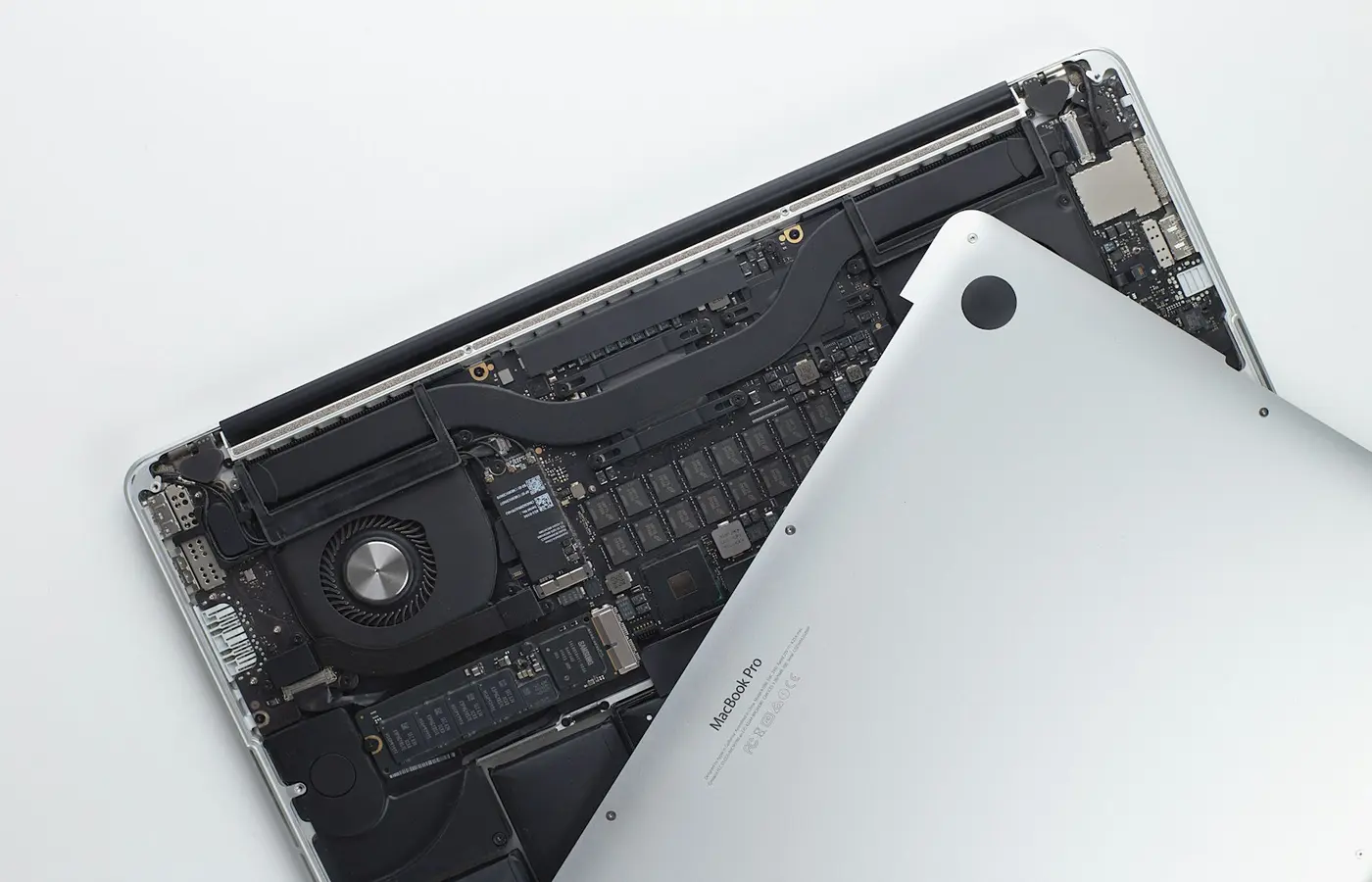
A cooling system affects how a laptop manages heat during long gaming sessions, rendering tasks, or other sustained loads. Chassis thickness, fan design, heatsink capacity, vent placement, internal component layout, and firmware all matter.
Do not infer sustained performance from laptop size alone. A larger chassis may have more room for cooling, but the useful evidence is a configuration-specific review that documents its testing method. Look for reports that state the exact model, GPU, CPU, performance mode, power source, benchmark version, and workload settings.
CPU and GPU often share a system power budget
Laptop processors and dedicated GPUs operate within limits set by the platform and firmware. In some workloads, the CPU needs substantial power. In others, the GPU is the primary demand. The laptop may shift available power differently depending on the selected profile and the workload.
That is one reason you should not compare GPU wattage while ignoring the processor. A laptop with the same GPU but a different CPU can produce different game results, particularly at lower resolutions or in CPU-heavy games.
Performance mode and AC power are not footnotes
Manufacturers may offer Quiet, Balanced, Performance, Turbo, Manual, or similarly named profiles. These can change fan behavior and component power policy. A benchmark run in a high-performance mode while connected to the supplied AC adapter is not directly comparable with a result from a balanced profile or battery operation.
Before relying on a review, check whether it says:
- The laptop was plugged in.
- The supplied charger or an appropriate adapter was used.
- The selected performance mode is named.
- The discrete GPU mode, graphics switching mode, or MUX setting is identified where relevant.
- The game or benchmark settings are fully disclosed.
If these conditions are not stated, treat the result as useful background rather than a clean head-to-head comparison.
A pre-purchase checklist for laptops with the same GPU
Use this sequence when comparing two laptops that appear to have the same graphics card.
1. Identify the full model number and regional SKU
Start with the manufacturer’s exact part number, not only the family name printed on a retailer page. A product line can include multiple CPUs, displays, memory capacities, storage options, and GPU power configurations.
A retailer may shorten the product name, combine details from related models, or use a generic listing description. Its information is useful for identifying the offered SKU, but it should be reconciled with manufacturer documentation before you decide.
2. Find the manufacturer’s GPU power disclosure
Check the official product page, technical specification sheet, downloadable manual, or support page for the exact model.
Write down the wording, not just the largest number. For example:
- Is it a stated TGP or a maximum GPU power figure?
- Does it include Dynamic Boost or another temporary/shared-power mechanism?
- Is it available only in Turbo, Manual, or Performance mode?
- Does the page identify a range rather than a single figure?
If the manufacturer does not disclose the GPU power setting, do not fill the gap with a family-level maximum from another laptop. Ask the manufacturer or seller for documentation tied to the exact SKU, or choose a model with clearer specifications.
3. Compare the surrounding hardware
For each laptop, record the CPU, installed memory, memory upgrade path, display resolution, refresh rate, storage capacity, and graphics-mode options. These details can affect both the experience of owning the laptop and the meaning of published performance results.
A high-resolution display, for example, may be excellent for productivity or media work but asks more of the GPU when games run at native resolution. That does not make the laptop worse; it means the graphics comparison needs context.
4. Check the charger and intended use
Look at the supplied adapter, required charging method, and whether the manufacturer specifies restrictions for full-performance operation. If you plan to travel frequently, a larger charger and heavier chassis may matter as much as an incremental performance advantage.
Also consider ports, external display requirements, wireless connectivity, warranty terms, and whether the maker publishes a service manual or parts information. These are ownership factors, not distractions from the GPU decision.
5. Compare only matched independent tests
A useful external comparison matches as many conditions as possible: same game or benchmark version, resolution, quality preset, upscaling settings, frame generation setting, driver context where disclosed, and laptop performance mode.
The comparison guidance from RottenWiFi makes the same methodological point: different settings are different tests, not direct substitutes. Use several workloads that resemble what you actually run rather than choosing a winner from one synthetic score.
How to read manufacturer specs and retailer listings without over-trusting either
Manufacturer documentation is usually the best first place to find GPU power information, but it still requires careful reading. Product pages can describe a family rather than every regional configuration, and marketing language may emphasize a maximum condition without explaining the mode or power-sharing behavior in the headline.
Retailer listings have a different problem: they may be incomplete, copied from a general product description, or attached to a SKU with different memory, display, or GPU settings than a review sample.
Use this evidence order:
- Exact manufacturer product page or specification sheet: Best for matching the SKU and stated configuration.
- Manufacturer manual or support documentation: Often useful for modes, adapter requirements, and graphics settings.
- Independent review of the same configuration: Best for observed behavior when its methodology is disclosed.
- Retailer listing: Useful for current availability and the offered part number, but provisional until matched to official documentation.
If a retailer lists only “RTX graphics” or a GPU name without a power specification, that is not proof of a particular implementation. If a manufacturer page lists a maximum number but does not explain the conditions, avoid turning it into a guaranteed sustained-performance claim.
When a lower-power laptop GPU can still be the better purchase
The fastest possible GPU implementation is not automatically the right purchase.
A lower-power implementation may be the better fit when you value a lighter laptop, a smaller charger, a less aggressive performance profile, a better display for non-gaming work, more useful ports, stronger service documentation, or a warranty arrangement that suits your location. It can also make sense when your preferred games are CPU-limited, when you play at modest settings, or when you need a laptop that is practical to carry every day.
The reverse is also true: a larger laptop with a more generous GPU power configuration may be the better choice if your priority is sustained GPU-heavy work, you use it mainly near wall power, and independent tests of the exact configuration support the trade-off.
Do not reduce that decision to “higher TGP wins.” Instead, ask whether the laptop’s complete design supports your workload and whether its limitations are clearly disclosed.
Conclusion: compare the laptop, not the badge
TGP is worth checking because it tells you something important about how a laptop maker has configured its GPU. It is not enough on its own to predict gaming, rendering, noise, heat, battery life, or value.
Before buying, verify the exact SKU, read the manufacturer’s definition of the stated power figure, identify the required performance mode and AC conditions, and seek configuration-matched independent tests. If those details are unavailable, the cautious choice is not to assume that two laptops with the same GPU name will perform alike.
A transparent configuration with relevant independent evidence is usually a safer purchase than a laptop chosen solely for the largest number in a graphics specification.
FAQ
What is TGP on a laptop GPU?
TGP is commonly used to describe a laptop GPU’s configured power level or power budget. The exact meaning can vary by manufacturer and generation, so read the product documentation carefully. A listed figure may be a base value, a maximum, or a number that depends on a specific performance mode or additional boost allowance.
Does a higher TGP always make a gaming laptop faster?
No. More GPU power can help in GPU-limited workloads, but performance also depends on cooling, CPU behavior, firmware, memory, game settings, resolution, and the selected mode. Do not assume a fixed performance gain from a given wattage difference.
How can I find a laptop GPU’s power limit before buying?
Start with the official page or specification sheet for the exact regional model number. Check product manuals and support pages if the retail page is incomplete. Look for wording around TGP, maximum GPU power, Dynamic Boost, or performance modes. If the documentation does not identify the configuration clearly, ask the manufacturer or seller before purchase.
Can I fairly compare benchmark scores from two laptops with the same GPU?
Only when the test conditions are sufficiently similar. Compare the exact laptop configuration, performance mode, plugged-in state, game or benchmark version, resolution, graphics preset, and upscaling or frame-generation settings. Scores produced under different conditions should be treated as separate results rather than direct proof that one laptop is faster.