Can You Charge a Laptop with USB-C? Check Power Delivery, Port Support, and Wattage
Learn how to confirm whether your laptop accepts USB-C charging, choose a compatible USB Power Delivery charger and cable, and troubleshoot slow charging.
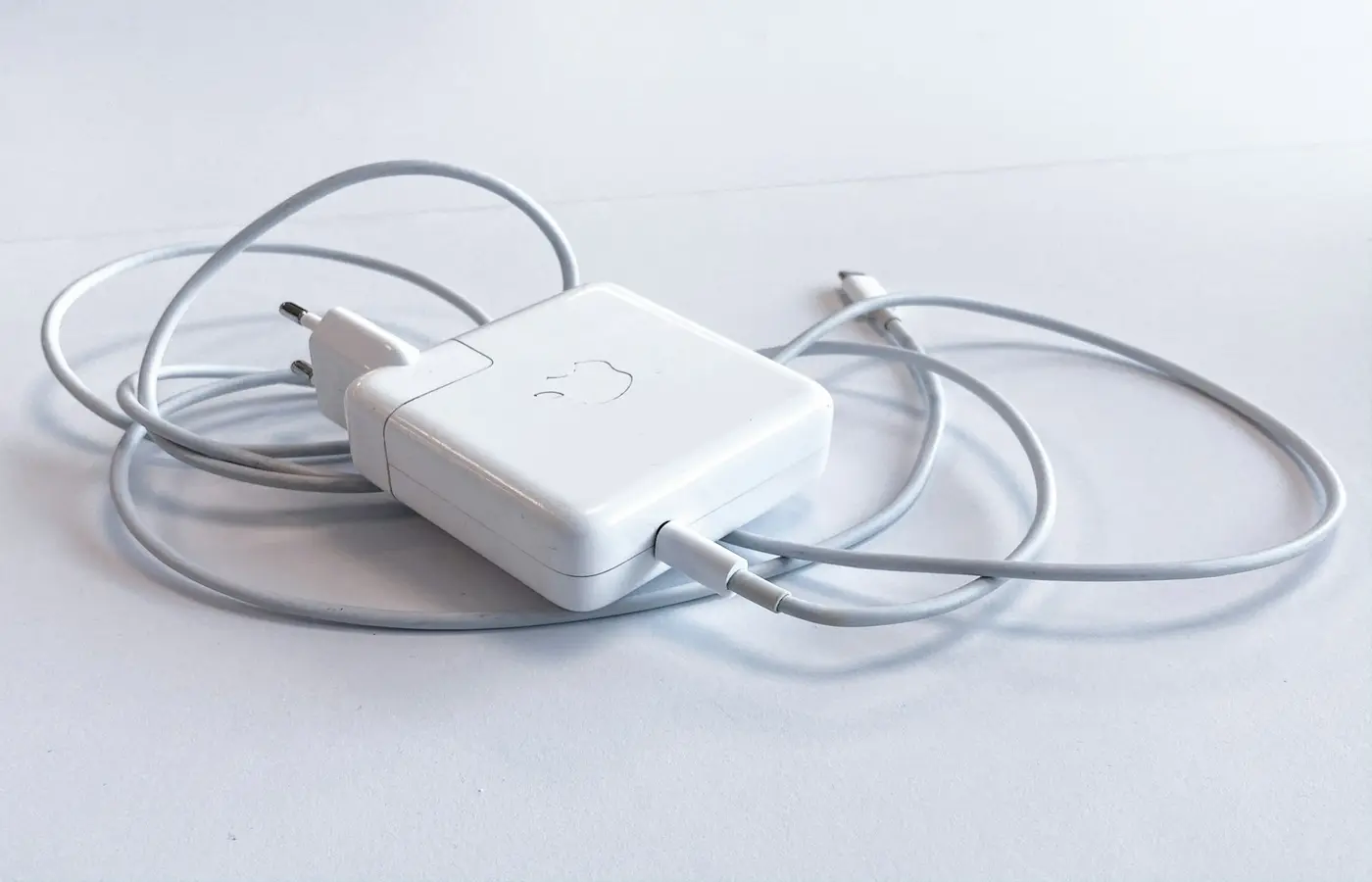
A USB-C connector does not automatically mean a laptop can charge through that port. Before buying a replacement charger, dock, or power bank, confirm that your exact laptop model supports USB Power Delivery (USB PD) input on the specific USB-C port you plan to use.
The safe approach is simple: identify the full laptop model or SKU, check the manufacturer’s documentation for USB-C charging support, then match the charger and cable to the stated requirement. If documentation does not explicitly say the port accepts power input, use the included charger rather than assuming a USB-C adapter will work.
Check the exact laptop model and port before buying a charger
Start with the laptop’s full model number, not just the family name printed on the lid. A name such as “ThinkPad,” “Inspiron,” “Pavilion,” or “Legion” can cover multiple configurations with different ports, chargers, and charging behavior.
Look for the complete identifier in one or more of these places:
- A label on the underside of the laptop
- The original box, invoice, or order confirmation
- The manufacturer’s support application or support website
- The BIOS/UEFI information screen
- Your operating system’s system-information page
Then find the official product specification sheet, user guide, or support page for that exact model and region. Search within the documentation for terms such as:
- USB Power Delivery
- USB PD
- Power input
- Power-in
- USB-C charging
- Charging via USB Type-C
- Supported AC adapter
- Minimum or recommended wattage
This is especially important on laptops with more than one USB-C-shaped port. One port may handle data and external displays, while another is the only port that accepts charging. Port placement diagrams in the manual can matter as much as the specification list.
A USB-C plug fitting the port is not evidence that charging is supported. Kensington’s USB-C guidance makes the same distinction for docking: a device must support Power Delivery for a dock to charge it, and not all USB-C devices do.
Look for USB Power Delivery input, not just USB-C, Thunderbolt, or USB4
USB-C describes the physical connector. It does not, by itself, describe every feature supported by the port.
A USB-C port can potentially support some combination of data transfer, display output, charging, Thunderbolt, USB4, or other functions. The actual combination depends on the laptop design and its firmware. For laptop charging, the important feature is normally USB Power Delivery input.
Do not treat the following labels as proof that the laptop accepts USB-C power:
| Label or feature | What it can indicate | What it does not prove by itself |
|---|---|---|
| USB-C | Connector shape | USB-C charging support |
| Thunderbolt | High-speed data and display capability | That the laptop accepts power through every Thunderbolt port |
| USB4 | A USB data and display standard | USB PD input support for the laptop |
| DisplayPort Alt Mode | External display capability | Charging support |
| Battery or lightning symbol | May indicate a charging-related function | The required wattage or behavior under load |
A dock manufacturer may list several features separately for this reason. For example, Anker’s compatibility guidance distinguishes between Power Delivery for charging and DisplayPort Alt Mode for video. A computer can pass data or video through a dock without accepting charging from it.
The controlling source remains your laptop manufacturer’s documentation. If it says a particular USB-C port supports PD input, charging, or a supported USB-C adapter, you have a useful starting point. If it only lists data speed, Thunderbolt, USB4, or display support, keep checking rather than assuming power input is included.
Match the charger and cable to the laptop’s required wattage
Once you have confirmed that the laptop accepts USB-C power, match the entire charging path: laptop, charger, and cable. The charger is not the only component that matters.
1. Find the laptop’s stated power requirement
Look for the included adapter rating and any stated USB-C charging requirement. The manufacturer may list a minimum supported charger, a recommended charger, specific voltage/current combinations, or restrictions on charging while the computer is running.
Do not copy a wattage from another laptop, even one in the same product family. Requirements can differ with processor choice, discrete graphics, screen size, battery capacity, and the manufacturer’s charging policy.
Some laptops explicitly treat USB-C charging as a secondary option. For example, the Lenovo Legion Pro 7i user guide states that its rear USB-C connector supports Power Delivery charging in sleep or powered-off states with specified qualified charger ratings, while also noting that the connector is not intended as the primary power input during operation. That is an example of model-specific behavior, not a rule for all gaming laptops or all Lenovo systems.
2. Check the charger’s USB PD output specification
A charger’s total wattage printed on the front is useful, but it is not the complete compatibility check. Read the output specification, usually printed on the charger or listed on its product page.
Look for a USB-C output marked PD or USB Power Delivery and compare its listed output profiles with the laptop manufacturer’s requirements. A multi-port charger may advertise a high total output but provide less power from one USB-C port when other ports are in use.
For a laptop that requires 65 W through USB-C, for example, a charger should be documented to provide a compatible USB-C PD output of at least that requirement under your intended setup. If the charger shares its capacity with a phone, tablet, or other device, verify its power-allocation table rather than relying on the largest number on the packaging.
3. Use a cable rated for the intended power
The USB-C cable between the charger and laptop must also support the intended charging level. Use the cable supplied with a known-compatible charger when possible, or buy a cable whose manufacturer clearly states its supported USB-C PD power rating.
This is particularly important when replacing a cable that came from an older phone charger, a monitor, or an inexpensive accessory bundle. A cable may physically connect while limiting available charging power or causing unreliable behavior.
If a dock is involved, check its manual as well. The dock may have a maximum input limit and a lower maximum amount that it can pass to the laptop.
Understand what a lower-watt charger can and cannot do
A lower-watt USB-C charger is not automatically unsafe or useless, but it may not meet the laptop’s needs. What happens depends on the exact laptop, charger, cable, workload, and manufacturer policy.
Possible outcomes include:
- The laptop charges slowly while idle or asleep.
- The battery percentage holds steady during light work but drops during demanding work.
- The laptop warns that the connected charger is underpowered.
- Charging is disabled or limited while the laptop is running.
- The laptop accepts the charger only in sleep or powered-off states.
A lower-capacity charger can be practical for travel or emergency use if the manufacturer documents that it is supported and your workload is light. It is not a dependable replacement for the original adapter when you regularly run demanding software, connect power-hungry peripherals, or use a laptop with a discrete GPU.
Docks and hubs add another layer. Plugable explains that its USBC-7IN1E hub reserves some incoming power for the hub and connected devices, so the laptop can receive less power than the attached charger supplies. That is a product-specific example, but the general lesson is useful: check the dock’s documented pass-through limit and do not assume a 100 W charger delivers 100 W to the laptop.
Troubleshoot slow, intermittent, or unsupported USB-C charging
If a compatible-looking USB-C charger does not work as expected, diagnose the setup in a controlled order. Change one part at a time so you can identify whether the problem is the laptop port, charger, cable, dock, or workload.
Start with a direct connection
- Disconnect docks, hubs, monitors, adapters, and other USB-C accessories.
- Connect the USB-C charger directly to the documented charging-capable laptop port.
- Use a known-good cable rated for the charger and laptop requirement.
- Wait briefly, then check whether the operating system reports charging.
A direct connection removes the dock’s power budget and compatibility layer from the test.
Compare the specifications
Check all three parts of the setup:
- Laptop: Does the exact port accept USB PD input, and what power does the manufacturer require?
- Charger: Does its USB-C port provide USB PD at the needed output level?
- Cable: Is it specified for the intended PD power level?
If you are using a multi-port charger, repeat the check with other devices unplugged. Some chargers redistribute output when several ports are active.
Reduce power demand temporarily
If the laptop recognizes the charger but reports slow charging, close demanding applications and disconnect nonessential USB devices. This does not prove the charger is sufficient, but it can help distinguish an inadequate power budget from a complete charging failure.
For a laptop whose documentation permits USB-C charging only while asleep or off, test in that supported state. Do not interpret a failure to charge under full workload as evidence of a defective port when the manufacturer does not claim that operating mode is supported.
Inspect without attempting repairs
Check the cable ends, charger port, and laptop port for lint, bent metal, discoloration, looseness, or physical damage. Do not force a connector that does not insert normally, and do not attempt to repair a damaged USB-C port yourself.
Stop using the charger and seek qualified service if you notice excessive heat, a burning smell, melted plastic, discoloration, sparking, a swollen battery, or repeated connection failures with known-compatible equipment. These are not normal compatibility problems to solve by trying more adapters.
When to use the included charger or contact support instead
Use the supplied charger, or a manufacturer-approved replacement, when any of the following apply:
- Your manual does not explicitly confirm USB-C charging support.
- USB-C charging is documented only for sleep or powered-off states.
- Your laptop needs more power than the USB-C charger, dock, or cable is documented to provide.
- You use demanding workloads and the battery drains while connected.
- You receive repeated underpowered-charger warnings with equipment that should meet the documented requirement.
Contact the laptop manufacturer’s support team with the full model number, serial number if requested, charger specifications, cable details, and a description of the port you tested. That information is more useful than simply reporting that a “USB-C charger” did not work.
Also consult official support before changing BIOS, firmware, or power-management settings in an attempt to fix charging. Firmware updates can be relevant on some systems, but the correct procedure and any prerequisites are model-specific.
The practical rule
You can charge a laptop with USB-C only when the exact laptop port supports USB Power Delivery input and the charger-and-cable combination meets the manufacturer’s documented requirements. USB-C, Thunderbolt, USB4, and display output labels are useful clues about a port’s capabilities, but none is a substitute for confirming power input support.
For everyday use, the included adapter remains the safer default when USB-C charging documentation is unclear. Treat a USB-C charger as a compatible replacement only after verifying the laptop port, the PD charger output, the cable rating, and any limits on charging while the laptop is operating.
Frequently asked questions
How do I know whether my laptop’s USB-C port supports charging?
Find your laptop’s full model number and check its official user guide or specification page. Look for explicit wording such as USB Power Delivery input, USB-C charging, power-in, or supported USB-C adapter. If the documentation only lists data, display, Thunderbolt, or USB4 features, that does not confirm charging support.
Can I use a lower-watt USB-C charger for my laptop?
Possibly, but only if the laptop manufacturer supports it. A lower-watt charger may charge slowly, work only while the laptop is idle or asleep, maintain rather than increase battery charge, or be unsuitable while the laptop is under load. Follow the requirement for your exact model instead of relying on a universal minimum wattage.
Why does my laptop say it is charging slowly through a USB-C dock?
The dock may pass less power to the laptop than the connected charger supplies because the dock and connected accessories use part of the available power. Check the dock’s documented pass-through limit, the charger’s per-port output, the cable rating, and the laptop’s stated requirement. Test with a direct charger-to-laptop connection to isolate the dock.
Does Thunderbolt or USB4 mean a laptop can charge over USB-C?
No. Thunderbolt and USB4 describe data and display capabilities, not a guarantee of USB Power Delivery input. Confirm USB-C charging support for the exact port in the laptop manufacturer’s documentation.