
Can You Upgrade Laptop RAM? How to Check Slots, Soldered Memory, and the Right Type Before Buying
Learn how to verify laptop RAM slots, soldered memory, supported module types, capacity limits, and safe installation steps before buying.
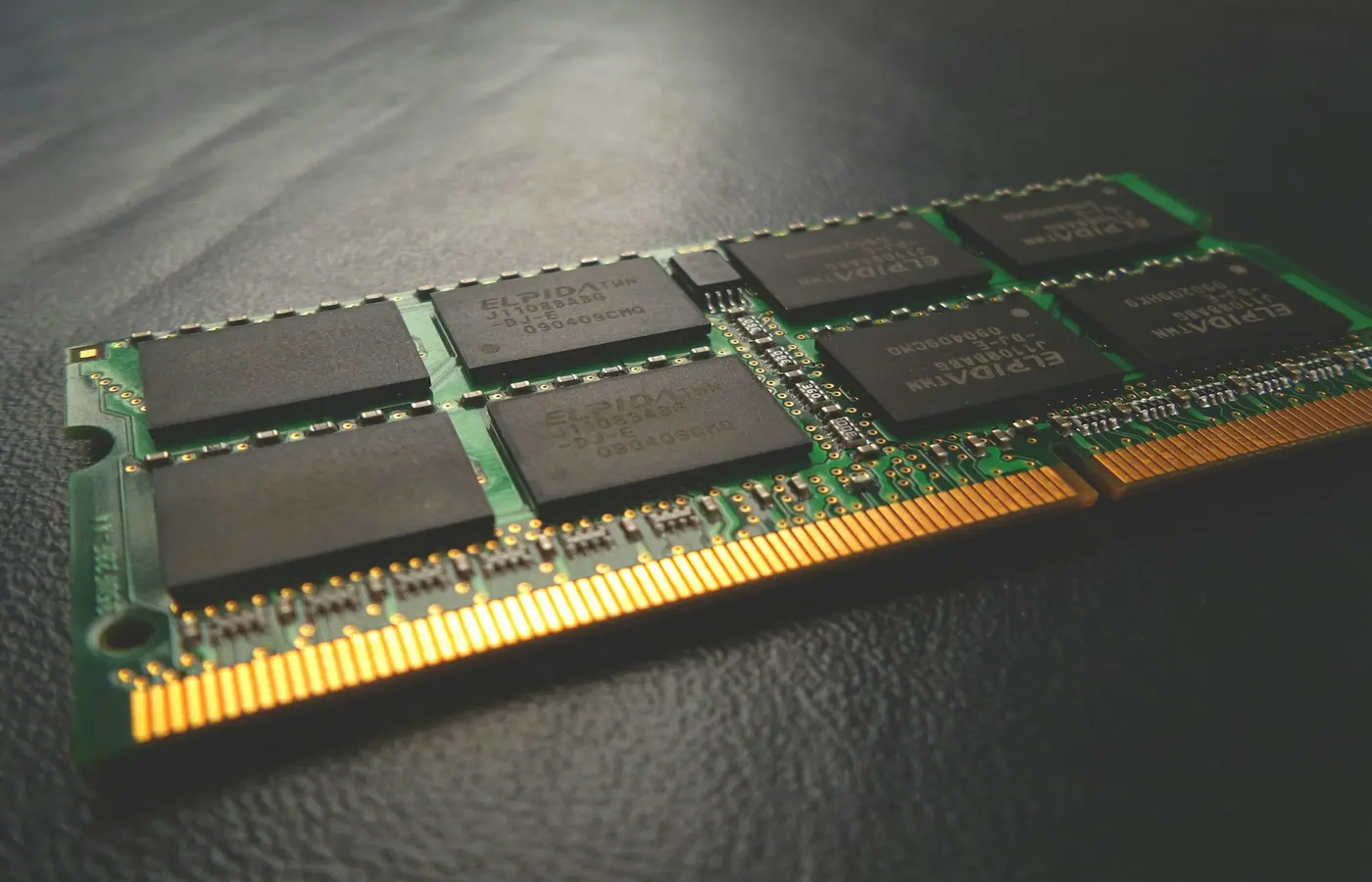
Short answer: You can upgrade a laptop’s RAM only if your exact configuration has an accessible memory socket and supports the module you intend to install. If all memory is soldered to the motherboard, choose the capacity you need when buying the laptop. If the official specifications and service manual do not establish the memory layout and safe opening procedure, stop rather than relying on a retailer title or a teardown of a similar model.
A processor badge, DDR label, or laptop family name cannot answer the question by itself. Manufacturers sometimes sell visually identical configurations with different motherboards, memory layouts, and service procedures. Verification must therefore begin with the complete model, product number, or machine-type identifier.
The short answer depends on the exact configuration
Laptop memory generally appears in one of three layouts:
| Memory layout | Upgrade decision |
|---|---|
| All memory soldered | RAM is not normally replaceable; buy enough capacity at checkout. |
| All memory in sockets | An upgrade may be possible if compatible modules and a documented service procedure are available. |
| Soldered memory plus one or more sockets | The socketed portion may be upgradeable, subject to the laptop’s documented limits. |
Do not assume that an entire product family uses one layout. A manufacturer may alter the memory arrangement by screen size, processor option, region, or production revision. Retailer descriptions often shorten model names and may omit the manufacturer’s identifying part number.
Use this decision sequence:
- Record the laptop’s complete identifying information.
- Find the official specification page for that exact identifier.
- Find the corresponding hardware maintenance or service manual.
- Confirm whether memory is soldered, socketed, or mixed.
- Confirm the required module type, available sockets, and supported capacities.
- Read the opening, battery-isolation, and memory-installation procedure before ordering parts.
- Stop if the documents conflict or do not clearly apply to your machine.
Specifications tell you what the manufacturer documents. Software can report what the firmware exposes. A physical inspection can show what is installed, but opening the laptop should not be the first diagnostic step—and it should not replace compatibility documentation.
Identify the exact model before checking memory
Begin with the label on the laptop, its firmware information screen, or the manufacturer’s support application. Depending on the brand, the useful identifier may be called a model number, product number, machine type, MTM, service tag, or system SKU.
Record the following details:
- Manufacturer and complete model name
- Product number, machine type, or system SKU
- Region, if the configuration is region-specific
- Full processor name
- Installed memory capacity
- Operating-system edition and whether it is 64-bit
- Retailer part number, if you have not bought the laptop yet
A serial number may allow the manufacturer’s support site to identify the shipped configuration, but avoid publishing or sharing it unnecessarily. It can be treated as device-specific information.
For a laptop you are considering buying, match the retailer listing to an official manufacturer part number. If the seller provides only a broad title such as a family name followed by “16GB RAM,” ask for the full part number before making an upgradeability decision. The installed capacity does not reveal whether that memory is soldered, socketed, or split between both.
For a laptop you already own, the operating system can confirm the amount of recognized memory and may display speed or slot information. These reports are useful clues, not conclusive evidence of the physical layout. Firmware can report nonexistent, reserved, or ambiguous slots, and software cannot make an undocumented socket safely serviceable.
Check for soldered memory, SO-DIMM slots, and mixed layouts
Search the exact model’s official specifications for terms such as:
- Onboard memory or soldered memory: Memory attached to the motherboard rather than installed in a user-replaceable socket.
- SO-DIMM: A compact removable memory module commonly used in laptops.
- Slots used or slots available: Potentially useful, but only when the statement clearly applies to your exact configuration.
- Maximum memory: A manufacturer-stated supported limit, which may depend on module arrangement or firmware support.
- Customer-replaceable unit or field-replaceable unit: A service classification that can affect the intended repair path.
LPDDR memory is commonly implemented as motherboard-mounted memory, but the label alone should not be treated as definitive proof for every machine. Check the physical implementation documented for the exact laptop.
The service manual is especially important. Look for a component diagram and a dedicated memory removal or replacement section. A specification saying “up to 32GB” does not necessarily mean that an 8GB configuration can be upgraded to 32GB. The larger capacity could be a different soldered configuration sold from the factory.
A manufacturer parts list can provide another clue. Replaceable memory modules listed for the exact machine support the presence of a socketed design, although the service manual still determines how—or whether—the owner should access it.
Stop before disassembly if:
- The official specification and service manual describe different layouts.
- The manual covers several variants but does not identify yours.
- A retailer claims there is a slot, but official documents do not.
- The only available procedure is for a visually similar model.
- Memory is absent from the manual’s replaceable-component list and no authorized procedure is provided.
Contact the manufacturer or an authorized service provider with the complete product identifier when the documentation is unclear.
Confirm the right RAM type, capacity, and arrangement
Finding a socket is only the first compatibility check. A module with the right capacity or DDR generation can still be unsuitable.
Before ordering, verify all of these points:
Memory generation
DDR4 and DDR5 SO-DIMMs are different module standards and are not interchangeable. Buy the generation specified for the exact laptop rather than inferring it from the processor’s general capabilities.
Module form factor
Desktop DIMMs do not fit laptop SO-DIMM sockets. Also distinguish removable SO-DIMMs from soldered memory descriptions such as onboard DDR or LPDDR.
Supported module capacities
Check both the maximum total memory and any documented limit per socket. Do not derive the laptop’s supported maximum solely from a processor specification: the motherboard wiring, firmware, available sockets, and manufacturer validation can impose different limits.
Number of sockets and current arrangement
“16GB installed” could mean one 16GB module, two 8GB modules, 8GB soldered plus an 8GB module, or 16GB soldered with no socket. The arrangement determines whether you can add memory or must replace an existing module.
Documented speed and module requirements
Choose a module meeting the laptop manufacturer’s requirements. A faster-rated module may operate only at a mutually supported setting, but successful negotiation is not guaranteed merely because the DDR generation matches. Module organization, firmware behavior, and manufacturer restrictions can also matter.
Compatibility evidence and return terms
A memory vendor’s compatibility checker can be useful when it identifies the complete laptop model and explains the assumed configuration. Reconcile its recommendation with the laptop manufacturer’s documentation. Before buying, check the seller’s current return policy in case the module is not recognized.
Avoid promises about performance gains from a particular arrangement unless they are supported for the exact platform and workload. More capacity can help when the current workload exhausts available memory, but capacity, channel arrangement, and memory speed are separate considerations.
Decide whether to open the laptop or use professional service
Do not begin by removing screws. First obtain the exact service manual and read the entire relevant procedure, including its prerequisites.
Prepare by:
- Backing up important files
- Shutting down the operating system fully
- Disconnecting the AC adapter and peripherals as directed
- Obtaining the specified screwdriver and nonconductive opening tools
- Preparing a clean, stable workspace
- Following the manufacturer’s electrostatic-discharge precautions
- Learning the documented battery-disconnection or battery-disable procedure
- Keeping screws organized by location and size
Warranty terms and self-service rights vary by model, seller, workplace, and region. Check the current terms rather than assuming that opening the laptop always preserves or always voids coverage. Employer-owned and managed laptops may also require approval from an IT department.
Use professional service when:
- No reliable model-specific service procedure is available.
- The battery cannot be safely isolated as documented.
- Memory is not identified as an owner- or technician-replaceable part.
- Opening requires undocumented adhesive removal or motherboard work.
- Workplace, lease, seller, or warranty conditions prohibit the work.
- You find corrosion, liquid residue, broken connectors, or previous damage.
- The battery appears swollen or physically damaged.
- A fastener, cover, cable, or module resists the documented amount of movement.
A swollen battery is a stop condition. Do not press on it, puncture it, or continue a memory upgrade around it. Disconnect external power if this can be done safely and seek appropriate professional service.
Install the module only by the documented procedure
There is no universal laptop teardown. Screw placement, cable routing, battery connectors, retention clips, and cover-removal direction vary between models. Treat the following as a workflow, not a substitute for the official manual:
- Shut down the laptop completely.
- Remove external power and connected devices.
- Follow the documented method for disabling or disconnecting the internal battery.
- Remove the access panel or bottom cover in the specified order.
- Locate the memory socket using the manual’s diagram.
- Remove an existing module or insert the new one at the documented angle and orientation.
- Confirm that the module is fully seated and that its retention clips engage as shown.
- Reconnect the battery and reinstall the cover according to the manual.
- Check that no cable is trapped and that every screw returns to its correct location.
- Reconnect external power only when reassembly is complete.
Do not touch module contacts unnecessarily, force a keyed module into a socket, substitute a different screw, or use an undocumented shortcut. Stop if the internal layout differs from the manual or if a clip, cable, screw, cover, or module requires unusual force.
Verify the upgrade and troubleshoot conservatively
After reassembly, start the laptop and check the recognized memory in the firmware setup or manufacturer diagnostics, if available. Then check the total reported by the operating system. Compare that amount with the physical configuration you installed.
If the new capacity is not recognized:
- Shut down and disconnect power.
- Repeat the manufacturer’s battery-isolation procedure.
- Confirm that the module specification matches the documented requirements.
- Check that the module is evenly and fully seated.
- If appropriate, restore the previous known-working configuration.
- Consult the manufacturer’s model-specific diagnostic or warning-code guidance.
Do not repeatedly power-cycle a laptop that emits an unusual odor, becomes abnormally hot, shows smoke, or has visible electrical or battery damage. Disconnect external power if safe and obtain professional assistance.
A failure to boot does not prove that the socket, motherboard, or new module is defective. It can also indicate incomplete seating, incompatible memory, a disturbed internal connection, or another installation problem. Avoid forcing repeated attempts when the documented checks do not resolve it.
Frequently asked questions
Can you upgrade RAM if some of the laptop’s memory is soldered?
Possibly. A mixed design can include soldered memory plus one removable SO-DIMM socket. Confirm the socket, supported module capacities, and resulting total in the documentation for the exact configuration. The soldered portion cannot normally be replaced as a conventional module.
Does Task Manager or another system tool reliably show whether RAM is soldered?
No. Software-reported slot counts and usage can be helpful clues, but they depend on information supplied by firmware and may be incomplete or ambiguous. Use the exact laptop’s official specifications and service manual as the primary evidence.
Can you install faster RAM than the laptop officially supports?
A faster-rated module may run at a lower mutually supported setting, but the speed label alone does not establish compatibility. Confirm the required generation, form factor, capacity, module characteristics, and manufacturer restrictions before buying.
Why does the laptop recognize less memory than was installed?
Possible causes include incomplete seating, an unsupported module, an unsupported total capacity, or memory reserved for hardware. The operating system and firmware can also report memory differently. Follow the laptop manufacturer’s diagnostic procedure and restore the previous configuration if the upgrade prevents a normal boot.
The safest buying decision
Upgrade only when the exact model documentation confirms an accessible socket, compatible module requirements, and a safe service procedure. If all memory is soldered, select the required capacity when purchasing the laptop. If the configuration identity or internal layout remains uncertain, delay the module purchase and do not open the machine until the manufacturer or an authorized service provider resolves the ambiguity.


