Can Your Laptop Run Two External Monitors? Check Ports, GPU, and Dock Limits
Learn how to verify whether your exact laptop can run two external monitors, including port video support, GPU limits, docks, cables, and refresh rates.
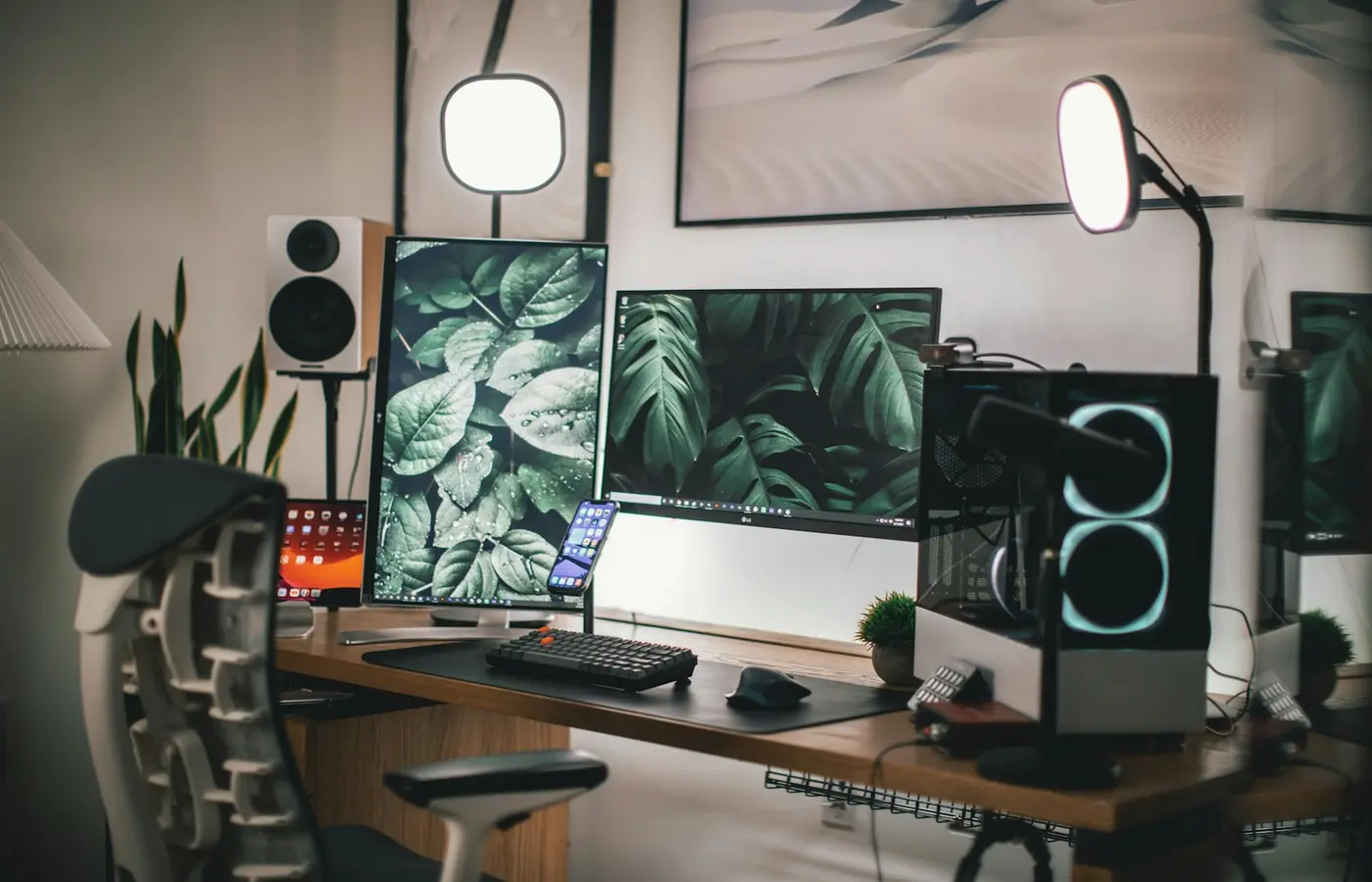
A laptop can run two external monitors only if the whole connection chain supports them: the laptop’s display hardware, its specific ports, the dock or adapters, the cables, and the monitors’ requested resolution and refresh rate.
The safe approach is to verify your exact laptop configuration before buying anything. Do not assume that two USB-C ports, one HDMI port plus USB-C, or a dock with two HDMI sockets automatically means two independent displays will work.
A good dual-monitor setup starts with one question: what do you need to run? Write down the target before comparing docks. For example:
- Two 1920 × 1080 monitors at 60 Hz
- Two 2560 × 1440 monitors at 60 Hz or 120 Hz
- One 4K monitor and one 1080p monitor
- Two 4K monitors for office work
Those are different requirements. Hardware that can support two basic 1080p displays may not support two high-resolution, high-refresh displays through the same dock.
Start with the exact laptop configuration, not the port count
A laptop family name is usually not enough. Manufacturers can sell one chassis with different processors, graphics options, port layouts, display controllers, and regional part numbers. Those differences can affect external-display support.
Before you check docks or adapters, record:
- The full laptop model and machine type or part number
- The installed processor or system-on-chip
- Whether the laptop has integrated graphics, discrete graphics, or both
- Your operating system and version
- The exact ports on your unit
- Whether you plan to use the laptop’s built-in screen at the same time
On Windows, open Settings > System > About to identify the processor, then check Device Manager > Display adapters for the graphics hardware. The laptop maker’s support application, BIOS information page, invoice, or underside label may provide the full product number.
On macOS, select Apple menu > About This Mac and note the chip name. External-display support can differ between chips within the same MacBook product family, and some supported arrangements may depend on whether the notebook lid is open or closed.
For Linux, system information tools can identify installed graphics hardware, but the manufacturer documentation remains the better starting point for the laptop’s physical ports and documented display arrangements.
Do not use retailer listings as the final answer. A retailer may group several configurations under one product page. Confirm the exact part number against the laptop manufacturer’s specifications, technical manual, or support database.
Check the laptop’s native external-display limit
The first hard limit is the laptop’s documented external-display capability. This is not always the same as the number of screens that appear physically connectable.
Look in the official specifications or user manual for wording such as:
- Maximum number of external displays
- Multi-monitor support
- Supported display resolution and refresh rate
- Display output via USB-C, USB4, or Thunderbolt
- HDMI version and supported modes
- DisplayPort version or DisplayPort Alt Mode
Record three things:
| What to verify | Why it matters |
|---|---|
| Maximum simultaneous external displays | Establishes whether two native external monitors are possible at all. |
| Supported connection combinations | A laptop may support two screens only through particular ports or a compatible dock. |
| Resolution and refresh-rate conditions | The display count can change at higher resolutions or refresh rates. |
Also establish whether the built-in laptop panel is counted separately. Manufacturers do not always phrase this consistently. One document may say a system supports “three displays,” while another describes “two external displays plus the internal display.” Read the surrounding conditions rather than relying on the headline number.
If the laptop manufacturer does not publish enough detail, check the documentation for the installed CPU, GPU, or system-on-chip. Treat that as a secondary limit, not a guarantee. A graphics processor may be capable of more displays than the laptop maker exposes through its ports.
This is particularly important with business laptops that offer optional graphics or with thin laptops that use the same name across multiple processor generations.
Verify that each port actually carries video
USB-C describes a connector shape. It does not prove that a port supports video output.
A USB-C port might support charging and data only. Another USB-C port on the same laptop might also support DisplayPort Alt Mode, USB4, or Thunderbolt. The difference is important because a data-only USB-C port cannot send a normal video signal to a USB-C monitor, video adapter, or conventional USB-C dock.
Check the exact laptop documentation for one of these capabilities:
- DisplayPort Alt Mode or “DisplayPort over USB-C”
- Thunderbolt 3, Thunderbolt 4, or Thunderbolt 5
- USB4 with documented display support
- A stated USB-C-to-display output mode
A lightning-bolt, DisplayPort, or monitor icon beside a port can be a helpful clue. It is not a substitute for the manual, especially when laptops vary by region or production revision.
The same caution applies to HDMI. An HDMI connector is clearly a video output, but the exact implementation can still affect which resolution and refresh-rate modes are documented. Check the laptop’s published HDMI specification and the monitor’s supported HDMI modes rather than assuming that every HDMI connection behaves identically.
DisplayPort and Mini DisplayPort outputs should be checked the same way. The connector identifies the general connection type, but the laptop documentation should establish the supported mode.
For a useful overview of why USB-C needs separate capability checks, see Plugable’s guide to determining USB-C video capabilities. Use it as a starting point, then confirm your laptop’s own manual.
Choose between direct connections, a dock, and USB graphics
There are three common ways to connect two external monitors.
Use the laptop’s native video outputs
If your laptop has two documented video-capable outputs, a direct connection is often the simplest route. For example, one monitor might connect through HDMI and another through a USB-C-to-DisplayPort cable.
This avoids adding a dock to the chain, but it still depends on the laptop’s native display limit and the supported modes of both ports. It can also use more of the laptop’s limited ports.
Use a USB-C, USB4, or Thunderbolt dock
A dock can provide charging, USB accessories, Ethernet, and multiple display connectors through one host cable. That convenience does not mean every dual-output dock creates two independent displays on every laptop.
Before buying, find the dock manufacturer’s official manual or display-mode table and verify:
- The exact dock model, not just the product family
- Required host connection type
- Supported monitor-output combinations
- Resolution and refresh rate for two monitors simultaneously
- Operating-system support
- Required drivers or firmware
- Host-specific restrictions
- Power delivery rating and whether your laptop accepts that charging level
A dock with two HDMI ports may support two displays at one set of settings, one display at a higher setting, or a limited configuration on a particular platform. The dock’s display-mode table is more useful than the number of sockets on its front or rear panel.
Use a USB graphics solution when appropriate
Some docks and adapters use a separate USB graphics technology rather than relying solely on the laptop’s native display output. This can be useful where a laptop’s native display arrangement is limited, but it is not the same as adding native GPU display outputs.
Check the manufacturer’s documentation for supported operating systems, required drivers, protected-video limitations, workload constraints, and supported display modes. These solutions can be sensible for productivity applications such as documents, web browsers, messaging, and spreadsheets, but compatibility and performance expectations should come from the exact adapter maker’s documentation.
Do not buy a USB graphics dock on the assumption that it will solve every display limit. Confirm the technology, driver requirement, and return policy first.
Add up resolution, refresh rate, and shared bandwidth
The usable result is set by the weakest documented link in the chain:
- Laptop display hardware and firmware
- Host port capability
- Dock or adapter display mode
- Monitor input capability
- Cable or adapter capability
- Operating-system support and current driver state
A setup can work at two monitors running 60 Hz but fail when both are set to a higher refresh rate. That does not automatically mean the dock is defective. The system may be reaching a documented limit in the laptop port, the dock’s display allocation, the monitor input, or the cable.
Avoid trying to guarantee a setup from generic bandwidth arithmetic alone. Compression, link allocation, display-stream configuration, firmware, and implementation details can change the practical result. Instead, find the exact two-monitor mode in the dock maker’s table and compare it with each monitor’s manual.
Check every monitor input separately. A monitor may accept a particular high-refresh mode through DisplayPort but not through HDMI, or support a different maximum mode through USB-C. Also check that the cable is intended for the connection type and mode you need. A replacement cable cannot turn a data-only USB-C port into a video port.
Pre-purchase checklist for two external monitors
Complete this list before ordering a dock, adapters, or displays:
- I know my laptop’s full model or part number.
- I know the installed processor, graphics hardware, and operating system.
- I found the manufacturer’s stated external-display limit.
- I checked whether that limit changes with the laptop lid open or closed.
- I identified a video-capable host port by documentation, not connector shape alone.
- I wrote down my target resolution and refresh rate for both monitors.
- I found the exact dock or adapter’s official dual-display mode table.
- I confirmed the dock supports my operating system and any required driver.
- I checked the available monitor inputs and their supported modes.
- I selected cables or adapters compatible with those inputs and modes.
- I verified charging requirements if the dock will power the laptop.
- I checked the seller’s current return policy for unverified compatibility combinations.
Retailer compatibility notes can be useful as a cross-check, but they should not override the laptop or dock manufacturer’s technical documentation.
Troubleshoot a second monitor that will not work
If one monitor works and the second does not, test in an order that isolates the problem without changing several variables at once.
1. Confirm each monitor works by itself
Connect each monitor individually using a known-working cable and a documented video output where possible. Select the correct monitor input source manually if the display has more than one input.
If a monitor cannot work alone, do not troubleshoot the dock first.
2. Check display settings
On Windows, open Settings > System > Display and use Detect if the second monitor is missing. Make sure the arrangement is set to extend the desktop rather than duplicate one screen.
On macOS, open System Settings > Displays and check whether the second display is recognized and configured as an extended display.
If the monitor appears but is blank, try selecting a lower resolution and refresh rate. This is a diagnostic step, not proof that the hardware is permanently limited to that setting.
3. Isolate the dock or adapter
Where the laptop supports it, connect one monitor directly to the laptop and the other through the dock. Then test each dock output separately. This can reveal whether the issue follows a monitor, cable, dock port, or host connection.
Disconnect nonessential USB devices while testing. Some docks share resources across video, USB data, Ethernet, and charging functions.
4. Check official software and firmware updates
Install graphics, system, dock, and monitor updates only from the relevant manufacturer or operating-system provider. Review the release notes where available, especially if they mention external-display behavior, USB-C, Thunderbolt, USB4, or docking support.
Avoid unofficial firmware tools or unsupported modifications. A display problem is not worth risking a failed firmware update or warranty dispute.
5. Compare the result with the documented limit
If two monitors work only at reduced resolution or refresh rate, compare that arrangement with the laptop and dock documentation. If the requested mode exceeds the published two-display mode, the limitation is expected rather than a fault.
Stop troubleshooting and contact the laptop, dock, or monitor manufacturer when you see unstable charging, repeated disconnects with known-compatible hardware, physical port damage, overheating, or a conflict with the published compatibility information. Do not open the laptop or attempt unsupported firmware recovery procedures to solve a monitor-detection problem.
Frequently asked questions
Can a laptop with one HDMI port and one USB-C port run two external monitors?
Possibly. The HDMI port can serve one monitor, while the USB-C port can serve another only if that specific USB-C port supports video output and the laptop supports two external displays in that arrangement. Check the laptop documentation for both conditions.
Does every USB-C port support a second monitor?
No. USB-C is a connector, not a guarantee of video output. Look for official confirmation of DisplayPort Alt Mode, Thunderbolt, USB4 display support, or a stated USB-C display-output feature.
Will a Thunderbolt or USB-C dock let my laptop exceed its native monitor limit?
Not usually through native video alone. A dock can organize supported display connections, but it cannot automatically create extra native display capability. Some USB graphics products use separate technology and drivers, with their own documented compatibility and workload limits.
Why do two monitors work at 60 Hz but not at a higher refresh rate?
The requested higher-refresh mode may exceed a documented limit in the laptop port, dock, monitor input, cable, or display configuration. Lower the refresh rate or resolution to identify the limit, then compare your result with the exact laptop and dock display-mode tables.
The practical rule is simple: buy for a documented two-monitor combination, not for the number of ports you can see. Once you have confirmed the laptop’s native display limit, a video-capable host port, and the dock’s exact dual-display mode, you can choose hardware with far less guesswork.