How Bright Should a Laptop Screen Be? Choose Nits for Your Workspace
Choose laptop screen brightness for indoor desks, window-side work, and occasional outdoor use without relying on a nit rating alone.
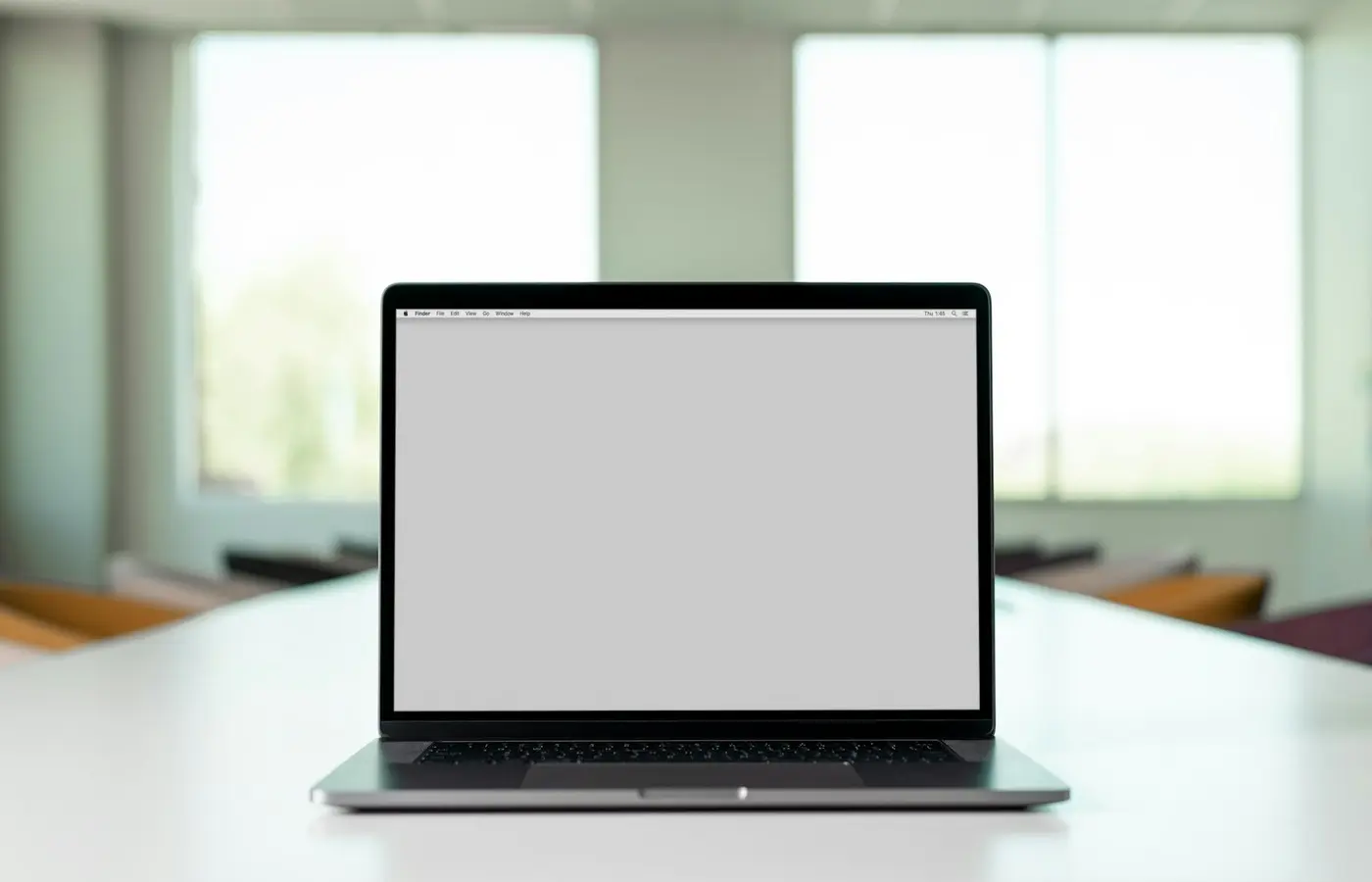
A laptop screen does not need the same brightness in every workspace. If you mainly work at a desk in controlled indoor lighting, a modest display may be entirely adequate. If you sit beside large windows, move between buildings, or expect to work outdoors occasionally, brightness headroom becomes more important—but a higher nit figure still does not guarantee an easier-to-read screen.
The practical answer is to buy for your brightest regular workspace, not your darkest one. Then verify that the stated brightness belongs to the exact display option in your checkout configuration. A laptop family can include several panels with different brightness, finishes, touch layers, resolutions, and regional part numbers.
A nit is a measure of display luminance: one nit is one candela per square metre (cd/m²). In broad terms, more nits mean a panel can emit more light. That is useful context, but it is not a complete measure of real-world visibility. Reflections, screen finish, content, viewing angle, automatic brightness controls, and ambient light all matter.
Start with where you actually use the laptop
Before comparing specifications, describe the light around your usual workspace.
Controlled indoor desk
A home office, classroom, library, or workplace with manageable lighting is the easiest setting for a laptop display. In this environment, the screen does not need to overpower strong ambient light. A lower claimed brightness may be acceptable if the panel otherwise suits your work and you can position the display away from direct reflections.
This is the right scenario to avoid paying for a brightness badge you may never use. It is also where other display factors can deserve equal attention, including text sharpness, panel finish, scaling at the laptop’s screen size, and whether the screen is comfortable to view for long documents or spreadsheets.
Bright rooms and window-side desks
A desk facing a window, an office with broad glass walls, or a room with strong overhead lighting changes the calculation. Light striking the screen can reduce the apparent contrast between dark text and a light background. A brighter panel gives you more room to increase screen output before the image looks washed out.
However, repositioning the laptop can matter as much as a specification change. A screen facing a window may show a bright reflection regardless of its claimed luminance. If a window-side desk is part of your routine, prioritize both additional brightness headroom and a display finish that is less prone to obvious reflections.
Mobile and occasional outdoor work
For occasional work outdoors, treat a brighter laptop display as helpful rather than as a promise of sunlight readability. Shade, cloud cover, screen angle, and the direction of the sun can change the experience quickly. Direct sunlight remains difficult for most laptop panels because the surface can reflect more light than the display can overcome.
If outdoor work is genuinely routine or essential, do not make a purchase from a nit figure alone. Look for a retailer return period that lets you assess the actual configuration in your normal environment, and confirm the seller’s policy for your region before ordering.
A practical way to think about nit ranges
There is no universal brightness threshold that guarantees a good experience. Commercial display references often group ordinary laptop screens around moderate brightness levels and distinguish them from much brighter purpose-built outdoor displays. For example, this overview of nits describes a nit as cd/m² and places standard laptops in a lower brightness class than outdoor signage. That comparison is useful for scale, not a buying rule for a particular laptop.
Use brightness ranges as a shortlist tool rather than a pass-or-fail test:
| Workspace | What to prioritize | What to verify before buying |
|---|---|---|
| Controlled indoor desk | A panel that is comfortable in normal room lighting | The manufacturer’s stated brightness for the selected panel, plus screen finish and resolution |
| Bright room or window-side desk | More brightness headroom and careful control of reflections | Whether the claim applies to the exact non-touch, touch, OLED, or LCD option you selected |
| Mixed office, travel, and occasional outdoor use | Higher claimed brightness can be worthwhile, but glare control is still critical | Independent measurements for the same configuration, if available, and the return policy |
| Frequent outdoor work | A configuration evaluated specifically for outdoor use in your conditions | Screen finish, adaptive brightness behavior, return terms, and practical visibility in shade and sun |
The key distinction is between sufficient brightness and comfortable visibility. A screen can remain technically readable while still forcing you to lean closer, tilt the display repeatedly, or run the brightness at maximum. That may not be a good fit for sustained work.
Why a higher nit figure does not guarantee better visibility
Brightness is only one part of the display-and-room system. Two laptops with the same advertised brightness can look different in person for several reasons.
Glossy and matte finishes handle reflections differently
A glossy screen can make colours and contrast appear more vivid in a controlled room, but it may show sharper reflections from windows, lights, and bright clothing. A matte or anti-glare treatment can diffuse reflections, although it may change the apparent clarity or texture of the image.
Neither finish is automatically better. For a dim or controlled workspace, a glossy panel may be acceptable. For bright rooms and mobile work, reflection management is often as important as the brightness number. Do not assume that an “anti-glare” label makes a screen glare-proof; check the manufacturer description and, where possible, images or reviews of the exact panel.
Dark content is harder in bright surroundings
A bright screen can improve the visibility of documents, web pages, and interfaces with light backgrounds. Dark-themed applications, video, and shadow detail can still be more difficult to see when ambient light reflects off the panel. The issue is not simply whether the screen can reach a high luminance; it is whether the display maintains usable perceived contrast in the room.
Automatic settings can limit what you see
A laptop may include adaptive brightness, power-saving controls, content-aware behavior, or HDR modes. These features can affect the brightness available at a given moment. A maximum or peak figure may not describe sustained full-screen brightness during ordinary SDR office work.
Check the product documentation for terms such as typical, maximum, peak, HDR, or adaptive brightness. They describe different conditions and should not be treated as interchangeable.
Panel variation is real
Laptop manufacturers can sell one product name with multiple display suppliers or options. A 14-inch touch screen may not have the same brightness claim or finish as a 14-inch non-touch screen in the same model family. A regional SKU can also differ from a review unit sold elsewhere.
That is why a laptop name alone is not enough evidence for a display comparison.
Compare the exact panel, not just the laptop name
Treat the display as a separate configuration decision. Before checkout, record the details that identify the panel you are actually ordering.
Use this checklist:
- Find the full laptop model or part number. A marketing name is often too broad.
- Confirm screen size and resolution. Different size options can use different panels.
- Identify the panel technology. LCD, OLED, Mini LED, and other labels do not establish brightness by themselves, but they help identify the option.
- Check touchscreen status. A touch layer can be associated with a different panel, finish, or brightness specification.
- Read the brightness qualifier. Note whether the manufacturer says typical, minimum, maximum, peak, or HDR brightness.
- Confirm the surface treatment. Look for glossy, matte, anti-glare, or anti-reflective wording.
- Check region and operating system configuration. Manufacturer pages and retailer listings may describe different regional versions.
- Save the listing or configuration summary. It is useful if the delivered unit does not match the advertised display option.
If the manufacturer configuration page does not identify the brightness of the chosen panel, contact the seller before buying or treat the claim as unconfirmed. Retailer specification tables can be helpful, but they are provisional unless they match the manufacturer’s part number and documentation.
How to read manufacturer claims against independent measurements
Manufacturer specifications and independent measurements answer different questions.
A manufacturer claim tells you what the company states for a particular configuration and condition. An independent review can show what a reviewer measured on a specific unit using its own method and settings. Neither should be silently substituted for the other.
When you find an independent measurement, use this process:
1. Match the review unit to your configuration
Confirm the model generation, screen size, resolution, panel type, touchscreen status, finish, and regional SKU where available. If the review tested a different screen option, its brightness result may not apply to the laptop in your cart.
2. Read the measurement method
A useful display measurement report identifies the tested configuration and explains the conditions: brightness setting, display mode, power state, meter or instrument, and whether the result represents a central reading, an average, or another method.
Do not compare an independently measured full-screen SDR result directly with a manufacturer HDR peak figure. They may be measuring different behavior.
3. Check the manufacturer’s wording
A listing that says “up to” brightness is not the same as a typical panel rating. A peak HDR figure may refer to brief highlights rather than normal desktop use. If the specification does not explain the condition, treat it as incomplete information rather than filling in the missing details yourself.
4. Investigate differences instead of averaging them
If a review measurement differs from a manufacturer claim, do not split the difference and call that the expected result. First check whether the panel, settings, firmware, test method, and brightness definition match. A mismatch may reflect a different configuration or a different measurement condition.
Laptop Advices does not treat third-party measurements as its own test results. Attribute them to the original reviewer and use them only for the configuration actually tested.
Buying checklist: choose brightness without overpaying for a badge
Use these final questions to make the decision practical:
- What is the brightest place where I regularly work? Buy for that setting, not just evening use at home.
- Will reflections be a recurring problem? If yes, investigate screen finish and desk placement alongside brightness.
- Does the quoted nit rating belong to this exact panel? Verify the full configuration, not just the laptop family.
- Is the number typical, peak, or HDR? These labels can describe different conditions.
- Can I find an independent measurement of the same panel? If so, read the method and configuration table before relying on it.
- Can I test the display during the return window? Review the manufacturer’s or retailer’s current return terms for your location before purchase.
- Am I comparing the screen to a real need? Do not pay more solely because one specification number is larger if your work stays in controlled indoor lighting.
For most buyers, the safer default is a laptop whose exact display configuration is clearly documented and appropriate for the brightest place they use it regularly. Higher brightness can be valuable for window-side desks and mobile work, but it should be considered with glare control, panel finish, display mode, and a realistic return path.
Frequently asked questions
Is 300 nits bright enough for a laptop?
It can be enough for many controlled indoor workspaces, but it is not a guarantee. A 300-nit claim may feel adequate in a room with manageable lighting and less satisfactory beside a bright window. Confirm that the claim belongs to the exact panel, and consider the screen finish and your normal desk position.
Is a 400-nit laptop screen worth it for working near a window?
It may be worth prioritizing because additional brightness headroom can help in a bright room. But it is not a substitute for managing reflections. A glossy panel directly facing a window can still be distracting, so compare the finish, placement options, and the actual panel configuration.
Can a laptop screen be usable outdoors at 500 nits?
It may be usable in shade or under favourable conditions, but 500 nits does not guarantee comfortable direct-sunlight work. Sun angle, reflections, content, and the panel surface can materially change visibility. If outdoor use matters, test the exact laptop under your normal conditions while a return option is available.
Why does a laptop with the same advertised brightness look different in person?
The laptops may have different panel finishes, contrast behavior, viewing angles, screen coatings, brightness controls, content, or ambient reflections. They may also not have the same panel at all, despite sharing a product-family name. Compare the complete display configuration rather than the headline brightness figure alone.