
Can You Upgrade a Laptop SSD? Check the Slot, Size, and Service Limits First
Learn how to verify laptop SSD upgrade compatibility by checking the exact model, slot type, drive size, service manual, backup plan, and warranty terms.
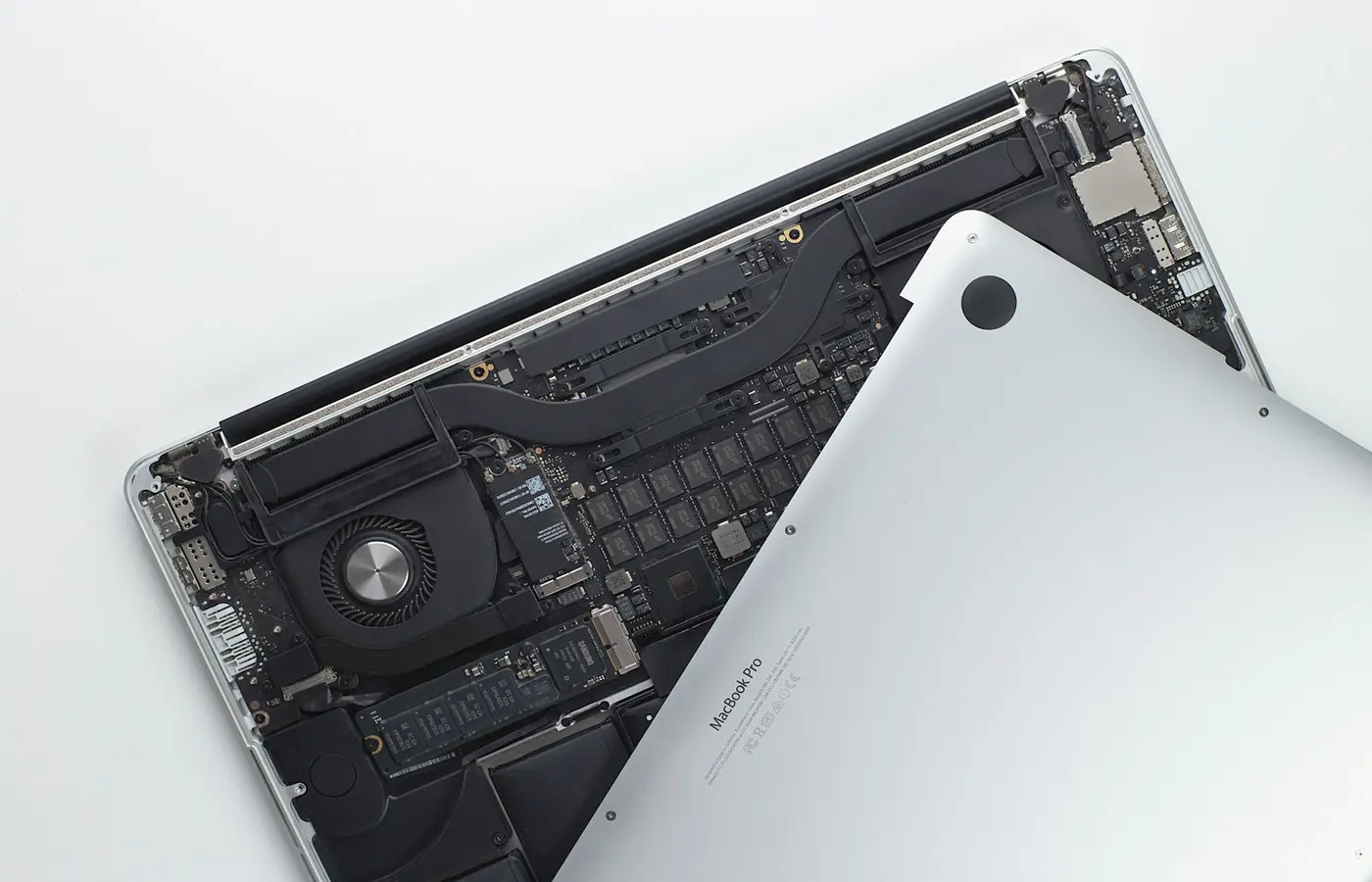
Many laptops can use a larger or second SSD, but the safe answer is never based on the laptop family name alone. You need to verify the exact machine, its internal storage layout, and the drive format supported by that specific configuration before buying anything or removing the bottom cover.
A laptop advertised under one product name may ship with different motherboards, storage options, or service access depending on its screen size, processor, graphics option, country, and seller SKU. One version may have two removable M.2 slots; another may have one slot, a shorter slot, or storage that is not intended for owner replacement.
The safest default is simple: confirm the exact model identifier, find the official service documentation for that identifier, and match the proposed SSD’s part number to the documented slot. If the manual, parts list, and physical layout do not agree, stop and ask the manufacturer or an authorized service provider before opening the laptop.
The quick answer: verify the exact laptop before buying an SSD
Start by identifying the laptop more precisely than “Dell Inspiron,” “Lenovo Legion,” or “HP OMEN.” Those names describe families, not necessarily one internal design.
Look for one or more of these identifiers:
- The full model number or machine type on the bottom label.
- A manufacturer product number, SKU, or part number.
- The serial number, if the manufacturer’s support site uses it to return the original configuration.
- The model shown in BIOS/UEFI setup or your operating system’s system-information tool.
- The original invoice, order confirmation, or business asset record.
Then use the manufacturer’s support page for that exact identifier. Look for documents with names such as:
- Service manual or maintenance manual.
- Hardware maintenance manual.
- Owner’s guide.
- Illustrated parts catalog.
- Repair guide or self-repair instructions.
- Technical specifications.
A retailer listing can be useful for finding a model number, but it is not a reliable final source for internal expansion details. Listings sometimes combine multiple configurations on one page or preserve specifications from an older revision. The laptop maker’s documentation and parts information are more useful because they may show connector locations, retention hardware, compatible replacement parts, and disassembly steps.
Before ordering a drive, write down these five answers:
- Is the installed SSD removable?
- Is there a documented empty storage slot?
- Which interface does each slot support?
- What physical drive size fits?
- Does the manual place any restrictions on service, parts, or cover removal?
If any answer is unknown, treat the purchase as unverified rather than assuming a common M.2 SSD will fit.
Identify whether you are replacing a drive or adding one
“SSD upgrade” can describe three very different jobs. The parts and preparation required depend on which one applies.
Replacing an existing removable SSD
This is common in laptops with a removable M.2 module. You remove the existing drive and install a larger replacement. This route usually requires a migration plan because the original drive may contain the operating system, recovery partition, encryption information, and personal data.
Do not assume the existing drive is standard simply because it looks like an M.2 module. Confirm its length, connector type, and mounting method in the service manual or by checking the drive’s exact label after following the approved disassembly procedure.
Adding an SSD in a documented spare slot
Some laptops have a second M.2 connector intended for expansion. This can be the simpler route because the original boot drive can remain in place while the new drive is initialized as additional storage.
However, an installed M.2 SSD does not prove that a second slot exists. A spare slot may be absent, reserved for another configuration, physically blocked by a battery or cooling hardware, or require a bracket, screw, shield, or cable that was not included with your particular laptop.
HP’s guidance for selected OMEN laptop configurations is a useful example of why configuration checking matters: it tells owners to verify the individual machine because configurations can vary, including whether slots are already populated. That article should not be treated as proof that another OMEN model—or any laptop from another family—has the same slot count or capacity support. See HP’s OMEN NVMe expansion guidance only as a model-family-specific starting point.
Storage that is soldered or not owner-serviceable
Thin-and-light laptops sometimes use soldered storage, proprietary modules, or storage located in an area not intended for owner access. In those cases, there may be no conventional SSD upgrade path even if a similarly named laptop has one.
If the official documentation identifies storage as soldered, does not show a removable drive, or directs storage service to an authorized provider, do not force an upgrade based on a teardown video for a different SKU. External storage or a professional repair assessment may be the safer option.
Match the SSD to the documented slot
The label “M.2” is not enough to establish compatibility. M.2 describes a physical module format; it does not guarantee that a slot accepts every M.2 storage protocol.
Your laptop documentation must establish what the connector supports. The prospective SSD’s own datasheet must establish what the drive requires.
Use this checklist before ordering.
| Check | What to verify | Where to verify it |
|---|---|---|
| Slot availability | Replaceable installed drive or documented spare connector | Exact-model service manual or parts catalog |
| Interface | NVMe/PCIe, SATA, or another documented implementation | Laptop technical specifications or service documentation |
| Physical length | For example, 2280 or 2242, only when specifically documented | Laptop manual and SSD datasheet |
| Connector/keying | The drive’s connector arrangement and the laptop’s supported slot | Official documentation for both products |
| Drive thickness | Single-sided or double-sided clearance, if documented | Service manual and SSD mechanical specifications |
| Retention hardware | Screw, standoff, bracket, shield, or thermal hardware | Illustrated parts list and service manual |
| Capacity support | A stated maximum, tested options, or no stated limit | Exact-model manufacturer documentation |
M.2 module names often include their dimensions. For example, “2280” commonly refers to a module approximately 22 mm wide and 80 mm long, while “2242” is shorter. That naming convention helps you compare parts, but the documented mounting position in your laptop is still decisive.
Likewise, do not assume an M.2 SATA drive and an M.2 NVMe drive can be exchanged. A slot designed for one may not support the other, even if both drives appear physically similar. The connector implementation, firmware support, and laptop board design determine whether the drive will work.
Capacity needs the same caution. If a manual lists only the capacities sold at launch, that does not necessarily mean larger drives cannot work. But it also does not prove they will. Do not turn an omission into a guarantee. If the manufacturer does not state a maximum capacity and the purchase matters, ask its support team or an authorized provider in writing, supplying both the laptop identifier and the proposed SSD part number.
Check the service manual, warranty terms, and required tools
Compatibility is only half the decision. A drive may technically fit while the laptop remains difficult or risky to open without the right procedure.
Read the exact-model service instructions before ordering parts. A useful manual should clarify:
- How the bottom cover is removed.
- The location and type of fasteners.
- Whether a particular screwdriver or non-metal opening tool is required.
- The approved battery-handling sequence.
- Whether shields, brackets, or thermal materials must be transferred or replaced.
- The location of the SSD retaining screw and standoff.
- The reassembly order.
Do not substitute generic instructions for an official model-specific procedure. For example, do not disconnect an internal battery, remove a heat shield, or move a thermal pad merely because another laptop guide recommends it. Follow the exact service documentation for your model.
Warranty treatment also varies. It can depend on the country of purchase, the seller, the manufacturer’s written terms, the part installed, and whether the work causes damage. Replacing a drive does not automatically have the same outcome in every region, but neither is it safe to assume an owner upgrade can never affect a warranty claim.
Read the warranty documentation that applies to your purchase region and seller. If it does not clearly address owner-installed storage, request clarification before proceeding. Keep the reply with your purchase records. A written answer is more useful than a forum post or a generalized policy summary.
Back up first, then choose cloning or a clean installation
Do not begin an SSD replacement with the only copy of important files stored on the laptop.
Before opening the computer, create and verify a backup on separate storage or a trusted cloud service. A backup is not complete merely because a copy operation finished; confirm that you can locate and open important files from the backup destination.
Also prepare:
- Your operating system recovery method or installation media.
- Any manufacturer recovery-media or cloud-recovery option offered for the exact laptop.
- Disk-encryption recovery information, if encryption is enabled.
- Password-manager access and multi-factor authentication recovery methods.
- Application license details for software that may need to be reactivated.
- A plan to retain the original SSD unchanged until the new installation is confirmed.
You generally have two migration paths.
Clone the existing drive
Cloning copies the current installation to the replacement SSD. It can preserve applications, files, settings, and recovery partitions, but it is not universally simple. Success can depend on the source partition layout, encryption state, destination capacity, connection method, and the migration tool’s support for your operating system and drive.
Use current documentation from the migration-tool provider and the SSD manufacturer when a specific tool is involved. Do not assume a bundled utility supports every SSD, USB enclosure, encrypted installation, or destination size.
Perform a clean installation
A clean installation starts with a new operating system installation and then restores files and applications. It can avoid carrying forward some old configuration problems, but it requires more setup afterward and depends on having recovery access, installation media, and license information ready.
Neither method is automatically safer for every laptop. Choose the path you can verify before you remove the original drive.
Install, verify, and know when to stop
Once compatibility and preparation are confirmed, use the official service manual as the procedure—not this article or a generic video.
At a high level, the safe sequence is:
- Shut the laptop down fully rather than relying on sleep mode.
- Disconnect external power and accessories.
- Follow the manual’s cover-removal and battery-handling instructions exactly.
- Locate the documented storage connector and confirm that it matches the planned upgrade.
- Remove or install the SSD without forcing the connector, retaining screw, shield, or bracket.
- Reinstall all required hardware in the documented order.
- Reassemble the laptop before reconnecting power, unless the manual explicitly instructs otherwise.
- Confirm in BIOS/UEFI or the operating system that the new drive is detected.
- For a new secondary drive, initialize and format it through the operating system’s normal storage-management tools.
- For a replacement boot drive, confirm that the system starts correctly and that important files are accessible before erasing or repurposing the old drive.
Stop and seek professional service if you find a swollen battery, stripped screw, cracked cover, damaged connector, missing mounting hardware, an undocumented board layout, or conflicting compatibility information. Also stop if the drive is not detected after correct reassembly. Repeatedly reseating parts, changing firmware settings, or improvising thermal materials can create a larger problem when the underlying issue is uncertain.
Frequently asked questions
How do I find out whether my exact laptop model has a second SSD slot?
Find the full model or manufacturer part number, then check the official support page for its service manual, technical specifications, and illustrated parts catalog. Look for a second storage connector in the diagrams, not just an installed-drive specification. If the documents are unclear, ask the manufacturer or an authorized provider using the exact identifier.
Can I install an NVMe SSD in an M.2 slot that previously held a SATA SSD?
Not necessarily. M.2 is a physical form factor, while NVMe and SATA are different storage interfaces. Confirm that the exact laptop slot supports NVMe/PCIe before buying an NVMe drive. A physical fit alone does not establish compatibility.
Will a larger-capacity SSD work if the laptop manual does not list a maximum capacity?
It may, but an omitted maximum is not a guarantee. Check for newer official documentation, BIOS notes, or a manufacturer support response for your exact model and proposed SSD part number. If reliable confirmation is unavailable, choose a documented configuration or consult a qualified service provider.
Does replacing a laptop SSD void the warranty?
There is no universal answer. Warranty treatment can vary by manufacturer, retailer, region, and whether the upgrade or installation causes damage. Read the terms applicable to your purchase and obtain written clarification if owner service is not clearly addressed.
The practical conclusion
An SSD upgrade is worthwhile only after the laptop and the drive have been matched at the configuration level. Verify the exact machine, confirm whether you are replacing a drive or filling a real spare slot, match interface and dimensions using official documentation, and prepare a tested recovery plan before opening the chassis.
If the evidence is incomplete, the correct next step is not a guess. It is a support request, an authorized service assessment, or a different storage plan.


