
How to Check Whether Your Laptop Supports USB-C Charging
Learn how to confirm whether your laptop accepts USB-C charging, match a compatible USB Power Delivery charger and cable, and avoid common mistakes.
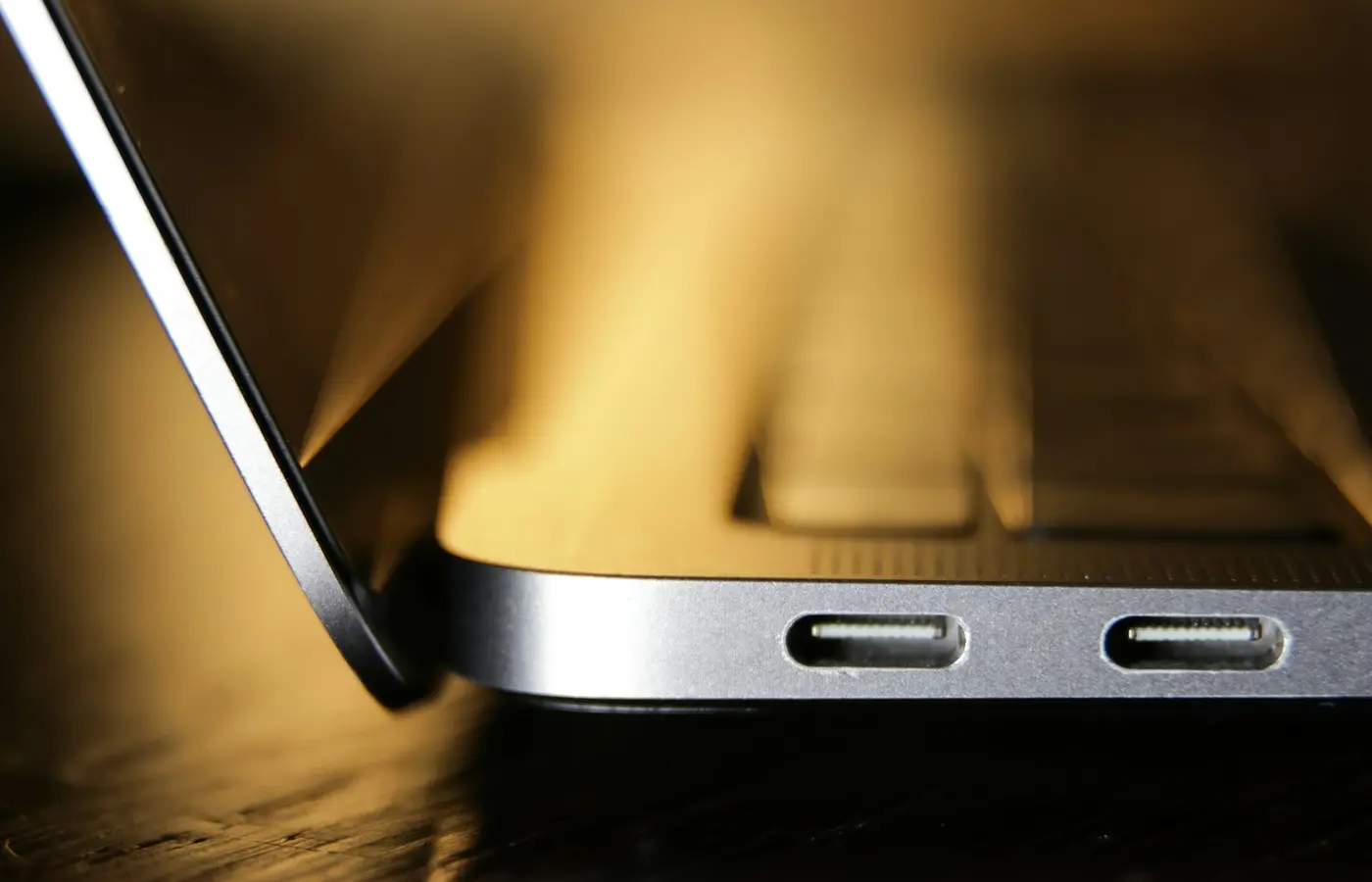
A USB-C-shaped port does not automatically mean your laptop can charge through USB-C. The connector can carry data, video, power output for accessories, or some combination of those features. Whether it accepts power into the laptop depends on the exact model, port design, firmware, and manufacturer documentation.
The safest answer is not to plug in a random charger and hope. Identify the full laptop model, find the official specifications or manual, and confirm that the relevant port supports USB-C Power Delivery input or USB-C charging. Then check that your charger and cable can provide a compatible power profile.
This is a documentation-led guide rather than a hands-on test of any particular laptop. If a manual, support page, and charger label disagree, treat the manufacturer’s support team or a qualified service provider as the next step.
Start with the exact laptop model, not the USB-C port shape
USB-C describes the physical connector. It does not guarantee charging support, Thunderbolt support, USB4 support, display output, or a particular data speed.
Two laptops can have nearly identical USB-C ports while offering different capabilities. One may charge through either USB-C port. Another may use USB-C only for data and external displays. A third may support charging only through one marked port, or only with a specified adapter.
Before buying a replacement charger or connecting a dock, identify the laptop precisely. Look for:
- The full model number on the bottom label or original packaging
- A machine type, product number, or part number rather than a broad series name
- The original order confirmation or invoice
- The manufacturer’s support application, where available
- The operating system’s device or system information page
A name such as “ThinkPad,” “Inspiron,” “Pavilion,” or “Zenbook” is usually not specific enough. Product families often include multiple generations and configurations with different ports and charging designs.
Once you have the identifier, search the manufacturer’s support site for the exact model. Prioritize these documents:
- Technical specifications or a product specification sheet
- User guide or setup guide
- Port diagram and hardware manual
- Compatible accessories or replacement-adapter documentation
- Charging, BIOS/UEFI, and battery troubleshooting articles
Retailer listings can help you find a model, but they should not be the final authority. Listings may combine variants, omit regional differences, or carry copied specification tables. Match the retailer’s part number against the manufacturer’s documentation before relying on it.
Find proof that the port accepts USB-C power input
Look for explicit language that says the laptop accepts power through USB-C. Useful phrases include:
- “USB-C charging”
- “USB Power Delivery input”
- “Power input” or “DC-in” over USB-C
- “USB-C adapter supported”
- “Charge the computer using a USB-C power adapter”
- A documented USB-C dock or adapter that provides host charging
The wording should apply to your exact laptop model and, when necessary, to a specific port.
A port diagram is especially important on laptops with more than one USB-C connector. Documentation may identify one port as power-capable while the other is intended for data, display output, or accessories. Do not assume that one charging-capable USB-C port makes every USB-C port on the laptop suitable for charging.
Icons can provide a clue, but they are not conclusive evidence. A battery, plug, or charging symbol near a port may be useful when it matches the manual. A lightning icon can identify a high-speed connection technology on some devices, but it does not independently prove that the laptop accepts charging through that port. The same caution applies to USB4, Thunderbolt, DisplayPort, and data-transfer labels.
If the official manual does not state that the laptop supports USB-C power input, do not treat the port as a charging port. It may still charge phones or accessories from the laptop, which is a different capability.
Match the laptop, charger, and cable
USB-C laptop charging is a compatibility chain, not a single feature. All three parts need to work together:
| Component | What to verify | Why it matters |
|---|---|---|
| Laptop | It explicitly supports USB-C power input | A USB-C data port cannot become a charging input just because the charger fits. |
| Charger | It offers USB Power Delivery output suitable for the laptop | A charger’s connector and headline wattage alone do not show which power options it can supply. |
| Cable | It is intended for the required charging level | USB-C cables are not all designed or documented for the same charging capability. |
| Dock or hub, if used | Its host charging limit and upstream power-input requirements | A dock may pass less power to the laptop than its own power adapter can supply. |
Read the original charger label first
The included charger is the best starting reference because it was supplied for that configuration. Check its label for the output information, then compare it with the laptop manual’s stated power-adapter requirement or supported replacement adapter.
Do not rely only on the large wattage number printed on the charger. A charger may have several output modes, and a multi-port charger may reduce the power available to one port when other devices are connected. Its documentation should explain the available output from the specific port you plan to use.
For USB Power Delivery charging, the charger and laptop communicate to select a power option they both support. In practical terms, a charger’s maximum rating is a capability, not an amount that it continuously forces into the laptop. A higher-rated compatible charger is not automatically harmful merely because its maximum output exceeds the original adapter’s rating.
That does not mean every higher-watt charger will deliver the laptop’s preferred charging behavior. The laptop may accept only certain profiles, limit charging under particular conditions, or reduce power when using a dock. Firmware, battery state, workload, and connected accessories can also affect what you see.
Do not assume every USB-C cable is equivalent
Use a cable with clear manufacturer documentation for charging at the level you need. The cable included with a known-good laptop charger is often the simplest starting point. For a replacement, check the cable packaging or product documentation rather than assuming that a USB-C cable designed for a phone or data transfer is suitable for laptop charging.
Avoid relying on an unidentified cable, a visibly damaged cable, or an adapter chain whose capability you cannot verify. A cable can be the weak link even when the laptop and charger are both compatible.
Use safe checks before relying on another USB-C charger
Once documentation confirms USB-C charging support, use this sequence before making a replacement charger, dock, or travel adapter part of your normal setup.
1. Confirm the correct port
Use the exact port identified in the manufacturer’s port diagram or user guide. If the laptop supports charging through more than one port, the documentation should say so.
2. Compare the documented requirement with the charger output
Check the laptop maker’s recommended adapter specification and the charger maker’s published USB-C output information. For multi-port chargers, verify the output available when other ports are in use, not only the charger’s total advertised capacity.
If the charger documentation is vague, incomplete, or inconsistent, do not use it as the basis for an important purchase or a work-critical setup.
3. Use a known-good USB-C cable
Start with the original cable where possible, or use a replacement cable whose charging capability is clearly stated by its manufacturer. Connect the charger directly to the laptop for the initial check.
Do not start with an unknown dock, hub, extension, monitor, or conversion adapter. Each extra component adds another possible power limit or compatibility issue.
4. Check charging status while the laptop is lightly loaded
After connecting the charger, check the operating system’s battery indicator and any manufacturer utility. A charging symbol, “plugged in” status, or a low-power warning may help diagnose the connection, but interpret it alongside the laptop documentation.
If the system reports that the charger is slow, unsupported, or insufficient, do not dismiss the warning. It can indicate that the adapter, cable, dock, or selected port does not meet the laptop’s expected input conditions.
5. Test a dock separately
If you plan to use a USB-C or Thunderbolt dock, first prove that the laptop charges directly from a compatible USB-C charger. Then check the dock’s documentation for two separate figures:
- The power it accepts from its own power adapter
- The maximum power it can provide to the connected laptop
Those numbers are not necessarily the same. A dock can consume power for its own ports, network hardware, storage, and display connections before supplying the host laptop.
Know when to stop
A compatible but lower-power charger may work acceptably for a laptop at idle yet struggle when the computer is under load. In other cases, the battery may charge slowly, hold roughly steady, or continue to decline while the laptop is running demanding software. The manufacturer’s recommended adapter remains the safer default when performance and charging reliability matter.
Stop troubleshooting and seek official support or qualified service if you notice any of the following:
- A damaged, bent, loose, or unusually hot USB-C port
- Frayed cable insulation, exposed metal, or a damaged charger plug
- A burning smell, smoke, sparking, or severe heat
- A swollen battery or a case that is lifting or separating
- Charging that repeatedly connects and disconnects with known-good equipment
- Conflicting official documentation for the exact model
- A laptop that uses a proprietary barrel connector and does not explicitly document USB-C charging support
Do not attempt to repair a charging port, open the battery compartment, or bypass manufacturer guidance to force a charging arrangement. A USB-C connector fitting physically is not evidence that the electrical design supports system charging.
A buyer checklist for laptops advertised with USB-C or Thunderbolt
When buying a new laptop, treat “USB-C” or “Thunderbolt” as the beginning of the research, not the conclusion. Before checkout, verify the exact configuration using the manufacturer’s product page, technical sheet, and manual.
Ask these questions:
- What is the exact SKU or part number being sold?
- Does the manufacturer explicitly say the laptop supports charging through USB-C?
- Which physical port accepts power input?
- Is USB Power Delivery named in the specifications or setup guide?
- What charger is included, and what adapter specification does the manufacturer recommend?
- Can the laptop charge through a dock, and what host-power limit does that dock support?
- Does the selected configuration differ by region, processor, graphics option, or included charger?
- Does the seller have a return policy that gives you time to verify the advertised port behavior?
If USB-C charging is important for a desk dock, shared office charger, travel setup, or monitor connection, save the relevant product-page and manual pages before buying. Manufacturer pages can change, and broad model names can conceal meaningful configuration differences.
Frequently asked questions
Can any USB-C port charge a laptop?
No. USB-C is a connector type, not a promise of laptop power input. A USB-C port may support data, displays, accessories, or charging other devices without accepting power for the laptop itself. Confirm USB-C charging or USB Power Delivery input in the official documentation for the exact model.
Can I use a higher-watt USB-C charger than the one included with my laptop?
Usually, a higher-rated charger can be appropriate when the laptop supports USB-C Power Delivery and the charger, cable, and laptop have compatible capabilities. The charger’s maximum rating is not automatically forced into the laptop. However, verify the laptop maker’s requirements, the charger’s output documentation, and the cable’s stated capability. A higher number on the charger is not a substitute for compatibility.
Why does my laptop say the USB-C charger is slow or insufficient?
The charger may not provide the power option the laptop expects, the cable may limit the connection, a dock may reserve part of the available power, or a multi-port charger may be sharing output with other devices. Connect a documented compatible charger directly to the correct port with a known-good cable, then consult the laptop maker’s charging guidance if the warning remains.
Can a USB-C dock charge my laptop?
Only if the laptop supports USB-C power input and the dock is documented to provide sufficient host charging for that laptop. Check the dock’s upstream power-input rating and its maximum power delivery to the connected host. Do not assume that a dock’s own adapter rating is the same as the power available to your laptop.
The practical rule
For laptop USB-C charging, the connector shape is never enough. Confirm the exact laptop model supports power input through the specific port, match it with a documented USB Power Delivery charger and suitable cable, and test the setup directly before depending on a dock or multi-port charger.
When documentation is missing or contradictory, use the original charger and contact the laptop manufacturer rather than treating USB-C compatibility as a guess.


