
How to Check Laptop Battery Health and Decide Whether It Needs Replacement
Check laptop battery health in Windows or macOS, separate capacity wear from battery drain, and know when safe professional service is needed.
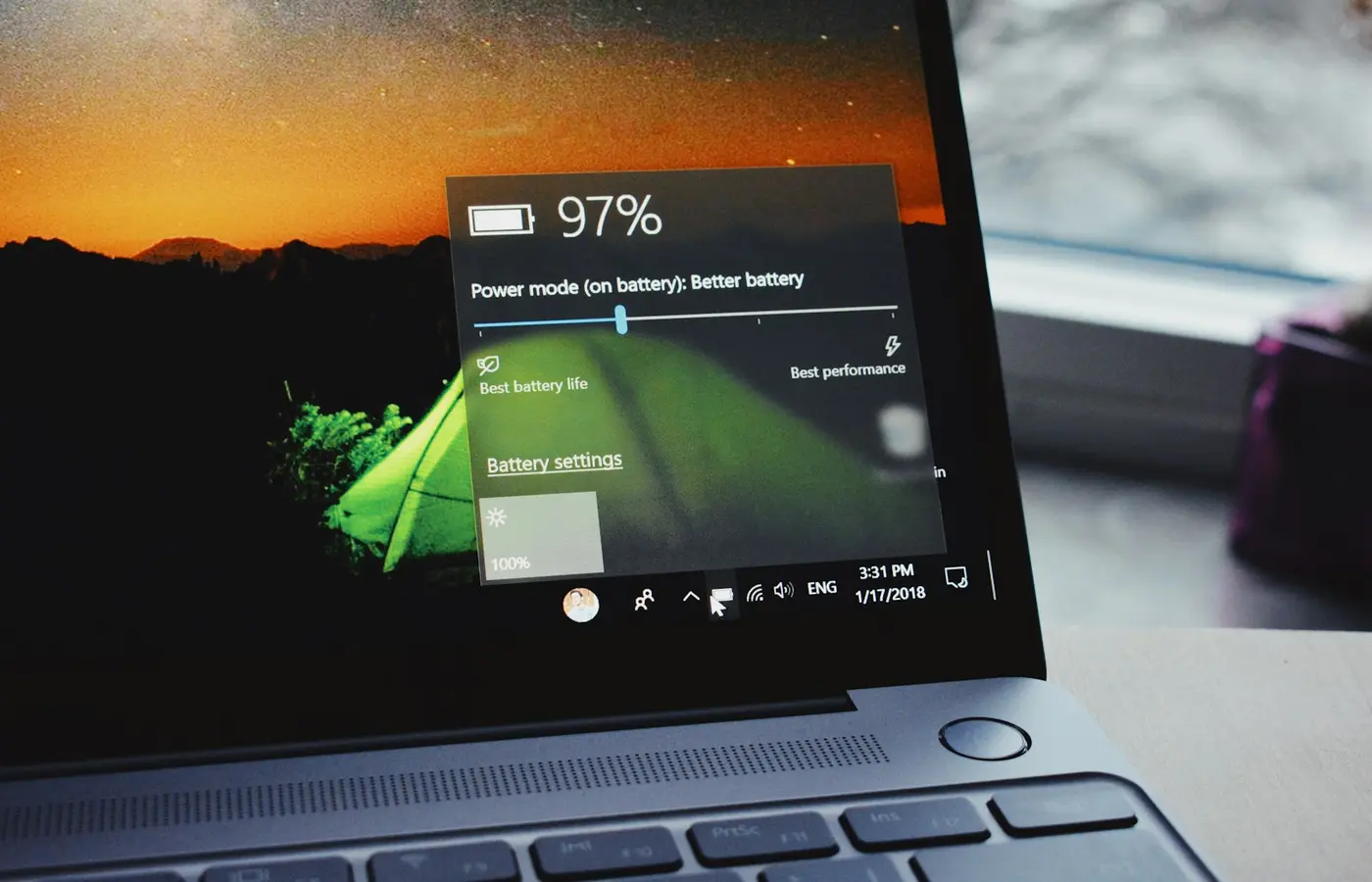
A laptop battery does not need replacement simply because its runtime is shorter than it was when new. Lithium-ion batteries gradually hold less energy as they age, but poor battery life can also come from demanding apps, display settings, accessories, a charging problem, or a laptop that is not sleeping properly.
The practical answer is to check both the battery’s reported condition and the pattern of the problem. Arrange service or replacement when the battery is swollen or damaged, a manufacturer diagnostic identifies a fault, or the remaining runtime no longer works for your needs. Do not treat one low runtime estimate or one Windows report figure as proof that the battery has failed.
Start by separating battery wear from a battery-drain problem
Battery health and battery drain are related, but they are not the same diagnosis.
Battery capacity loss means the battery stores less energy than it did when new. Microsoft notes that lithium-ion cells age with use and eventually hold less charge, which can mean more frequent charging. Microsoft’s battery-care guidance also recommends avoiding frequent deep discharges where practical.
Unexpected drain means the laptop uses energy faster than expected. Possible causes include:
- A processor-intensive app, browser tab, game, video call, or background task
- A bright display, high refresh rate, keyboard lighting, or performance power mode
- USB devices, docks, external displays, or charging a phone from the laptop
- A damaged, incompatible, or underpowered charger
- A software, driver, firmware, or sleep-state issue
- A battery that has both reduced capacity and an actual fault
These problems can overlap. An older battery may have less capacity, while a background process makes that reduced capacity much more noticeable. Conversely, a healthy battery can appear to drain unusually fast if the laptop remains active in a bag after it was supposed to sleep.
Before changing hardware, write down the exact laptop model, model number or service tag, operating-system version, charger type, and the symptoms you see. For example: “Battery falls from 80% to 30% during a two-hour video call” is more useful than “battery is bad.” Also note whether the problem occurs only on battery power, only after sleep, or while connected to the charger.
Check battery health in Windows before changing hardware
Windows can provide useful battery information, but its report is a diagnostic indicator rather than a laboratory test or a definitive failure verdict.
Generate a Windows battery report
On many Windows laptops, you can create a battery report using the built-in powercfg utility:
- Save your work and connect the laptop to its normal charger if available.
- Open Terminal, Command Prompt, or Windows PowerShell with administrator permissions.
- Enter
powercfg /batteryreport. - Windows should display the location of the generated HTML report. Open that file in a web browser.
The exact Windows interface and supported options can change between releases, so check Microsoft’s current battery-care documentation if the command does not work or your device is managed by an employer or school.
Compare design capacity and full-charge capacity
The most useful figures in the report are usually:
| Report field | What it means | What it cannot establish alone |
|---|---|---|
| Design capacity | The battery’s original rated energy capacity | The battery’s current real-world runtime |
| Full-charge capacity | The capacity the system currently estimates the battery can hold | That the battery is defective or unsafe |
| Recent usage | Battery level and activity over a recent period | The cause of every drain event |
| Battery-life estimates | Windows’ estimated runtime based on recorded usage | A guaranteed runtime for your workload |
If full-charge capacity is materially below design capacity, the battery has likely lost some storage capacity. That is normal over time. The report does not tell you whether the remaining capacity is acceptable for your workday, nor does it reliably isolate a charging, sleep, or software issue.
Look at the report alongside your actual use. A laptop that completes your normal workload without unusual shutdowns may not need a new battery even if its full-charge capacity is lower than its design capacity. On the other hand, a battery that no longer supports a commute, class day, or essential field work may justify replacement even if it has not triggered a clear fault message.
Check Windows battery use before blaming the pack
Open Windows battery and power settings and review recent battery use by application. The names and locations of these controls vary by Windows version, but the goal is consistent: identify apps that use an unusually large share of power.
Start with straightforward changes:
- Close or update an application that is persistently using substantial power.
- Disconnect nonessential USB accessories and external displays for one comparison session.
- Reduce display brightness and select an appropriate power mode for battery use.
- Check whether the laptop becomes warm or loses substantial charge while supposedly asleep.
- Install applicable Windows, driver, BIOS, and firmware updates from the laptop maker’s official support page.
These steps may reduce energy use, but they do not restore capacity already lost through battery aging.
Check battery health on a Mac laptop
macOS provides a battery-condition label intended to help owners decide whether the battery is functioning normally or may need attention.
Choose Apple menu > System Settings > Battery, then look for Battery Health. On older macOS versions, the route may appear under System Preferences instead. Apple’s current instructions are available in its guide to checking a Mac laptop battery’s condition.
You may see one of these broad outcomes:
- Normal: macOS reports that the battery is functioning normally.
- Service Recommended: the battery holds less charge than when new, or macOS has identified behavior that may not be normal.
“Service Recommended” is not an instruction to stop using the Mac immediately. Apple says you can continue using it safely, but service may be appropriate when reduced capacity affects your experience. See Apple’s guidance on the Service Recommended status.
Check cycle count as context, not a replacement rule
A charge cycle represents use equal to 100% of the battery’s capacity, though it does not need to happen in a single discharge. You can generally find cycle count in System Information under the Power section. Apple explains the process and provides model-specific context in its guide to Mac battery cycle counts.
Do not use cycle count as a universal replacement threshold. Different Mac models have different design expectations, and a battery’s condition, runtime, charging behavior, and physical state matter more than one number. A battery can remain usable after a high cycle count, while a lower-cycle battery can still require attention if it reports a fault or is physically damaged.
Use your laptop maker’s diagnostic tool to confirm the result
An operating-system report is useful, but the laptop manufacturer’s own diagnostic tool is the next check when symptoms are persistent. That tool may run inside Windows, from the firmware or preboot environment, or through a vendor support application.
Use this process:
- Find the exact model on the manufacturer’s official support site.
- Locate the support page, service manual, or diagnostics guide for that model.
- Run only the manufacturer-approved battery or system diagnostic.
- Record the result exactly, including any error code or reference number.
- Check the support documentation for what that result means and whether it affects warranty or service options in your region.
A failed vendor battery test is stronger evidence of a battery fault than a disappointing Windows runtime estimate. A passing test does not mean your laptop will meet your personal runtime needs; it means the tool did not identify the specific condition it is designed to detect.
For example, Dell provides a documented process for checking battery health, testing charging behavior, and running relevant diagnostics on supported Dell laptops. Its battery troubleshooting guide also covers checks such as charger inspection, adapter recognition, BIOS and driver updates, and diagnostics. Those instructions are Dell-specific; do not assume the same menus, tests, error codes, or repair options apply to HP, Lenovo, ASUS, Acer, Microsoft, Apple, or another manufacturer.
Rule out charging, settings, and sleep-related drain
Before ordering a replacement battery, work through lower-risk causes in a controlled order.
1. Inspect the charger and charging connection
Use the charger supplied with the laptop or a replacement with the correct connector, power rating, and supported charging standard for your exact model. A USB-C charger may physically fit while still being unable to provide the power the laptop requires under load.
Check for frayed insulation, bent connectors, loose ports, heat damage, or intermittent charging. If the laptop reports that the adapter is not recognized, charges only at certain angles, or repeatedly switches between charging and not charging, consult the manufacturer’s support guidance before concluding that the battery is at fault.
2. Review high-consumption software and hardware
Run the laptop on battery for a typical task and note what is active. Browser-heavy work, video conferencing, local AI workloads, gaming, external displays, and high screen brightness can all produce shorter runtimes than light document editing.
If the concern is sudden drain, compare two similar sessions: one with unnecessary peripherals disconnected and nonessential apps closed, and one with your usual setup. This does not create a formal benchmark, but it can reveal whether the problem follows a workload or occurs regardless of use.
3. Investigate sleep behavior separately
A laptop can lose considerable charge while it is not being used if it remains active after the lid closes. Signs include a warm chassis in a bag, fans running unexpectedly, or a much lower battery percentage after several hours of supposed sleep.
Check the operating system’s recent battery-use history, apply official updates, and test sleep again after each change. Avoid changing several settings at once; otherwise, you will not know which change mattered. If sleep drain continues, consult the exact model’s manufacturer documentation because available sleep states and firmware behavior differ between laptops.
4. Retest after changes
After changing one likely cause, use the laptop normally for a day or two and compare the result with your original notes. A stable improvement points toward a settings, workload, or sleep issue. No improvement, especially alongside a failed vendor diagnostic or unstable charging, makes a service assessment more reasonable.
Decide whether to keep using it, arrange service, or replace the battery
Use the evidence and your needs together.
Keep using the battery when:
- The manufacturer diagnostic reports no fault.
- The laptop charges normally and does not shut down unexpectedly.
- There is no swelling, case separation, overheating, or physical damage.
- The available runtime still suits your typical workload.
Investigate software, charging, or sleep behavior first when:
- The battery report shows wear, but the main symptom is sudden or overnight drain.
- Battery use points to a particular application or peripheral.
- The laptop stays warm while asleep.
- The charger is not consistently recognized or does not appear to provide sufficient power.
Arrange authorized service or battery replacement when:
- The manufacturer diagnostic identifies a battery fault.
- macOS reports Service Recommended and the reduced capacity or behavior materially affects use.
- The battery no longer provides enough runtime for your essential work despite normal settings and expected workloads.
- Charging is unreliable after basic charger and software checks.
- The battery is swollen, leaking, physically damaged, or associated with case distortion.
For an internal battery, consult the exact model’s service manual and warranty terms before opening the laptop. Internal layouts, screw types, adhesive, cable routing, and safety procedures vary widely. A generic online teardown is not a substitute for model-specific guidance, and opening the device can create warranty, damage, and fire risks.
Stop using the laptop and seek help if the battery is swollen or damaged
A swollen battery is a safety issue, not a normal maintenance task. Stop using the laptop if you see a bulging bottom cover, raised trackpad, separated seams, a lifted keyboard, leakage, unusual heat, smoke, or a burning smell.
If it is safe to do so, disconnect external power and move away from use of the device. Do not puncture, compress, bend, heat, disassemble, or attempt to flatten the battery. Do not continue charging it to “test” whether the problem improves.
Dell’s battery FAQ, for example, says swelling in lithium-ion polymer batteries should be addressed promptly and warns against puncturing or compressing the pack. Read its battery safety and FAQ guidance only as Dell-specific documentation. For any other brand, follow that manufacturer’s safety, service, and disposal instructions for the exact model.
Do not place a damaged battery in household rubbish. Contact the manufacturer, an authorized service provider, or an appropriate local battery-recycling service for handling instructions.
Frequently asked questions
What percentage of battery health means a laptop battery should be replaced?
There is no universal percentage. Battery design, firmware estimates, workload, and your required runtime differ by model. Replacement makes sense when diagnostics identify a fault, the battery is unsafe, or its reduced capacity no longer meets your practical needs.
Does a low full-charge capacity always mean the battery is causing fast drain?
No. A lower full-charge capacity means the battery stores less energy than when new, but fast drain can also result from demanding software, display settings, peripherals, charging issues, or poor sleep behavior. Check usage patterns and the manufacturer’s diagnostic result before replacing hardware.
Can sleep mode drain a laptop battery even when battery health is normal?
Yes. A laptop can consume power while it is supposed to be sleeping if it remains partly active. Review battery-use history, check for warmth after sleep, install applicable official updates, and test again before attributing the issue solely to the battery.
Is it safe to replace an internal laptop battery yourself?
Only if the exact model’s official service guidance supports the procedure, you understand the safety and warranty implications, and the battery is not swollen or damaged. For sealed laptops, glued packs, damaged batteries, or any uncertainty about the procedure, use authorized service instead.
A battery report is best treated as the start of a diagnosis, not the final answer. Confirm the model, compare reported capacity with your real use, run the manufacturer’s approved diagnostic, and stop immediately if there are signs of physical battery damage.


