
Laptop Battery Charge Limits: When to Use Them and What They Change
Learn when a laptop battery charge limit makes sense, how to find it on supported models, and how to verify it without confusing it with a repair.
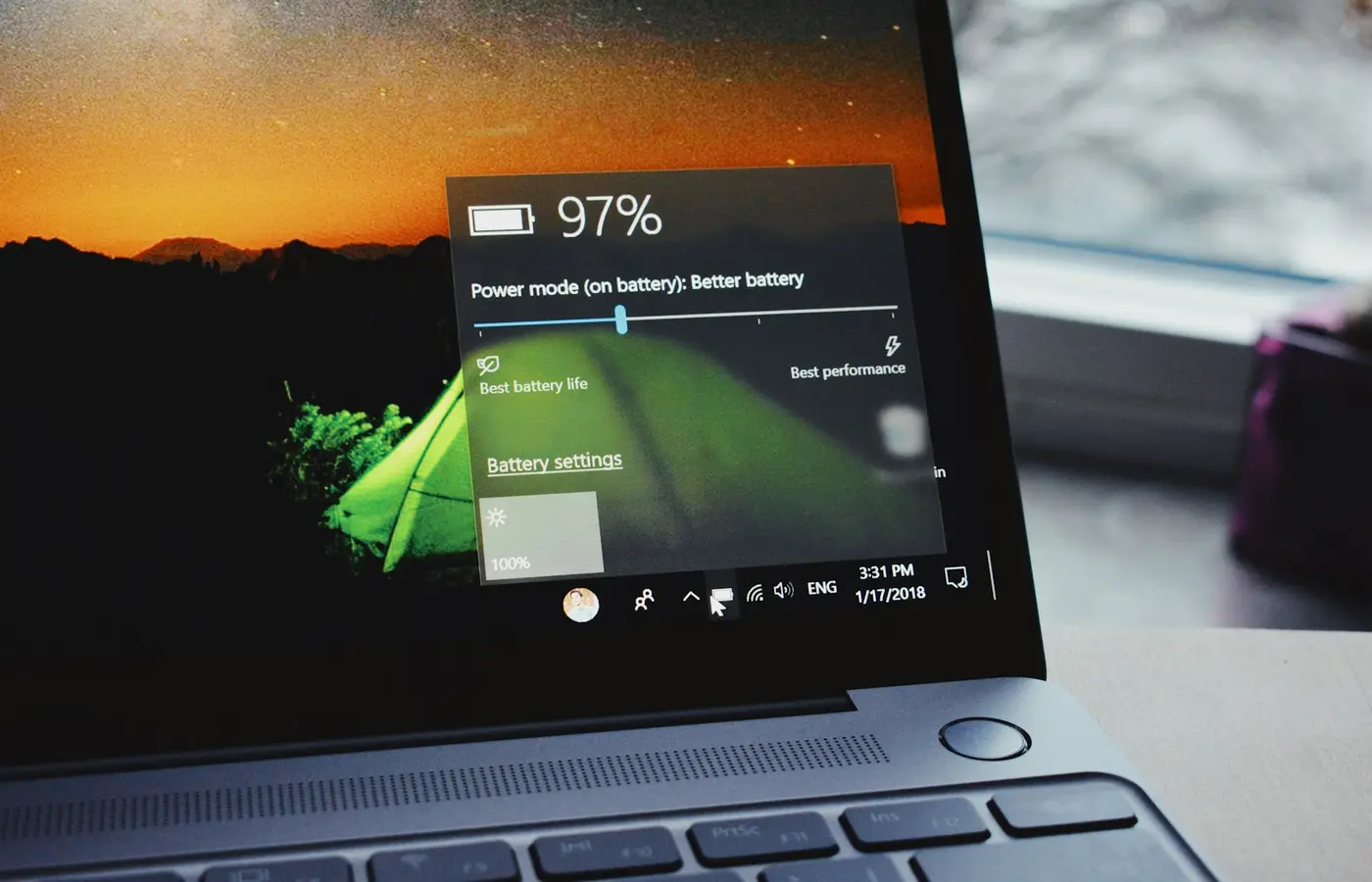
A laptop battery charge limit is worth enabling if your computer spends most of its working life connected to AC power—at a desk, on a dock, or beside a monitor—and you can accept less unplugged runtime. It deliberately stops charging below the usual 100% target, reducing the time the battery remains at a very high charge level.
It is not a repair tool. A charge limit cannot restore capacity that has already been lost, fix a battery that charges intermittently, correct a faulty battery reading, or make a swollen battery safe. It is a preventive ownership setting on supported laptops, and its name, location, target percentage, and behavior vary by exact model.
Use a charge limit when plugged-in use matters more than maximum runtime
The central trade-off is simple: a lower charging ceiling leaves less energy available when you unplug.
That makes a charge limit a sensible option for people who:
- Use a laptop mainly at a fixed desk with its charger connected.
- Leave the machine attached to a USB-C dock or monitor that supplies power.
- Travel occasionally but can plan ahead and temporarily return to normal charging before a longer day away from an outlet.
- Own a supported laptop and want to use the battery-care controls provided by its manufacturer.
It may be the wrong default for people who regularly work away from power, move between classes or meetings all day, or need the longest possible runtime without advance planning. In that situation, charging normally may be more useful than preserving a lower charge ceiling.
Manufacturers describe these features as battery-care measures rather than performance upgrades. For example, HP says its Maximize My Battery Health setting reduces full charge capacity to 80% on select business notebooks, with the aim of reducing battery stress associated with aging. ASUS describes Battery Health Charging as a way to set a maximum relative state of charge on supported systems that spend extended time connected to AC power.
Those descriptions support the basic decision, but they do not establish one universal lifespan gain for every laptop, battery, workload, room temperature, or charging pattern. Do not expect a specific percentage improvement in battery health or years of extra useful life.
What a laptop battery charge limit changes—and what it cannot fix
A charge limit changes the charging target. Instead of aiming for the battery’s ordinary full state, the laptop’s charging system stops at a lower target chosen by the manufacturer or, on some models, by you.
An 80% target is common, but it is not universal. HP’s cited mode uses 80% on the supported business notebooks covered by its documentation. ASUS documents an 80% Battery Care Mode on supported devices. Other laptop families can use different names, fixed thresholds, configurable thresholds, or adaptive behavior.
The practical consequences are straightforward:
| With a charge limit enabled | With normal charging enabled |
|---|---|
| Less stored energy for use away from AC power | More stored energy available before unplugging |
| Potentially less time held near maximum charge | The battery may remain near its standard full target while plugged in |
| Better suited to desk-bound use | Better suited to frequent mobile use |
| Requires model-specific verification | Usually follows the laptop’s default behavior |
A charge limit does not do the following:
- Restore a degraded battery’s original capacity.
- Repair a battery that will not charge, drains unexpectedly, or reports an error.
- Guarantee that the laptop will run cooler or last longer.
- Override physical battery damage, charger problems, or a failing charging port.
- Prove that a battery is healthy simply because charging stops below 100%.
HP distinguishes between full charge capacity—the maximum energy a battery can currently store—and the selected charging behavior in its Battery Health Manager documentation. That distinction matters: limiting the charging target is not the same as increasing the battery’s present usable capacity.
If your laptop used to last much longer on battery power, a charge limit may make the reduced runtime more noticeable because it intentionally starts from less than a normal full charge. Before deciding the feature is at fault, check whether it is enabled and compare the observed percentage with the target documented for your exact model.
Check whether your exact laptop supports the setting
Do not assume every laptop from ASUS, Dell, HP, Lenovo, or any other manufacturer has a battery charge limit. Brand-wide utilities often support different features on different product lines, generations, regions, operating systems, and firmware versions.
Start with a configuration-first check.
1. Identify the complete model, not just the brand
Record the exact model family, generation, and machine type or product number. A label on the underside, the system information page, the original invoice, or the manufacturer’s support tool can help. “ThinkPad,” “Zenbook,” or “HP laptop” is usually too broad for a reliable support check.
Also note:
- Your operating system version.
- Whether the manufacturer utility is installed.
- Whether the laptop is using its supplied or approved charger.
- Whether the laptop has recently received a BIOS, firmware, or vendor-app update.
2. Use the model-specific support material
Search the manufacturer’s support page, user guide, downloads page, and battery documentation for the exact machine. Look for terms such as Battery Health, Battery Care, Conservation Mode, Charging Mode, Custom Charge, or Adaptive Battery.
ASUS explicitly notes that Battery Health Charging is available only on supported models and says that, for many systems, the setting is integrated into MyASUS. Its Battery Health Charging guide directs owners to a supported-model list if the setting does not appear in the app.
Lenovo’s documentation also shows why model-specific checking matters. The Legion 9 user guide says applicable Lenovo computers can manage active charging modes through Lenovo Vantage, Lenovo PC Manager, or Lenovo Legion Zone. That does not mean every Lenovo model has the same mode or menu.
HP’s Battery Health Manager guidance is similarly limited to supported systems, including select business notebooks. Treat the exact support list and your machine’s firmware documentation as the authority.
3. Do not substitute a generic workaround
If the official app does not show a charge-limit option, do not assume a registry tweak, third-party utility, BIOS modification, or firmware flash is a safe replacement. Such workarounds can be incompatible with the laptop’s embedded controller, battery firmware, warranty terms, or future updates.
The safer answer may simply be that your configuration does not offer a supported user-facing limit.
Find and enable the manufacturer-provided charge limit
Once you have confirmed support in the official material for your exact model, use the manufacturer-provided route. The menu names below are examples, not instructions for every machine.
- Connect approved AC power. Use the supplied adapter where possible, or an adapter the manufacturer identifies as compatible. Lenovo’s guidance for applicable models advises using certified adapters and notes that charging behavior is affected by temperature.
- Update or open the official laptop utility. This may be MyASUS, Lenovo Vantage, Lenovo PC Manager, Lenovo Legion Zone, Dell Power Manager, HP Battery Health Manager, or another current manufacturer tool.
- Find the battery, power, device settings, or charging section. Compare the available choices with the wording in your model’s official guide.
- Read the mode description before selecting it. Some modes prioritize maximum runtime, some prioritize battery care, and some attempt to adapt to a usage pattern.
- Choose the mode that fits your routine. A lower ceiling is generally most appropriate for mostly plugged-in use. Select normal or full charging when you need maximum portable runtime.
- Save the setting and note the prior mode. A screenshot or written note makes it easier to reverse the change if it does not suit your routine.
- Restart only if the official instructions require it. Do not reset BIOS settings or update firmware merely to force an option to appear unless the model-specific documentation tells you to do so.
On supported ASUS laptops, the official MyASUS Device Settings guide places Battery Care settings in Device Settings. ASUS says Battery Care Mode can charge to 80% and may adjust its recharge trigger while AC power remains connected. The exact labels and available controls can differ by model and software version.
For a Lenovo machine, consult that model’s own manual rather than copying a path from another family. Lenovo’s documentation identifies several possible management applications, which is a useful reminder that product lines do not always share one interface.
Verify the limit is active without mistaking normal behavior for a fault
A Windows battery icon or a single percentage reading is useful for checking status, but it does not by itself prove that the vendor’s charge-limit feature is functioning correctly. Verification should follow the documented behavior for the selected mode.
Use this cautious process:
- Confirm the selected mode in the manufacturer utility. Reopen the app and verify the battery-care or charging mode remains selected after saving.
- Keep the laptop connected to approved AC power. A charge limit cannot be evaluated reliably if the adapter disconnects, the dock cannot supply adequate power, or the cable is damaged.
- Allow enough time for the battery to reach the documented target. Do not judge the setting immediately after turning it on.
- Compare the stopping point with the model’s expected behavior. A documented 80% mode should generally stop around that target, but the display may not always show one exact number at every moment.
- Observe what happens after a small discharge. Some systems do not begin charging again immediately after dropping by one or two percentage points. Recharge thresholds are part of the charging design and can vary.
- Check the official documentation before treating a difference as a fault. The vendor guide should take priority over assumptions based on another model or brand.
ASUS documents that Battery Care Mode on supported systems uses an 80% charging target and can manage the recharge trigger while AC remains connected. It also notes that unplugging and reconnecting AC can be used when an immediate recharge toward the target is needed. That behavior should not be generalized to non-ASUS laptops.
Temperature can also affect charging. Lenovo’s user guidance states that battery charging is affected by temperature and gives a recommended charging range of 10°C to 35°C (50°F to 95°F) for the cited model family. If your laptop pauses charging in an unusually hot or cold environment, consult its own manual before assuming the charge limit has failed.
Stop and seek service for swelling, heat, or charging problems
A charge-limit setting is not a substitute for battery diagnostics or repair. Stop treating the issue as a settings problem and contact the manufacturer or an authorized service provider if you notice:
- A swollen, bulging, leaking, or physically damaged battery.
- A lifting keyboard, trackpad, bottom cover, or case seam that may indicate swelling.
- Unusual heat, burning smell, smoke, or discoloration near the battery or charging port.
- A damaged charger, cable, plug, or port.
- Charging that repeatedly starts and stops despite an appropriate, known-good adapter.
- A battery that will not hold an adequate charge, reports a diagnostic failure, or shuts the laptop down unexpectedly.
Do not open the laptop simply to inspect or disconnect a suspected swollen battery unless the manufacturer specifically directs you through an appropriate service process and you are qualified to perform the procedure. Avoid pressing on a swollen case or continuing to use a visibly damaged battery.
For less urgent problems, use the built-in diagnostics and service steps documented for the exact model. The support process may distinguish between an intended charging limit, an adapter-power problem, a firmware issue, and a battery that needs replacement.
Should you leave the limit on all the time?
For a laptop that stays on AC power most days, leaving a supported battery-care mode enabled is a reasonable default. Turn it off or select a normal charging mode before a trip, a long day away from power, or any situation where the reduced starting charge would be inconvenient.
The best setting is the one that matches your actual routine—not the one with the most reassuring name.
FAQ
Should I set my laptop battery charge limit to 80%?
Use an 80% limit only if your exact supported model offers that target and you spend much of your time plugged in. It is not a universal recommendation. If you need maximum unplugged runtime every day, normal charging may be the better choice.
Why does my laptop stop charging before 100%?
It may be using a manufacturer battery-care or conservation mode, or it may be following a recharge threshold designed to avoid constant small charging cycles. Check the vendor utility and the official documentation for your exact model before treating the behavior as a fault.
Does a battery charge limit restore lost battery health?
No. It changes future charging behavior; it does not restore lost capacity or repair a failing battery. Use the manufacturer’s diagnostics and service process if runtime has fallen sharply, charging is unreliable, or the battery shows physical damage.
How can I tell whether my laptop supports a battery charge limit?
Identify the complete model and generation, then check its official support page, user guide, and manufacturer utility. If the setting is absent, consult the vendor’s supported-model list rather than assuming a similar laptop has the same feature.


