Laptop Battery Drains in Sleep? Diagnose Standby, Apps, and Power Settings
Find out whether laptop battery drain in sleep is normal standby use, unwanted waking, or a power-management problem—and what to check safely.
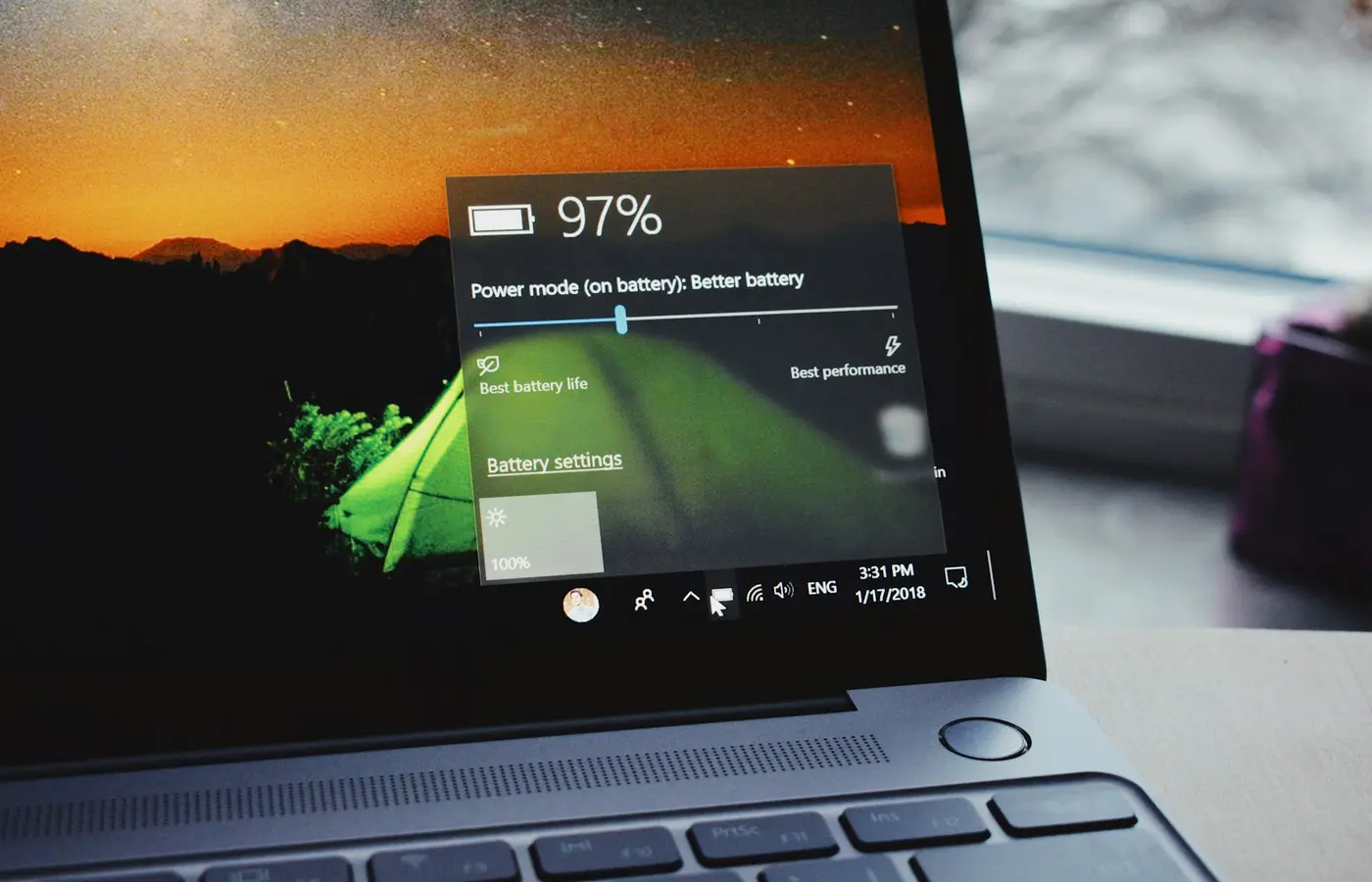
If your laptop loses charge while it appears to be asleep, do not assume the battery is faulty. The cause may be normal low-power standby activity, an app or peripheral waking the system, or a hardware, firmware, or battery-health issue.
The useful first step is to establish what the laptop actually did while unattended. A dark screen does not always mean the whole computer stayed asleep. On current Windows laptops, Modern Standby can permit short, controlled periods of activity while the screen is off. On Macs, settings, network activity, accessories, and software can also affect whether the computer sleeps or wakes as expected.
Do not use a universal “acceptable” percentage of battery loss as your benchmark. Standby drain depends on the battery’s condition, sleep architecture, firmware, connected devices, elapsed time, and what the operating system was allowed to do. Instead, run a controlled check, use the diagnostics built into your operating system, and change one reversible setting at a time.
Stop and seek service if necessary: Stop using the laptop on battery or while charging if it has a swollen battery, unusual heat, a burning or chemical odor, visible damage, charging instability, or repeated unexpected shutdowns. Do not open the battery compartment unless the manufacturer explicitly documents a safe procedure for your exact model. Contact the laptop maker or a qualified service provider.
First, confirm whether the laptop is sleeping, waking, or staying active
Before changing settings, create a simple baseline. This makes it easier to distinguish a repeatable problem from one unusually busy night of updates, sync activity, or connected-device behavior.
- Charge the laptop to a convenient level and record the battery percentage.
- Save work and close applications that do not need to remain open.
- Disconnect nonessential accessories: docks, USB storage, external displays, Ethernet adapters, controllers, and chargers.
- Put the laptop to sleep using its normal operating-system control.
- Leave it untouched for a defined period, such as overnight or during a workday.
- On return, note the battery percentage, whether the laptop is warm, whether its fans are running, and whether it appears to have woken itself.
Repeat the same check once or twice before drawing a conclusion. Record the date, elapsed time, connected devices, battery level before and after, and anything unusual you observed. That record is more useful to manufacturer support than a general statement that the battery “drains too fast.”
A laptop that is warm in a closed bag deserves particular attention. Heat can mean the machine woke and remained active rather than entering a low-power state. Until you identify the cause, use hibernation or a full shutdown before transport rather than relying on sleep.
On Windows, identify the sleep design before changing settings
Windows instructions found online often assume an older S3 sleep design. Many newer laptops instead use Modern Standby, which Microsoft describes as covering the broader screen-off-to-screen-on period and allowing controlled software activity in short intervals. That does not automatically mean something is wrong, but it does mean the available controls and diagnostic reports can differ from older PCs.
Open Terminal, Command Prompt, or Windows PowerShell, then run:
powercfg /a
This lists the sleep states supported by your specific PC. Save the output with your troubleshooting notes. It tells you what Windows and the laptop firmware currently expose; it does not prove that every sleep session behaved correctly.
If the output indicates Modern Standby support, avoid guides that recommend forcing legacy S3 sleep through registry edits or undocumented BIOS changes. Such changes can conflict with a laptop’s firmware design, drivers, security features, or recovery behavior. Use the manufacturer documentation for the exact model if you are considering a BIOS-level setting.
Also review Settings > System > Power & battery > Screen and sleep. Microsoft documents this area as the place to choose shorter sleep timing on battery power. A shorter idle timer can reduce the chance that the laptop stays awake longer than intended, but it will not fix a machine that wakes after it has already gone to sleep.
Use Windows reports to look for wake activity and high-drain sessions
Windows includes useful reports, but treat them as clues rather than automatic verdicts. A report can show a pattern worth investigating; it may not identify one definitive cause without more detailed diagnostics.
Create a battery report
Run:
powercfg /batteryreport
Windows will save an HTML report and display its location. Review the report for changes in battery capacity estimates, recent usage, and periods where the computer appears to have been active when you expected it to be asleep. A reduced full-charge capacity can affect how much standby loss you notice, but the report alone cannot diagnose battery health or prove a defective battery.
Create a SleepStudy report when Modern Standby is supported
On a Modern Standby system, run:
powercfg /sleepstudy
Microsoft’s SleepStudy documentation explains that the report is designed for PCs implementing the Modern Standby power model. It can help identify Modern Standby sessions, active periods, and components associated with power use.
Look for patterns rather than one isolated event:
- A standby session that ends much sooner than expected.
- Repeated active periods during the same type of sleep interval.
- A recurring component or app category shown as high impact.
- Sessions that correlate with a dock, wireless accessory, update, or specific background application.
If the report points to a consistent issue but does not make the cause clear, do not guess at a driver or disable random services. Microsoft notes that detailed Modern Standby diagnosis can require a trace captured with Windows Performance Recorder and analyzed in Windows Performance Analyzer. That is generally a manufacturer-support or advanced IT troubleshooting step, not a first fix for most owners.
Check the most recent wake event
You can also run:
powercfg /lastwake
This may identify the source associated with the most recent wake event. It is most useful when run soon after an unexpected wake. A result should be treated as an investigation lead, not proof that uninstalling or disabling that device is safe.
On a Mac, check sleep behavior before using Terminal commands
Start with Apple-supported settings rather than copying Terminal commands from forums. macOS settings and labels can change between releases, and display timing is not always the same thing as confirmed system sleep.
Apple’s guidance for a Mac that sleeps or wakes unexpectedly recommends first checking sleep settings in System Settings. In current versions, Lock Screen includes options such as the timing for turning the display off on battery power and on a power adapter.
Use those settings to confirm that the laptop is configured to become inactive when you expect it to. Then run the same controlled test described above: note battery level, disconnect nonessential accessories, put the Mac to sleep, and check it after a consistent interval.
In System Settings > Battery, review the battery information and recent usage views available on your version of macOS. Look for periods of unexpected activity around the time the Mac should have been asleep. If macOS reports that battery service is recommended, or if the battery condition looks abnormal, contact Apple or an authorized service provider rather than attempting battery service yourself.
If the Mac wakes unexpectedly, Apple advises considering whether an attached device or process could be responsible. That is a reason to test without docks, external displays, USB devices, storage devices, and nonessential Bluetooth accessories—not a reason to disable security features or system services blindly.
Rule out common wake triggers one category at a time
Peripherals and background activity are common variables because they can change both power use and wake behavior. The goal is not to assume that every accessory is at fault; it is to isolate whether the problem changes when one variable is removed.
Use this sequence:
- Test with no dock or external display. A dock can add Ethernet, USB devices, display connections, charging behavior, and its own firmware to the setup.
- Remove USB devices. Disconnect storage, receivers, webcams, audio interfaces, controllers, and adapters that are not necessary for the test.
- Disconnect or turn off nonessential Bluetooth accessories. Repeat the test without mice, keyboards, headphones, and controllers.
- Check network-related patterns. If unexpected waking happens only at home or work, note whether Ethernet, Wi-Fi, VPN software, or network-attached devices are part of that setup.
- Close or pause nonessential background software. Cloud-sync tools, communication apps, backup clients, virtual-machine software, and vendor utilities are worth testing individually.
- Check for pending updates. Install operating-system, driver, dock, and firmware updates only from the laptop manufacturer, operating-system vendor, or peripheral maker for the exact device involved.
Updates are a compatibility check, not a guaranteed cure. Before applying a firmware or BIOS update, connect reliable power, read the vendor instructions, confirm the exact model and part number, and do not interrupt the update process.
On Windows, Microsoft also documents controls for reducing background activity for apps that expose that option. Review an app’s battery and background settings if it repeatedly appears in your own usage history. Do not assume every app will offer the same control.
Make reversible changes, then repeat the same test
The safest troubleshooting changes are easy to undo and have a clear purpose. Change only one variable, repeat the same sleep test, and record the result.
Reasonable first changes include:
- Set a shorter idle sleep timer when running on battery.
- Disconnect a dock or accessory that correlates with unwanted waking.
- Limit background activity for a specific app when Windows or macOS provides a supported control.
- Quit or update one nonessential utility that repeatedly coincides with the problem.
- Apply an official driver, firmware, or operating-system update that specifically matches the laptop or accessory.
Avoid broad “fixes” such as disabling hibernation, editing the Windows registry, forcing unsupported sleep states, turning off security protections, or changing undocumented firmware options. Those actions can create new problems, complicate support, and make it harder to identify what actually changed.
Microsoft’s battery-saving guidance includes supported options for sleep timing, the Windows power troubleshooter, and app background activity where available. Use those controls before considering advanced changes.
When hibernation, shutdown, or professional support is the safer answer
Sleep is designed for quick resume, not necessarily for the lowest possible battery use over long periods. If you will not use the laptop for many hours, especially while traveling, hibernation or a full shutdown may be the more predictable option.
Use hibernation when it is available on your Windows laptop and you want to preserve your session while reducing the risk of the computer waking in a bag. Use a full shutdown when you need the simplest transport state or when the laptop has been waking unexpectedly. On a Mac, shut down before transport if sleep behavior is unreliable or the computer has become warm while closed.
Contact the laptop manufacturer or a qualified service provider when any of these apply:
- The laptop repeatedly wakes with all nonessential peripherals removed.
- It becomes unusually warm while asleep or in a bag.
- Battery loss remains severe in repeated controlled tests.
- The battery report, macOS battery condition, or vendor diagnostic tool indicates a battery warning.
- The problem began after a firmware, operating-system, dock, or driver update and persists after checking official updates and support guidance.
- The laptop has swelling, odor, charging faults, physical damage, or other battery-safety symptoms.
Give support the exact laptop model, serial number if requested, operating-system version, connected accessories, and your before-and-after test notes. For Windows systems, include the output from powercfg /a and, where supported, the generated SleepStudy report.
Frequently asked questions
Is it normal for a laptop battery to drain while in sleep mode?
Some battery use can occur during sleep or standby, particularly on systems using Modern Standby. The important question is whether the behavior is consistent with your laptop’s normal pattern or whether the device is waking, getting warm, or losing substantially more charge after a repeatable controlled test. There is no single percentage-per-hour rule that applies safely to every laptop.
Why is my Windows laptop warm after being in my bag?
It may have woken, remained active, or failed to enter a low-power state. Remove it from the bag, place it on a hard nonflammable surface, and let it cool. Check recent wake behavior and avoid transporting it in sleep mode until you identify the cause. Use hibernation or shut it down instead.
How do I tell what woke my laptop from sleep?
On Windows, powercfg /lastwake can provide a clue about the most recent wake event. On Modern Standby devices, a SleepStudy report can show activity during standby sessions. On a Mac, begin with Apple’s sleep and wake guidance, then test with accessories disconnected and review system settings and battery activity. Neither method always identifies one conclusive cause by itself.
Should I use hibernation instead of sleep when traveling?
Usually, yes, if you will be away from the laptop for many hours or placing it in a bag. Hibernation or shutdown is the safer choice when the computer has a history of waking unexpectedly, becoming warm, or draining battery while asleep. Sleep remains useful for short breaks when your laptop’s standby behavior is predictable.