
Can You Charge a Laptop With Any USB-C Charger? Check Wattage, Cable, and Compatibility
USB-C does not guarantee laptop charging. Learn how to verify Power Delivery support, charger wattage, cable capability, and safe replacement options.
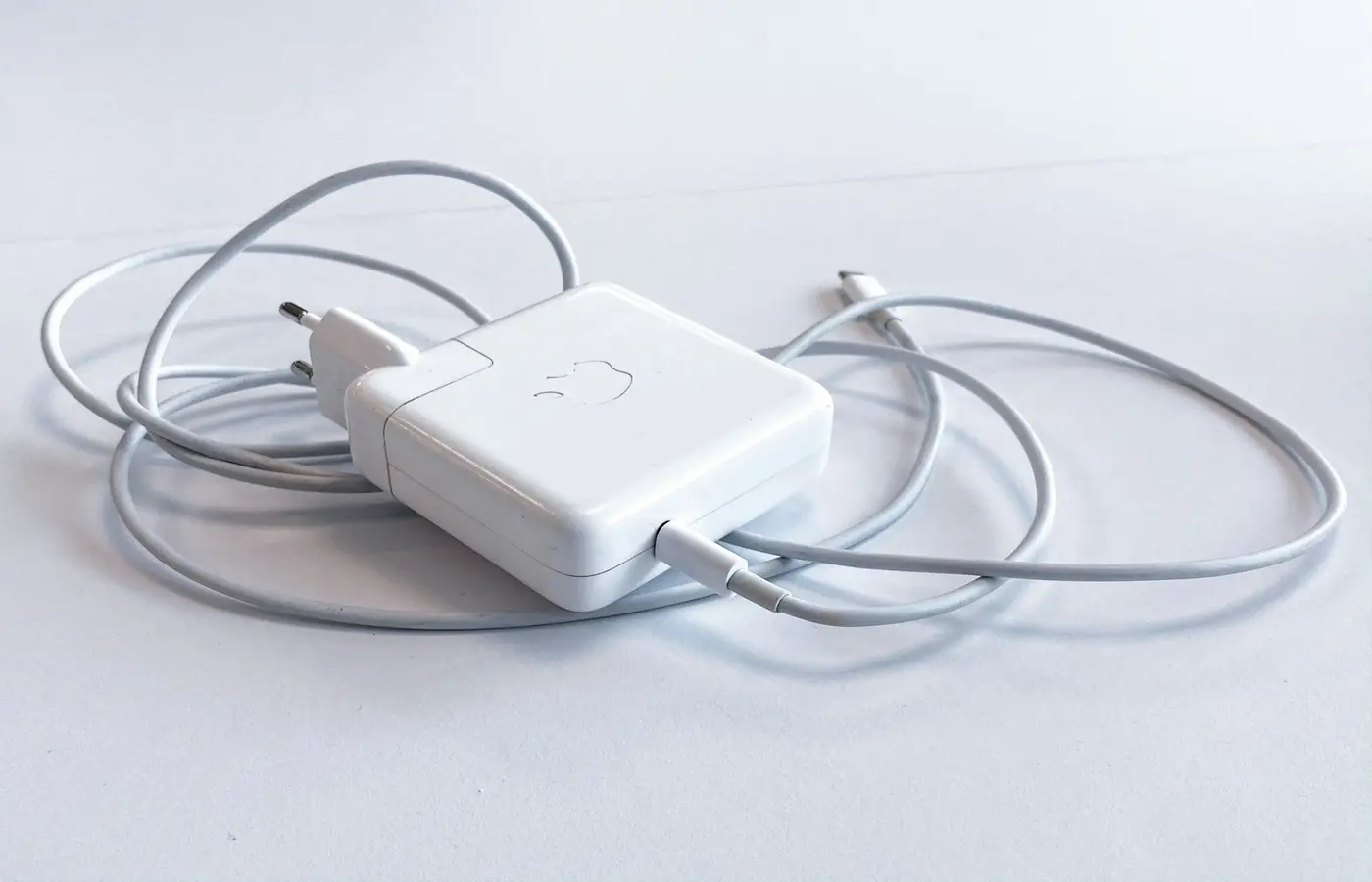
No. A USB-C connector alone does not mean that any USB-C charger can power your laptop.
A replacement charger is only a reasonable option when all parts of the charging path are compatible: the laptop must accept power through that specific USB-C port, the charger must offer a suitable USB Power Delivery (USB-PD) output, and the cable must support the required power level. If any of those details are unclear, the safer choice is the original adapter or a replacement explicitly approved for your exact laptop model.
This matters especially for laptops that have several USB-C ports. One port may handle charging, video output, and data, while another may support only some of those functions. A USB-C phone charger may physically connect but still provide too little power, lack a compatible output mode, or be unsuitable for sustained laptop use.
USB-C shape does not guarantee laptop charging
USB-C describes the connector shape. It does not, by itself, confirm that a port accepts charging input or that a charger can deliver the power a laptop needs.
Some laptops use USB-C Power Delivery for charging. Others include USB-C ports for accessories, displays, or data transfer while relying on a barrel connector or another dedicated power input. Even within one laptop family, charging support can vary by generation, configuration, or region.
HP’s guidance on replacement laptop chargers illustrates the distinction: its laptops may use either USB-C Power Delivery or traditional barrel-style adapters, depending on the model. Its recommended starting point is to identify the laptop model, connector type, and power requirement before choosing a replacement HP charger guide.
Do not treat any of these as proof that a port supports charging:
- A USB-C symbol beside the port
- A display or data-transfer feature listed for the port
- A retailer listing that says a charger is “universal”
- The fact that a USB-C plug fits
- A charger marketed for phones, tablets, or other small devices
The evidence that matters is the documentation for your exact laptop. Look for wording such as “USB-C charging,” “Power Delivery input,” “DC-in,” or an approved USB-C adapter specification.
Check the laptop before buying or connecting another charger
Start with the laptop, not the charger. The goal is to establish what your machine is designed to accept.
1. Identify the exact model and configuration
Find the full model name, product number, or part number. Useful places to check include:
- The label on the bottom of the laptop
- The operating system’s system-information page
- The original order confirmation or invoice
- The manufacturer’s support app or support website
- The original charger label
A family name alone is often not enough. A laptop sold under one series name can have multiple processor options, discrete graphics variants, port layouts, or bundled adapters. Those differences can affect its power requirements.
2. Find official technical documentation
Search the laptop manufacturer’s support site using the exact model or product number. Prioritize the user guide, technical specifications, setup guide, and support articles for that model.
Confirm these points:
- Whether the laptop supports charging through USB-C at all
- Which physical USB-C port accepts input power, if there is more than one
- The supplied adapter’s rating or the manufacturer’s approved replacement options
- Whether USB-C charging is intended as the primary charging method, an optional travel mode, or an emergency lower-power option
- Any documented limitations when using USB-C instead of the supplied adapter
If the official documentation only identifies a barrel connector or proprietary connector as the charging input, do not assume a nearby USB-C port is an alternative charging port.
3. Read the original adapter label
The original charger is a useful reference, but it is not a complete compatibility test. Record its stated output and wattage, then compare that information with official laptop documentation.
For a USB-C adapter, the label may list several output modes rather than one fixed output. That is normal for a Power Delivery charger. What matters is whether the replacement charger offers an appropriate mode for the laptop and can provide enough power for the way you intend to use it.
For laptops using a non-USB-C adapter, do not try to translate the label into a generic USB-C requirement yourself. Ask the manufacturer whether the specific model supports USB-C input and which adapter and cable specifications it approves.
Match USB Power Delivery capability and wattage
A charger needs more than a USB-C port and a large wattage number. It must be a USB-PD charger that can negotiate a power arrangement the laptop accepts.
In practical terms, compare the laptop’s documented charging requirement with the charger’s published USB-PD output specifications. Do not rely only on the large maximum-wattage number printed on the box. A multiport charger may advertise a high combined output while offering less power to one USB-C port, especially when other devices are connected.
Check these details on the charger manufacturer’s specification page or label:
| What to verify | Why it matters |
|---|---|
| USB-PD support | A USB-C connector does not establish that the charger supports the charging method your laptop requires. |
| Maximum output from the specific USB-C port | Total charger output may be shared across several ports. |
| Listed output profiles | The laptop and charger need a compatible negotiated power mode. |
| Output behavior with multiple devices connected | A second device may reduce the power available to the laptop. |
| Manufacturer compatibility notes | Some laptop makers document approved adapters or limitations for particular systems. |
Do not assume that a lower-watt charger will simply charge more slowly. Depending on the laptop and charger, it may not charge at all, may show a low-power warning, may charge only while asleep or lightly used, or may allow the battery level to decline during work.
XMG, for example, documents USB-C charging requirements and potential performance limitations for its own supported laptop models. Its support guidance says readers should consult the relevant model specification and notes that a USB-C charger needs an appropriate Power Delivery output for those systems XMG USB-C charging guidance. That is useful as an example of why model-specific documentation matters; it is not a universal wattage rule for all laptops.
What about a higher-watt charger?
A higher maximum wattage does not automatically make a charger wrong for a laptop. With a properly implemented USB-PD setup, the laptop and charger are intended to negotiate an appropriate supported power arrangement rather than force the charger’s maximum output into the computer.
But “higher wattage” is not enough to establish compatibility. The charger, cable, laptop port, and documented charging policy still need to align. Use a higher-capacity charger only when it is a reputable, intact USB-PD product and your laptop manufacturer documents USB-C charging support. If the laptop manual specifies approved adapter types or cautions against certain charging modes, follow that guidance.
Do not overlook the USB-C cable
The cable is part of the charging system, not just a connector between the charger and laptop.
A cable may fit both ends while limiting the available charging power or failing to support the mode needed by the charger and laptop. Cable marketing can also be confusing: fast data-transfer claims, display support, braided construction, and connector style do not confirm charging capability.
Use one of these approaches:
- Use the cable supplied with a known-compatible USB-C laptop charger.
- Use a cable whose manufacturer explicitly states its supported charging power or current capability.
- Follow the laptop or charger manufacturer’s cable recommendation when one is provided.
- For a multiport charger, check whether its instructions require a particular cable capability to deliver its highest output from a USB-C port.
Avoid making a cable choice based solely on length, connector fit, or a vague “fast charging” label. If the cable has no clear specifications, it is not a good foundation for a charger setup you intend to rely on for travel, work, or overnight charging.
Also inspect the cable physically. Stop using it if its insulation is split, its connectors are bent, it has exposed metal, or it disconnects when lightly moved. A cable that repeatedly loses contact makes it difficult to determine whether the underlying problem is the charger, the laptop port, or the cable itself.
Use a replacement USB-C charger safely: a compatibility check
Once you have the necessary documentation, use this process before relying on a substitute charger.
Step 1: Confirm the laptop accepts USB-C charging
Find explicit support for USB-C charging or USB-PD input in documentation for the exact laptop. Confirm the correct port if the laptop has more than one USB-C connection.
If you cannot confirm this, stop. Use the supplied charger or contact the laptop manufacturer’s support channel.
Step 2: Compare the documented power requirement with the charger
Check the laptop documentation for its required adapter or approved USB-C charging conditions. Then inspect the charger’s specifications for USB-PD support, output from the relevant USB-C port, and any limits when multiple ports are in use.
Do not substitute a generic brand-family recommendation for a model-specific requirement. A charger suitable for one compact laptop may be inappropriate for a performance laptop in the same product line.
Step 3: Verify the cable
Use the cable supplied with a compatible charger or a cable with a clearly stated charging capability appropriate for the charger and laptop. Connect it directly from charger to laptop during the initial check; avoid docks, adapters, extensions, and hubs until basic charging has been confirmed.
Step 4: Connect and check the operating system status
With the laptop powered on, connect the charger and look at the operating system’s battery status indicator. Check whether it reports that the battery is charging and whether the manufacturer’s utility reports an adapter warning.
A charging icon is a useful first check, not final proof. Keep an eye on the battery percentage during ordinary, low-demand work such as web browsing or document editing.
Step 5: Test ordinary use before depending on the setup
Do not make a replacement charger your only travel adapter after a few minutes of successful charging. Use it under normal everyday work first, with no additional devices connected to a multiport charger if possible.
If your laptop is used for demanding work, check its documentation for limits related to USB-C charging. A system that behaves normally while idle may require its original high-power adapter for sustained graphics, rendering, gaming, or other heavy workloads.
Step 6: Recheck when your setup changes
A charger that works alone may behave differently when you add a phone, tablet, dock, or another USB-powered accessory. Review the charger’s power-sharing information after changing what is connected.
Stop and use the original adapter or manufacturer support when these signs appear
Do not keep experimenting if the setup shows a clear warning or unreliable behavior. Disconnect the substitute charger and return to the original adapter when possible.
Stop and seek model-specific guidance if:
- The laptop documentation does not say that the USB-C port supports charging
- The laptop reports an unsupported, low-power, or unrecognized adapter
- Charging repeatedly starts and stops
- The battery percentage falls during ordinary use when you expect it to charge
- The charger, cable, connector, or laptop port is damaged
- A connector becomes unusually hot, smells unusual, discolors, or feels loose
- The charger is from an unknown source and its specifications cannot be verified
- The laptop’s documentation conflicts with a retailer compatibility claim
Do not try to solve a connector mismatch with improvised adapters or by forcing a plug into a port. A laptop with USB-C ports may still require a barrel connector, proprietary adapter, or a dedicated high-power charger for normal operation.
Frequently asked questions
Can a phone USB-C charger charge a laptop?
Sometimes, but only if the laptop supports USB-C charging and the phone charger provides a compatible USB-PD output with sufficient available power. Many phone chargers are not a dependable replacement for a laptop adapter. Even when a laptop accepts one, it may charge slowly, warn about low power, or lose battery charge during use.
Check the laptop’s official documentation and the phone charger’s USB-PD output specifications before trying it.
Is a higher-watt USB-C charger safe for a laptop?
It can be appropriate when the laptop supports USB-C Power Delivery, the charger and cable are compatible, and the hardware is undamaged. A larger wattage number alone is not a compatibility guarantee. Verify the exact laptop’s charging support and use a charger with clearly published USB-PD specifications.
Why is my laptop charging slowly with a USB-C charger?
Possible causes include insufficient power from the charger, power sharing with other connected devices, a cable that limits charging capability, a laptop mode that restricts charging, or a workload that uses power as fast as the adapter supplies it. Check the operating system for adapter warnings, disconnect other devices from a multiport charger, and compare the charger and cable specifications with the laptop manufacturer’s requirements.
Does every USB-C port on a laptop support charging?
No. USB-C ports can support different combinations of charging, data, display output, and accessory functions. Consult the exact laptop’s technical specifications or user guide to identify which port, if any, accepts charging input.
The practical rule
Treat USB-C laptop charging as a documented compatibility question, not a connector-fit question. Verify the exact laptop model, confirm that its port accepts USB-C Power Delivery input, match the charger’s published output to the laptop’s requirements, and use a cable with clearly stated charging capability.
If you cannot confirm all four, use the original adapter or ask the laptop manufacturer for an approved replacement. That is less convenient than treating every USB-C charger as interchangeable, but it is the more reliable way to avoid an adapter that charges unpredictably—or does not charge the laptop at all.


