
How to Choose the Best Laptop for Programming: RAM, Linux, VMs, and External Displays
Choose a programming laptop by checking tool compatibility, RAM, Linux support, virtual machines, upgrade options, and external displays.
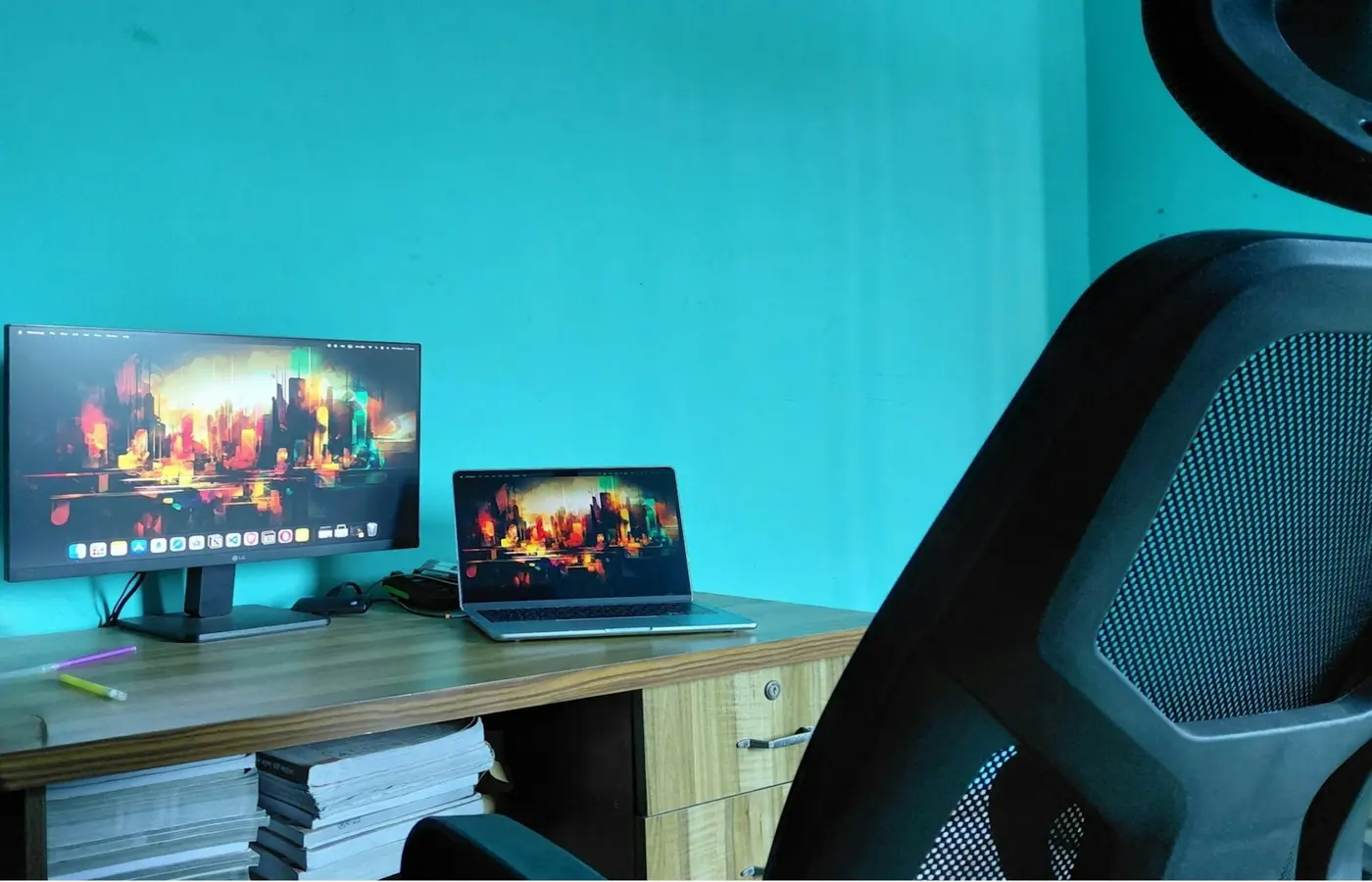
The safe default for learning and general software development is a current laptop with 16GB of RAM and a 512GB SSD—but only after confirming that its operating system, processor architecture, ports, and exact configuration support your tools. Choose 32GB or more when you expect to run several containers, virtual machines, mobile emulators, local databases, large builds, or memory-heavy data tools concurrently.
There is no universal best laptop for programming. A lightweight web-development machine and a laptop for game development, iOS work, infrastructure labs, or local machine learning face different requirements. The right decision begins with the software you must run, not a processor badge or brand ranking.
This is a configuration guide, not a hands-on product test. Laptop Advices has not measured battery life, sustained performance, display quality, temperature, or noise for the laptops you may be considering. Those behaviors can also vary between configurations in the same product family.
Define the workload before comparing laptops
Write down what you expect to have open at the same time. Include the editor or IDE, browser tabs, communication applications, local databases, build tools, containers, virtual machines, emulators, and any design or data software.
Concurrency matters because published minimum requirements normally describe whether one application can run, not whether the complete working environment will remain responsive. Adding the requirements of individual applications is not a perfect calculation, but it exposes workloads that need more memory and storage than a basic coding setup.
Use these categories as planning prompts rather than fixed specifications:
| Workload | Likely priorities | Questions to resolve |
|---|---|---|
| Introductory programming and scripting | 16GB RAM baseline, SSD, comfortable keyboard | Does the course require a particular OS, compiler, or processor architecture? |
| Web and backend development | Memory for browser tabs, databases, and containers | How many services will run locally at once? |
| Mobile development | Supported host OS, emulator memory, storage | Is a platform-specific SDK required? Will testing use an emulator or physical device? |
| Data analysis | RAM, storage capacity, sustained CPU behavior | How large are the local datasets? Does the software require GPU acceleration? |
| Game development | Engine compatibility, RAM, storage, possibly a dedicated GPU | What are the current editor and target-platform requirements? |
| Infrastructure and security labs | RAM, virtualization support, multiple SSD volumes if needed | How many guest systems must run concurrently? |
| Remote development | Reliable networking, keyboard, display, and battery priorities | Can builds and services run on a school, employer, or cloud machine instead? |
Course and employer documentation should take priority over general buying advice. If a required application supports only a particular host operating system or architecture, resolve that requirement before comparing screens, designs, or benchmark rankings.
Choose the operating system around the toolchain
Windows, macOS, and Linux can all support common editors, languages, version-control tools, and cross-platform frameworks. They are not interchangeable for every development target, however.
Check the current official documentation for every essential SDK, IDE, compiler, emulator, and deployment tool. Record:
- Supported host operating systems and versions
- Supported processor architectures, such as x86-64 or Arm
- Whether local virtualization is required
- Whether the target can be built, signed, or tested only from a particular platform
- Whether plug-ins, drivers, or command-line tools differ by OS
- Any restrictions imposed by your course, employer, or client
Apple-platform development may require Apple’s own development environment and a supported macOS version for parts of the build, signing, or simulator workflow. Conversely, some Windows-specific development and testing requires Windows. Confirm the current rules for the exact target rather than assuming a cross-platform editor makes the entire toolchain cross-platform.
Linux tools can be accessed in several ways: native Linux, a Linux environment integrated with Windows, a virtual machine, a container, or a remote host. These approaches do not offer identical hardware access, networking behavior, graphics support, or guest compatibility. If your work involves low-level drivers, kernel development, specialist USB devices, or production-like networking, ask whether an abstraction layer is acceptable.
A remote development system can reduce local CPU and memory demands, but it introduces dependence on network access, account availability, and the remote service’s policies. It is a practical alternative only when your workflow permits it—not an automatic replacement for compatible local hardware.
Set RAM, processor, storage, and GPU priorities
Treat 16GB of RAM as a baseline, not a guarantee
For a student or general developer using an editor, browser, terminal, and a modest number of local services, 16GB is a reasonable planning baseline. It is not a measured threshold, and it does not guarantee smooth operation with every toolchain.
Consider 32GB or more when your normal session includes several of the following:
- Multiple containers and local databases
- One or more full virtual machines
- Android or other device emulators
- Large IDE projects and substantial build processes
- Data analysis with large local datasets
- Game engines and content-creation applications
- Several years of expected ownership with soldered memory
The exact workload matters more than job title. A web developer running a large local service stack may need more memory than someone compiling a small native application.
Before ordering, check the manufacturer’s documentation for the full regional part number. Determine whether memory is soldered, socketed, or a mixture of both; how many sockets exist; what capacity is installed; and which upgrade configurations the manufacturer supports. Do not assume another laptop with the same family name has the same memory design.
Do not predict laptop performance from the CPU name alone
The complete processor name helps identify architecture, core configuration, and supported features, but it cannot establish sustained laptop performance by itself. Cooling, firmware, power limits, charger mode, and the manufacturer’s implementation can materially affect behavior.
Prioritize an appropriate current processor class, then look for attributable independent measurements from the exact laptop configuration if compile speed or sustained workloads are important. Results from another chassis—or even another power profile—may not transfer.
Budget storage for tools, projects, and disposable environments
A 512GB SSD is a practical starting point for general development, but usable capacity must cover the operating system, applications, SDKs, source trees, package caches, container images, virtual disks, datasets, and backups. Mobile SDKs, game assets, VM images, and local data can make a larger drive worthwhile.
Check whether the SSD is replaceable, whether a second slot exists, which physical drive sizes fit, and whether opening the laptop affects service or warranty procedures. Cloud storage does not replace local capacity when build tools, virtual disks, or datasets must remain on the machine.
Buy a dedicated GPU only for a defined requirement
Programming by itself does not require a dedicated graphics processor. Buy one when a named workload benefits from or requires it—for example, a specific game engine, GPU-compute framework, graphics application, or local machine-learning workflow.
Verify the software’s supported GPU vendor, architecture, memory requirement, driver, and operating system. The same GPU name can appear in laptops with different power and cooling limits, so its badge alone does not establish application performance.
Plan explicitly for containers, VMs, and emulators
Containers usually share more of the host system than full virtual machines, while a VM runs a guest operating system with assigned processors, memory, and storage. That distinction affects capacity planning, but neither category has one universal resource cost.
Create a simple peak-use worksheet before buying:
- List every guest, emulator, container group, and local database expected to run simultaneously.
- Record the memory and storage you intend to assign to each one.
- Add the host OS, IDE, browser, and communication tools.
- Leave capacity for temporary build files, updates, and workload growth.
- Compare the result with the laptop’s installed—and realistically upgradeable—memory and storage.
Virtualization compatibility is a chain. The processor must provide the required capability, the laptop firmware must expose and enable it, the host OS must support the chosen hypervisor, and the hypervisor must support the guest OS and architecture. An Arm host, for example, should not be assumed to run every x86 guest or tool in the same way as an x86 host.
Check the current official requirements for the exact container platform, hypervisor, and emulator you plan to use. Software support, architecture restrictions, licensing, and host requirements can change. If one unresolved guest environment is central to a course or job, delay the purchase until its compatibility is confirmed.
Verify Linux support for the exact configuration
Linux compatibility should be checked at model and component level. A report about one configuration does not prove compatibility for every unit sharing its product-family name. Manufacturers may use different wireless modules, panels, fingerprint readers, or other components across regions and production runs.
Investigate these items before purchase:
- Wireless and Bluetooth chipset
- Integrated and dedicated graphics
- Internal display and brightness controls
- Audio input and output
- Webcam and microphone
- Fingerprint reader, if required
- Suspend, resume, and hibernation
- Function keys and keyboard backlight
- USB, HDMI, and USB-C display outputs
- Dock and charging behavior
- Secure Boot and disk-encryption interactions
- Firmware and BIOS update process under Linux
Start with an official certification or manufacturer Linux-support listing when one identifies the exact model and configuration. Then check the distribution’s current hardware and driver documentation. Community reports can reveal issues worth investigating, but match the complete model number, components, firmware, distribution, and kernel version before treating a report as relevant.
When compatibility remains uncertain, prefer a seller whose return terms give you enough time to test installation, networking, suspend and resume, audio, displays, and docks. Check those terms before ordering; they vary by seller and region.
Trace the complete external-display path
A USB-C, HDMI, USB4, or Thunderbolt label does not by itself guarantee your intended monitor arrangement. You need to verify the complete signal path:
Graphics implementation → laptop port → cable or dock → monitor input → operating-system support
Define the desired setup precisely: number of external monitors, resolution, refresh rate, whether the internal display remains active, and whether the laptop must charge through the same cable.
Then confirm:
- The laptop manual states how many displays the exact configuration supports.
- The relevant USB-C port carries a display protocol; not every USB-C port does.
- The stated monitor count applies with the internal panel active, if that is how you will work.
- The dock supports the required inputs, outputs, bandwidth mode, and operating system.
- The cables support the necessary signal rather than charging or basic data alone.
- The dock supplies enough power for the laptop’s expected operating mode.
- Any compression, software-rendered display, or driver-dependent technology is supported by the host OS.
Some docks provide additional displays through software rather than through the laptop’s native display engine. That may be useful for office applications, but it has different driver, latency, and workload implications. Identify which method a dock uses before purchase.
Use an exact-configuration checkout checklist
Retail titles often combine several processors, panels, memory capacities, and regions on one page. Reconcile the retailer’s listing with the manufacturer’s complete part number rather than buying by family name.
Before checkout, verify:
- Full model and regional part number
- Complete processor name and architecture
- Installed RAM and whether it can be upgraded
- SSD capacity, replaceability, and available slots
- Required host OS and toolchain compatibility
- Linux status for the exact configuration, if relevant
- Native external-display count and supported modes
- Port protocols—not merely connector shapes
- Keyboard layout, navigation keys, and backlight
- Exact display panel specification
- Webcam and microphone features you need
- Charger connector, output, and included power rating
- Laptop and charger weight from the exact specification sheet
- Service manual, warranty terms, and repair route
- Seller return policy for your region
Keyboard comfort, fan behavior, display quality, battery runtime, and sustained performance cannot be established safely from a specification sheet. Try the keyboard and trackpad when possible, and use configuration-matched independent measurements for behavioral claims. Keep the return window in mind if these ownership factors are important.
A 16GB/512GB configuration is the safer default for general learning and development when its memory, storage, OS, and display setup are suitable. Move to 32GB or more for demonstrably heavier concurrent workloads or when soldered memory makes a later upgrade impossible. Do not buy until any mandatory OS, guest architecture, Linux component, or monitor arrangement has been verified.
Frequently asked questions
Is 16GB of RAM enough for programming?
It can be enough for learning, scripting, and general development with a moderate editor, browser, and local-service load. Treat it as a planning baseline, not a guarantee. Several containers, VMs, emulators, large projects, or datasets may justify 32GB or more. Check whether memory can be upgraded before deciding.
Do programmers need a dedicated graphics card?
Usually not for programming alone. A dedicated GPU makes sense when a specific game engine, GPU-compute framework, machine-learning workload, or graphics tool requires or materially benefits from it. Verify the application’s supported hardware and drivers rather than buying a GPU as a general coding upgrade.
Should a programming laptop run Linux natively or use WSL or a virtual machine?
Use the environment that matches the toolchain. An integrated Linux environment or VM can be convenient for common command-line and server workflows, while native Linux may be preferable when direct hardware access or a production-like host matters. Confirm networking, peripheral, virtualization, and architecture requirements before choosing.
How can I check whether a laptop supports two or more external monitors?
Find the exact model’s manual and confirm the supported external-display count, resolutions, refresh rates, and whether the internal panel can remain active. Then verify the port protocol, dock, cable, monitor inputs, operating system, and charging requirement. Connector badges alone are not enough.


