Can You Charge a Laptop Through USB-C? Check the Port and Required Wattage
Learn how to confirm USB-C laptop charging support, identify the correct port, and match a USB Power Delivery charger, dock, or monitor.
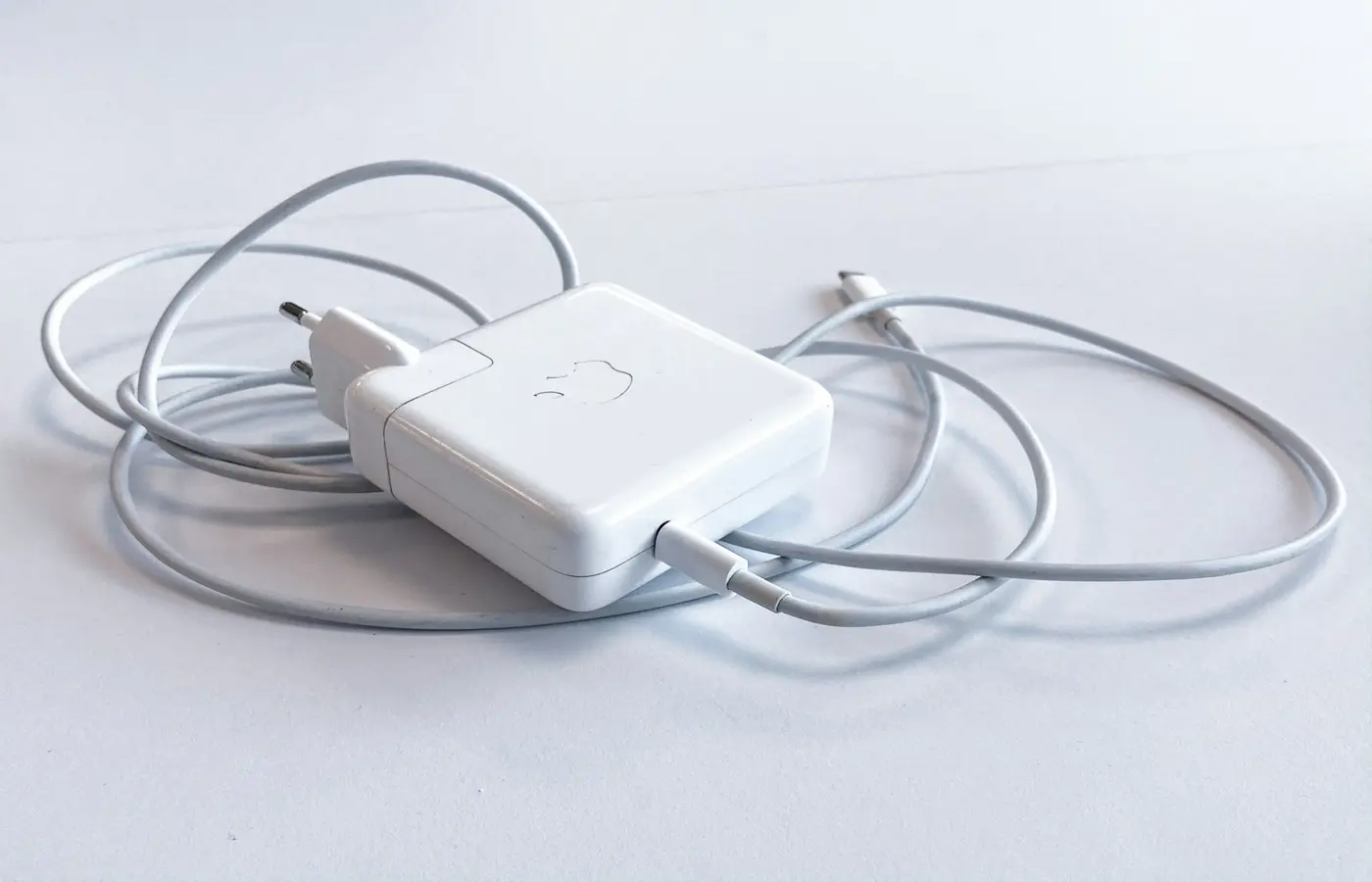
Some laptops can charge through USB-C, but a USB-C-shaped port alone is not proof that they can. The safe answer is to check the exact laptop model’s official specifications or manual for explicit support for power input, USB Power Delivery charging, or USB-C DC-in.
A USB-C port may handle data, external displays, charging accessories from the laptop, charging the laptop itself, or several of those functions. Those are separate capabilities. Before buying a replacement charger, dock, monitor, or cable, confirm both which port accepts power and what charger wattage the manufacturer documents for that configuration.
The quick answer: USB-C charging depends on the exact laptop and port
USB-C describes the connector shape, not a guaranteed feature set. Two ports that look identical may have different capabilities, even on laptops from the same manufacturer.
For example, ASUS explains that USB-C implementations can be data-only, charging-capable, display-capable, or full-featured with both display and charging functions. Its support guidance recommends checking port markings, the official product specification page, and the model’s e-manual rather than assuming a USB-C port supports every feature.ASUS USB-C port guidance
MSI makes the same configuration-first point: USB-C functions vary by model, and owners should look up the complete model name on MSI’s product page and read the I/O Ports section.MSI USB-C feature FAQ
That leads to a practical buying rule:
Do not buy a USB-C charger because the laptop has a USB-C port. Buy one only after the laptop’s official documentation says that the relevant port accepts USB-C power input.
This article concerns charging a laptop through USB-C. It does not mean that a laptop can necessarily provide enough power from its USB-C port to run or charge every connected accessory.
Check whether the USB-C port accepts power input
Start with the laptop’s complete identity. A family name such as “IdeaPad,” “Inspiron,” “Zenbook,” or “Stealth” is not enough. Port functions can differ between screen sizes, processor options, regional variants, generations, and individual machine types.
Use this verification sequence before purchasing a charger or dock.
1. Find the complete model number and regional version
Check the label on the underside of the laptop, the original invoice, the manufacturer’s support app, or the system information page. Record the full model identifier, not just the marketing name.
If you are shopping for a laptop, ask the retailer for the exact part number or machine type. Retail listings can combine several configurations under one product page, and a photo of one version’s ports may not apply to the unit being sold.
2. Open the manufacturer’s official specifications page
Look for an I/O Ports, Connectivity, Interfaces, or Ports section. You need wording that clearly indicates laptop power input, such as:
- USB Power Delivery charging
- Power Delivery input
- USB-C charging
- DC-in through USB-C
- Supports charging through USB-C
Terms such as “USB-C,” “USB 3.2,” “Thunderbolt,” “DisplayPort,” or “data transfer” do not, by themselves, establish that the laptop accepts charging through that port.
MSI’s official instructions are especially useful as a general method: search for the complete laptop model, open its Specifications page, and inspect the Type-C description in the I/O Ports table.MSI USB-C feature FAQ
3. Check the owner’s manual and port diagram
The manual may identify each physical port and distinguish its supported functions. This is important when a laptop has two or more USB-C ports. One might support charging input while another is intended for data or display connections.
Dell’s support documentation for certain affected laptop models illustrates why markings and manuals matter. Dell says a USB-C port marked with a “D” logo supports data transfer, video output, and power delivery, while a port marked only with the SuperSpeed “SS” logo supports data transfer only for those listed models.Dell USB-C port support guidance
That example should not be treated as a universal icon guide. Check the documentation for your own model, because logos and port functions vary by manufacturer and generation.
4. Treat port icons as clues, not final proof
A battery, plug, lightning-bolt, or charging symbol can be useful, but it is still not a substitute for the manual. Likewise, a Thunderbolt label may indicate high-speed connectivity, but it does not automatically confirm that the laptop accepts USB-C charging.
If the official product page and manual do not explicitly document charging input, use the supplied charging method instead of treating USB-C as a supported replacement path.
Do not confuse USB-C data, display output, and laptop charging
A USB-C port can perform several different jobs. Keeping them separate prevents most charging mistakes.
| Port capability | What it means | What it does not prove |
|---|---|---|
| Data transfer | Connects storage, peripherals, or other USB devices | That the laptop accepts charger power |
| Display output | Sends video to a compatible monitor or adapter | That a monitor can charge the laptop |
| Power output | Supplies power from the laptop to an accessory | That the port can receive power from a charger |
| Power input | Lets a compatible charger, dock, or monitor power the laptop | That every USB-C charger supplies enough power |
The direction of power matters. A laptop may be able to charge a phone or low-power accessory while being unable to charge itself through the same port.
Dell notes that its laptops have limits when supplying power outward through USB-C, describing a maximum of 15 W for connected devices in that context.Dell USB-C power output limits That is an accessory-output discussion, not a recommendation for charging a Dell laptop with a 15 W charger.
Similarly, a USB-C monitor may accept video from a laptop without sending enough power back to it. A dock may have many USB ports yet offer no laptop charging output at all. Read the specifications for the complete setup rather than inferring one capability from another.
Match the charger wattage and USB Power Delivery requirements
Once you have confirmed that the laptop supports USB-C charging input, the next question is whether the charger is suitable for that specific laptop.
Look in the laptop manual, official specification page, or manufacturer-approved replacement-adapter documentation for:
- The recommended USB-C charger wattage
- Whether USB Power Delivery charging is supported
- Any stated limits for charging through docks or monitors
- Whether the supplied charger remains required for particular performance modes
- Any restrictions on using USB-C charging while the laptop is under heavy load
Use the manufacturer’s documented requirement as the decision point. Do not assume that a charger is appropriate simply because its advertised wattage looks high enough or because it has a USB-C cable.
Why a lower-wattage charger may not be a practical replacement
A compatible charger can be recognized by the laptop yet still be a poor substitute for the original adapter. Depending on the laptop, its current workload, battery state, and manufacturer power-management rules, a lower-output charger may charge slowly, charge mainly while idle, or fail to maintain the battery level during demanding work.
Avoid turning that general possibility into a prediction for a specific machine. The outcome depends on the exact model, charger, power profile, cable, dock or monitor, and workload.
If the manufacturer does not state that a lower-wattage USB-C charger is supported, do not rely on it for travel, long rendering jobs, gaming, or other situations where stable sustained power matters.
The supplied adapter rating is context, not proof of USB-C input
A laptop manual may list the wattage of its bundled AC adapter. That helps you understand the machine’s intended power arrangement, but it does not prove that USB-C charging is supported.
For example, Lenovo’s user guide for specific Legion Pro 7i 16 Gen 8 machine-type variants lists 300 W and 330 W AC adapter options.Lenovo Legion Pro 7i 16 Gen 8 user guide This is useful configuration-specific context: it shows why a high-performance laptop may rely on a dedicated adapter. It does not mean every gaming laptop requires proprietary charging, nor does it establish USB-C charging behavior for other Legion generations or models.
The safe interpretation is simple: if the manual specifies a dedicated high-wattage adapter and does not document USB-C input as an alternative, keep using the documented adapter.
Verify the cable, dock, and monitor before relying on them
Laptop charging is a chain, not a single product decision. Every part of the chain must support the required charging path:
- Laptop: The exact USB-C port must accept power input.
- Charger, dock, or monitor: It must explicitly state its upstream USB-C charging output.
- Cable: It must be suitable for the intended charging connection and any required data or display features.
- Laptop documentation: It must not exclude charging through that port, accessory type, or operating mode.
A dock’s total power rating is not necessarily the wattage it can send to the laptop. Some of its available power may be reserved for USB devices, Ethernet, storage, displays, or the dock itself. Check the specification for wording such as “host charging,” “upstream charging,” or “Power Delivery output to laptop,” and compare that figure with the laptop maker’s documented requirement.
For a USB-C monitor, look for the monitor’s stated power delivery to the connected host computer. Do not assume that a monitor with a USB-C video input includes meaningful laptop charging.
Cable selection deserves the same caution. A cable supplied with a phone, portable battery, or inexpensive accessory may not be an appropriate choice for a laptop charging setup. Use a cable that the charger, dock, monitor, or laptop manufacturer identifies as suitable for the intended connection. If the accessory documentation is vague, choose the original cable supplied with the approved charger or buy a clearly specified replacement from a reputable manufacturer.
A conservative USB-C charging checklist
Before replacing your laptop charger with a USB-C charger, dock, or monitor, confirm all of the following:
- I have the full laptop model number and regional configuration.
- The official specifications or manual explicitly say the relevant USB-C port supports power input or charging.
- I know which physical USB-C port is intended for charging.
- The charger, dock, or monitor documents its laptop-facing power output.
- The stated output matches the laptop manufacturer’s documented requirement or approved range.
- The cable is documented as suitable for the intended charging arrangement.
- I understand whether the setup is approved only for light use, general use, or as a replacement for the original adapter.
- I have checked the seller’s return policy if compatibility is not clearly documented.
When USB-C charging is not the right replacement for the original adapter
USB-C charging is convenient, but it is not always the best or supported answer.
Use the original adapter when:
- The laptop documentation does not explicitly confirm USB-C charging input.
- The USB-C port is documented as data-only or display-only.
- The manufacturer specifies a dedicated adapter for the configuration and provides no USB-C charging alternative.
- You need the laptop’s full documented performance behavior and cannot verify that USB-C charging supports it.
- A dock or monitor provides less power than the laptop manufacturer recommends.
- The laptop reports an unsupported, underpowered, or unrecognized adapter.
Stop and consult the laptop manufacturer’s support documentation if the connector becomes unusually hot, charging repeatedly connects and disconnects, the system warns that the adapter is unsupported, or the battery continues to fall during ordinary use. Do not attempt to work around those warnings with adapters, cables, or port converters that are not documented for the laptop.
The bottom line
You can charge a laptop through USB-C only when the exact laptop configuration supports USB-C power input and the charger setup meets the manufacturer’s documented requirements. USB-C shape, a Thunderbolt badge, display output, and accessory charging capability are not enough evidence on their own.
The safest default is to identify the complete model number, read the official port specification and manual, then match the documented charging method, charger output, and cable. When the evidence is unclear, use the original adapter rather than treating USB-C as an assumed replacement.
Frequently asked questions
Can any USB-C charger charge a USB-C laptop?
No. The laptop must support USB-C power input, and the charger must meet the manufacturer’s documented requirements for that model. A USB-C connector does not guarantee either condition.
How do I know which USB-C port charges my laptop?
Check the exact model’s official specifications and owner’s manual. A port diagram may identify the charging-capable port. Port logos can help, but they should be confirmed against model-specific documentation.
What happens if my USB-C charger has too little wattage?
The laptop may charge slowly, charge only under light use, fail to maintain its battery level during demanding work, or reject the charger. The specific behavior depends on the laptop, charger, cable, power settings, and workload, so rely on the manufacturer’s stated requirements.
Can I charge my laptop from a USB-C monitor or docking station?
Possibly, but only if the laptop supports USB-C charging input and the monitor or dock explicitly provides enough upstream charging output for that laptop. Check both products’ documentation and do not infer charging support from video output or the number of USB ports.