
How to Check Whether a Laptop Can Charge Over USB-C Before You Buy
Verify laptop USB-C charging support, required charger wattage, cable compatibility, port limits, and proprietary-adapter exceptions before buying.
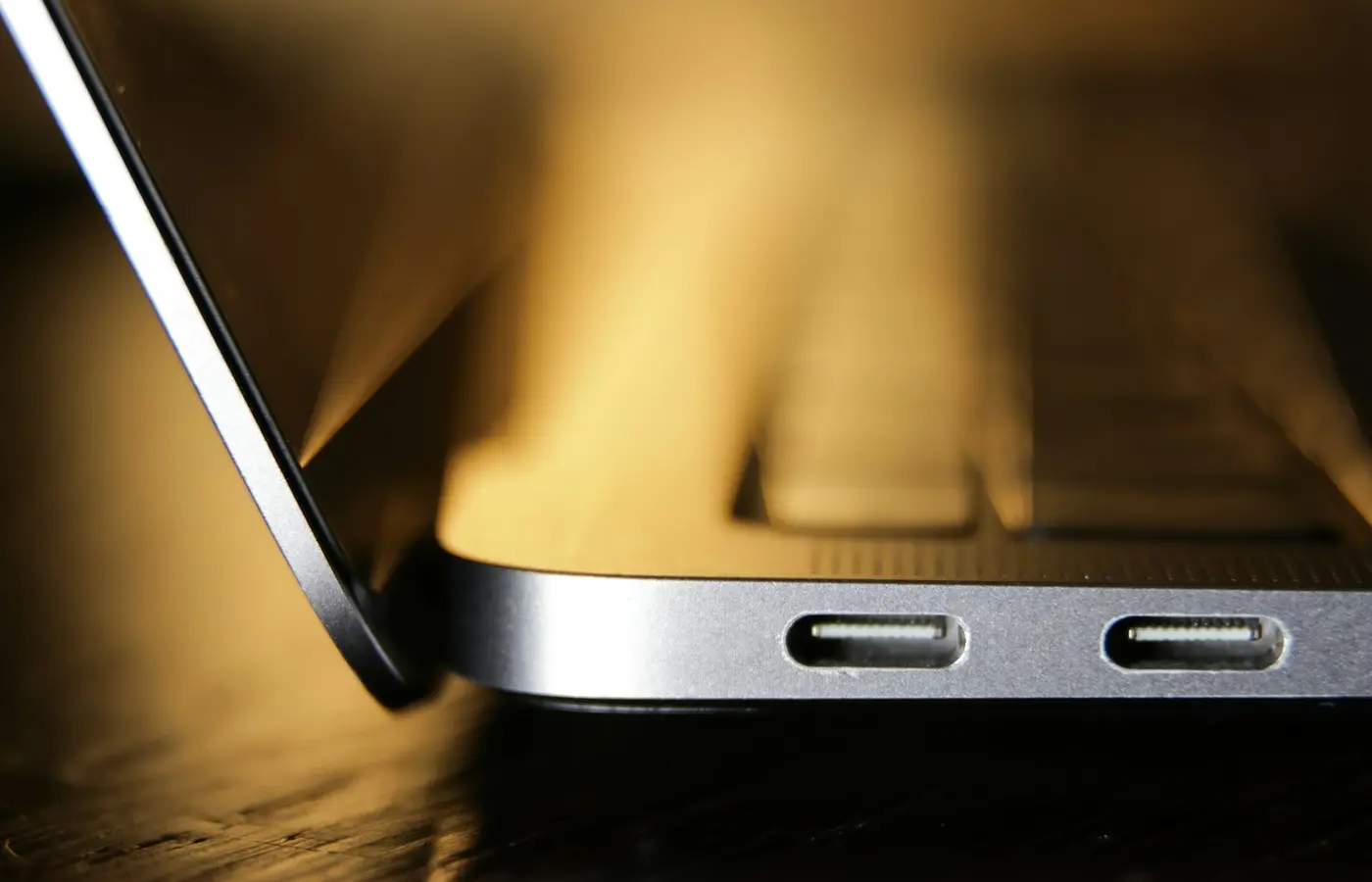
The safe buying rule: Treat USB-C charging as supported only when the manufacturer explicitly documents power input for the exact laptop model and regional SKU. A USB-C connector, Thunderbolt or USB4 label, DisplayPort support, or charging icon is not sufficient proof by itself.
Before checkout, you need to establish three things: which laptop port accepts power, what charger output the laptop requires, and whether the intended cable, dock, monitor, or multi-port charger can deliver that output. If the official documentation does not answer those questions, pause rather than infer compatibility.
This is a documentation-based verification guide, not confirmation that any particular laptop-accessory combination works. Firmware, regional configurations, and individual accessories can change the answer.
Why the USB-C port shape is not enough
USB-C describes the physical connector, but ports with the same shape can have different functions. Depending on the laptop and port, USB-C may support one or more of the following:
- Data transfer
- Video output
- Power output to a phone or accessory
- Power input for charging the laptop
- A combination of data, video, and power
Power direction matters. A specification saying that a port supports “charging” may mean it charges accessories from the laptop, not that it accepts power for the laptop. Even the phrase “Power Delivery” can be ambiguous if the description does not identify whether the port is an input, an output, or both.
Look for explicit wording such as:
- “Supports USB-C charging”
- “Power Delivery input”
- “DC-in” or “power input” beside a specific USB-C port
- “Supports a USB-C power adapter”
- A documented USB-C input range or recommended adapter wattage
Do not treat a port icon as conclusive. Symbols and implementations vary, and similar-looking icons may refer to data speed, Thunderbolt, video, accessory charging, or laptop power input. The manual’s port diagram and charging section should decide the issue.
How to verify the exact laptop before checkout
Laptop family names are not precise enough. Two machines sold under the same family may differ by generation, screen option, motherboard, region, or retailer-specific part number. Those differences can affect the ports and included charger.
Use this lookup process before buying.
1. Record the complete model and regional part number
Copy the full identifier from the retailer listing or product label. Do not stop at a name such as “Laptop 14” or “Notebook Pro.” Look for a longer model, machine type, or part number that identifies the specific configuration.
If the seller does not publish that identifier, ask for it. A listing that combines several configurations on one page may not reliably describe the unit currently selected.
2. Find the manufacturer’s page for that identifier
Search the manufacturer’s website for the complete part number. Confirm that the listed processor, display, memory, ports, and included adapter match the retailer’s configuration.
Treat retailer specifications as provisional when they conflict with official documentation. Also check that the manufacturer page applies to the country or region where you will buy the laptop.
3. Download the user manual or setup guide
Inspect these sections:
- Port diagrams
- “Getting to know your laptop” or equivalent
- Connecting the AC adapter
- USB-C or Thunderbolt functions
- Battery charging
- Docking-station compatibility
- Troubleshooting and low-power warnings
ASUS, for example, directs customers to locate the exact computer model, inspect its technical specifications, and download the relevant manual to determine USB-C functions in its official support workflow. The same model-specific approach is useful regardless of brand.
4. Identify the charging port
A laptop with two or more USB-C ports may accept power through all of them, only one of them, or none of them. The ports can also have different data and display capabilities.
Record the exact location of the documented charging port—for example, the rear USB-C port on the left side. This prevents an unpleasant surprise when a desk layout or dock cable requires a port on the other side.
5. Check the included adapter
Confirm its documented connector and output. A laptop packaged with a USB-C adapter is strong configuration-specific evidence that USB-C charging is intended, but you should still check which port to use and whether replacement chargers have special requirements.
If the laptop includes a barrel-plug or other proprietary adapter, do not assume that USB-C charging is absent—or fully equivalent. The machine may accept limited USB-C power as a secondary option.
6. Ask for written clarification when necessary
If the public documentation says only “USB-C with Power Delivery,” ask the manufacturer whether that means power input to the laptop. Include the complete regional part number and ask:
- Which port accepts USB-C power?
- What protocol and minimum or recommended adapter output are required?
- Can the laptop charge while operating and while switched off?
- Are performance, fast-charging, or empty-battery recovery limited?
Keep the response in writing. If the manufacturer cannot clarify the specification, choose a model with better documentation or confirm that the seller’s current return policy gives you a practical way to resolve the uncertainty.
Match the charger, output profile, and cable
A charger’s large printed wattage is not enough. You must match the complete charging path:
Laptop input requirement → charger’s output on the chosen port → cable capability
Start with the laptop’s documented requirement
Record the manufacturer’s recommended USB-C adapter wattage and any accepted input details. Do not substitute a universal minimum: laptops vary, and a machine may treat low-power input differently depending on whether it is running, sleeping, switched off, or under heavy load.
The manual may also specify approved adapters or show a warning for an inadequate power source. Follow those model-specific requirements rather than assuming that any USB-C phone charger will work.
Read the charger’s output table
The headline rating may describe the charger’s total output across all ports. Find the technical table or label showing what the particular USB-C port can supply.
Check:
- The output available from one port when used alone
- Whether different USB-C ports have different maximum outputs
- The supported USB Power Delivery output profiles
- How output changes when other ports are occupied
A charger advertised with a high total capacity can still allocate too little power to the laptop port in a particular multi-device combination.
USB Power Delivery allows compatible equipment to negotiate supported power, but a standard’s headline maximum does not establish what a particular laptop, charger, or cable supports. For a general explanation of the protocol and its different power ranges, see this USB-C Power Delivery overview; use the exact manufacturers’ specifications to approve a real purchase.
Verify the cable separately
USB-C cables are not interchangeable in capability. Check the cable manufacturer’s documentation for:
- Supported charging power and current
- USB-C connectors at both ends
- Any required electronic identification for the intended power level
- Data or video capability, if the cable will also connect a dock or monitor
The cable supplied with a phone or an older accessory may not support the laptop charger’s full output. Avoid unmarked cables when their specifications cannot be verified, and replace cables that have damaged connectors, loose plugs, or exposed insulation.
Check proprietary-charger and performance exceptions
USB-C charging support does not necessarily mean USB-C replaces every function of the included adapter.
This is especially important when a laptop includes a higher-power barrel-plug or proprietary charger. Its USB-C input may be intended for travel, office work, or charging while switched off rather than unrestricted operation under sustained load.
Check the exact model documentation for answers to these separate questions:
| Question | What to verify |
|---|---|
| Can it accept USB-C power? | Explicit power-input support and the correct port |
| Can it charge from an empty battery? | Any minimum output or operating-state restriction |
| Can it charge while running? | Supported adapter output and low-power warnings |
| Does fast charging work? | Approved adapter, cable, battery state, and firmware conditions |
| Is full performance available? | Manufacturer guidance for the USB-C adapter or dock being used |
| Is the proprietary adapter still required? | Workload, performance, firmware, or service documentation |
Do not infer reduced performance or battery drain merely because the included proprietary adapter has a higher wattage. Conversely, do not assume that a USB-C connection provides full performance because the battery icon says it is charging. Either conclusion requires exact-model documentation or measurements from the same configuration and power profile.
If maximum performance matters—for example, during sustained graphics or processor workloads—the safer default is to budget for using the manufacturer-recommended adapter unless the documentation explicitly approves the intended USB-C alternative.
Account for multi-port chargers, docks, and monitors
Accessories add another power limit between the wall outlet and the laptop.
Multi-port chargers
A multi-port charger can redistribute its output when a phone, tablet, or second laptop is connected. The laptop may stop receiving the required allocation even though the charger’s total advertised rating appears adequate.
Find the manufacturer’s allocation table and check the exact combination you intend to use, such as:
- USB-C port 1 alone
- USB-C ports 1 and 2 together
- USB-C plus USB-A
- All ports occupied
Make sure the laptop’s port retains the required output in that combination. If the table is missing, do not assume the total rating is divided in a favorable way.
USB-C docks
For a dock, distinguish its power-supply input from its host-facing output. A dock connected to a high-rated power brick may reserve some power for itself and attached peripherals. What matters is the maximum Power Delivery output documented for the host port.
Verify that you are using the host-facing USB-C cable and port, not a downstream port intended for accessories. Also check whether the dock has a fixed captive cable or requires a separately rated USB-C cable.
USB-C monitors
A monitor’s USB-C input may combine video, data, and laptop charging, but its host power output is a separate specification. Check the monitor manual for the maximum power delivered to the connected computer and any setting that changes USB-C behavior.
Then compare that output with the laptop’s documented input requirement. A monitor can provide video and USB data correctly while still supplying less power than the laptop expects.
Checkout checklist: pass or stop
Treat laptop USB-C charging support as confirmed only when you can check every applicable item below:
- The complete laptop model and regional SKU are identified.
- The retailer’s configuration matches the manufacturer’s specifications.
- The official manual or support page explicitly documents USB-C power input.
- The specific charging-capable port is identified.
- The required or recommended charger output is recorded.
- The charger supports the necessary output on the port you will use.
- The cable has a documented rating suitable for that output.
- The multi-port allocation has been checked with all planned devices connected.
- A dock or monitor’s host-facing power output is sufficient.
- Any proprietary-adapter, fast-charging, operating-state, or performance limits are understood.
- The included accessories have been verified for the exact SKU.
- Any unresolved claim has written manufacturer clarification or a suitable current return path.
Missing evidence is a reason to stop, not permission to assume. If one-cable charging is essential to your desk or travel setup, favor a laptop whose exact manual clearly identifies the charging port and approved power requirements.
Frequently asked questions
Does Thunderbolt or USB4 guarantee that a laptop can charge through the port?
Do not use either badge as your sole proof of laptop power input. Confirm the implementation in the exact model’s current manual, including which port accepts power and what adapter it requires. Interface labels, video support, and connector shape do not replace model-specific charging documentation.
Can a lower-wattage USB-C charger safely charge a laptop?
Follow the laptop manufacturer’s documented input requirements and the charger and cable specifications. A lower-output source may be rejected or may have model-specific limitations, but behavior should not be generalized across laptops. Do not rely on an undocumented charger for maintaining the battery under load, recovering from an empty battery, or providing full performance.
Why does a multi-port charger stop charging the laptop when another device is connected?
The charger may reallocate power when another port becomes active, leaving the laptop port below the required output. Check the exact charger’s power-allocation table for that combination. Its total advertised wattage does not tell you how much one port receives when several devices are attached.
Can a laptop support USB-C charging even if it includes a proprietary charger?
Yes, that configuration is possible, but the two charging methods may not be equivalent. The USB-C input can have restrictions involving available power, operating state, fast charging, or performance. Verify those limits in the manual for the exact laptop rather than treating basic charging support as full replacement for the included adapter.


