
How to Check Whether a Laptop’s USB-C Port Supports Charging, Displays, and Thunderbolt
Verify a laptop’s USB-C charging, display, dock, USB4, and Thunderbolt capabilities by checking the exact SKU, port, cable, and manual.
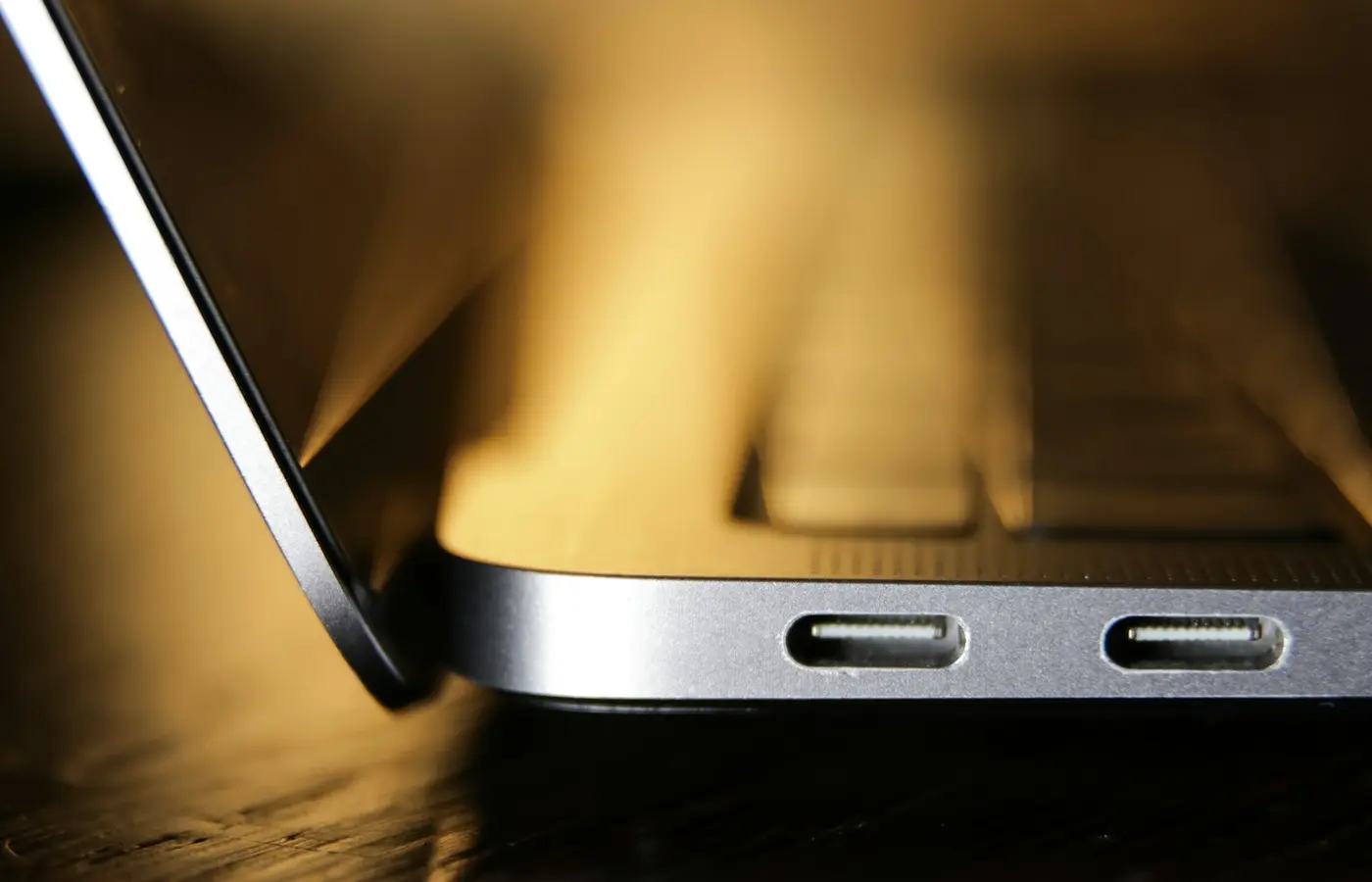
The safe rule is simple: never buy a laptop based only on the presence of a USB-C connector. The same connector shape can be used for basic USB data, accessory charging, laptop charging, display output, USB4, Thunderbolt, or some combination of those capabilities.
If you need one cable to connect a charger, dock, monitor, or fast external drive, verify the exact laptop part number and the description of the individual port before checkout. A family-level product page, retailer filter, or USB-C icon is not enough.
This is a pre-purchase verification guide, not a report of Laptop Advices testing. Actual behavior can also depend on the laptop configuration, firmware, operating system, cable, dock, charger, display, and attached devices.
Start with the capability you actually need
“Has USB-C” is not a complete requirement. Translate your intended setup into separate questions, because support for one function does not prove support for another.
| What you want to do | What the laptop documentation should confirm | What else must match |
|---|---|---|
| Charge the laptop through USB-C | Power input, charging, DC-in, or USB Power Delivery input on the identified port | Charger output, required power, cable rating, and accepted power profiles |
| Charge a phone or accessory | Power output from the laptop’s port | Laptop power state and manufacturer restrictions |
| Connect a USB-C monitor | DisplayPort over USB-C, DisplayPort Alt Mode, or another explicit display-output statement | Monitor input mode, cable, resolution, refresh rate, and power behavior |
| Use a one-cable dock | Display output, data, and laptop charging on the same host port | Dock host requirements, delivered charging power, display topology, and operating system |
| Use fast external storage | An explicitly named USB, USB4, or Thunderbolt capability and signaling rate | Enclosure, storage device, cable, and workload |
| Connect a Thunderbolt device | Thunderbolt support identified for that specific port | Compatible cable, device, drivers, firmware, and operating system |
A port intended to cover all of these tasks must support all the relevant functions concurrently. For example, a dock may provide charging, displays, and USB devices through one cable, but that does not mean every USB-C host port can accept the dock’s power or carry its display signals.
Know what the specification terms promise
USB-C, USB Power Delivery, DisplayPort Alt Mode, USB4, and Thunderbolt describe different parts of the connection. They are related, but they are not interchangeable.
USB-C describes the connector
USB Type-C, commonly written as USB-C, primarily identifies the reversible physical connector. Its presence does not establish the data standard, display capability, charging direction, or available power.
A retailer listing that says only “1 × USB-C” leaves the important questions unanswered. Look for the text attached to that port in the exact model’s specifications and manual.
USB Power Delivery concerns negotiated power
USB Power Delivery, or USB PD, allows compatible equipment to negotiate power over a USB-C connection. That label alone may still be insufficient for a laptop purchase.
The laptop could use the port as:
- a power sink that accepts energy from a charger;
- a power source that charges a phone or accessory;
- or a port supporting power in both directions under specified conditions.
You need explicit confirmation that the laptop accepts charging input through the identified port. You must also check the required adapter output and any manufacturer warning about slower charging or reduced performance with a lower-powered adapter.
DisplayPort Alt Mode carries display signals
DisplayPort Alt Mode allows compatible DisplayPort signals to travel through a USB-C connection. It can support a direct USB-C monitor connection or a USB-C-to-DisplayPort adapter without requiring the laptop to have Thunderbolt.
However, the phrase “DisplayPort over USB-C” does not by itself state the maximum number of displays or every supported resolution and refresh-rate combination. Those limits can depend on the graphics configuration, available link bandwidth, dock design, display compression support, color depth, HDR settings, and simultaneous use of other functions.
USB4 is not just another name for Thunderbolt
USB4 identifies a USB architecture with capabilities that can include high-speed data and protocol tunneling. It should not be treated as automatic proof that every Thunderbolt device or feature will work exactly as expected.
If Thunderbolt compatibility is essential, require the manufacturer to name Thunderbolt support for that laptop and port. If your requirement is a particular USB4 dock, display arrangement, or external storage device, compare the host requirements of that product against the laptop documentation instead of relying on the USB4 label alone.
Thunderbolt must be verified by name
Thunderbolt is a separately identified platform capability. A USB-C connector, lightning-like icon, retailer category, or processor badge should not substitute for an explicit port specification.
The laptop manufacturer should identify which physical port supports Thunderbolt and which generation or implementation applies. Then verify the requirements of the dock, display adapter, or storage device you plan to connect. Do not assume all USB-C ports on a Thunderbolt-equipped laptop are Thunderbolt ports.
Verify the exact SKU and each individual port
Laptop families often contain multiple processors, graphics options, displays, and regional configurations. Port capabilities can differ within what appears to be the same product family.
Use this workflow before buying:
- Record the complete manufacturer part number. A family name such as “Laptop 14” is not precise enough. Capture the full SKU, machine type, or configuration code shown at checkout.
- Record the region and major configuration details. Include the processor, graphics option, memory configuration, and display where applicable. Retailers sometimes combine several variants on one page.
- Find the manufacturer’s support page. Look for a specification sheet and user or service manual tied to that exact model number or machine type.
- Open the port diagram. Identify whether the relevant USB-C port is on the left or right side and whether it has a port number or specific label.
- Read the description for that individual port. Look for charging input, DisplayPort output, USB4, Thunderbolt, and the stated USB signaling capability.
- Check notes and footnotes. Important restrictions may appear outside the main specification table.
- Reconcile the manufacturer documents with the retailer page. Treat retailer specifications as provisional when they conflict with or omit exact-SKU information.
Save a copy or screenshot of the relevant specification and port diagram. Product pages can change, and the saved material gives you a clearer basis for requesting support or returning a mismatched configuration.
Check whether USB-C can charge the laptop
Charging a phone from a laptop does not prove the laptop can be charged through the same port. Look for unambiguous terms such as:
- “USB Power Delivery input”;
- “power-in” or “DC-in”;
- “supports charging the computer”;
- or a port diagram marking the identified USB-C connector as the charging port.
Then verify four additional details.
1. Required adapter power
Find the adapter rating specified for the exact configuration. A laptop with higher sustained power demands may behave differently with a lower-powered USB-C source. Possible outcomes are model-specific and can include slower charging, battery discharge under load, a warning message, or restricted performance.
Do not assume that any USB-C phone charger is suitable merely because its plug fits.
2. Charger and cable support
Check the official specifications for the charger and cable. Both must support the power arrangement the laptop expects. A capable charger paired with an unsuitable cable may not deliver the intended power.
For a dock, use its stated upstream charging output rather than adding together the wattages of its ports. Account for any dock power reserved for attached devices when the manufacturer documents that distinction.
3. Charging-port location
Some laptops accept power through only one of several USB-C ports. Others may accept it through multiple ports but reserve display or higher-speed functions for a particular connector. Map each capability to a physical port.
4. Included charger
Confirm whether the correct adapter and cable are included in the exact regional package. Included accessories and power plugs can differ by SKU or seller.
Check display output and dock compatibility
A USB-C port can connect directly to a monitor without Thunderbolt, but the laptop must explicitly support display output through that port. Search the manual for terms such as “DisplayPort Alt Mode,” “DisplayPort over USB-C,” “video output,” or an external-monitor table tied to the port.
For your intended display setup, verify:
- the number of external displays supported;
- resolution and refresh-rate combinations;
- whether HDR or higher color depth changes the limit;
- whether the limit differs between integrated and discrete graphics configurations;
- whether the laptop’s internal display affects the supported arrangement;
- and whether the result changes when signals pass through a dock.
The dock must also document compatibility with the laptop’s host connection. Check its display topology, host operating-system requirements, charging output, and any bandwidth-sharing notes. A dock advertised with several video outputs does not promise that every host laptop can use all of them simultaneously.
Also distinguish native display output from docks that use a separate software-dependent display technology. Those docks may require drivers and can have workload, operating-system, or content-protection limitations not shared by a direct DisplayPort connection. If the dock documentation requires software, verify that it supports your operating system and intended applications.
Finally, inspect the monitor specification. A monitor’s USB-C input may accept video, provide power to the laptop, operate only as a data hub, or combine those functions. Confirm its delivered charging power and supported input modes rather than assuming every monitor USB-C port behaves the same way.
Check USB4, Thunderbolt, and storage requirements
For external storage, the advertised headline rate is a link specification—not a promise of file-transfer performance. Real results can be constrained by the laptop implementation, enclosure controller, installed drive, cable, power state, thermal behavior, software, and workload.
Build the connection from end to end:
- Identify the standard and advertised signaling capability of the laptop’s specific port.
- Check the cable’s documented data capability and length restrictions.
- Check the enclosure or dock’s required host standard.
- Check the installed storage device and enclosure interface.
- Verify operating-system, driver, security-approval, and firmware requirements.
The effective connection is limited by the least capable relevant component. A Thunderbolt enclosure connected through an ordinary USB-C cable, for example, should not be assumed to provide its intended mode. Likewise, a cable intended only for charging may fit but fail to carry the data or display connection you need.
Independent performance measurements can be useful only when they match the exact laptop configuration, firmware, power profile, cable, enclosure, and storage device closely enough to answer your question. Results from another generation or superficially similar model should not be transferred automatically.
Use this checklist at checkout
Before ordering a laptop for a USB-C-dependent setup, confirm all of the following:
- The manufacturer part number matches the configuration in your cart.
- You have found a manufacturer specification sheet or manual for that exact model.
- The relevant capability is mapped to a specific physical port.
- Laptop charging input is stated explicitly, not inferred from “Power Delivery.”
- The required charger output and cable capability are documented.
- Display output is stated explicitly for the port.
- Required display counts, resolutions, and refresh rates are supported for your graphics configuration.
- The dock documents support for the host connection and operating system.
- USB4 or Thunderbolt is named explicitly if your device requires it.
- The cable supports the necessary power, data, and display functions.
- Included accessories and the retailer’s return policy have been checked.
If the official specification and manual conflict, ask the manufacturer for written confirmation that identifies the complete part number and physical port. A support reply that discusses only the general model family does not resolve a configuration-specific question.
When a needed capability remains undocumented, choose a better-documented configuration or buy only with a practical return path. An unclear specification is not evidence that the feature is present.
Frequently asked questions
Does a USB-C port automatically support laptop charging?
No. The connector may support data only, power output to accessories, power input to the laptop, or a combination. Look for an explicit statement that the exact laptop accepts charging through the identified USB-C port, then verify the required charger and cable.
Can USB-C connect to a monitor without Thunderbolt?
Yes, when the laptop explicitly supports a suitable display-output mode through that USB-C port and the monitor or adapter accepts it. DisplayPort Alt Mode is a common documented route, but the supported display limits remain configuration-specific.
Does USB4 mean the port is Thunderbolt-compatible?
Do not assume so from the USB4 label alone. If you require a Thunderbolt device or feature, verify that the laptop manufacturer names Thunderbolt support for that specific port and that the peripheral documents compatibility with the host implementation.
Why does a USB-C dock support fewer displays or lower refresh rates on some laptops?
The dock’s outputs share capabilities supplied by the host connection. Display bandwidth, GPU configuration, dock topology, color settings, compression support, operating system, and concurrent data use can all affect the available arrangement. Use the laptop’s external-display table and the dock’s host-compatibility documentation together.
The bottom line
Buy the documented port, not the connector shape. For a one-cable setup, the exact laptop SKU must explicitly support every function you need: charging input at suitable power, display output at the required monitor settings, sufficient data capability, and USB4 or Thunderbolt where your devices require it.
If those details cannot be tied to an individual port in official exact-model documentation, treat the capability as unconfirmed rather than filling the gap with an icon, processor badge, or retailer claim.


