
How Much Laptop RAM Do You Need? 8GB, 16GB, 32GB, and 64GB by Workload
Choose 8GB, 16GB, 32GB, or 64GB of laptop RAM based on your workload, upgrade options, graphics architecture, and ownership plans.
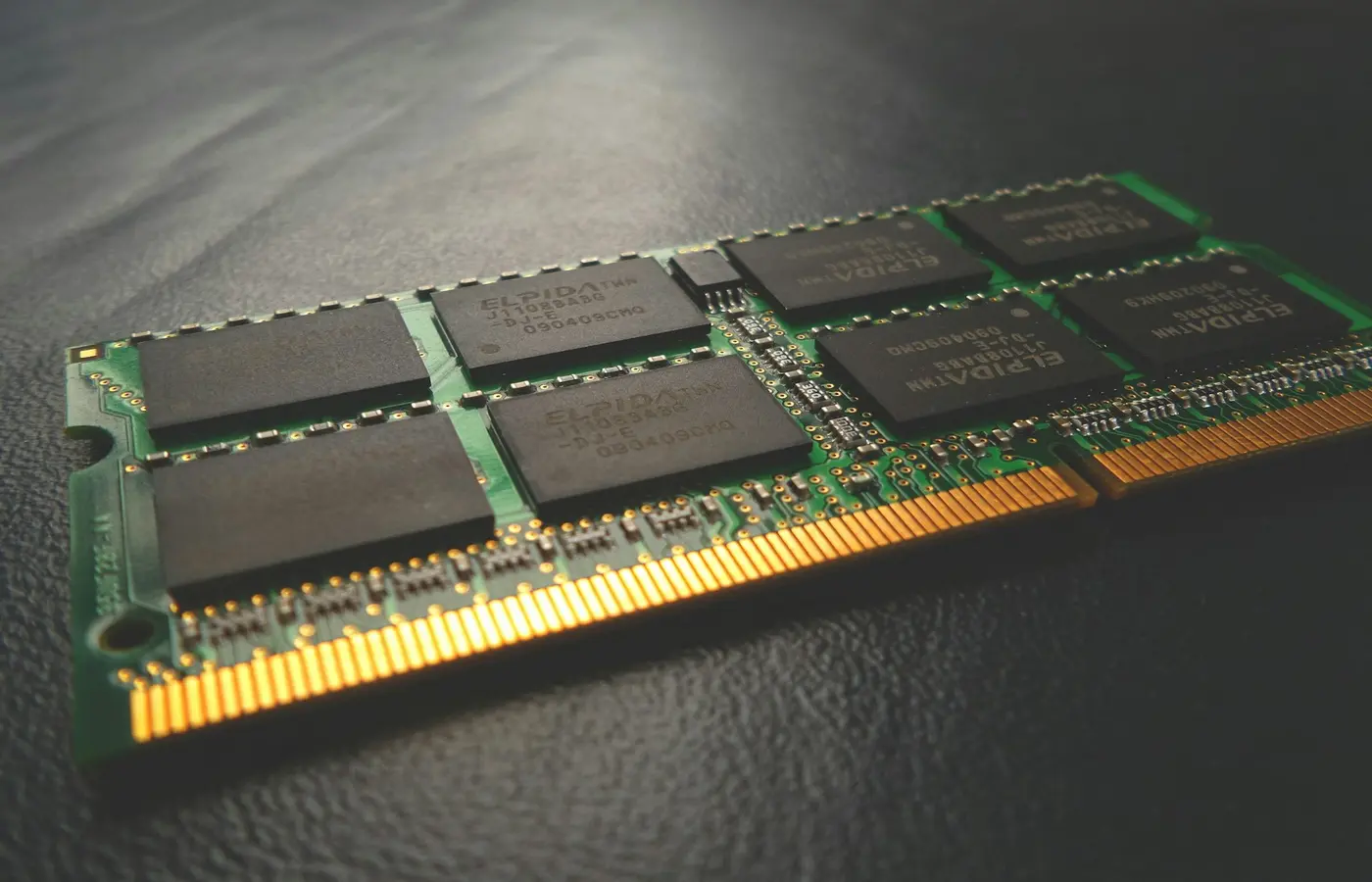
The short answer: 16GB is the safer starting point for most people buying a new general-purpose laptop. Choose 8GB only for a limited, budget-focused workload. Consider 32GB for demanding creative work, development, virtual machines, heavy multitasking, or gaming while other large applications remain open. Buy 64GB only when you can identify the software, project, dataset, or guest-memory allocation that needs it.
This is a research-based buying guide, not a hands-on performance test. Laptop Advices has not measured memory use, responsiveness, battery life, or gaming performance on a specific laptop for this article. The recommendations are capacity tiers, not guarantees: the processor, GPU, storage, cooling, operating system, software versions, and memory configuration all affect actual behavior.
The short answer: choose RAM by workload, not by badge
| RAM capacity | Best fit | Main compromise or reason to upgrade |
|---|---|---|
| 8GB | Light browsing, email, streaming, simple documents, and modest multitasking | Limited headroom, especially if the memory is soldered or shared with integrated graphics |
| 16GB | General office and study use, video calls, browser-heavy work, light creation, and many mainstream games | Heavy projects, virtual machines, and extensive concurrent workloads can require more |
| 32GB | Large creative projects, development tools, containers or virtual machines, demanding multitasking, and gaming alongside other applications | Costs more and may provide little benefit when the workload already fits comfortably in 16GB |
| 64GB | Specialist creative, engineering, virtualization, music, or data workloads with documented memory demands | Usually unnecessary for ordinary use; it cannot correct a weak CPU or GPU |
These divisions are deliberately broad. Dell’s workload-based guidance and HP’s laptop memory guide also connect higher capacities with heavier multitasking and professional applications. Both are manufacturer guidance rather than independent testing, and neither establishes a universal threshold for every laptop or program.
Capacities such as 12GB, 24GB, and 48GB are also valid. Treat them as intermediate options rather than forcing every configuration into the four tiers in the title. A 24GB non-upgradeable laptop, for example, may be a sensible compromise between 16GB and 32GB if its complete configuration and price suit your workload.
When 8GB is enough—and what you give up
An 8GB laptop can be reasonable when cost is the overriding constraint and the workload stays narrow: a few ordinary browser tasks, email, media playback, simple documents, and one or two lightweight applications used together. It can also make sense as a secondary computer rather than a primary machine expected to handle changing workloads for years.
The compromise is headroom. Modern applications do not consume a fixed amount of memory in every situation. Browser memory use changes with the sites, extensions, media, and number of active pages. Document size, background synchronization, video calls, and security software also affect the total. That is why a universal tab count would be misleading.
Before buying 8GB, answer three questions:
- Is the RAM replaceable? Upgradeable 8GB is less restrictive than permanently soldered 8GB.
- Will integrated graphics share the same memory pool? If so, the operating system and applications do not have the entire nominal capacity to themselves.
- Do your required applications officially support the configuration? Check the current requirements for the exact operating system and software versions. A published minimum establishes basic compatibility, not necessarily comfortable multitasking.
If two otherwise comparable laptops cost about the same, prefer the one with an accessible upgrade path or more installed memory. Do not assume that every inexpensive laptop has a memory slot: some use soldered memory, while others combine soldered memory with one socket.
Why 16GB is the safer default for most buyers
For a new primary laptop, 16GB provides a more forgiving baseline for mixed daily use. It is the practical choice for people who move among browser tabs, office applications, video meetings, messaging, media, and occasional photo or video work without carefully closing one task before starting another.
That does not mean 16GB makes every laptop fast. More memory helps only when insufficient capacity is the relevant constraint. A low-performance processor, slow storage, unsuitable GPU, aggressive power limits, or poor cooling can still make a 16GB or 32GB system feel slow. Likewise, installing more RAM does not guarantee higher gaming frame rates.
Give 16GB extra weight when:
- the memory is fully soldered and cannot be expanded;
- this will be your main computer rather than a secondary device;
- you routinely combine calls, documents, browser-based tools, and background applications;
- integrated graphics must share system memory;
- your software’s recommended requirement is already close to the lower-capacity configuration.
Choosing additional soldered memory is a form of risk reduction, not a guaranteed extension of useful life. Future software demands cannot be predicted precisely, but a permanently fixed 8GB pool gives you fewer options if your workload grows.
Who should move to 32GB or 64GB
Choose 32GB for identifiable heavy work
Consider 32GB when your routine includes one or more memory-intensive applications plus substantial background use. Relevant scenarios can include:
- editing large, layered photos or higher-resolution video projects;
- running development environments alongside containers, local services, and many browser tools;
- assigning memory to one or more virtual machines while keeping the host usable;
- working with large sample libraries or complex music sessions;
- using engineering, design, analysis, or data applications with sizeable project files;
- gaming while streaming, recording, hosting services, or keeping other demanding applications open.
The exact requirement is project-dependent. A creative application’s minimum or recommended RAM figure does not describe every combination of resolution, effects, layers, media format, plug-ins, and concurrent software. Check the official documentation for the exact application version and, where possible, examine memory use on a computer running a representative project.
For gaming, 32GB is not an automatic upgrade over 16GB. It is most defensible when a specific game recommends it, modifications increase memory demand, or gaming is only one part of a larger simultaneous workload. If a game already runs without memory pressure, additional unused RAM may not improve performance.
Reserve 64GB for a requirement you can name
A 64GB configuration is appropriate when the workload has a documented or observable need beyond 32GB. Examples include virtualized environments with large guest allocations, complex media timelines, extensive sample libraries, large datasets, or specialist engineering projects.
The key question is not whether an application can use 64GB. It is whether your recurring projects do. Before paying for this tier, identify at least one of the following:
- an official application recommendation relevant to your project type;
- a known dataset, media project, or sample library that exceeds the lower tier;
- a virtualization plan showing the host requirement and explicit guest allocations;
- existing measurements showing sustained memory pressure during representative work.
If you cannot identify such a need, 32GB—or sometimes 16GB—is usually the more defensible purchase. Money may be better directed toward a faster processor, more appropriate GPU, larger SSD, better display, or a laptop with adequate cooling and ports.
Shared graphics memory can change the capacity decision
Integrated graphics commonly use system memory for graphics work. This does not justify subtracting one universal amount from the advertised capacity: allocation behavior varies by processor, firmware, operating system, workload, and laptop design. The practical point is that the CPU, GPU, operating system, and applications may compete for the same finite pool.
A discrete GPU normally has separate video memory, but system RAM still matters. Applications can depend on both pools, and having more system memory does not substitute for insufficient dedicated video memory.
Unified-memory platforms require similarly careful treatment. The CPU and GPU can access a common memory architecture, but capacity options and allocation behavior vary by platform. For graphics-heavy work on a fixed, non-upgradeable pool, buying more capacity at checkout can be prudent because ordinary applications and graphics workloads must coexist within it.
Verify the complete configuration rather than relying on a family name. Record the exact processor, GPU, memory capacity, and memory architecture. Two laptops sold under the same series can use different processors, graphics hardware, and memory layouts.
Soldered RAM makes the checkout decision permanent
Do not assume you can add memory later. Thin laptops frequently use soldered memory, but even larger machines can have fully soldered, partially soldered, or socketed designs. Retail listings are not always detailed enough to distinguish them.
Use this verification procedure before purchase:
- Record the exact regional part number or SKU. The model-family name alone is insufficient.
- Find the manufacturer’s service or maintenance manual. Confirm whether memory is soldered, socketed, or mixed.
- Check the installed layout. Determine the number of slots, occupied slots, soldered capacity, and module arrangement.
- Confirm supported upgrades. Check memory type, module capacity, speed, and documented platform or firmware limits.
- Reconcile conflicting listings. If a retailer and manufacturer describe different layouts, ask for clarification tied to the exact part number.
- Review regional service and warranty guidance. Do not assume that opening a laptop always preserves or always voids coverage.
A later upgrade can be economical when the memory is designated as replaceable and compatibility is clearly documented. Paying for more at checkout is safer when the memory is soldered, internal access is difficult, or the manufacturer does not identify RAM as a user-serviceable part.
If documentation conflicts, the correct module cannot be confirmed, or safe access requires removing fragile components or disturbing the battery, stop. Contact the manufacturer or an appropriate repair professional instead of improvising.
A checkout checklist for choosing the final configuration
Before placing an order, work through this sequence:
- Name the heaviest recurring workload. Buy for what you regularly do, not an unlikely hypothetical task.
- Check current software guidance. Separate minimum requirements from recommended requirements and project-specific advice.
- Account for concurrency. Include the browser, communication tools, background services, creative applications, containers, and virtual machines that run together.
- Consider graphics architecture. Determine whether the GPU uses separate video memory or shares a fixed system pool.
- Verify upgradeability by exact part number. Do not infer it from the laptop series or an image on a retailer page.
- Consider ownership plans. More checkout memory deserves stronger consideration when the laptop is non-upgradeable and expected to remain your primary computer.
- Compare complete configurations. Record the exact CPU, GPU, RAM capacity and layout, storage, display, operating system, region, and warranty—not just the memory number.
Prices and availability change by date and region, so there is no permanent value winner between capacity tiers. Compare the actual checkout premium against the cost and feasibility of a later upgrade. Most buyers should start with 16GB; move down to 8GB only with clear constraints, and move up to 32GB or 64GB only when the workload or fixed memory design gives the extra capacity a defined purpose.
Frequently asked questions
Is 8GB of RAM enough for a laptop used only for browsing and office work?
It can be, particularly for a budget or secondary laptop used for light tasks and modest multitasking. Check the current requirements of the operating system and applications, and prefer upgradeable memory. Permanently soldered 8GB leaves little flexibility if your workload expands.
Does 32GB of RAM improve gaming performance over 16GB?
Not automatically. It can help if the specific game, modifications, or simultaneous applications create memory pressure. If the workload fits comfortably within 16GB, more capacity may remain unused and will not resolve CPU, GPU, cooling, or storage limitations.
Can soldered laptop RAM be upgraded later?
Not through an ordinary module replacement. Some laptops combine soldered memory with an expansion slot, but others have no upgrade path. Check the service manual for the exact regional part number before buying.
How much RAM should I allow for virtual machines and integrated graphics?
Calculate virtual-machine capacity from the host operating system and applications plus the memory explicitly assigned to each active guest. Leave practical headroom for the host rather than allocating the entire pool. For integrated graphics, consult documentation for the exact processor and laptop because memory use and firmware settings vary; do not rely on a universal subtraction.


