
How Much RAM Do You Need in a Laptop? 8GB vs. 16GB vs. 32GB
Choose the right laptop RAM for your workload, then check whether the exact configuration uses soldered, socketed, or unified memory.
Short answer: 16GB is the safer starting point for many general-purpose laptop buyers. Choose 8GB only for a limited, verified workload—especially if the memory cannot be upgraded. Move to 32GB when your applications, project sizes, virtual machines, integrated graphics use, or ownership plans give you a specific reason to do so.
This is workload-led buying guidance, not a Laptop Advices benchmark report. No test unit or original memory-performance data was available for this article. Software requirements and laptop configurations also change, so verify your most demanding applications and the complete regional laptop part number before ordering.
| Capacity | Sensible fit | Reasons to move up |
|---|---|---|
| 8GB | Basic browsing, documents, email, video calls, and narrowly defined school or office use | Soldered memory, extensive multitasking, large files, integrated-GPU workloads, or a long ownership period |
| 16GB | General study and office work, moderate multitasking, mainstream gaming, and lighter development or creative work | Large creative projects, demanding games alongside background software, local virtual machines, or specialist tools |
| 32GB | Heavier development, creative applications, large projects, multiple virtual machines, and memory-demanding games or simulation tools | Workloads whose documented requirements or observed project usage exceed 32GB |
| More than 32GB | Large datasets, complex media projects, engineering workloads, several VMs, and other specialist uses | Confirm that the exact laptop supports the required capacity and that a mobile workstation is still the right form factor |
These are starting points rather than guarantees. Two people running the same application can need different capacities because their files, plug-ins, browser sessions, background utilities, virtual machines, and graphics settings differ.
What 8GB, 16GB, and 32GB can realistically support
8GB: workable for constrained light use
An 8GB laptop can be appropriate when the workload is predictable: a modest number of browser pages, documents, email, streaming, and routine web applications. It is easier to justify in an inexpensive laptop with replaceable memory because capacity can be added if the workload grows.
The risk is not that an 8GB computer immediately becomes unusable. The risk is that it has less room for combinations of tasks. A browser, video meeting, office suite, cloud-sync utility, security software, and operating-system services all draw from the same capacity. An integrated GPU may also use system memory.
Be more cautious when 8GB is soldered and permanent. A configuration that meets today’s narrow requirement can become the entire laptop’s limiting component if the owner later adopts larger files, more demanding software, or heavier multitasking. Minimum software requirements only indicate a basic threshold; they do not promise responsive operation with your actual projects.
Buy 8GB when: the budget is strict, the workload is genuinely light, and either the ownership period is limited or an upgrade path has been confirmed.
Skip 8GB when: memory is non-upgradeable and the intended workload is uncertain, creative, development-heavy, gaming-focused, or likely to expand.
16GB: the lower-risk general-purpose choice
For many buyers, 16GB offers the most practical balance. It gives routine work and study applications more room to coexist, while accommodating moderate photo work, coding tools, and mainstream games more comfortably than a tightly constrained 8GB configuration.
That does not make 16GB a universal minimum or an assurance of fast performance. Processor speed, cooling, storage, graphics hardware, software behavior, and power settings still matter. A laptop with 16GB can also struggle if one application or project needs most of that capacity on its own.
Capacity should be considered alongside permanence. Paying for 16GB at checkout is particularly sensible when the laptop uses non-upgradeable memory. In a model with accessible SO-DIMM slots, starting at 16GB may still be sensible, but the later upgrade path can reduce the need to buy excess capacity immediately.
Buy 16GB when: you want a general-purpose laptop, regularly combine several applications, or cannot confidently predict future requirements.
Move to 32GB when: your most demanding application recommends it, your real projects approach the available memory limit, or you need to allocate substantial memory to virtual machines or integrated graphics workloads.
32GB: justified by identifiable heavy workloads
A 32GB configuration is most useful when you can name the reason for it. Examples include larger photo or video projects, substantial software builds, data analysis, local virtual machines, complex engineering work, or games that run alongside memory-heavy launchers, communication tools, capture software, and browser sessions.
The category name alone is not enough. “Creative work” might mean occasional edits to a few images or a large high-resolution project with multiple applications and plug-ins. “Software development” could mean editing a small website or running containers, databases, emulators, and virtual machines concurrently.
For a laptop with permanently attached memory, 32GB can also be a risk-management choice when the expected ownership period is long and the workload is likely to grow. It should not, however, be treated as automatic future-proofing. Other non-upgradeable components or performance limits can become relevant first.
More than 32GB: specialist territory
Some workloads legitimately need 64GB or more, but the application, project, or dataset should establish that need. Before paying for a high-capacity configuration, confirm both the software requirement and the exact laptop’s supported maximum. A processor’s theoretical memory capability does not prove that a particular motherboard, firmware, or module layout supports the same amount.
Why capacity is only part of the memory decision
When active programs need more memory than is physically available, an operating system can move less-active data between RAM and storage using virtual memory, paging, or swap. This helps the system continue operating, but storage is not a drop-in replacement for RAM. Responsiveness can deteriorate when the computer repeatedly has to move data back and forth.
There is no responsible fixed penalty that applies to every laptop. The result depends on the application, storage, operating system, memory pressure, and access pattern. Avoid buying from claims such as a guaranteed percentage improvement unless the measurement identifies the complete laptop configuration and workload.
Memory bandwidth and layout can matter too, particularly for integrated graphics that rely on system memory rather than dedicated video memory. Some laptops ship with one replaceable module and an empty slot; others use two modules, soldered chips, or a mixture of onboard and socketed memory.
Terms such as “single-channel” and “dual-channel” can be useful, but they can also oversimplify modern DDR and LPDDR implementations. Do not assume that a badge or module count guarantees a particular performance result. Check the exact factory layout and platform documentation, and use configuration-matched measurements if a specific performance difference matters to your purchase.
Soldered RAM, SO-DIMMs, and mixed designs
Laptop memory generally appears in one of three ownership arrangements:
- Fully soldered memory: The memory is attached to the motherboard and cannot normally be expanded by installing a module. Choose the final capacity at purchase.
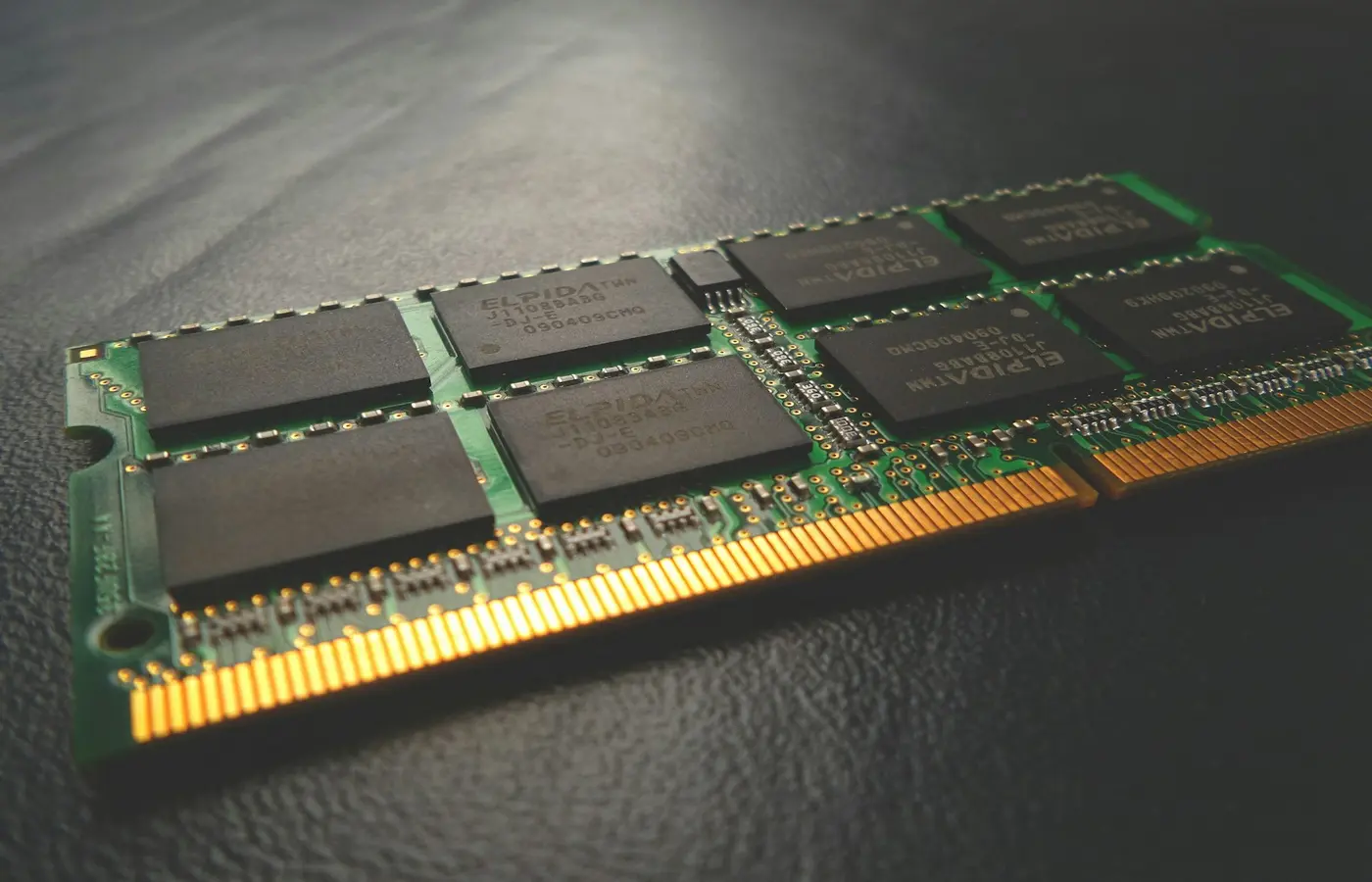
- Replaceable SO-DIMMs: One or more memory modules fit into sockets. Depending on the laptop, an upgrade may involve adding a module or replacing installed modules.
- Mixed memory: A fixed amount is soldered to the board, with one socket available or occupied. Upgrade options exist, but the final layout may be asymmetric and the supported combinations can be model-specific.
Upgradeability changes more than the initial specification. Socketed memory may let an owner defer some cost, replace a failed module, or extend the laptop’s useful life. Soldered memory can allow different board and chassis designs, but it makes the checkout decision permanent and may turn a memory fault into a board-level service issue.
Never infer the arrangement from a product-family name or a photograph. Manufacturers can sell visually identical laptops with different motherboards, memory capacities, and slot layouts across processor options and regions. A retailer’s phrase such as “up to 32GB” may describe the family rather than the unit in the cart.
If planning an upgrade, consult the service manual for the exact machine type. Confirm access requirements, compatible modules, supported capacities, battery-disconnection guidance, electrostatic-discharge precautions, and regional warranty terms. Stop and use an authorized or qualified service provider if the procedure requires motherboard removal, the battery cannot be safely isolated, or the official documentation does not describe a customer-accessible upgrade.
Unified memory on Apple and ARM laptops is not a capacity conversion
“Unified memory” generally describes a design in which processors, such as CPU and GPU components, can access a shared memory pool. It can reduce some duplication and data movement in suitable workloads, but it does not make capacity irrelevant.
ARM is an instruction-set architecture, not one mandatory memory design. An ARM-based laptop does not automatically use the same implementation as an Apple silicon Mac, and two manufacturers’ “unified” or shared-memory descriptions should not be treated as interchangeable.
Current Apple silicon Mac laptop configurations should be treated as non-upgradeable after purchase: the selected memory capacity is intended to remain with the machine. Buyers should still verify the technical specifications for the exact Mac model and chip generation before ordering, because available capacities vary by configuration.
Do not use a rule claiming that 16GB of unified memory is automatically equivalent to a larger amount of conventional laptop RAM. Efficiency, bandwidth, application design, graphics use, and memory pressure all affect behavior. If choosing between architectures for a demanding application, check that application’s platform-specific recommendation and look for comparisons using matched software versions, projects, and complete configurations.
Check the exact laptop SKU before you buy
Use this checklist on the configuration actually in the cart, not just the product-family page:
- Record the complete model and regional part number. A family name such as “Laptop 14” is not specific enough.
- Confirm installed capacity and memory type. Note the advertised RAM amount and whether the specification identifies DDR, LPDDR, SO-DIMMs, or onboard memory.
- Determine what is soldered. Look for terms such as onboard, integrated, soldered, or non-upgradeable.
- Count the sockets. Confirm the total number, how many are occupied, and whether an accessible free slot actually exists.
- Identify the factory module layout. A 16GB unit might use one 16GB module, two 8GB modules, or onboard memory plus a module.
- Verify the manufacturer-supported maximum. Use the exact model’s specification or service documentation, not only the processor’s theoretical limit.
- Check integrated-graphics behavior. Determine whether the GPU uses shared system memory and whether your workload depends heavily on it.
- Read the service procedure. Confirm whether reaching the memory requires only the lower cover or more extensive disassembly.
- Check regional warranty and return terms. Do not assume an owner-installed upgrade is treated identically in every country or by every seller.
- Reconcile the listing with manufacturer documents. Ask for clarification or choose another listing if the retailer and manufacturer disagree.
- Save the evidence. Keep the checkout specification, part number, and relevant product page in case the delivered configuration differs.
Also verify the laptop after delivery while it remains returnable. The operating system or firmware setup should report the expected total capacity, but opening the chassis solely to inspect memory may be unnecessary and could create avoidable risk.
Who should buy 8GB, 16GB, or 32GB?
Choose 8GB for a tightly controlled light workload, particularly when affordability matters and the RAM can be upgraded later. Avoid it for an uncertain long-term workload when the capacity is permanent.
Choose 16GB as the safer general-purpose starting point for study, office work, moderate multitasking, mainstream gaming, and lighter creative or development use. It is the lower-risk default, not a universal rule.
Choose 32GB when a specific application, project, virtual-machine plan, or observed memory demand justifies it. It can also be reasonable for a long-lived, non-upgradeable laptop whose workload is expected to become heavier.
Choose more than 32GB only after confirming both the workload and the exact laptop’s supported configuration. Buyers with uncertain specialist requirements should start with the documentation for their most demanding application, then check the machine’s upgrade path before deciding.
Frequently asked questions
Is 8GB enough for browsing, school, or office work?
It can be enough for basic, predictable use, but background applications and multitasking can narrow the margin. An upgradeable 8GB configuration carries less long-term risk than one with permanently soldered memory.
Is 16GB or 32GB better for gaming, creative work, and software development?
Neither capacity wins every scenario. Start at 16GB for moderate workloads, then choose 32GB when the particular game, application, project size, toolchain, or virtual-machine allocation warrants it. Check platform-specific software recommendations rather than relying on the category label.
Can laptop RAM be upgraded after purchase?
Sometimes. A laptop may have replaceable SO-DIMMs, fully soldered memory, or a mixture of onboard memory and one socket. Verify the exact regional part number in the manufacturer’s specification and service manual before buying.
Is 16GB of unified memory equivalent to 16GB of conventional laptop RAM?
There is no universal equivalence rule. Unified designs can use memory differently, but capacity, application behavior, graphics demands, and platform architecture still matter. Compare exact systems running the same software and representative projects rather than converting one capacity label into another.


