
How to Check a Laptop’s Repairability Before You Buy: Battery, SSD, RAM, Parts, and Manuals
Use this pre-purchase checklist to verify a laptop’s RAM, SSD, battery, service manuals, spare parts, warranty, and regional repair options.
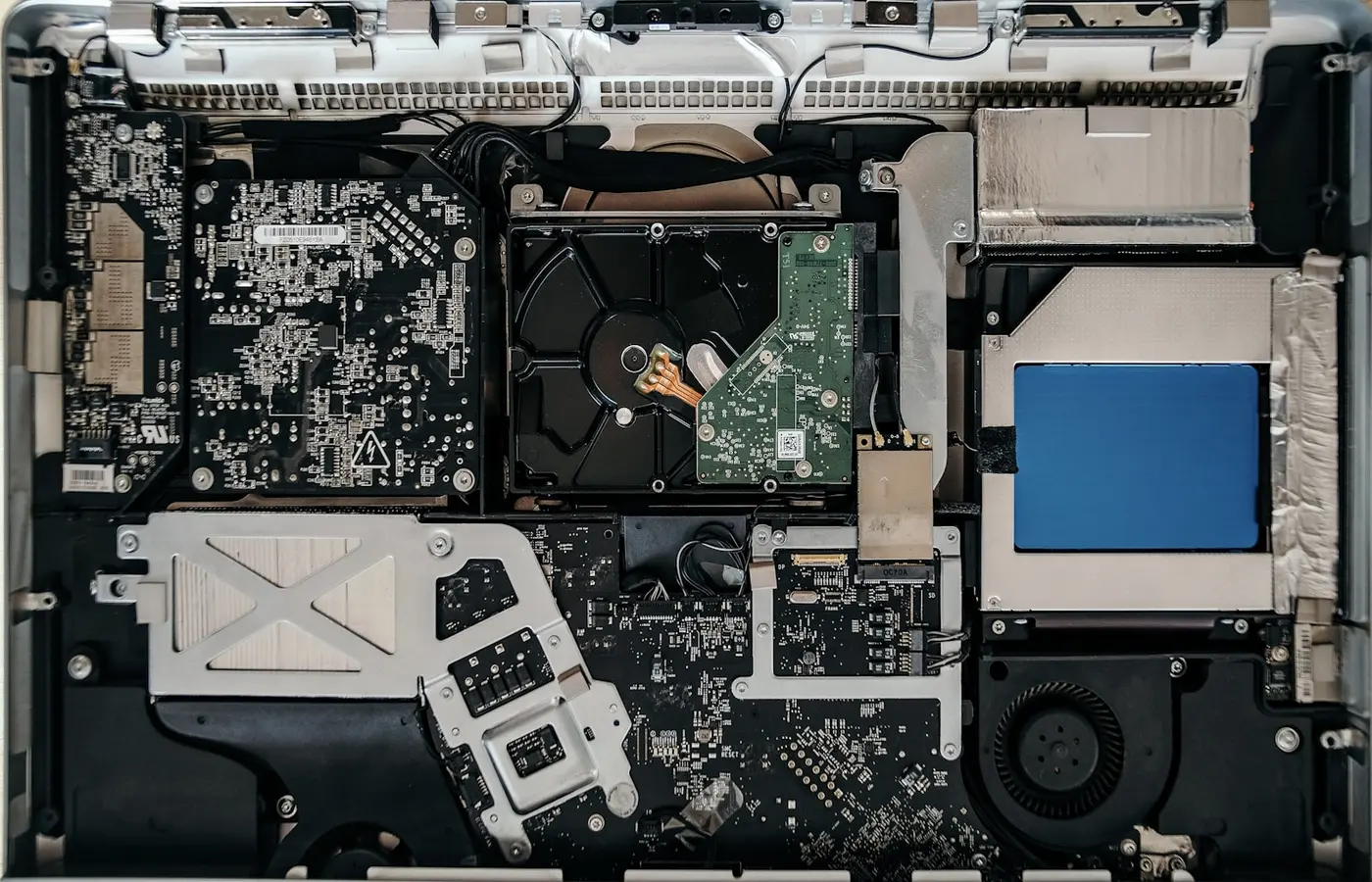
The safer default: Buy a laptop for long-term ownership only after you can verify its exact model, replaceable components, repair instructions, parts supply, and regional service terms. Visible screws or an accessible interior are not enough.
A component is not practically replaceable merely because you can see or remove it. You also need a safe procedure, a compatible replacement part, the necessary tools, and access to any calibration or software process required after installation.
This is a research and verification framework, not a Laptop Advices repairability score. Construction and support can change between generations, configurations, and countries, so every check must be tied to the laptop actually in your cart.
Require five kinds of proof before you buy
A defensible long-term purchase should pass five checks:
- Exact identity: You know the full model, generation, manufacturer part number or machine type, configuration, and sales region.
- Replaceable components: The RAM, storage, battery, and other important assemblies are documented accurately.
- Usable instructions: An applicable service manual explains access, disconnection, removal, and reassembly.
- Realistic parts supply: Compatible parts have identifiable part numbers and an order or service path in your country.
- Acceptable service terms: Warranty conditions, software restrictions, and professional repair options are clear enough for your intended ownership period.
This broader approach matters because repairability is an ecosystem question, not just a chassis-design question. iFixit’s laptop repairability framework considers disassembly, replacement parts, instructions, and software barriers rather than judging internal layout alone.
A structured procurement criterion from the Swedish National Agency for Public Procurement similarly connects critical spare parts with repair instructions. That criterion does not apply automatically to every consumer laptop, but it illustrates the right question: can a critical component both be obtained and replaced safely?
Identify the exact model, configuration, and sales region
Do not begin with a search such as “Is the Brand X Model Y upgradeable?” Start by recording the identity of the specific configuration offered by the seller.
Collect these details before placing an order:
- Complete product-family name and generation
- Manufacturer part number, machine type, or configuration code
- Full processor name
- Installed memory capacity
- Installed storage capacity and drive description
- Display option, if different panels affect the chassis or cabling
- Dedicated GPU option, if applicable
- Country of purchase and seller
The manufacturer part number is especially important. Two laptops sharing a retail family name can use different memory layouts, batteries, displays, or internal frames. Even within one generation, one configuration may have socketed memory while another uses memory attached to the motherboard.
Use the manufacturer’s product page, specification sheet, support lookup, and documentation portal to reconcile these details. Treat a retailer’s description as provisional until its identifier and configuration agree with the manufacturer’s records.
Apply the same discipline to teardowns. A teardown is relevant only when its model number, generation, chassis, and affected configuration match. Evidence about a wider product family can help you identify questions, but it cannot establish the construction of an adjacent model.
Region matters too. Warranty coverage, consumer access to parts, mail-in service, and authorized repair options can differ by country. Check the manufacturer’s support site for the country where you will buy and use the laptop.
Use the service manual to separate access from replaceability
Search the manufacturer’s support site using the exact part number or machine type plus terms such as “service manual,” “maintenance manual,” or “repair manual.” When you find a document, record:
- Its complete title
- Revision or publication date
- Applicable model identifiers
- Whether it is publicly accessible
- Whether it covers your specific chassis or only the wider family
Then inspect the manual rather than merely confirming that it exists.
What a useful manual should show
Look for the following information:
- Bottom-cover removal procedure
- Screw types, locations, and captive-screw details
- Required tools
- Battery disconnection sequence
- Cable and connector warnings
- Adhesive removal and replacement requirements
- Replaceable-unit or parts list
- Exploded diagrams
- Reassembly order
- Post-repair diagnostics, calibration, or software steps
Compare the replaceable-unit list with the exploded diagrams and official parts catalog. Determine whether the battery, keyboard, touchpad, fan, ports, display assembly, and other relevant components are available separately or bundled into larger assemblies.
For example, a keyboard visible after disassembly may still be riveted or permanently integrated into the top case. A damaged port may require motherboard replacement if it is soldered rather than installed on a separate board. A removable cooling assembly may bundle the fan and heat sink into one part, increasing the scope of a simple fan repair.
An exact-model iFixit teardown or scorecard can provide useful secondary evidence, but its findings should be attributed and must not be transferred to related models. The official manual remains the primary procedural reference for the machine you may purchase.
If no applicable manual can be found, mark documentation as unresolved. That does not prove the laptop is impossible to repair; documentation might be restricted to service providers. It does mean you lack evidence for a predictable DIY or independent-repair path.
Verify RAM and SSD design before choosing capacity
Memory and storage descriptions are easy to misread. A listing that says “DDR5 memory” does not tell you whether the memory is soldered, socketed, or split between both designs. Likewise, “PCIe SSD” does not prove that the drive is installed in a standard replaceable module.
Check the RAM topology
Use the exact-model manual and manufacturer specifications to answer:
- Is all memory soldered to the motherboard?
- Are there physical memory sockets?
- Is the design mixed, with some soldered memory and one open or occupied socket?
- How many sockets are present and how many are already occupied?
- What module type is specified?
- Does the manufacturer state supported capacity or configuration limits?
Do not infer socketed memory from the processor’s capabilities or the memory-generation label. Processor support describes what a platform may accommodate, not how a particular laptop is assembled.
A socket also does not guarantee that every module will work. Firmware support, module type, capacity, and physical specifications still matter. Treat the manual’s compatibility information as the starting point, not the mere presence of a connector.
If all memory is soldered, the amount selected at checkout becomes a fixed limit. Buy enough for the workloads you reasonably expect to run over the intended ownership period, or choose another laptop if the suitable configuration is unavailable or unaffordable.
Check every storage position
For storage, identify:
- Whether the current drive is a removable module or soldered storage
- The number of physical drive positions
- Connector and form factor for each position
- Supported drive dimensions
- Whether a secondary slot is actually wired and usable
- Whether installation requires a bracket, screw, cable, or thermal pad
- Any capacity or interface restrictions stated by the manufacturer
A specification mentioning two possible drive types does not necessarily mean both can be installed simultaneously. It may describe alternative factory configurations. Confirm the physical layout in the manual and the configuration represented by the seller’s part number.
If retailer and manufacturer information conflict, do not guess. Ask the manufacturer or seller to confirm the topology in writing, or choose a configuration with a strong return policy.
Check the complete battery replacement path
An “internal battery” can be replaceable, but internal access alone does not make replacement straightforward. Verify the entire path:
- Safe shutdown and disconnection: Does the manual specify how to disable or disconnect the battery before other work?
- Physical removal: Is the battery screwed in, adhered, or obstructed by other assemblies?
- Part identification: Is there a battery part number tied to the exact laptop?
- Supply: Can a consumer or independent shop obtain it in your region?
- Software requirements: Does replacement require diagnostics, calibration, pairing, or another manufacturer-controlled process?
- Professional service: Is an out-of-warranty battery service offered if DIY work is unsuitable?
Search the official parts channel by exact model identifier. A generic battery with a similar voltage, shape, or connector is not sufficient evidence of compatibility. Look for an explicit model association or an official compatible-parts lookup.
Record whether the battery is sold directly to consumers, available only through service providers, currently unavailable, or absent from the catalog. Parts listings and prices are time-sensitive observations, so note the date of your search.
For the eventual repair, follow the exact-model manual and appropriate lithium-battery precautions. A swollen, punctured, leaking, unusually hot, or otherwise damaged battery is not a routine DIY upgrade. Stop using the laptop as conditions permit, avoid pressing or puncturing the battery, and seek qualified service or locally appropriate hazardous-battery guidance.
Test parts supply, repair access, and warranty terms
Do not judge support from a brand’s general reputation. Test the repair ecosystem for the exact model and your location.
Search the manufacturer’s official parts system for several likely repair items:
- Battery
- Charger
- Keyboard or top-case assembly
- Cooling fan or thermal assembly
- Display assembly or panel
- Touchpad
- Model-specific port or daughterboards
For each item, record the part number, description, current availability, geographic limits, and whether consumers can place an order. You do not need to buy these parts now; the purpose is to confirm that the catalog and purchasing path are real.
Also ask whether an independent repair provider can obtain what it needs. Physical access is less useful if diagnostics, firmware tools, pairing, or calibration are restricted. If the documentation mentions a post-installation process, verify who can perform it and whether it requires manufacturer authorization.
Read the actual regional warranty terms
Do not rely on a general claim that opening a laptop either preserves or voids the warranty. The relevant outcome can depend on regional law, the written warranty, the type of work performed, and whether that work causes damage.
Read the warranty for your country and distinguish among:
- Opening the bottom cover
- Installing an approved upgrade
- Using a third-party component
- Damage caused during installation
- A later failure unrelated to the upgrade
- Service performed by an unauthorized provider
If the wording is unclear, ask the manufacturer for a written answer tied to the exact model and country. Save that response with the warranty document.
Make the buy, configure-higher, or skip decision
Use a pass, conditional, or fail worksheet rather than reducing repairability to one universal score.
| Check | Pass | Conditional | Fail |
|---|---|---|---|
| Exact identity | Manufacturer identifier and configuration match | Family known, SKU incomplete | Seller cannot identify the model |
| Documentation | Applicable public manual with clear procedures | Manual is incomplete or service-only | Documents conflict or cover another chassis |
| RAM | Topology and compatibility verified | Soldered, but checkout capacity is sufficient | Topology unresolved or fixed capacity is inadequate |
| Storage | Replaceable drive or adequate fixed capacity verified | Upgrade needs special hardware | Storage design or compatibility is unclear |
| Battery | Procedure, part number, and service route verified | Professional replacement only, but acceptable | No credible part or service path found |
| Common parts | Identifiable parts and ordering route | Some parts restricted to service channels | Critical parts cannot be identified |
| Software | Required tools and procedures are accessible | Authorized service is required | Restrictions make the intended repair impractical |
| Warranty and region | Terms and local support are clear | Some uncertainty remains manageable | Terms or regional support are unacceptable |
Buy when the exact configuration is verified and the critical repair paths fit your expectations.
Configure higher when soldered RAM or storage is the main limitation but the rest of the laptop is acceptable. Paying for more capacity at checkout can be rational when it prevents a known fixed limit, although it does not make the component repairable.
Skip when the seller cannot identify the model, documentation conflicts, or the battery and essential-parts path remains unclear. If you proceed despite unresolved evidence, confirm the return policy before ordering.
Finally, save dated copies or links for the product listing, configuration page, service manual, parts results, warranty, and any support correspondence. Web pages, availability, and service policies can change after purchase.
Frequently asked questions
Does opening a laptop void its warranty?
Do not assume a universal answer. Check the written warranty and applicable terms for the country of purchase. Distinguish opening the cover from damage caused during service, use of a third-party part, and an unrelated later failure. Ask the manufacturer in writing if the language is unclear.
How can I tell whether laptop RAM or storage is soldered?
Look up the exact manufacturer part number in the official specifications and service manual. For RAM, find the number of physical sockets and any onboard memory. For storage, identify the physical drive positions and connectors. Do not rely on retailer copy, processor support, or another configuration in the same family.
Is an internal battery considered replaceable?
It can be, but only after you verify a safe removal procedure, compatible part number, realistic supply or service route, and any required software step. A battery being visible beneath the bottom cover proves access, not practical replaceability.
What should I do if the manufacturer does not publish a service manual?
Ask support whether documentation is available under another title or restricted to authorized providers. Check for an exact-model teardown as secondary evidence and contact a local repair provider about parts and procedures. If the repair path remains uncertain, treat that as a purchasing risk rather than proof that repair is impossible.


