
How to Check Linux Compatibility Before Buying a Laptop
Verify Linux support before buying: match the exact laptop SKU, wireless card, graphics, firmware path, and return policy.
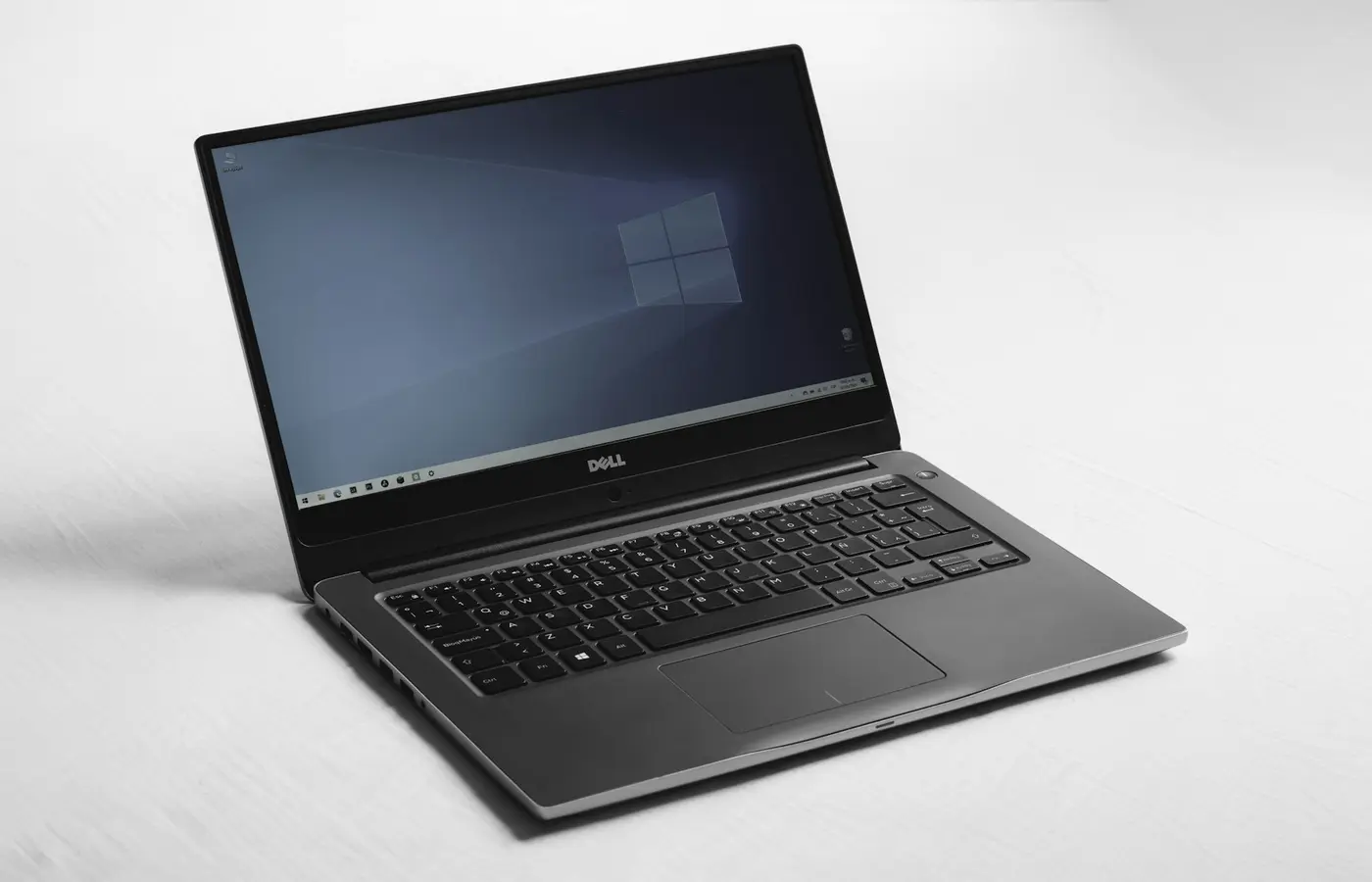
A Linux compatible laptop is not defined by its logo, CPU brand, or product-family name. The safer decision is to verify the exact laptop configuration you will receive: regional part number, wireless card, graphics hardware, firmware-update path, and return terms.
The lowest-risk option is a configuration that the manufacturer explicitly sells or documents for Linux, or one with a model-specific certification record that matches the machine you are buying. If that evidence is unavailable, you can still make a reasonable purchase—but only after checking the components that most often affect Wi-Fi, graphics, suspend, external displays, and long-term firmware maintenance.
Start with the exact laptop SKU, not the family name
“ThinkPad,” “Inspiron,” “Pavilion,” and “Yoga” are product families, not complete hardware descriptions. A laptop family can contain different processors, graphics chips, wireless adapters, display panels, storage options, and regional configurations. Any of those variations can change the Linux experience.
Before researching compatibility, create a record of the exact configuration you intend to order. Do this before relying on retailer reviews, forum posts, or a certification result.
Capture these details:
- Manufacturer model name and complete part number
- Retailer SKU, if different from the manufacturer part number
- Purchase region and keyboard layout
- CPU model, including its full generation or series name
- Integrated and discrete GPU, if the laptop offers both
- Wireless and Bluetooth adapter model
- Display option, including resolution, refresh rate, touchscreen, and OLED status where applicable
- Memory and storage configuration
- Cellular modem, fingerprint reader, smart-card reader, or other optional hardware
- Preinstalled operating system
The manufacturer configuration page, technical specification sheet, and parts catalog are usually better starting points than a retailer listing. Retailer pages can be incomplete, copied between variants, or changed without notice. Reconcile the retailer’s description with the manufacturer’s model identifier before treating it as reliable.
A service manual can also be useful. It may show whether memory, storage, wireless hardware, or the battery are accessible, replaceable, or supplied in multiple versions. That does not prove Linux compatibility, but it helps identify where a configuration can differ from another machine with the same marketing name.
If the seller cannot confirm the installed wireless card or graphics configuration, treat that as a real risk rather than a minor missing detail. Component substitutions are possible within a product family, particularly across regions and supply periods.
Treat official Linux support and certification as the strongest starting point
Not all evidence has equal value. Use a hierarchy rather than treating a single positive comment as proof that every feature works.
Strong evidence
The strongest starting points are:
- A manufacturer-sold Linux configuration of the exact model.
- Manufacturer documentation that names Linux as a supported operating system for that configuration.
- A model-specific certification record that can be matched to the intended hardware and operating-system release.
- Vendor guidance covering Linux installation, BIOS settings, drivers, or recovery procedures for the exact product.
A certification record is useful only when it identifies the same machine closely enough to matter. Check the full model number, generation, processor platform, and, where available, the listed operating-system version. A record for a similarly named laptop from a previous generation is not evidence for the current model.
Ubuntu certification can be a helpful data point, but it should not be interpreted as a guarantee that every Linux distribution, desktop environment, kernel version, dock, or optional component will behave identically. Different distributions package different kernels, firmware files, graphics stacks, and desktop software. Certification supports a narrower conclusion: a specified configuration was assessed for a specified operating-system release.
A community report can fill gaps, especially when it includes the full laptop model, component details, distribution, kernel version, firmware version, and the features tested. For example, a report that names only a laptop family and says “Linux works” is weak evidence. A report that records Wi-Fi hardware, hybrid-graphics behavior, suspend results, and a specific kernel is much more useful.
One recent account of checking an Inspiron model through an Ubuntu certification database and then using a Fedora live USB illustrates the right general sequence: research first, then validate the purchased machine during the return period. It is still one configuration and one user’s result, not a universal compatibility finding. All Things Open’s overview of Linux-ready hardware is useful context for that approach.
Verify the components most likely to cause Linux problems
Do not assume that a laptop works well with Linux because its CPU platform is common or because another model from the same brand worked for someone else. Identify the actual hardware where possible.
Wi-Fi and Bluetooth
Wireless support is one of the most important checks because it affects installation, updates, and daily usability. Look for the exact adapter model in the manufacturer specification, parts list, or seller confirmation.
Then search for evidence tied to that adapter and your intended distribution. Check whether the required driver and firmware are included in the distribution’s current installer or standard repositories. Be cautious with reports that require an undocumented workaround, a third-party driver, or a network connection to install the driver for the device that provides network access.
If the laptop has soldered wireless hardware and the installed adapter cannot be confirmed, the practical risk is higher. If the wireless card is replaceable, verify that replacement is allowed by the service documentation and does not conflict with warranty or regional regulatory requirements.
Graphics hardware
Integrated graphics are often simpler to research than hybrid systems, but the exact GPU generation still matters. For a laptop with discrete graphics, identify both graphics devices and determine how the manufacturer routes display outputs.
Hybrid graphics can affect:
- External-monitor support
- HDMI, USB-C, DisplayPort, and dock behavior
- Suspend and resume reliability
- Battery use while the discrete GPU is active
- Graphics switching and application compatibility
- Proprietary-driver installation and updates
Do not rely on a statement such as “NVIDIA works on Linux” or “AMD is supported.” Those broad claims do not answer whether a particular GPU generation, driver path, desktop environment, and output arrangement fits your workflow.
Other devices that deserve a check
Some devices are less important for one buyer and essential for another. Verify the features you will actually use:
- Fingerprint reader
- Webcam and privacy shutter controls
- Internal microphone and speaker array
- Headset jack and audio switching
- SD or microSD reader
- Touchscreen, pen input, and tablet-mode sensors
- Cellular modem and eSIM functions
- Function keys, keyboard backlight controls, and airplane-mode switch
- IR camera or face-recognition hardware
A feature can be physically present yet have incomplete Linux support. A fingerprint reader, for example, may work only with a particular software stack or may not support the same enrollment and sign-in flow provided by the factory operating system. Buy based on the functions you need, not the assumption that every listed feature will transfer cleanly.
Check graphics, external displays, and power behavior before you commit
For many buyers, the deciding Linux issue is not whether the laptop boots. It is whether the machine can handle the monitor, dock, charger, and sleep routine used every week.
Before ordering, write down your intended setup:
- Number of external displays
- Resolution and refresh rate of each display
- Connection type: HDMI, USB-C, DisplayPort, or dock
- Whether the dock also supplies charging, Ethernet, audio, or storage
- Whether you regularly suspend the laptop in a bag or move between desks
- Whether you need a discrete GPU for a particular application
Then look for documentation showing which GPU controls each display output. This information is not always published, but it matters on hybrid-graphics systems. An HDMI port wired to a discrete GPU can behave differently from a USB-C port routed through integrated graphics.
Suspend and resume require special caution. A positive report should name the laptop model, distribution, kernel, desktop environment, and whether it tested ordinary suspend, lid-close behavior, external displays, and repeated wake cycles. One successful resume is useful, but it does not establish long-term reliability across future firmware or kernel updates.
If reliable evidence does not cover your dock or monitor arrangement, ask the manufacturer or seller specific questions before buying. Ask which ports support charging and display output, whether the product documentation names supported dock families, and whether the return policy permits a practical compatibility test.
Confirm firmware updates, BIOS controls, and repair access
Linux compatibility is also an ownership question. Firmware updates can address security issues, stability problems, docking behavior, battery management, and device support. A laptop with a clear update path is easier to maintain than one that depends on a Windows-only utility with no documented alternative.
For the exact model, check:
- The manufacturer’s BIOS or UEFI update documentation
- Whether firmware packages and release notes are publicly available
- Whether updates can be applied through a supported bootable method, firmware interface, or another documented process
- Whether the model or relevant device appears in the Linux Vendor Firmware Service ecosystem, where applicable
- BIOS controls for Secure Boot, boot order, virtualization, storage mode, and power settings
- Availability of recovery media and factory-reset instructions
Do not assume that listing a manufacturer in the Linux Vendor Firmware Service ecosystem means every current laptop from that manufacturer receives updates through it. Support is device-specific. Confirm that the relevant system or component is actually represented before treating this as a purchase advantage.
Also review the official service manual before deciding that a laptop is upgrade-friendly. Determine whether the storage drive, memory, battery, and wireless hardware are accessible; whether any components are soldered; and whether opening the device has warranty implications in your region. A laptop can run Linux well and still be a poor long-term ownership choice if repairs or storage replacement are unnecessarily difficult.
Use a live-USB test and return policy as risk controls
If you can inspect the laptop before the return deadline, a live USB is one of the best practical checks. It lets you boot a current Linux image without installing it to the internal drive or erasing the factory operating system.
Use the documentation for your chosen distribution to download and verify its installation image. Follow the laptop manufacturer’s instructions for the boot menu, Secure Boot settings, and recovery options. Do not disable security features casually or change storage settings without understanding how to restore the original configuration.
A cautious live-USB test checklist
With the machine running from the live environment, test the features you plan to rely on:
- Connect to Wi-Fi and confirm Bluetooth can discover a device.
- Test the keyboard, trackpad, function keys, brightness controls, and keyboard backlight.
- Check speakers, microphone, headset jack, webcam, and camera shutter behavior.
- Connect power and confirm charging behavior.
- Test USB-A, USB-C, HDMI, card-reader, and Ethernet ports that matter to you.
- Connect your external monitor or dock if you already own it.
- Put the laptop to sleep, wake it, and repeat the process with and without an external display.
- Check whether the system recognizes integrated and discrete graphics hardware as expected.
- Review the firmware-update tool or documented update path; do not apply an update merely for a short test unless you understand the process.
- Record failures, error messages, and the distribution and kernel version used.
A live session is evidence, not a lifetime guarantee. It cannot prove future kernel compatibility, battery life, long-term sleep reliability, proprietary application support, all docking scenarios, or behavior after firmware changes. It can, however, reveal a serious problem while you still have the option to return the laptop.
Read the seller’s current return policy before opening the box. Confirm the deadline, whether opened devices can be returned, whether restocking fees apply, whether accessories and packaging are required, and whether the purchase channel changes your rights. Check the policy for your country and retailer rather than relying on an older forum post.
Choose based on documented support, or keep researching
Buy with confidence only when the evidence matches the configuration you are actually ordering. A practical decision framework looks like this:
| Evidence level | What it means | Sensible next step |
|---|---|---|
| Strong | Exact model has manufacturer Linux support, a matching certification record, or detailed official guidance | Verify the ordered part number and return terms, then buy if the ports and repair path fit your needs |
| Moderate | Components are well documented and configuration-matched reports cover the features you use | Buy only with a workable return period and test promptly with a live USB |
| Weak | Reports cover another generation, unknown wireless hardware, or a different graphics setup | Ask for part numbers, keep researching, or choose a better-documented configuration |
| Unacceptable | Wireless, GPU, firmware path, or return terms cannot be verified for a workflow-critical purchase | Skip or delay the purchase |
Linux-first vendors and explicitly supported Linux configurations are often the lower-risk route because the operating system is part of the documented product offering. That does not make every configuration universally compatible, but it reduces the number of unknowns compared with an unverified consumer SKU.
The final check is simple: confirm the exact part number, wireless adapter, graphics configuration, intended Linux distribution, firmware-update method, and return deadline. If you cannot verify one of those items and it matters to your work, the safer answer is not to assume—it is to keep researching.
Frequently asked questions
Is a laptop that is Ubuntu certified compatible with every Linux distribution?
No. A certification record is useful evidence for the listed model and Ubuntu release, but it does not guarantee identical behavior on every distribution, kernel, desktop environment, driver version, or dock. Treat it as a strong starting point and check your intended distribution when it matters.
Can I trust Linux compatibility reports for a different configuration of the same laptop?
Only cautiously. Reports are most useful when the CPU generation, wireless adapter, graphics hardware, display option, firmware version, and tested Linux version match your intended machine. A different GPU or Wi-Fi card can change the result substantially.
Which laptop components should I verify before buying for Linux?
Prioritize the wireless adapter, integrated and discrete graphics, display outputs, dock support, firmware-update path, suspend behavior, and any feature essential to your work, such as a fingerprint reader, touchscreen, cellular modem, or card reader.
Should I buy a laptop if I cannot test it with a Linux live USB before the return period ends?
Only if the documentary evidence is strong enough for your risk tolerance. An explicitly supported Linux configuration or a closely matching certification record is safer than a laptop with unknown component variants. If neither the hardware details nor return protection can be confirmed, choose a more transparent option.


