How to Choose a College Laptop: Match Course Software, Portability, and Support
Choose a college laptop by checking course software first, then comparing portability, configuration limits, ports, repairs, and support.

The safest laptop for college is not automatically the cheapest model, the lightest model, or the one with the most impressive-looking specification badge. Start with the software your course requires, the operating systems it supports, and the support you can access if something fails during term time.
For many students, a portable laptop with sensible memory and storage is enough. But “enough” depends on the exact applications, files, peripherals, remote-access tools, and campus systems you will use. A laptop that looks ideal for note-taking can be a poor purchase if a required application is Windows-only, needs substantial local storage, or relies on a specific graphics capability.
The goal is to buy a configuration you can verify—not a generic model name—and one you can realistically carry, charge, repair, and keep supported through your studies.
Start with course software and campus IT requirements
Check your course information before comparing laptop brands. Universities can provide software through their own licensing, require particular applications, or offer remote access to specialist systems. Departments may also have requirements that differ from the general university recommendation.
UWE Bristol advises students to check course software first, because different courses can require different applications. The University of Pittsburgh similarly recommends checking department requirements and consulting department IT where specific guidance is needed.
Make a short list of everything you may need to run during the academic year:
- Required course applications and their versions
- Operating systems supported by each application
- Browser, plug-in, or security requirements for online learning platforms
- Remote-desktop, virtual private network, or multi-factor authentication tools
- File formats you must create, edit, or submit
- Any specialist hardware, such as a lab instrument, drawing tablet, external display, or storage device
- Whether software is installed locally, available in a campus lab, or accessible remotely
Then find the official system requirements for the applications that matter. Focus on recommended requirements when they are published, not only the minimum needed to open the program. A minimum requirement can be useful for compatibility, but it may leave little room for larger files, video calls, browser tabs, background services, or later course modules.
If your department publishes guidance, treat it as the first filter. If it does not, ask a specific question before ordering: “Will this exact operating system and configuration run the required software locally?” Include the course name, application name, version, and laptop configuration in the question.
Do not assume that access to a university computer lab eliminates the need for compatibility at home. Lab access may be useful, but its hours, location, software availability, and remote-access rules can affect whether it is a practical fallback.
Choose an operating system only after checking compatibility
Windows, macOS, and ChromeOS can all be appropriate in the right situation. None is the universal best choice for a college laptop.
The decision should follow the applications and systems you must use:
| Platform | Check before buying | Common reason to choose it | Important limitation to verify |
|---|---|---|---|
| Windows | Exact Windows version, processor architecture, required drivers, departmental support | Broad hardware choice and compatibility with many locally installed programs | A Windows laptop still needs enough memory, storage, ports, and graphics capability for the workload |
| macOS | Whether every required application, plug-in, device driver, and exam or remote-access tool has a current macOS version | A suitable option when course software and campus tools explicitly support it | Some applications, accessories, and technical workflows may require Windows-specific tools |
| ChromeOS | Whether essential programs have native web, Android, or ChromeOS-compatible versions | Lightweight web-first study workflows | Compatibility can be limited for locally installed specialist applications and some desktop workflows |
Yale’s Student Technology Collaborative notes that ChromeOS users should confirm compatibility for essential programs rather than assuming Android apps or web alternatives will replace desktop software. That is especially important when an application is named in a module guide, supplied through a university licence, or required for assessed work.
A browser-based version of a program may not provide the same tools, offline access, file handling, or peripheral support as its desktop version. Likewise, a remote Windows desktop can be helpful, but it depends on a stable network connection and may not work well for every task.
If you are considering a Mac for a course that lists Windows software, do not rely on the idea that a virtual machine will solve the problem. Check whether the software vendor supports virtualization, whether your university supports that setup, whether the application needs particular hardware or drivers, and whether the laptop has enough memory and storage for both operating systems. The same caution applies in reverse when choosing Windows for software designed around a macOS-only workflow.
Set a configuration floor you can live with through graduation
Once you know the software requirements, compare complete laptop configurations. Model names often cover multiple processors, displays, memory capacities, storage options, graphics chips, wireless cards, and operating systems. A review or retailer page for one version may not describe the unit in your cart.
There is no universal memory, storage, processor, or graphics minimum for every student. The University of Hertfordshire offers general baseline guidance for many students, including 8GB of memory and 256GB of solid-state storage, while also warning that specialist software may need a more capable computer. Use guidance like this as a starting point, not a substitute for your own course requirements.
Memory: leave room for normal multitasking
Memory, usually listed as RAM or unified memory, affects how comfortably a laptop handles several active tasks. A light workflow might include notes, research tabs, email, cloud storage, and video calls. Other courses may add large documents, data sets, design files, development tools, or virtual machines.
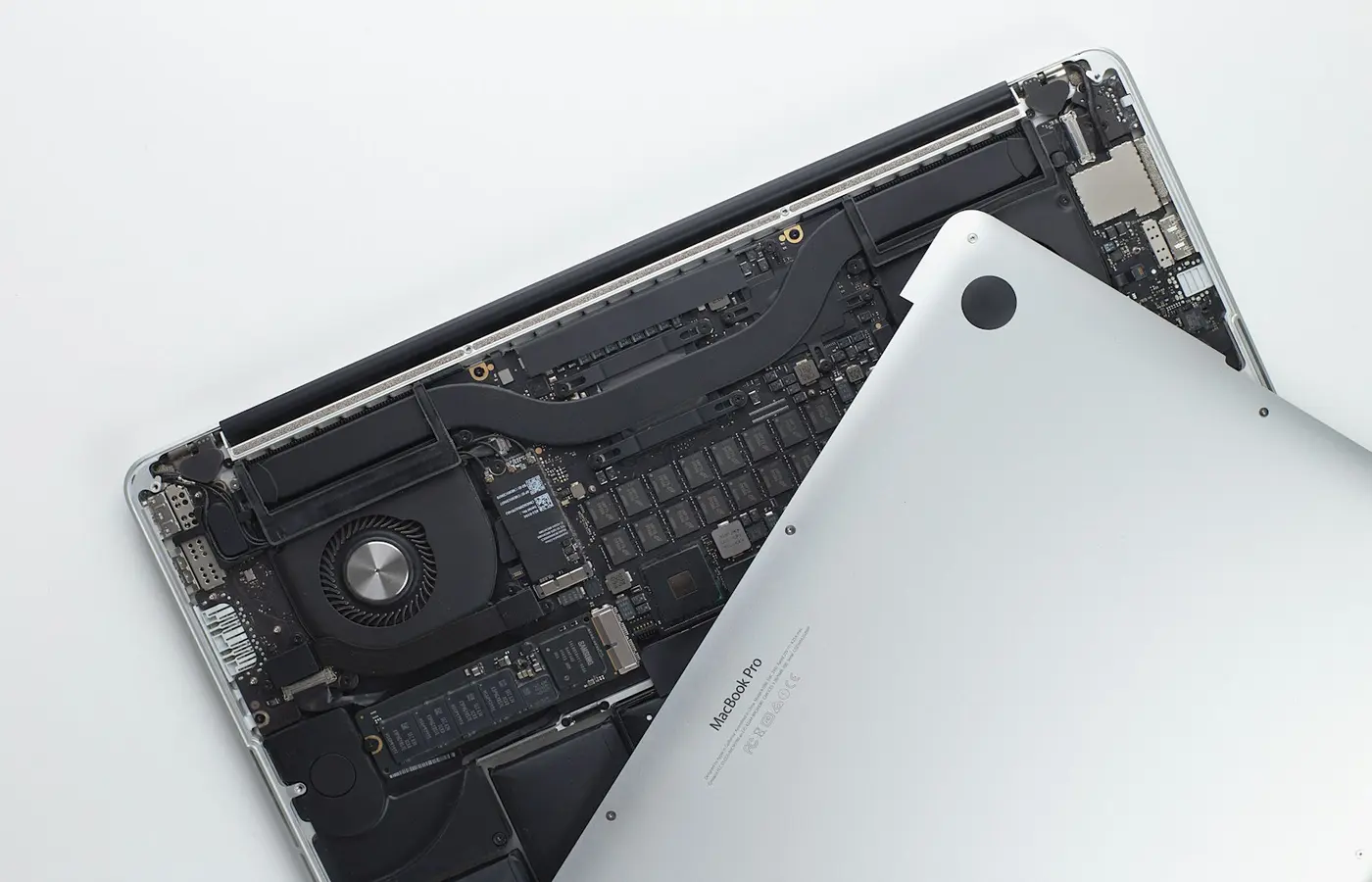
If your required software lists 16GB as recommended, buying an 8GB configuration because it is cheaper can create a problem that cannot be fixed later. Many thin laptops have soldered memory, meaning it cannot be upgraded after purchase.
Before checkout, verify:
- The installed memory capacity, not the maximum supported by the model family
- Whether memory is soldered, socketed, or partly upgradeable
- The software vendor’s recommended memory requirement
- Whether you expect to run a virtual machine, local development environment, or large media files
Storage: account for files, updates, and recovery space
Solid-state storage affects more than document capacity. Operating-system updates, cloud-sync folders, course files, application installers, local backups, and recovery tools all consume space.
Check the usable storage capacity after the operating system is installed, where that information is available. More importantly, decide whether the drive can be upgraded and whether an external drive is an acceptable part of your workflow. Some laptops use replaceable SSDs; others use soldered storage or have configurations that vary by region.
Do not buy based only on a listing that says “up to” a certain storage capacity. Confirm the drive in the exact SKU and consult the manufacturer’s specification sheet or service documentation for upgrade information.
Processor and graphics: match the requirement, not the label
Processor branding does not tell you whether a laptop meets your software needs. Different generations, power limits, cooling designs, and software support can produce materially different results even within one processor family.
For course software that specifies a processor class, graphics capability, or dedicated graphics requirement, compare the exact requirement with the exact hardware in the laptop. Confirm whether a graphics requirement permits integrated graphics, and check whether the application supports the operating system and processor architecture you intend to buy.
Avoid treating a discrete graphics chip as an automatic advantage. It can add cost, weight, heat, and charger bulk. It is worth considering only when your applications, coursework, or other needs benefit from it.
Balance screen size, weight, charging, and real study routines
Portability is not just the number on a product page. It is the total daily load: laptop, charger, adapter, notebook, headphones, water bottle, and any equipment needed for class or work.
A smaller laptop can be easier to carry through a long day, while a larger screen may be more comfortable for writing, split-screen work, spreadsheets, accessibility needs, or detailed visual tasks. Yale’s guidance recommends choosing a size that suits the student rather than treating one display size as right for everyone.
Use your normal routine to decide:
- How far will you carry the laptop on a typical day?
- Will you work mostly at a desk, in lecture halls, in a library, or while travelling?
- Are power outlets usually available where you study?
- Do you already have an external monitor or keyboard for desk work?
- Would a larger screen reduce strain or improve accessibility?
- Can you comfortably carry the laptop and its supplied charger?
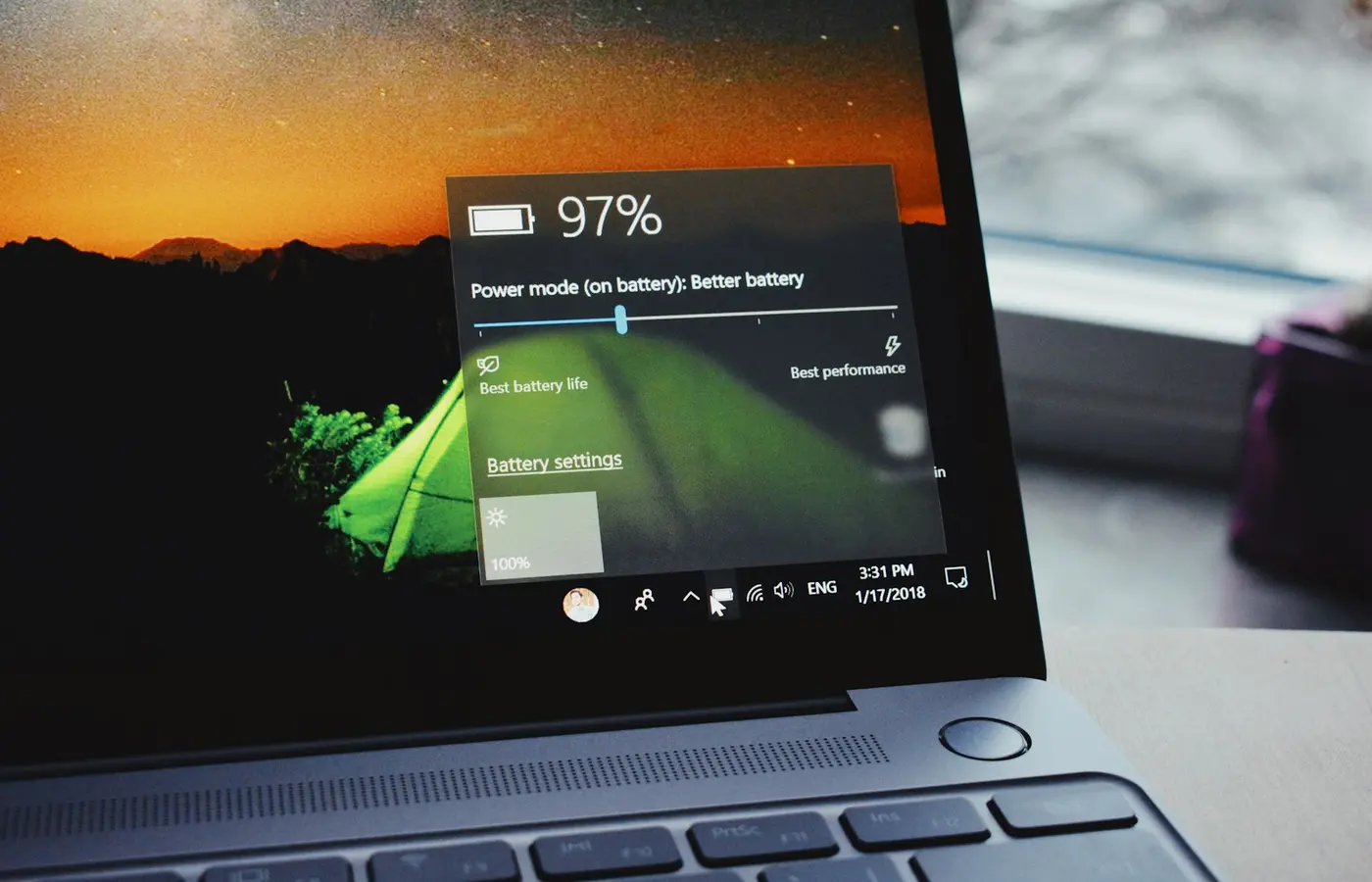
Manufacturer battery estimates are useful for comparing advertised conditions, but they are not a reliable promise of your own runtime. Screen brightness, video calls, browser activity, background software, wireless signal strength, peripherals, and application workload can all change battery use.
If battery endurance is crucial, look for independent testing that identifies the same configuration and explains its test conditions. If that evidence is unavailable for your exact SKU, plan around charging access rather than assuming a stated battery figure will match your study day.
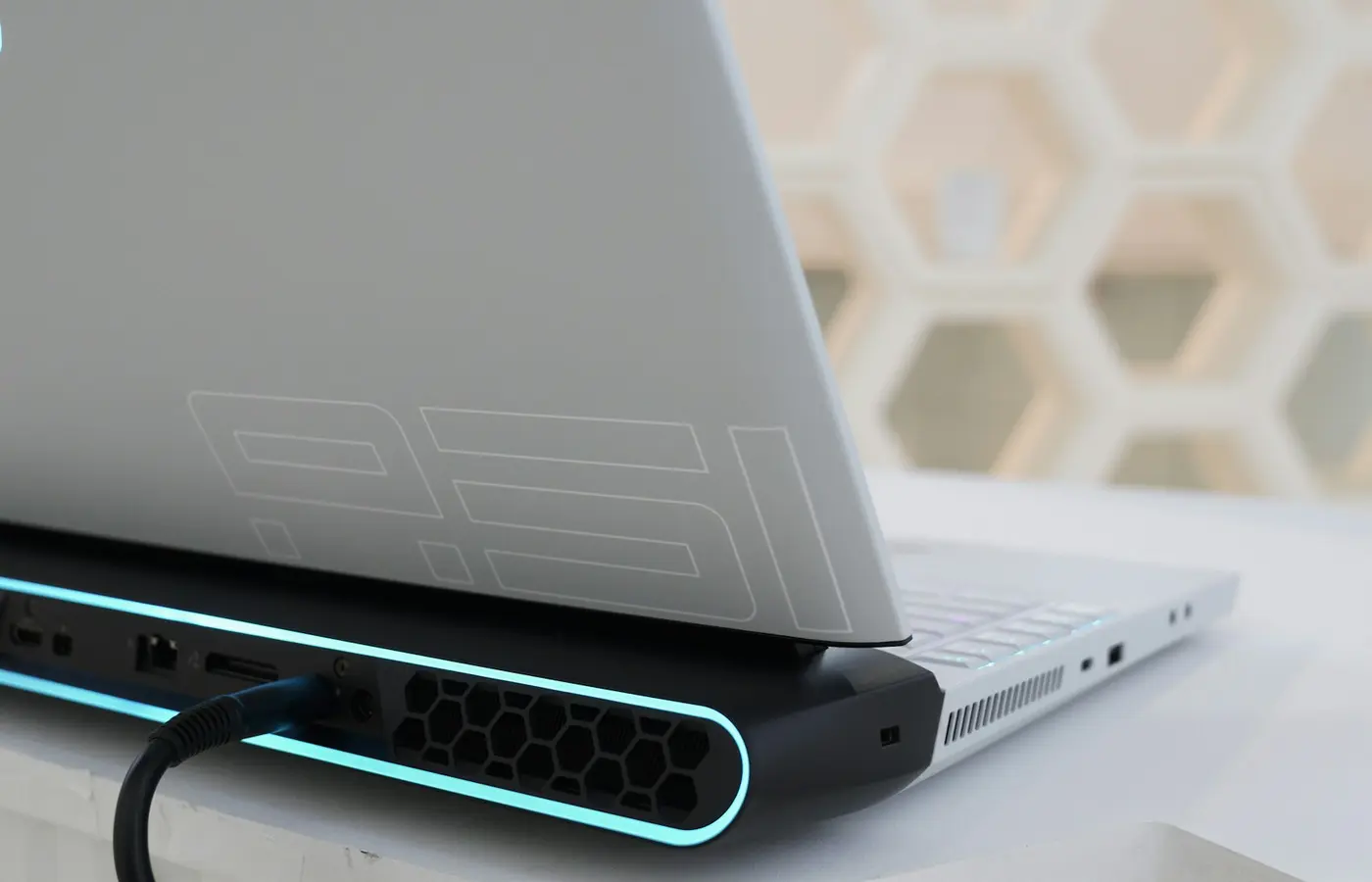
Also check how the laptop charges. Verify the supplied charger’s size and wattage, whether the system supports charging through USB-C, and whether it can charge adequately from the dock or charger you already own. A USB-C port alone does not guarantee charging support.
Check ports, displays, and accessories before checkout
A laptop can be technically compatible with an accessory while still being inconvenient to use every day. Check what you need to connect now and what you might need later.
Start with a simple inventory:
- External monitor or classroom display
- USB flash drive or external SSD
- Wired mouse, keyboard, or Ethernet adapter
- Headphones or microphone
- SD card reader, if relevant to your workflow
- Dock, hub, projector adapter, or accessibility equipment
Read the manufacturer’s technical specifications for the exact laptop, not just a retailer’s port icons. For each USB-C port, verify whether it supports charging, display output, data transfer, and dock functionality. Those capabilities vary by implementation. Do the same for HDMI and other video ports: confirm the port version and the display resolution or refresh requirements of the monitor you intend to use.
The display also deserves a practical check. Look at screen size, resolution, finish, brightness specification, touch support if needed, and whether the panel is suitable for the work you expect to do. Specifications can describe a panel, but they do not replace seeing a screen in person when comfort, glare, text scaling, or colour-sensitive work is important.
If you depend on a monitor, projector, or dock, test the return policy as carefully as the specification sheet. Confirm that the seller allows returns under terms you can accept if the equipment is not compatible with your setup.
Treat warranty, repairs, and support as part of the laptop price
A college laptop is a working tool, so the purchase price is not the whole cost. Compare the included warranty, repair route, accidental-damage options, turnaround process, and battery-service path before you buy.
The University of Pennsylvania’s notebook purchasing guide recommends considering three-year service coverage and notes that batteries may need replacement during a normal laptop life cycle. The exact value of a service plan depends on its terms, your country, consumer-protection rights, and how disruptive a repair would be during term time.
Before purchasing, check:
- Included warranty length and what it covers
- Whether coverage applies where you will study, travel, or live
- Whether accidental damage is separate from the standard warranty
- Claim limits, excess fees, exclusions, and whether theft or loss is excluded
- Available repair channels: mail-in, authorised repair, local service, or on-site support
- Expected repair process and whether a loan device is available through your institution
- Battery replacement options and cost visibility
- Whether the manufacturer publishes a service manual or repair documentation
Accidental-damage coverage can be sensible if you regularly commute, work in shared spaces, or could not afford an unplanned repair. It is not automatically worthwhile, however. Compare the plan’s full cost, exclusions, claim process, and deductible with the realistic cost of handling damage yourself.
Do not assume an extended warranty includes accidental damage, battery replacement, or international service. Those terms can differ by product, seller, region, and purchase channel.
Use a final pre-purchase checklist for the exact checkout configuration
Before placing an order, save or print the product page and reconcile it with the manufacturer’s configuration sheet. Retailer listings can be incomplete, and a single product name can describe several variants.
Use this checklist:
- Course compatibility: Required software, licences, campus tools, and file formats work on the selected operating system.
- Exact model identity: You have the full part number or SKU, not only the laptop family name.
- Installed configuration: Processor, memory, storage, graphics, display, wireless hardware, and operating system match what you intend to buy.
- Upgrade limits: You know whether memory and storage are soldered, replaceable, or configurable only at purchase.
- Daily usability: Weight, dimensions, screen size, charger, keyboard layout, webcam, and charging method suit your routine.
- Ports and accessories: The laptop supports the monitor, dock, storage, audio gear, adapters, and accessibility equipment you need.
- Support: Warranty terms, repair options, accidental-damage coverage, and battery service are acceptable in your region.
- Purchase terms: You have read the seller’s current return policy and understand who handles warranty claims.
- Price check: If price influenced the decision, record the date, retailer, configuration, and included support. Prices and stock can change.
A good college laptop is one that clears the course-software requirement without creating avoidable compromises in portability, charging, connectivity, or repair support. When two models meet the same requirements, choose the one with the clearer configuration, stronger support path, and fewer accessories or workarounds required for your actual study routine.
Frequently asked questions
Is 8GB or 16GB of RAM better for a college laptop?
Neither capacity is right for every student. Start with the recommended requirement for your course software and consider whether you will regularly multitask, use large files, run local development tools, or use a virtual machine. If memory is soldered and cannot be upgraded, buying enough capacity at the outset matters more. General university guidance can be useful context, but your required software should decide the minimum.
Can a Chromebook work for college?
It can work for a web-first course where required tools run in the browser or have confirmed ChromeOS-compatible versions. Do not assume it will run every desktop application. Check every essential program, remote-access tool, file-format requirement, and peripheral before buying. Yale specifically advises students to verify ChromeOS compatibility for essential programs.
Should I buy accidental-damage coverage for a college laptop?
Consider it if a repair bill would be difficult to manage or if your routine creates a meaningful risk of drops, spills, or travel damage. Read the exact terms first. Standard warranties commonly cover manufacturing defects rather than accidental damage, and protection plans can have exclusions, claim limits, or service fees.
How do I check whether my course software works on a Mac?
Find the official system requirements for the exact software version, then check your department or university IT guidance for macOS support. Confirm any required plug-ins, device drivers, remote-desktop tools, exam software, and file-format workflows. If the course names a Windows-only application, ask whether there is an approved macOS alternative or supported remote-access option before buying a Mac.