How to Choose a Laptop for Photo Editing: Check Display, Memory, and Software Needs
Choose a photo-editing laptop by matching its display, memory, storage, processor, graphics, and ports to your software and workflow.

A good laptop for photo editing is not simply the one with the highest-resolution screen or the most expensive graphics chip. The safer choice is the configuration that matches your editing application, file sizes, delivery format, and working location.
For most buyers, start with the software requirement, then prioritize a display you can verify, enough memory for current projects, fast storage with room for catalogs and scratch files, and a processor or GPU appropriate to the tools you actually use. If you edit mainly at a desk or deliver print-sensitive work, putting more of the budget toward a properly selected external display can make more sense than paying extra for a premium laptop panel.
Editorial note: This is a research-based buying guide, not a hands-on review. Laptop Advices has not tested the laptops or displays discussed in this article. Manufacturer specifications describe what a configuration is claimed to include; they do not by themselves prove measured color accuracy, panel uniformity, sustained performance, or battery life.
Start with your photo workflow and software requirements
Before comparing laptops, write down the exact editing application and version you plan to run. Requirements can differ between desktop and cloud-focused versions of the same application, and features such as AI denoise, subject selection, neural filters, panorama stitching, or high-resolution display support may have separate requirements.
Your workload matters at least as much as the application name.
- Occasional RAW editing: Importing a modest number of files, applying global adjustments, cropping, and exporting web images is usually less demanding than complex compositing.
- Large catalogs and frequent batch exports: A local library with previews, many simultaneous exports, and background synchronization places greater pressure on storage capacity and processor performance.
- Layered documents and composites: Multiple layers, masks, smart objects, and high-resolution source files can use considerably more memory and scratch storage than basic RAW adjustments.
- Panoramas and HDR merges: These tasks can create large temporary files. Photography Life notes that panorama stitching is a notable exception to otherwise moderate memory needs in photo editing, so it is worth treating as a separate buying case rather than assuming a general-purpose configuration will be comfortable. Its guide to photo-editing computer specifications is useful context, not a guarantee for a particular application or laptop.
- AI-assisted editing: GPU requirements can change quickly as software vendors add local AI features. Check the current documentation for the precise tool you use rather than assuming that any computer marketed as “AI-ready” supports it well.
- Print-oriented work: If you prepare files for print, color management, a suitable display, and a controlled viewing environment may matter more than shaving a few seconds from an export.
Open the official requirements page for each application before shopping. Check the supported operating-system version, minimum and recommended memory, GPU or graphics API requirements, available storage requirements, and any feature-specific notes. Treat a minimum requirement as a compatibility floor, not a comfort target for a large image library.
Choose the display for the images you need to deliver
The laptop screen is where you judge exposure, contrast, color, sharpening, masks, and retouching. That makes it important, but display marketing terms need careful interpretation.
Start with your output color space
For photography intended mainly for websites, social platforms, client proofing, and general screens, an sRGB-oriented workflow is often the straightforward choice. A panel that claims full sRGB coverage may be useful, but the claim does not establish whether the panel is accurate, calibrated, uniform, or consistent at different brightness levels.
A wider-gamut screen can be useful when your camera files, editing workflow, printer, and print service are all managed for that wider color space. Depending on the workflow, you may encounter Adobe RGB or DCI-P3 claims. Neither label automatically makes a screen better for every photographer:
- A wide-gamut display can show a broader range of colors, but unmanaged software or incorrect profiles can make images appear overly saturated.
- A narrower-gamut display may be perfectly practical for web-first work when it is well behaved and you understand its limits.
- A claimed gamut percentage is not a measurement of color accuracy, white point, grayscale behavior, uniformity, or calibration quality.
Resolution and size affect comfort, not just sharpness
More pixels can provide more workspace for tool panels and a larger image preview. A larger screen can make local adjustments and side-by-side comparisons easier. But a 4K panel is not automatically necessary for photo editing, particularly on a smaller laptop display.
A lower-resolution screen may still be suitable if text and controls remain comfortable at your chosen scaling setting, while a higher-resolution screen can be worthwhile if you often inspect detail, work with multiple panels, or use the laptop as your primary editing machine. Check the operating system and software at the display scaling you expect to use; pixel count alone does not determine usable workspace.
What to verify about the exact panel
Laptop families often ship with more than one panel. A retailer may use one display description for several configurations, even when a lower-priced SKU has a different resolution, finish, refresh rate, touch layer, or color claim.
Before ordering, obtain the manufacturer part number and confirm:
| Display check | Why it matters |
|---|---|
| Resolution and screen size | Determines workspace, interface scaling, and detail visibility. |
| Claimed color coverage | Helps identify the intended gamut, but is not proof of accuracy. |
| Panel finish | Glossy panels can look vivid but may be harder to use around reflections; matte finishes may suit brighter rooms. |
| Touch capability | Can change panel construction and is not inherently an editing advantage. |
| HDR wording | Does not by itself establish reliable HDR editing or SDR color accuracy. |
| Calibration or profile information | Indicates a possible workflow path, but should be checked rather than assumed. |
If independent measurements exist for the same model number and panel option, they can add useful evidence. Read the test conditions and methodology, and do not transfer results from another regional SKU, panel supplier, generation, or configuration. Independent results should be understood as third-party findings, not Laptop Advices measurements.
For color-critical work, consider using a compatible calibration device and appropriate color-management settings. Calibration can improve a particular display’s behavior, but it cannot turn an unsuitable or highly variable panel into a known reference display.
Pick memory and storage for your catalog, files, and scratch space
Memory capacity determines how much active work your laptop can hold without relying as heavily on storage as temporary workspace. There is no single correct amount because image dimensions, layer count, panorama work, concurrent applications, and software behavior all matter.
For general photo editing, 16 GB may be a reasonable starting point, as Photography Life suggests in its broader discussion of photo-editing systems. That should not be read as a universal recommendation. A laptop with 16 GB can be adequate for one photographer and restrictive for another who regularly stitches panoramas, builds complex composites, keeps a browser and other applications open, or works with exceptionally large files.
Choose more memory when you expect to:
- edit large layered documents or extensive composites;
- merge panoramas or HDR sequences frequently;
- run several demanding applications at once;
- keep the laptop for many years and cannot upgrade its memory later;
- use an application whose current recommended specifications call for more memory for your workload.
Upgradeability changes the decision
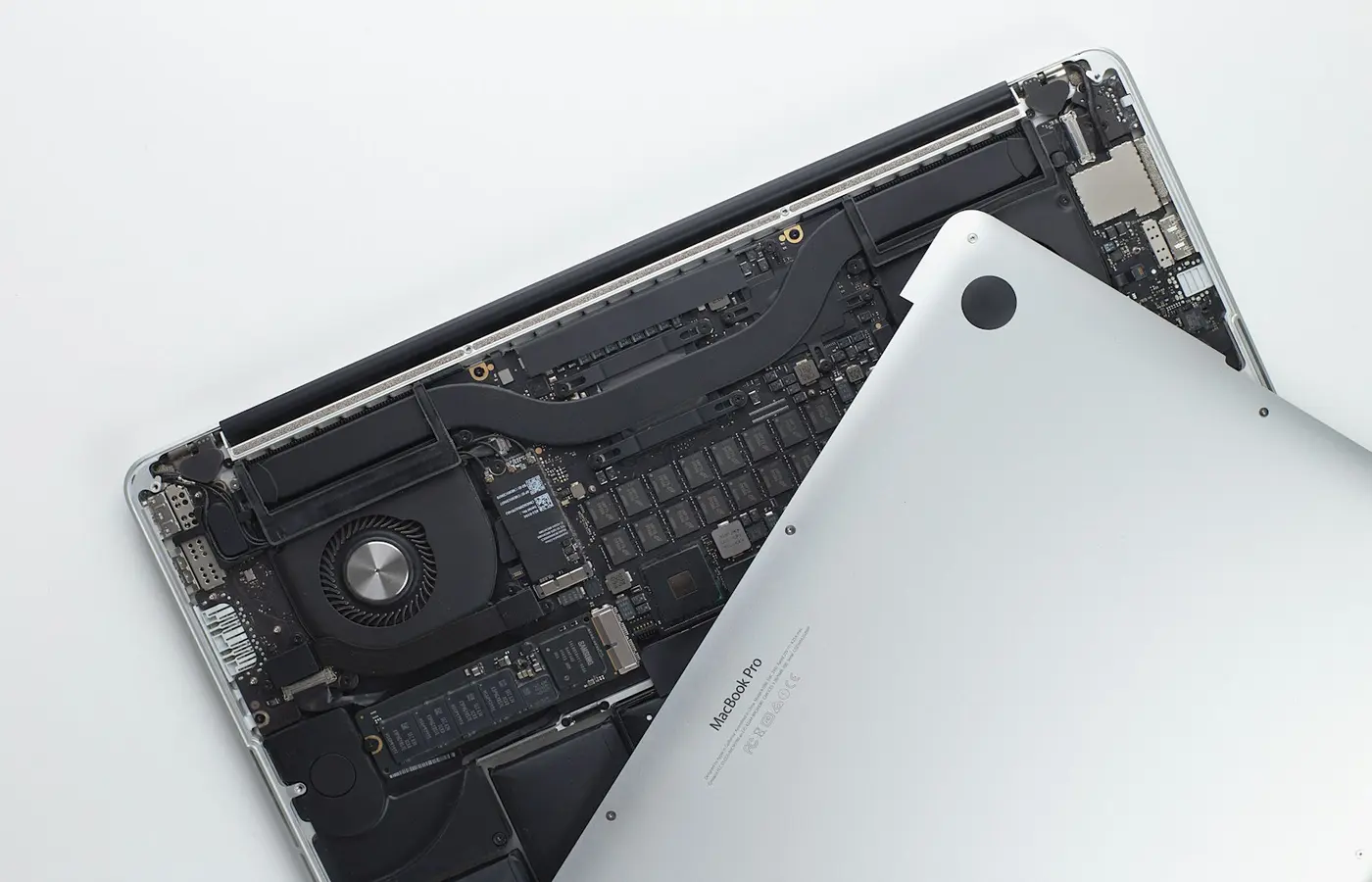
Some laptops have memory soldered to the mainboard. Others use replaceable memory modules, and a few have a combination of both. Do not assume a model can be upgraded because another configuration in the same product family can be.
Check the exact service manual or technical specification for:
- installed memory capacity;
- whether memory is soldered, slotted, or mixed;
- accessible storage slots and supported drive types;
- whether opening the laptop affects warranty coverage in your region;
- the manufacturer’s documented service procedure.
Storage needs are equally practical. Your operating system, applications, photo catalog, previews, cache, scratch files, current projects, and backups all compete for capacity. A fast internal SSD can improve responsiveness, but usable free space also matters. Buying a large drive that becomes nearly full is not a complete storage plan.
A sensible arrangement may include an internal SSD for the operating system, applications, active catalog, and current work, plus external or network storage for archives and backups. Confirm that your intended external drive connection is supported by the exact laptop, not merely by the model family name.
Match processor and graphics hardware to the tools you actually use
A laptop processor affects imports, preview generation, exports, file compression, and many general editing operations. Graphics hardware may help with display acceleration, supported filters, AI features, and some image-processing tasks. The balance depends on the software.
Do not buy based on labels such as “creator,” “AI,” “gaming,” or “studio.” Instead, record the complete CPU and GPU names from the configuration page. Then compare them against your application’s current documentation.
Integrated graphics can be enough for some workflows
Many photo editors can work effectively on systems with integrated graphics when the software, memory capacity, display connection needs, and workload are appropriate. A dedicated GPU is not automatically required for basic RAW development, cropping, retouching, and ordinary exports.
A discrete GPU may be more relevant when you regularly use GPU-accelerated AI tools, demanding filters, high-resolution external displays, or workflows where the software explicitly recommends more graphics memory. It may also introduce trade-offs: higher cost, more heat, a larger charger, and potentially less portable designs.
For each candidate, verify:
- The complete processor model, not just the product family.
- Whether graphics are integrated or discrete.
- The exact discrete GPU, if present, and its listed graphics memory.
- Whether the software requires a particular graphics API, driver support, or GPU-memory level.
- The laptop’s power mode and cooling design, if third-party performance data is available.
Independent benchmarks can be useful only when they identify the application version, laptop configuration, graphics mode, power profile, and test procedure. A result from a higher-power configuration should not be treated as evidence for a thinner model with the same GPU name.
Verify the exact laptop configuration before you buy
The most expensive mistakes usually happen when a shopper assumes every configuration has the same display, memory, storage, ports, or graphics hardware. Use the retailer listing as a lead, not final proof.
Pre-purchase checklist
- Get the manufacturer part number. Ask for it if a retailer does not show it clearly.
- Find the official specification sheet. Reconcile the processor, GPU, memory, SSD size, operating system, screen resolution, and display option with the part number.
- Identify the panel. Confirm that the advertised gamut, resolution, touch capability, and finish apply to the exact SKU.
- Check memory and storage serviceability. Use the service manual where available; do not rely on forum posts for a different revision.
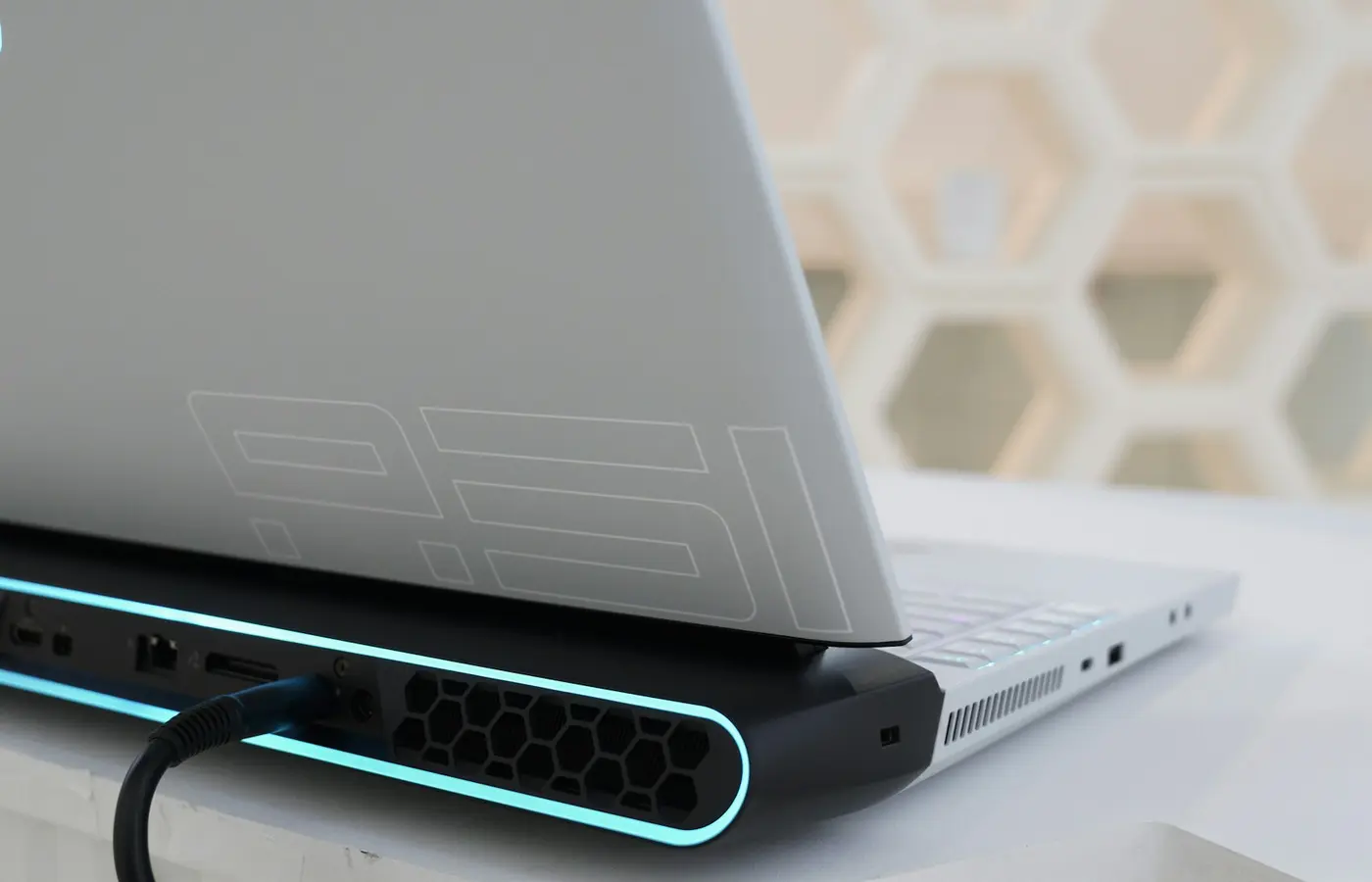
- Confirm ports. Check for the card reader, USB connection, display output, charging support, and external-storage connection you need.
- Confirm software compatibility. Make sure the supplied operating system version is supported by your editing software and required plug-ins.
- Read warranty and return terms. Policies vary by seller and region. A return window is especially useful when display behavior is important to your work.
After delivery, verify installed hardware before moving your photo library. Check the operating system’s system information, storage view, and graphics information against your order. Open the display settings, make sure the native resolution is selected, and confirm that any expected color profile is available. If the delivered device does not match the documented configuration, stop setup and contact the seller while the return process is still straightforward.
When an external display is the better editing investment
A laptop does not have to do every job alone. For a photographer who travels but edits critical work at a desk, it can be more sensible to choose a portable laptop with suitable memory, storage, and software support, then connect it to an external display selected specifically for the editing environment.
An external display is worth considering when:
- the built-in screen is too small for comfortable editing;
- the laptop panel’s exact specifications cannot be verified;
- you need a more deliberate calibration workflow;
- most editing happens at a desk;
- print delivery makes consistent color review especially important;
- you want a larger screen without carrying a larger laptop every day.
This is not an automatic accuracy upgrade. An external monitor still needs its own exact model verification, connection support, color profile, calibration path, and sensible workspace lighting. Confirm that the laptop supports the monitor’s intended resolution and refresh rate through the specific port and cable you plan to use. Also check whether the operating system and graphics hardware provide the color-management behavior your workflow needs.
FAQ
Is 16 GB of memory enough for photo editing on a laptop?
It can be enough for general RAW editing and moderate catalogs, but it is not a universal answer. Larger layered documents, panorama stitching, AI tools, heavy multitasking, and non-upgradeable laptops are reasons to consider more memory. Check the current recommendations for your exact application and think about the files you expect to edit over the laptop’s useful life.
Do I need a dedicated GPU for Adobe Lightroom or Photoshop?
Not necessarily. Basic editing may work well with integrated graphics if the computer meets the application’s current requirements. A dedicated GPU can be more valuable for specific GPU-accelerated or AI-assisted tools, demanding filters, and certain external-display setups. Verify feature requirements for the exact software version rather than buying a GPU based on a marketing label.
Is a 4K laptop screen necessary for photo editing?
No. A 4K screen can provide extra workspace and fine detail, but it is not a substitute for suitable color behavior, correct profiling, and a comfortable screen size. A well-chosen lower-resolution screen or an external monitor may be the better fit for your workflow and budget.
How can I verify a laptop’s display specification before buying?
Start with the exact manufacturer part number, then compare the official specification sheet with the retailer listing. Confirm the panel resolution, stated gamut, finish, touch option, and any calibration wording for that SKU. If independent measurements are available, use only results for the same model and panel configuration, and treat them as third-party evidence rather than a guarantee for every unit.
The practical buying decision
For web-first photo editing, a laptop with a verifiable sRGB-oriented display, sufficient memory, a fast SSD, and current software compatibility is often a safer choice than a more expensive system with vague display claims. For large files, composites, panoramas, or frequent AI-assisted editing, prioritize additional memory, storage headroom, and the processor or graphics capability your application explicitly uses.
If color-critical work happens mainly at a desk, do not force the laptop screen to carry the entire budget. Choose a portable configuration that meets your software needs, then evaluate an external display separately and carefully. The key is not finding a universal “best laptop for photo editing,” but verifying the exact configuration that fits your photos, software, and delivery requirements.