How to Choose a Laptop for Video Editing: Match Codecs, GPU, Memory, and Storage
Choose a video-editing laptop by matching your software, footage codecs, effects workload, memory, storage, display, and upgrade limits.
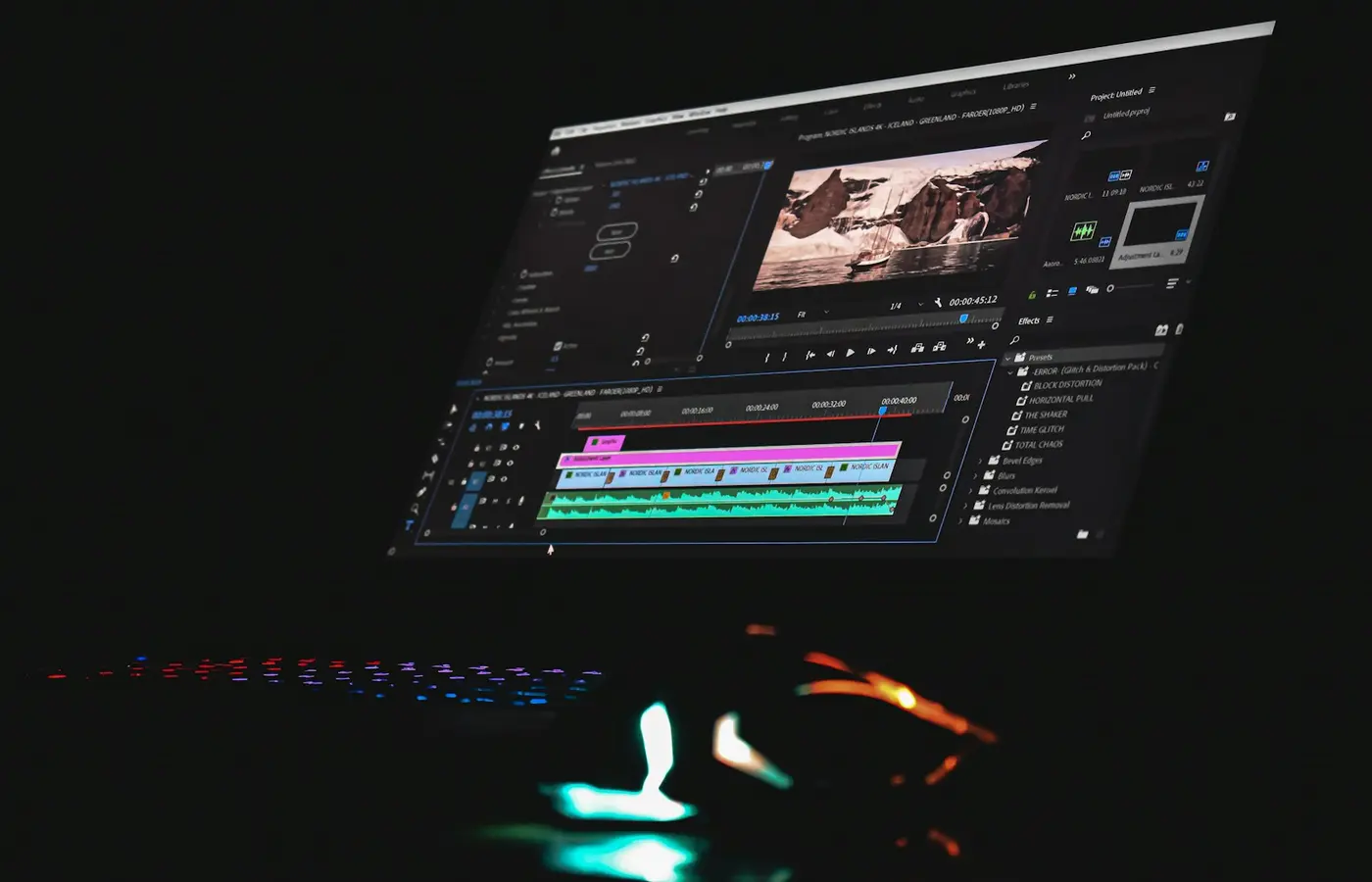
A good laptop for video editing is not simply the one with the most expensive CPU or the largest GPU badge. The right choice depends on the editor you use, the footage your camera produces, whether you use proxies, and how much color, effects, multicamera work, and exporting you do.
For most buyers, the safe default is a laptop with a current capable CPU, enough memory to avoid constant swapping, a fast internal SSD with room for cache files, and ports that support the external storage and display they actually need. A discrete GPU can be valuable, but it is not a universal requirement. Conversely, a powerful GPU cannot compensate for insufficient RAM, a nearly full SSD, unsupported camera codecs, or a thin chassis that limits sustained power.
This is a research-based buying guide, not a hands-on review or a set of Laptop Advices benchmark results. Check the exact checkout configuration before buying: processor, GPU, RAM, SSD size, display option, ports, charger, and serviceability can differ within the same laptop name.
Start with your software, footage, and delivery format
Before comparing laptops, write down the workflow the machine must handle. “4K editing” alone is too broad to define a sensible purchase. A 4K clip can be relatively easy to edit or demanding depending on its codec, bit depth, chroma subsampling, frame rate, effects, and project structure.
Use this checklist:
- Editing application and version: Premiere, DaVinci Resolve, After Effects, or another editor may use hardware differently.
- Operating system: A software feature or accelerated codec path may be available on one platform but not another.
- Source footage: Record the camera model, codec, resolution, frame rate, bit depth, and chroma subsampling. “H.265” is not a complete description.
- Timeline complexity: Count camera angles, layers, titles, effects, stabilization, noise reduction, graphics, and color nodes.
- Delivery format: Identify whether you mainly export web video, broadcast files, client review copies, or high-resolution masters.
- Proxy plan: Decide whether you are willing to create lower-resolution proxy files or optimized media before editing.
Adobe separates minimum installation requirements from recommendations for higher-resolution work in its Premiere technical requirements. Treat those figures as a starting point, not a promise of smooth playback for every project. Effects-heavy timelines, long-GOP camera files, multicamera projects, and simultaneous applications can require substantially more headroom than a basic HD edit.
Proxy workflows are often the practical answer when the source footage is difficult to decode. They reduce the playback burden by letting the editor work from easier files while preserving links to the original media for finishing and export. This can make a modest laptop workable, but it costs time, storage space, and workflow discipline. If you regularly need immediate editing from demanding camera originals, buying hardware with a better-matched decode path is usually more convenient than relying on proxies for every job.
Match codec decode and encode support before chasing CPU names
Compressed camera formats can make a laptop feel slow even when its CPU name looks impressive. H.264 and H.265/HEVC are common examples: their editing performance may depend heavily on whether the exact laptop platform and application can use supported hardware decoding.
The important details are not limited to “H.264” or “HEVC.” Check:
- codec and profile;
- bit depth, especially 8-bit versus 10-bit;
- chroma subsampling, such as 4:2:0 versus 4:2:2;
- resolution and frame rate;
- operating system and editing-app version;
- the exact CPU, integrated graphics, discrete GPU, or Apple silicon family.
Premiere documents its hardware-accelerated H.264 and HEVC behavior in its hardware-accelerated encoding and decoding guide. That documentation is useful because it makes a key point clear: support varies by platform and format. Do not assume that a laptop supports every H.265 variant just because it has a recent processor or a discrete GPU.
A buyer working with 10-bit 4:2:2 camera footage should verify that precise format against both the camera documentation and the current documentation for the selected editor. A laptop may still edit the material through software decoding, proxies, or optimized media, but the experience and export behavior can differ from an accelerated workflow.
A practical codec verification process
- Find a sample clip or the camera recording specification.
- Record the full format details rather than only the marketing codec name.
- Read the editing software’s current acceleration documentation for your operating system.
- Check the exact laptop processor and GPU specification sheet, not just the laptop family page.
- If support remains unclear, buy from a seller with a workable return policy and test your real media promptly.
This process is more reliable than choosing based on a processor generation, an “AI PC” label, or a GPU tier alone.
Choose CPU and GPU power for work that cannot be offloaded
CPU and GPU duties overlap, but they are not interchangeable. A balanced editing laptop needs enough of both for the work that your application cannot accelerate on the other component.
The CPU remains important for application responsiveness, some codecs, background processes, project management, and tasks that do not have a supported GPU path. It also matters when you work with formats that rely on software decoding or when several applications are active at once.
The GPU becomes increasingly important when your workflow includes GPU-accelerated effects, substantial color correction, compositing, motion graphics, high-resolution timelines, and some export paths. The value of a discrete GPU rises as projects become more complex, but the model name alone is still incomplete information.
Two laptops with the same CPU or GPU label can behave differently because of:
- configured CPU and GPU power limits;
- cooling-system capacity;
- performance-mode settings;
- whether memory is shared or dedicated;
- driver and application versions;
- the laptop’s charger and power-management behavior.
Adobe notes that video editing demands powerful processing and fast storage, while also explaining the practical trade-offs between laptop and desktop systems in its hardware recommendations for Premiere Pro and After Effects. A portable machine can be the right tool, but it has less room for cooling, expansion, and sustained power than many desktops.
When integrated graphics can be enough
Integrated graphics can be a sensible choice for straightforward edits: short-form projects, lighter effects work, proxy-based editing, and projects where portability and battery use matter more than fast finishing. It is also reasonable when the laptop has ample memory and your software supports the relevant media engine.
That does not mean every integrated GPU is equal. Check the exact processor, available memory, and codec support. On unified-memory systems, the CPU and GPU share the same memory pool, so the total memory configuration matters for both.
When a discrete GPU deserves priority
Prioritize a discrete GPU when you regularly grade footage, use GPU-heavy effects, edit complex multicamera timelines, work with high-resolution media, or combine editing with motion graphics and 3D work. Also check the GPU memory specification where the manufacturer publishes it. Large projects can be constrained by GPU memory even when the GPU model appears high-end.
Avoid treating a discrete GPU as an automatic solution for poor codec compatibility. If your footage lacks a useful accelerated decode path, the CPU may still be the bottleneck. Likewise, a capable GPU cannot fix a laptop configured with too little system memory or a cramped SSD.
Set memory and storage around active projects
Memory capacity is one of the easiest specifications to underestimate because video-editing laptops often run more than one demanding task at once: the editor, browser-based assets, audio tools, graphics applications, media cache, and operating-system background processes.
Adobe’s requirements distinguish between HD work and 4K-or-higher workflows, with its recommendations calling for more memory for the latter. Review the current Premiere requirements for the application version you intend to run.
As a practical buying approach:
| Workflow | Sensible memory approach |
|---|---|
| Basic HD editing and proxy workflows | Buy enough for the editor plus normal multitasking; avoid a configuration that only meets the minimum requirement. |
| Regular 4K editing | Favor the application’s current higher-resolution recommendation and leave headroom for other software. |
| Multicam, effects, color, motion graphics, or long projects | Prioritize additional memory before spending everything on a faster processor tier. |
| Unified-memory laptop | Choose total memory for both CPU and GPU needs, because it is shared rather than separately upgradeable. |
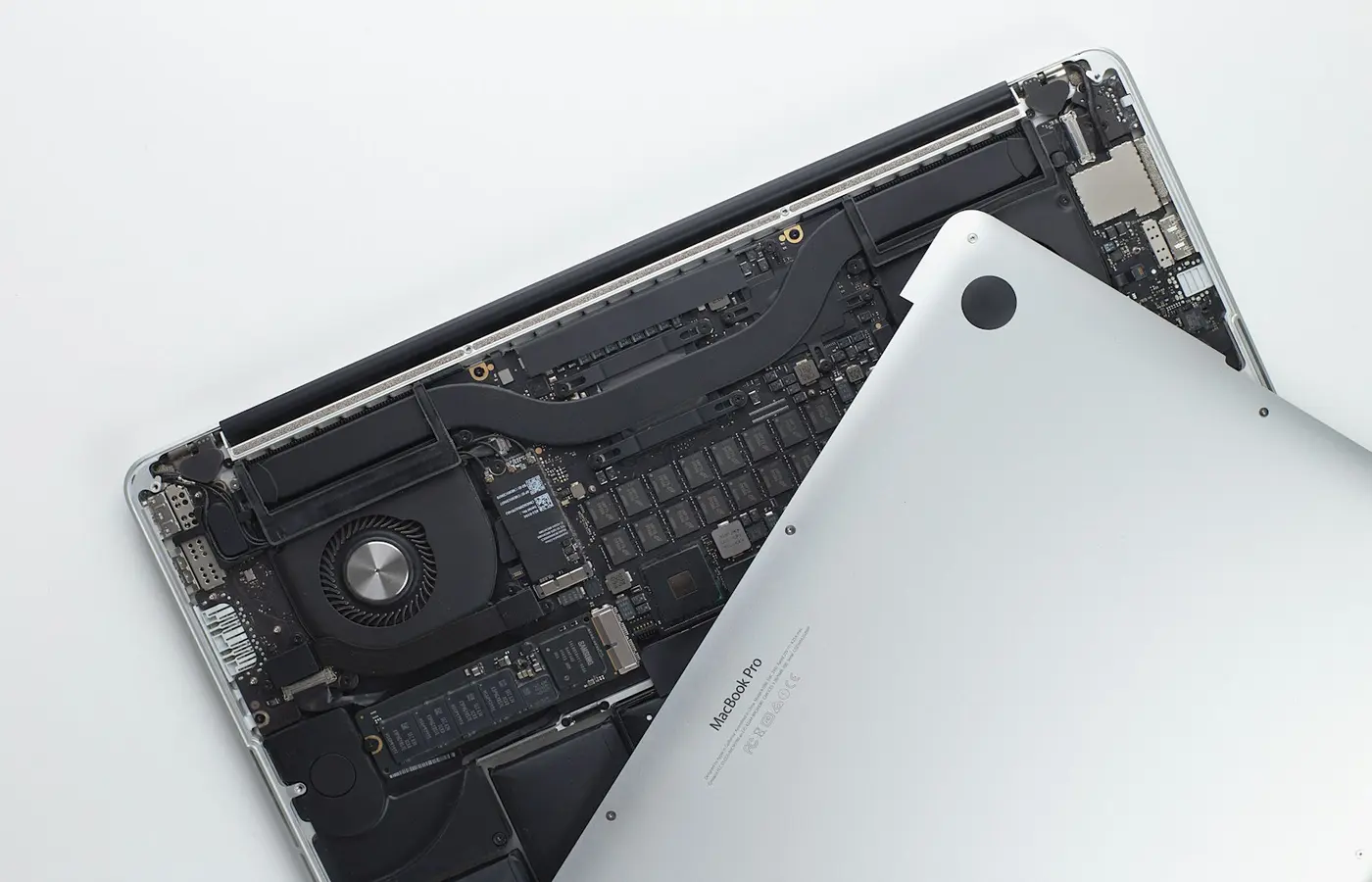
Do not assume you can upgrade later. Many thin laptops use soldered memory. Confirm the exact model’s service documentation before selecting a lower-RAM version on the assumption that it has open slots.
Plan storage as a working system, not one number
A laptop’s internal SSD must hold more than the operating system and the editing application. Active projects can create proxy files, optimized media, preview renders, audio conform files, application caches, and exports. An SSD that begins nearly full can make routine project management difficult.
A sensible layout is often:
- Internal SSD: operating system, applications, current project files, and an allocated working area for cache and scratch files.
- Fast external drive: active source media and project transfers when internal capacity is limited.
- Separate backup or archive storage: completed projects and protected copies of important media.
The right capacity depends on your footage and retention policy, so there is no universal SSD number. Instead, estimate the size of a typical active project, then include room for proxies, cache, exports, and free working space. Check whether the laptop has a second internal SSD slot, whether storage is replaceable, and which external ports can support your intended drive.
Buy the display and ports your editing setup actually needs
A laptop display can be adequate for cutting video without being appropriate for color-critical delivery. Resolution, panel type, and advertised color gamut are useful specifications, but none independently proves accuracy or calibration quality.
For general editing, prioritize a screen that gives you enough workspace, is comfortable for long sessions, and is paired with an external display option if you need more room. For color-sensitive work, verify the exact panel option, the manufacturer’s stated color-space coverage, and whether your workflow includes calibration and a suitable reference display.
Be careful with broad claims such as “OLED is best for creators” or “100% of a color space means accurate.” Panel behavior can vary by laptop configuration, and accuracy requires more than a gamut label. If you find independent measurements, confirm that they cover the same panel variant, not merely the same laptop family.
Ports are often a more immediate ownership issue than buyers expect. Check for:
- the connection you need for fast external media;
- display output support for your monitor setup;
- a full-size SD or microSD card reader, if relevant;
- enough USB ports for drives, input devices, and dongles;
- charging behavior when docked;
- whether a dock is necessary and whether it supports your display and storage requirements.
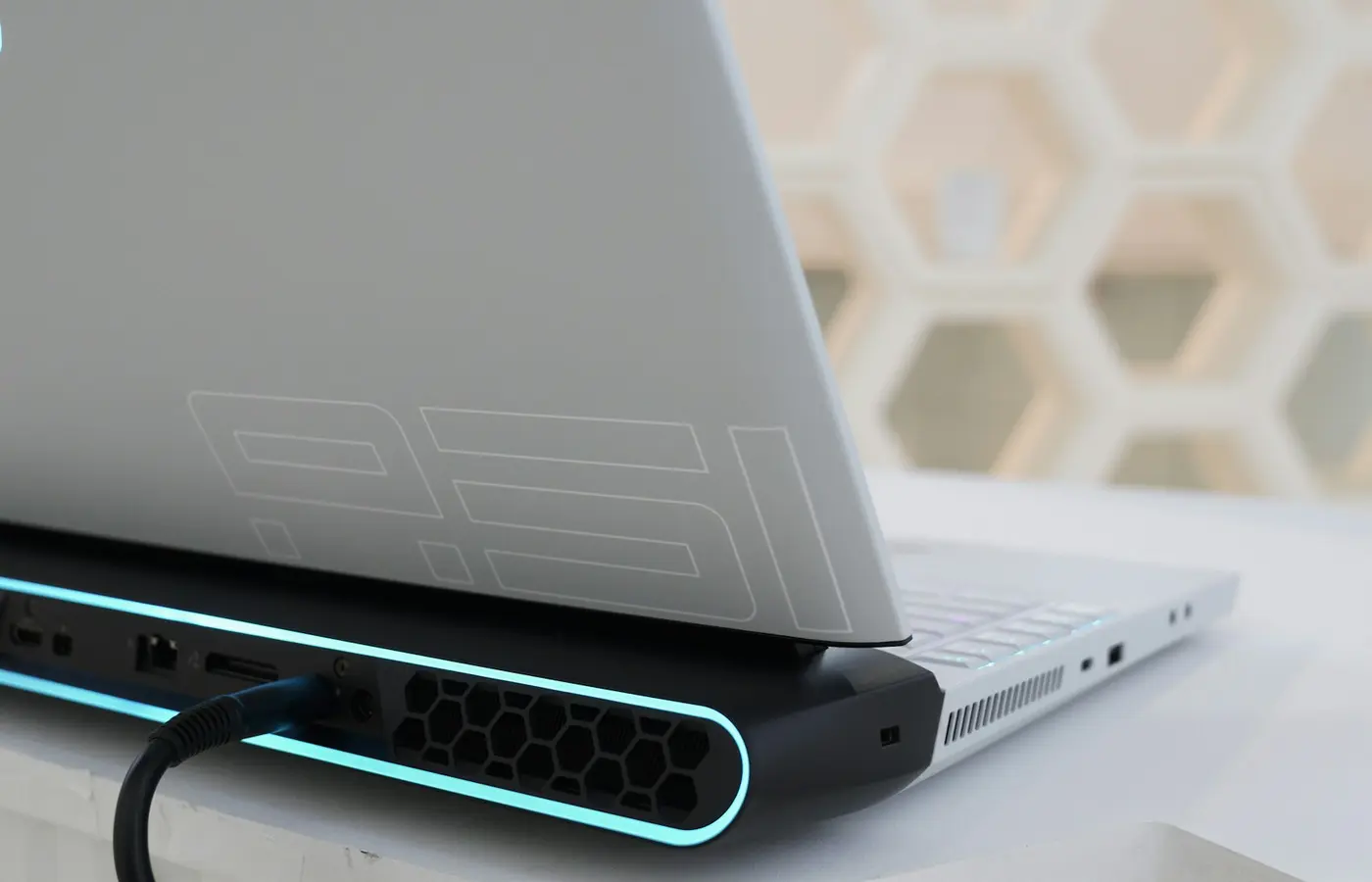
A thin laptop with only USB-C ports can still work well, but budget for adapters or a dock if your camera cards, storage, monitor, and peripherals require them. Confirm the port capabilities in the exact regional specification sheet; connector shape alone does not tell you every supported display, charging, or data feature.
Check upgrade limits, battery expectations, and the purchase configuration
Before placing an order, treat the checkout page as part of the technical specification. A laptop family can be sold with different displays, processors, GPUs, memory options, SSD sizes, wireless cards, chargers, and warranties.
Use this final checklist:
- Record the complete SKU or part number. Do not rely on the marketing name alone.
- Confirm memory capacity and whether it is soldered or upgradeable.
- Confirm the installed SSD size, available internal slots, and service access.
- Confirm the exact display option. Resolution and panel claims may change within one model line.
- Confirm the GPU model and, where applicable, its published memory and power configuration.
- Check ports against your external drive, card-reader, dock, and monitor plan.
- Confirm the included charger. Lower-power bundled adapters may affect how a laptop behaves under sustained work.
- Read regional warranty and return terms. They matter if codec compatibility or display suitability needs real-world verification.
- Date any price comparison. Price, bundles, and availability change by region and configuration.
Battery claims should be read especially cautiously for editing. A manufacturer’s advertised battery result is normally produced under a specified test workload, not a guarantee for timeline playback, rendering, or sustained export. Editing on battery and exporting while connected to the supplied charger are different use cases; avoid assuming one predicts the other.
Conclusion: buy the balanced configuration your workflow needs
The best laptop for video editing is the one that matches the footage and software you use most often, not the one with the single largest specification on a product page.
Start by verifying codec support for your actual camera files. Then choose sufficient CPU and GPU capability for the tasks that cannot be accelerated elsewhere. Protect the workflow with enough memory, practical SSD capacity, suitable ports, and a display plan that matches the importance of color work. Finally, verify the full SKU and upgrade limits before checkout.
For many editors, a balanced laptop with proxy support, ample memory, fast storage, and reliable external-drive connectivity is a safer purchase than a more expensive machine that concentrates its budget on one headline component.
Frequently asked questions
How much RAM do I need for video editing on a laptop?
Use your editing application’s current recommendation as the floor for your intended resolution, then add headroom for effects, browser tabs, graphics tools, and background tasks. Adobe distinguishes between HD and 4K-or-higher memory recommendations in its Premiere requirements. More complex timelines generally benefit from more memory, and soldered-memory laptops should be configured carefully at purchase.
Do I need a dedicated GPU for 4K video editing?
Not always. A lighter 4K workflow, especially one using proxies or supported hardware decoding, may be workable without a discrete GPU. A dedicated GPU becomes more compelling for color grading, GPU-accelerated effects, multicamera work, motion graphics, and complex high-resolution projects. Check what your specific editor accelerates rather than using 4K resolution as the only deciding factor.
Can I edit H.265 or 10-bit 4:2:2 footage on any modern laptop?
No. A modern laptop may be able to edit it through software decoding, proxies, or optimized media, but supported hardware acceleration depends on the codec details, platform, operating system, application version, and exact processor or GPU. Check the editor’s current hardware acceleration documentation before buying.
Should I use proxies instead of buying a more powerful video-editing laptop?
Proxies are often a smart workflow tool, not a compromise to avoid at all costs. They can make demanding footage easier to edit on a portable system and may reduce the need for premium hardware. Buy more powerful hardware if you regularly need to edit original files immediately, use complex effects, deliver quickly, or want less time spent generating and managing proxy media.