
How to Choose a Laptop Dock: Compatibility, Display Limits, Charging, and Ethernet
Verify laptop dock compatibility by matching the host port, monitor requirements, charging power, Ethernet, cable, and operating system.
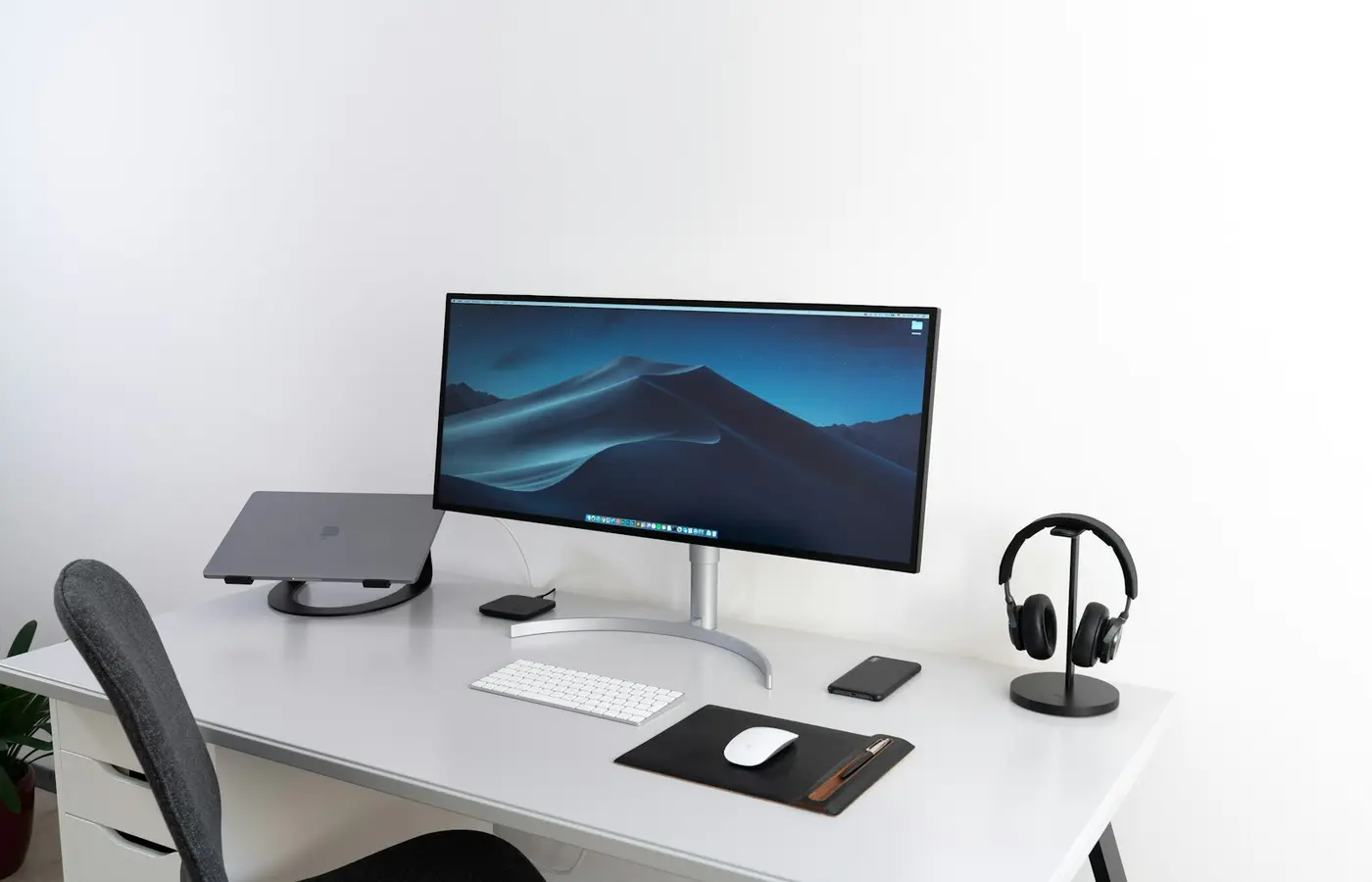
The safest choice is not the dock with the most ports. It is the exact dock model whose documentation matches your laptop’s host port, operating system, monitor setup, and charging requirements. A USB-C connector can fit while video, charging, Ethernet, or some USB functions remain unavailable.
Before buying, write down what the dock must do and verify each requirement against documentation for the exact laptop configuration and dock part number. Do not assume that a USB-C, USB4, or Thunderbolt badge settles every compatibility question.
Start with a compatibility checklist, not the port count
Collect the following information before comparing docks:
- The laptop’s complete model or machine-type number, not just its product family
- The operating system and, where relevant, its current supported version
- The capabilities of the specific laptop port you intend to use
- The number of external monitors you need
- Each monitor’s required resolution, refresh rate, input, color depth, and HDR mode
- Whether the laptop’s internal display must remain active
- The laptop’s accepted charging method and power requirement
- The Ethernet link speed you want
- High-bandwidth peripherals, including external SSDs and capture devices
- Devices sensitive to disconnects, such as audio interfaces and webcams
- The dock’s exact model, revision, supplied power adapter, and host cable
- Regional warranty and seller return terms
Use the laptop manufacturer’s specification sheet, user guide, port diagram, and support pages as the starting point. Then compare them with the dock manufacturer’s compatibility list, display table, operating-system requirements, and setup guide.
Retail listings are not enough on their own. A listing may shorten a model name, combine several revisions, show optional accessories, or omit whether the power adapter and full-capability host cable are included. Reconcile the listing with the manufacturer’s part number before ordering.
Identify what the USB-C-shaped port actually supports
USB-C describes a connector shape, not one fixed set of functions. Depending on the laptop and individual port, a USB-C-shaped connection may support some combination of:
- USB data
- DisplayPort video output
- USB4
- Thunderbolt
- USB Power Delivery input
Two USB-C ports on the same laptop can have different capabilities. A port that handles storage and keyboards may not carry a native display signal or accept charging. Conversely, a video-capable port may operate at a lower data mode than another port on the machine.
Icons beside the port can provide clues, but confirm their meaning in the manual for the exact laptop model. Look for explicit statements such as support for DisplayPort output, USB4, Thunderbolt, or charging input. If the documentation says only USB-C without describing video or power, do not infer those features.
Perform the same check on the dock. Its documentation should identify:
- The required host connection
- Which functions remain available in a fallback mode
- Whether display output depends on native video from the laptop
- Whether drivers or additional software are required
- The operating systems supported by its firmware and utilities
A higher-capability dock may connect to a lower-capability host while losing display bandwidth, port speed, charging, or other functions. Compatibility and full functionality are therefore separate questions.
Work backward from the monitors you need to run
A dock’s collection of HDMI and DisplayPort connectors does not guarantee that all of them can operate simultaneously. Start with the required display modes, then see whether the complete signal path supports them.
| Requirement | What to record | Where to verify it |
|---|---|---|
| Display count | Number of external monitors and whether the internal panel stays active | Laptop and dock display documentation |
| Image mode | Resolution and refresh rate for each monitor | Laptop, dock, and monitor manuals |
| Connection | HDMI, DisplayPort, or USB-C input available on each monitor | Monitor manual and port diagram |
| Image features | Required color depth, HDR mode, or adaptive refresh behavior | Monitor, GPU, dock, and OS documentation |
| Topology | Which dock outputs can work together | Dock display table for the applicable host mode |
| Software | Whether a driver-based display system is required | Dock vendor and operating-system support pages |
Display limits can arise from several places: the laptop’s GPU and firmware, the host port’s display link, the dock’s internal architecture, the operating system, the monitor inputs, or the cables. Available bandwidth may also change when higher resolutions, refresh rates, color depths, or multiple monitors are requested.
Check the dock manufacturer’s display table carefully. The relevant row must match the connection actually used—for example, its documented USB-C, USB4, or Thunderbolt host mode. A headline maximum for one monitor does not establish support for two or three monitors at the same setting.
Some docks divide a native display signal among multiple outputs. Others use a software-driven display system such as DisplayLink. These approaches are not interchangeable. A software-driven display path requires supported software and may be affected by organizational security policies, operating-system changes, or workload requirements. Confirm support for your applications rather than treating it as equivalent to a direct GPU display connection.
Operating-system behavior around multiple displays and transport methods can change. Verify the current guidance for the laptop, dock, and OS combination at the time of purchase, especially if several external monitors are essential.
Match charging to the laptop, dock, adapter, and cable
Do not compare the laptop’s charger rating with the large wattage number printed on a dock’s power adapter and assume they match. The adapter also powers the dock and attached devices. What matters is the dock’s separately documented power output to the host.
Check four parts of the charging path:
- Laptop input: Confirm that the selected laptop port accepts USB Power Delivery and note the manufacturer’s charging guidance.
- Dock host output: Find the maximum power the dock can deliver to the laptop, not just the capacity of its adapter.
- Power adapter: Verify that the required adapter is included and matches the dock’s regional part number.
- Host cable: Confirm that the supplied or replacement cable supports the dock’s required data, display, and power modes.
The laptop controls what it accepts. A dock capable of offering more power does not force the laptop to consume it, while a dock offering less than the laptop expects may trigger a slow-charger or unsupported-adapter warning. Charging can continue while battery level falls during a demanding workload if system consumption exceeds the power available from the dock.
High-performance and gaming laptops are especially likely to have charging requirements that a general-purpose dock cannot fully replace. The manufacturer may require the proprietary adapter for maximum performance or recommend connecting both the dock and the original charger. Follow the laptop’s official guidance; do not improvise a dual-power arrangement unless it is documented as supported.
Cable substitution is another common failure point. A cable that physically fits may provide charging and basic data but not the dock’s intended display or high-speed data mode. Use the included host cable when possible. For a replacement, match the dock manufacturer’s required cable specification and supported power level rather than shopping by connector shape alone.
Budget shared bandwidth for Ethernet, storage, and peripherals
The speeds printed beside a dock’s Ethernet, USB, and card-reader ports are interface ceilings, not promises of application performance. Several devices may share the dock’s single upstream connection to the laptop.
That matters most when demanding tasks happen together. Examples include transferring files to an external SSD while using fast Ethernet, recording through a capture device, or operating several displays through a constrained host link. The actual result can also depend on the dock controllers, drivers, laptop port mode, storage device, network switch, router, cables, and remote server.
Prioritize devices rather than assuming every port can sustain its advertised maximum simultaneously:
- Office setup: Keyboard, mouse, audio, webcam, one or two documented displays, and ordinary network access usually favor compatibility and stability over maximum interface ratings.
- Large file transfers: Check the host-link mode and whether storage shares resources with Ethernet or display functions. A block diagram is useful when the dock manufacturer publishes one.
- Media work: Confirm the requirements of capture hardware, audio interfaces, high-resolution displays, and fast storage individually. Direct laptop connections may be safer for the most timing-sensitive device.
- Managed workplace: Verify supported drivers, firmware tools, network boot, wake behavior, MAC-address handling, and device-management features with the laptop and dock vendors.
For Ethernet, first decide what link speed your network equipment supports. A faster dock port cannot make an internet plan, router, switch, cable, server, or laptop storage subsystem faster. After installation, the negotiated link speed is a useful diagnostic, but it is still not a throughput guarantee.
Choose the right dock category for the job
A documented USB-C dock for ordinary office use
A USB-C dock can be the sensible default for a modest setup when the laptop explicitly supports video and charging through the selected port. Choose one with a display table that matches your monitors and enough documented host power for the laptop.
This option suits readers who need straightforward peripherals and do not require the highest data bandwidth or an ambitious multi-monitor configuration. It is not automatically universal merely because it uses USB-C.
A USB4 or Thunderbolt dock for higher-capability hosts
Consider a USB4 or Thunderbolt dock when the laptop explicitly supports the required connection and you need greater display or peripheral capability than a basic USB-C dock can document.
Verify the generation and implementation on both sides. Do not infer full operation from a logo alone: fallback behavior can vary with the laptop, dock, firmware, cable, and operating system. The dock’s compatibility matrix should describe what happens with your host type.
Paying for a higher-capability dock does not upgrade the laptop’s GPU, external-display limit, accepted charging power, or unsupported operating-system features.
A brand-specific dock for validated features
A dock sold for a particular laptop range can be the safer choice when vendor validation, firmware support, proprietary charging, network management, or enterprise deployment features matter. Even then, confirm the exact dock part number against the exact laptop or machine type. Matching logos do not establish compatibility across every generation.
Brand-specific models may be less attractive for reuse with future laptops from other vendors. Balance that limitation against the value of a documented support path.
Verify the exact dock before checkout
Use this final purchasing checklist:
- Confirm the manufacturer’s complete dock model and revision.
- Match the retailer listing to the manufacturer’s part number.
- Verify support for the laptop model, host port, and operating system.
- Match every required monitor mode to the correct row in the dock’s display table.
- Check the documented host charging output.
- Confirm that the correct power adapter and host cable are included.
- Identify required drivers, firmware, or display software.
- Check whether your monitor cables support the required input modes.
- Read the current return policy and regional warranty terms.
- Save the product listing and compatibility documentation with the order record.
A return window is particularly important when the vendor documents only general host requirements rather than listing the laptop explicitly.
Test every required function within the return window
Install the dock according to the manufacturer’s instructions. Apply laptop, dock, and operating-system updates only through official tools, and do not interrupt firmware updates.
Then verify the setup in this order:
- Connect the dock with its supplied power adapter and host cable.
- Check that the laptop reports normal charging without an unsupported-power warning.
- Test each monitor individually at the required mode.
- Enable the complete display arrangement, including the internal panel if needed.
- Confirm Ethernet connection and its negotiated link speed.
- Test audio input and output, webcam, keyboard, mouse, storage, and other USB devices.
- Copy a suitably large noncritical file to and from external storage to expose repeated disconnects.
- Test sleep, wake, restart, and reconnect behavior.
- Repeat the important checks while normal work applications are running.
Stop using the setup if connectors or cables are damaged, unusually hot, loose, or discolored. Disconnect it if there is a burning smell, repeated power cycling, persistent device disconnects, or an unsupported-adapter warning that official troubleshooting does not resolve. Do not open a dock or power adapter; contact the seller or manufacturer instead.
Frequently asked questions
Will any USB-C dock work with any USB-C laptop?
No. The connector may fit even when the laptop port lacks video output, charging input, the required data mode, or another function used by the dock. Verify the capabilities of the specific laptop port and the dock’s documented host requirements.
Can a dock add more external monitors than the laptop officially supports?
A dock cannot be assumed to override the laptop’s documented native display limit. Some docks use software-driven display technology to provide a different path, but that requires compatible drivers and has separate operating-system, application, and policy considerations. Treat it as a distinct solution, not proof that the laptop supports more native GPU displays.
Why does a dock charge one laptop slowly or not at all?
Possible causes include a laptop port that does not accept charging, insufficient dock host output, an incompatible or under-capable cable, a missing or incorrect dock adapter, firmware issues, or a laptop that requires proprietary power. Check the charging specifications for every component in the path.
Will a faster Ethernet port on the dock improve network speed?
Only if the rest of the path can benefit. The laptop connection, dock architecture, network cable, router or switch, internet service, remote system, and storage workload can all impose lower limits. The Ethernet port’s nominal rate is not a throughput promise.
The practical decision
For a basic desk, choose the simplest dock that explicitly supports your laptop port, required monitor arrangement, charging needs, and operating system. Move to a USB4 or Thunderbolt dock only when both the laptop and workload can use its documented capabilities. Choose a brand-specific model when vendor validation, proprietary charging, or managed-workplace features are worth reduced flexibility.
In every case, buy by exact model and documented function—not connector shape, port count, or badge—and test the complete setup before the return period ends.


