How to Choose a Laptop for Computer Science: Check IDE, Virtual Machine, and Linux Needs
Choose a computer science laptop by verifying course software, Linux options, virtual-machine needs, memory, storage, ports, and support before buying.

The safest laptop for a computer science degree is not necessarily the one marketed to programmers. It is the one that can run your department’s required software, supports the Linux workflow your classes expect, and has enough memory and storage for the most demanding confirmed course requirement.
For many students, that means a conventional laptop with a current supported operating system, enough capacity for local development tools and a practical Linux route. But the correct configuration changes if your course requires a Linux virtual machine, Windows-only development software, mobile-app tools, local databases, graphics work, or GPU-accelerated computing.
Do not buy around a generic “computer science laptop” badge. Buy around your actual coursework.
Start with your department’s software list, not a laptop brand
Before comparing processors or screen sizes, find out what you will be asked to install. Check your department’s student IT pages, degree handbook, course catalog, current syllabus, learning-management system, and the instructor or teaching assistant for your first-term technical courses.
Your pre-purchase questions should include:
- Which operating systems are officially supported for required courses?
- Which IDEs, compilers, language runtimes, and command-line tools will you install?
- Is Linux required, recommended, or merely one supported option?
- Will you need a virtual machine, containers, local databases, or a local web server?
- Is any software available only for Windows, macOS, or a particular processor architecture?
- Do courses provide remote Linux servers, lab workstations, or cloud compute instead of requiring local hardware?
- Are there proctoring, remote-desktop, VPN, or examination tools with device requirements?
Requirements can differ even within one department. For example, the University of Utah’s 2021–22 computer science handbook lists course-specific tools, including Java and Eclipse for some courses, Visual Studio and C# for another, and Linux or a Linux virtual machine for another. Its age means it should not be used as a current buying specification, but it illustrates the important point: one curriculum can contain different platform needs across its courses. See the handbook’s course software list.
A laptop that works well for browser-based Python assignments may be a poor choice if a later required course depends on a Windows application, a Linux image, or hardware-specific development tools. Ask what you need through the first year and identify any likely specialization courses before committing.
Build a one-page compatibility list
Make a simple list with one row for each required application. Record the course, application name, operating-system support, processor requirements, storage requirement, whether it must run locally, and where the requirement came from.
Then distinguish between three kinds of requirement:
- Required locally: You must run it on your laptop.
- Supported remotely: The school provides a server, lab machine, or virtual desktop.
- Optional or personal preference: Useful, but not required by the course.
Only the first category should force your laptop choice. A remote university server may reduce the need for powerful local hardware, but it does not remove the need for reliable internet access, compatible remote-access software, and a workable local editor or terminal.
Choose the operating system around compatibility and your Linux plan
Windows, macOS, and Linux can all be useful for computer science. None is universally best because course tools, CPU architecture, virtualization method, and school support vary.
The question is not “Which operating system do programmers use?” It is: “Which operating system can run every required tool with the least risky setup?”
Windows: broad compatibility, with several Linux routes
Windows can be the safer starting point when a course specifies Windows-only software, when a department provides Windows-focused instructions, or when you need a broad range of commercial applications. It can also support Linux-oriented coursework through different approaches, including a Linux virtual machine, a Linux compatibility environment, remote Linux servers, or dual boot.
These are not interchangeable. A command-line Linux environment may be sufficient for a programming course but may not behave like a full Linux desktop installation. A virtual machine can provide a more complete Linux environment but consumes memory and storage. Dual boot gives Linux direct access to the hardware but adds installation, partitioning, boot-management, and recovery complexity.
If Windows is your likely choice, confirm which Linux path your department supports before buying. Also verify that the exact laptop’s manufacturer support pages cover the operating system you plan to use.
macOS: suitable when the required tools support it
A Mac can be suitable for a computer science degree if every required application is available for macOS or has a documented school-supported alternative. macOS includes Unix-style command-line tools, which can be useful in many development courses. That alone does not guarantee compatibility with a particular course image, virtualization product, IDE extension, driver, or architecture-specific project.
Pay particular attention to processor architecture. Software built for one CPU architecture may need a compatible version, translation layer, virtualized environment, or an alternative workflow. Do not assume that an application labeled “Java,” “Python,” or “Linux” will work in the same way on every Mac configuration.
A Mac is a poor default if the department requires a Windows-only application with no supported alternative, expects a specific x86 virtual-machine image, or cannot provide setup help for macOS.
Native Linux, virtual machines, dual boot, and remote servers
Linux can be the right choice when your course explicitly supports it and you are comfortable with the support model. But “Linux compatible” is not a brand-level property. It depends on the exact model and its firmware, wireless hardware, graphics, storage controller, fingerprint reader, audio hardware, and available drivers.
Use this decision framework:
| Route | Best when | Main trade-off |
|---|---|---|
| Native Linux | The department supports Linux directly and the exact laptop has a documented compatibility path | You are responsible for checking hardware support and recovery options |
| Linux virtual machine | You need Linux alongside another operating system and course software supports virtualization | Requires spare memory, storage, and a compatible virtualization setup |
| Dual boot | You need full native access to both operating systems and can manage partitions and recovery | More setup risk; updates and boot recovery can be inconvenient |
| Remote Linux server | The school provides a supported environment and local work is light | Depends on network access and may not replace software that must run locally |
Before relying on any option, verify the department’s instructions, the exact laptop model’s support documentation, and the current requirements of the virtual-machine or remote-access product you will use. If you cannot identify a supported route, choose a configuration with a clearer path rather than hoping to solve it after the return window closes.
Buy enough memory and storage for local development and virtual machines
Memory and storage matter more than a vague processor tier when you expect to run several development tools at once. A typical programming session may involve a browser with documentation and course sites, an IDE, terminal windows, a local runtime, version-control tools, video calls, and perhaps a database or container service.
A virtual machine changes the calculation because it needs memory and disk space of its own while the host operating system remains active. The amount needed depends on the guest operating system, allocated resources, development tools, project files, and the number of applications running outside the VM.
Instead of treating a single capacity as a universal rule, work through the software requirements:
- Find the recommended memory and storage requirements for each required local tool.
- Add the resources needed by the host operating system.
- Add the resources assigned to a required virtual machine or container environment.
- Leave working headroom for updates, project files, browser tabs, backups, and normal multitasking.
- Check whether memory and storage can be upgraded later—and whether the model actually permits it.
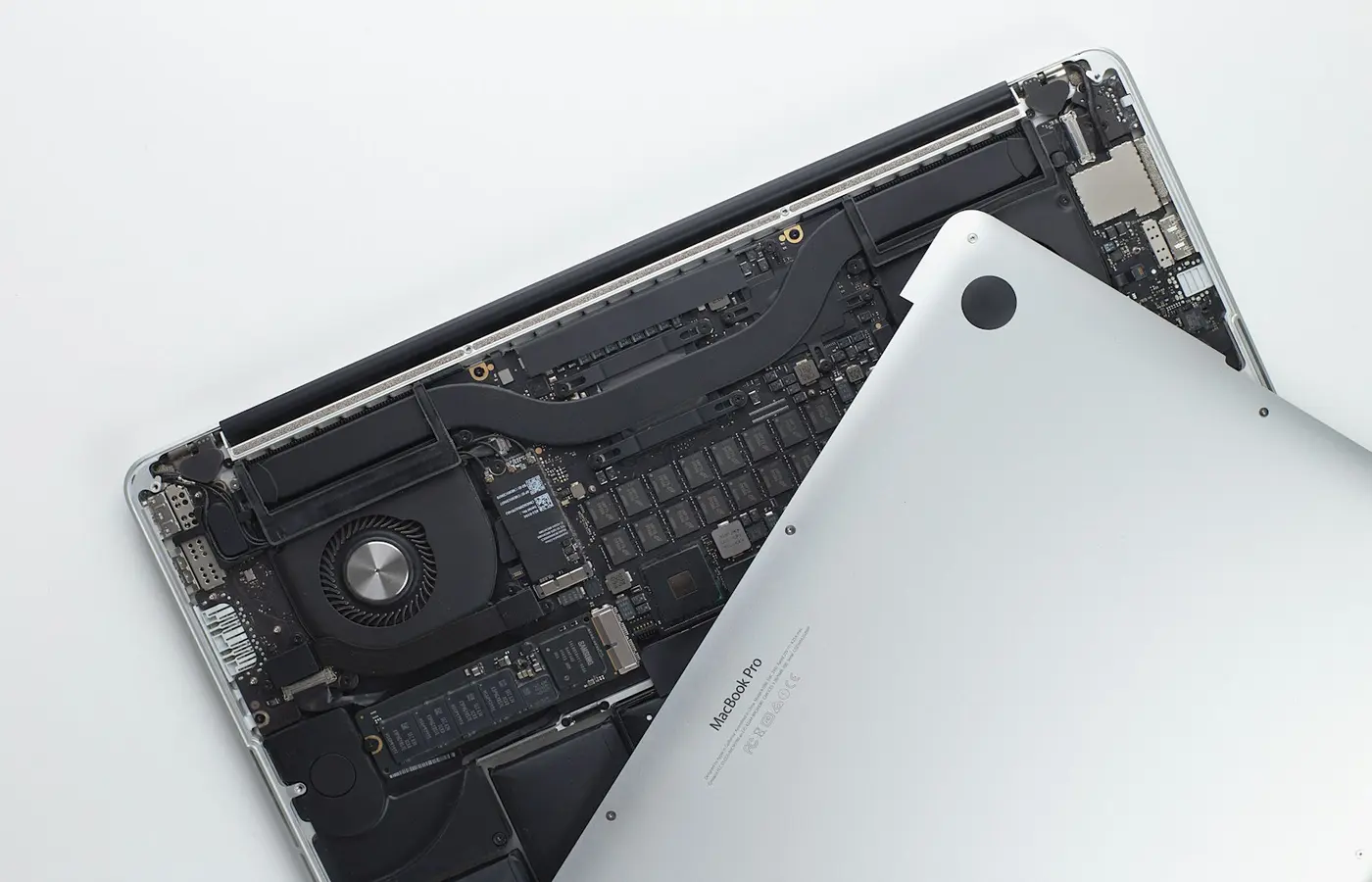
Memory is often fixed at purchase on thin laptops, while storage may or may not be replaceable. Never assume upgradeability from a laptop family name. Check the service manual or official parts documentation for the precise regional SKU.
Do not confuse containers with virtual machines
Containers and virtual machines can both support development work, but they have different overhead and compatibility requirements. A container usually shares parts of the host environment, while a virtual machine runs a guest operating system. A course that says “use Docker” does not automatically require the same capacity or setup as a course that distributes a full Linux VM image.
Likewise, a lightweight editor is not equivalent to a full IDE with indexing, language servers, plugins, emulators, and local services. Match the laptop to the complete set of tools you will run simultaneously, not to the smallest application on the syllabus.
Match hardware to the most demanding confirmed coursework
For introductory programming, web development, data structures, and command-line coursework, a mainstream laptop may be sufficient if it meets the school’s operating-system and software requirements. More specialized work can change the recommendation quickly.
Verify requirements early if you expect to take courses in:
- Game development or real-time graphics
- Computer vision
- Machine learning or local model training
- Data-heavy analysis with local datasets
- CAD, simulation, or engineering-adjacent courses
- Mobile development using emulators
- Operating systems, networking, or security courses that use multiple virtual machines
- Video, 3D, or media-processing projects
These subjects do not automatically mean you need a discrete GPU or workstation-class laptop. A course may use university labs, remote GPUs, cloud services, or preconfigured virtual environments. Conversely, a course may specify a local GPU, a particular API, an NVIDIA-focused workflow, more storage, or a minimum operating-system version.
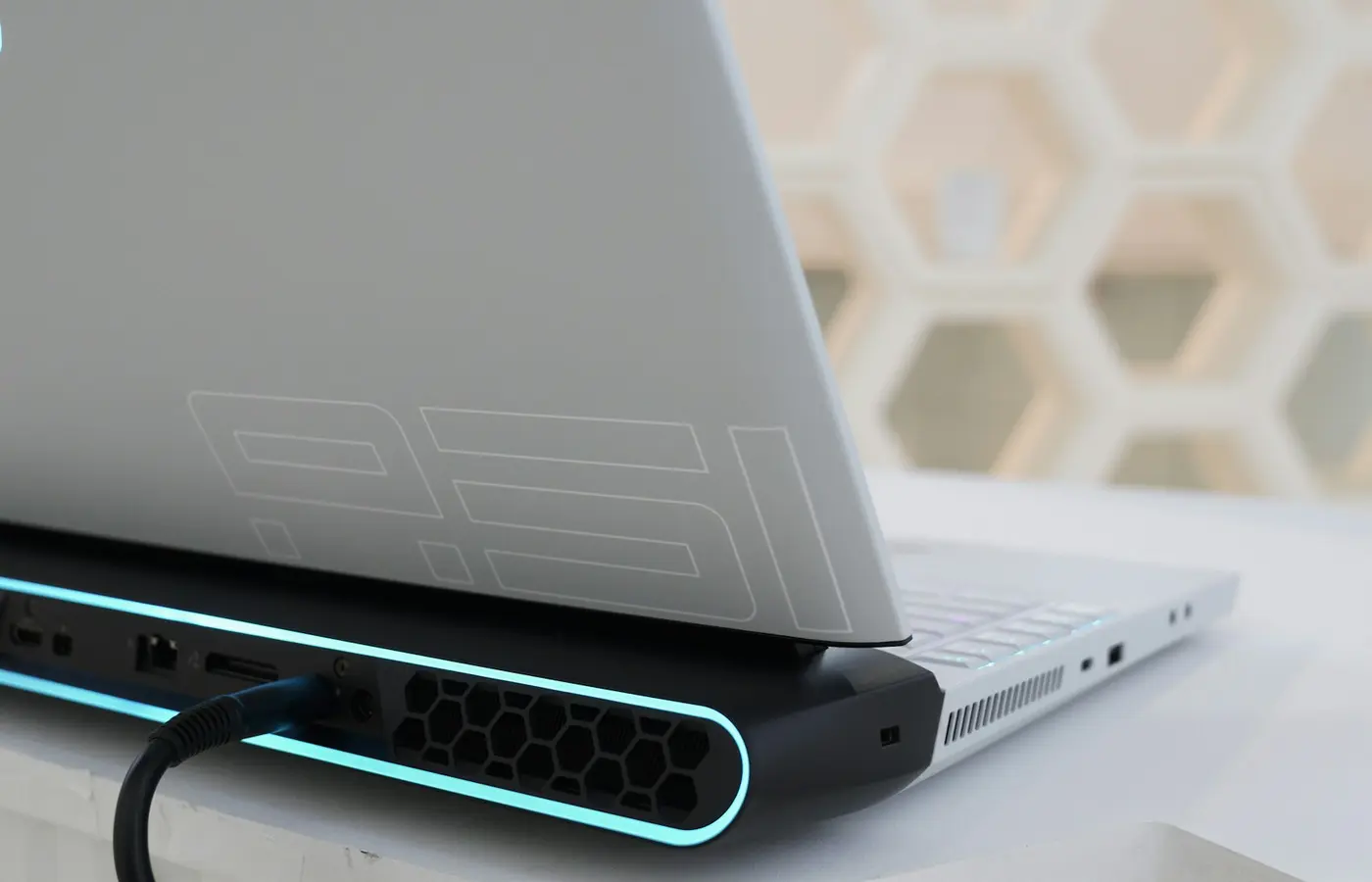
A dedicated GPU should follow a documented need, not an assumption that computer science equals machine learning. It can add cost, heat, size, and charger bulk. A higher-end processor also makes sense only when the required workflow benefits from it or when it helps avoid a known bottleneck such as emulator use or several simultaneous virtual machines.
When comparing models, record the complete configuration: CPU model, GPU model, memory capacity, storage capacity, operating system, and display option. One laptop name can describe configurations with materially different memory limits, ports, graphics, and upgrade paths.
Check ports, charging, display, and ownership before you order
A technically compatible laptop can still be inconvenient on campus if it lacks the ports or accessories your routine requires.
Check the exact SKU for:
- USB ports for storage devices, development boards, security keys, or wired peripherals
- Video output for classroom displays, projectors, and external monitors
- USB-C charging and display support, if applicable
- Ethernet availability or the need for a verified adapter
- Headphone, webcam, and microphone needs for remote labs and meetings
- Keyboard layout, especially if you use a region-specific layout or regularly type programming symbols
- Charger size and whether the supplied charger is adequate for the selected configuration
Do not infer port support from connector shape alone. A USB-C port may support charging, display output, data, or some combination depending on the exact configuration. Confirm the manufacturer’s specification sheet and, if relevant, university IT guidance for classroom displays or adapters.
Ownership checks matter too. Read the warranty terms for your region, retailer return policy, accidental-damage options if you need them, and official repair or service documentation. If upgradeability is important, confirm whether the memory is soldered, whether the storage is accessible, and whether opening the device affects warranty coverage in your location.
Use this checkout checklist to verify the exact configuration
Before placing the order, save a copy of the manufacturer listing and compare it with the retailer’s listing. Retailer specifications can be incomplete or apply to a different variant.
Use this checklist:
- Full manufacturer model or part number is recorded.
- CPU, GPU, memory, storage, and installed operating system match the listing you intend to buy.
- Every required IDE, compiler, runtime, VM tool, remote-access client, and course application has been checked against its official requirements.
- Your Linux plan is clear: native Linux, virtual machine, dual boot, or remote server.
- The exact model has a supportable path for that plan, including drivers and firmware where relevant.
- Memory and storage leave room for required local tools, project files, updates, and any virtual-machine images.
- Required ports, display output, adapters, webcam, microphone, and networking needs are covered.
- The keyboard layout, charger, warranty, return window, and repair or upgrade options fit your situation.
- You know who at the department or campus IT service can confirm an unresolved compatibility question.
The safer default for most computer science students is a laptop with documented compatibility for their school’s required tools, enough memory and storage for required local development work, and a Linux route the school can support. Spend more only when confirmed coursework requires more—not because a marketing label implies that every programmer needs the same machine.
Frequently asked questions
Is a MacBook suitable for a computer science degree?
It can be, provided your required IDEs, compilers, course applications, remote-access tools, and any virtualization workflow support the exact macOS and processor configuration. Verify Windows-only tools, x86 virtual-machine images, and specialized software before buying. A Mac is not automatically unsuitable, but it is not automatically compatible either.
How much memory do I need if my course requires a Linux virtual machine?
Work from the official requirements for the guest operating system, the virtualization software, your host operating system, and the applications you need open at the same time. A VM needs memory allocated to it while the host remains usable. Choose a configuration with enough headroom rather than treating the VM’s minimum allocation as the laptop’s total requirement.
Should I dual boot Linux or use a virtual machine?
Use the method your department supports for the required course. A virtual machine is often simpler when you need Linux alongside another operating system, while dual boot can provide more direct hardware access. Dual boot also introduces partitioning and recovery risks. If course instructions are unclear, ask the instructor or IT support before changing a new laptop.
Do computer science students need a dedicated GPU?
Not by default. A discrete GPU may be relevant for documented local graphics, CUDA-focused, computer-vision, game-development, 3D, or machine-learning work. Many courses instead use integrated graphics, lab machines, remote servers, or cloud resources. Check the course and software requirements before paying for one.