
How to Choose a Laptop for Photo and Video Editing: A Configuration-First Guide
Match your editing software, footage, color workflow, memory, GPU, display, storage, ports, and portability to the right laptop configuration.
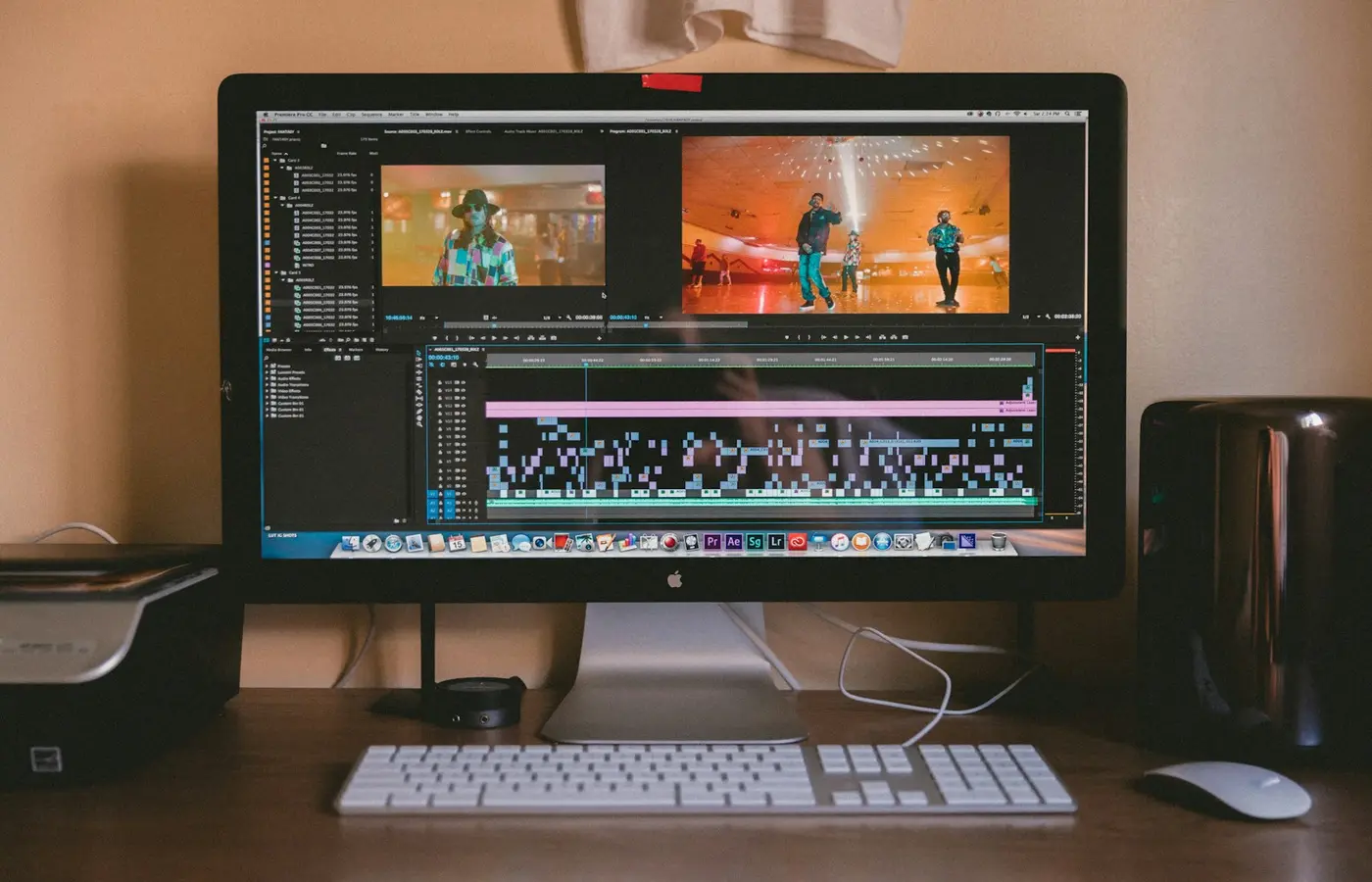
The safe default for a mixed photo and 4K video workflow is a laptop with 32 GB of memory, enough GPU resources for the effects you use, at least a 1 TB replaceable SSD, a verified color-capable display, and ports that fit your storage and monitor setup. Treat that as purchasing headroom, not a guarantee: the right configuration changes with the application, codec, project complexity, color workflow, and need for portability.
Do not start with a Core, Ryzen, GeForce, Radeon, or “creator” badge. Start with the files you edit and the software version that must handle them.
This is a research-based buying guide, not a hands-on laptop test. It provides configuration guidance rather than original benchmarks, battery results, display measurements, or thermal data. Official minimum requirements establish compatibility floors; they do not promise smooth playback, fast exports, accurate color, or quiet sustained operation.
Start with your editing workflow, not a processor badge
Before comparing laptops, write down the following:
- Exact applications and versions, including plug-ins
- Operating system and any architecture requirements
- Camera model and recording format
- Codec, container, chroma subsampling, and bit depth when known
- Resolution and frame rate
- Typical number of video and audio tracks
- Use of multicamera editing, noise reduction, stabilization, motion graphics, or visual effects
- Largest photo files, panoramas, layered documents, and catalog size
- Active-project size and monthly media volume
- External displays, capture devices, card readers, docks, and storage
- Maximum acceptable laptop and charger weight
“4K editing” alone is not a useful specification. A simple 4K timeline built from easily decoded camera files is different from multicamera footage, demanding codecs, extensive grading, temporal effects, or compositions that must retain many frames in memory.
The following profiles are editorial starting points, not measured performance guarantees:
| Workflow | Conservative starting point | Where to add headroom |
|---|---|---|
| General photo editing and occasional short video | 16 GB memory, modern supported CPU and integrated or entry-level discrete graphics, 512 GB to 1 TB SSD | Choose 32 GB if memory is soldered, files are large, or several applications stay open |
| Regular photo work and sustained 4K editing | 32 GB memory, application-supported GPU, 1 TB or larger SSD, verified display and suitable media ports | Prioritize more GPU memory, storage, and cooling for effects, grading, multicamera work, or difficult codecs |
| Motion graphics, Fusion, large composites, complex grading, or heavier multicamera projects | 64 GB or more may be reasonable, with a stronger supported GPU and substantial fast storage | Confirm software-specific scaling before paying for the highest CPU or GPU tier |
If the laptop cannot be upgraded, buy for the workload expected over its useful life—not merely what launches the application today.
Verify software, operating-system, codec, and plug-in compatibility first
A powerful laptop can still be the wrong purchase if an essential application, plug-in, codec, or capture device does not support its operating system or processor architecture.
At production time, locate the current requirements page for the exact software release. For Adobe applications, the Adobe Help Center is a starting point, but verify the separate requirements and supported-format pages for Premiere Pro, After Effects, Photoshop, Lightroom, or Lightroom Classic as applicable. Do not assume the requirements of one Adobe application cover another.
Check all of these items:
- Operating system: Confirm the minimum and supported versions, not just Windows or macOS in general.
- Processor architecture: Verify native support for the laptop’s architecture. Translation layers may not support every plug-in, driver, or peripheral.
- Graphics API and drivers: Confirm the required API and whether the software vendor recommends a particular driver branch.
- Plug-ins and panels: Check the developer’s compatibility list for each essential extension.
- Capture and monitoring hardware: Verify drivers, ports, bandwidth, and operating-system support.
- Codec profile: Match more than “H.264,” “H.265,” or “RAW.” Resolution, bit depth, chroma format, frame rate, and container can affect support.
Hardware decoding support on a processor specification sheet does not prove that your editor accelerates every variation of a codec. Both the hardware and the application must support the relevant path.
When native media is difficult to decode, proxies or optimized media can make editing practical on less powerful hardware. That trade-off is not free: generating them takes time and requires extra storage. Test the intended proxy format and relinking workflow before relying on it for paid work.
Choose the CPU, GPU, VRAM, and media engines as one system
These components have different jobs, and an editing application may distribute work among them differently.
CPU
The CPU handles general application logic and many import, export, preview, compression, and image-processing tasks. Compare the complete CPU model, not only the family label. Also consider whether the laptop can sustain its power under a long export; a thin chassis and a larger workstation can behave differently even with similar processor branding.
GPU and GPU memory
The GPU can accelerate interface drawing, effects, scaling, color operations, AI-assisted features, rendering, and encoding when the application supports those functions. A dedicated GPU also has its own video memory, while integrated graphics usually share system memory.
GPU memory requirements depend on software, frame size, effects, timelines, and application version. A stated minimum is not assurance that a demanding project will fit comfortably. If grading, denoising, motion graphics, or GPU-heavy effects are central to the workflow, favor GPU and memory headroom over a small CPU-model upgrade.
Two laptops carrying the same GPU name need not perform alike. Power limits, video-memory capacity, cooling, firmware, and performance modes may differ. Check the exact GPU name and memory capacity, and look for disclosed power information. Use independent performance results only when they match the laptop configuration, software version, power profile, and relevant workload.
Media engines
Fixed-function media engines can accelerate supported video decoding and encoding with less general-purpose processing. They can be particularly important for compressed camera formats. However, support must be verified at three levels:
- The exact processor or GPU supports the codec profile
- The operating system and driver expose that capability
- The editing application uses it for the relevant operation
This is why a supposedly faster processor can feel worse with a particular source format than a lower-tier chip with a better-supported media path.
Size RAM for the whole project
Application minimums tell you whether software may run, not how much memory remains for the project, operating system, browser, plug-ins, background tools, and graphics.
For straightforward photo editing, 16 GB can remain a workable entry point when the software supports it and the laptop can be upgraded. For a new non-upgradeable laptop intended for mixed photo and video work, 32 GB is the safer default. Large layered files, panoramas, multicamera timelines, visual effects, and several applications used together can justify 64 GB or more.
These figures are purchasing guidance, not universal performance thresholds. Verify current official requirements for every essential application.
Memory design matters as much as capacity:
- Soldered memory: Cannot normally be expanded, so the checkout capacity is a lifetime decision.
- Socketed memory: May be replaceable, but confirm the number of slots, installed module arrangement, supported maximum, and service procedure.
- Integrated graphics: Uses part of system memory, leaving less for applications.
- Unified memory: CPU and GPU share one pool in an integrated architecture. It should not be treated as numerically equivalent to dedicated VRAM plus separate system RAM.
Check the manufacturer’s service manual rather than assuming a removable bottom cover means the memory is upgradeable.
Treat the built-in display as a color-workflow decision
Panel technology does not establish color accuracy. OLED, mini-LED, and IPS displays each come in different implementations, and one technology is not automatically best for every editor.
Verify the exact display option attached to the checkout part number. Laptops in one family may be sold with panels that differ in resolution, gamut claim, brightness, finish, refresh rate, calibration, and power use.
Consider:
- Claimed coverage of the color space used for delivery
- Independent measurements for the exact panel or SKU, where available
- Calibration and profiling support
- Uniformity and viewing-angle behavior
- Brightness behavior in the intended room
- Contrast and black-level needs
- Glossy versus matte finish
- Resolution and interface scaling
- HDR workflow support across the panel, operating system, application, and output path
Terms such as “factory calibrated,” “wide gamut,” and “HDR” are manufacturer claims unless backed by identified measurements. Even genuine wide-gamut coverage does not by itself establish low color error, stable calibration, uniformity, or correct application color management.
For desk-based work, a dependable external monitor and a defined profiling workflow may be safer than paying heavily for a premium internal panel. If buying primarily for travel, the internal panel becomes more important—but still verify the exact option.
Plan storage, scratch space, backups, and connections
Do not size storage from source footage alone. Include space for:
- Operating system and applications
- Photo catalogs and previews
- Cache and scratch files
- Active source media
- Proxies or optimized media
- Render files and exports
- Temporary duplicates during transfer
Measure the size of several real projects, then multiply by the number that must remain active. Add enough free space for temporary files and growth rather than buying an SSD that will be nearly full immediately.
A 1 TB internal SSD is a practical starting point for mixed editing, but high-volume video users may need more capacity or a deliberate external-storage workflow. Confirm whether the internal drive is replaceable, its physical format, the number of slots, and any service restrictions.
External media is useful for active projects and archives, but working storage is not automatically a backup. Keep additional copies according to the consequences of losing the files, preferably with one copy isolated from the laptop and primary working drive.
Connector shape is not enough. For each port, verify:
- Supported USB or Thunderbolt-class protocol
- Data rate
- Charging input or output
- Display-output capability and limits
- Dock compatibility
- Card-reader format and speed class
- Whether multiple connected devices share bandwidth
A built-in card reader is convenient only if it supports the cards and transfer requirements used by your cameras.
Make the final choice around portability and ownership
Performance specifications do not show the entire ownership experience. A larger laptop may sustain power better and offer more ports, but it is less convenient when its charger must travel every day. A thin model may be easier to carry while providing fewer upgrade options and less cooling headroom.
Before checkout, verify the exact regional part number and record:
- Full CPU and GPU names
- Dedicated GPU-memory capacity or unified-memory capacity
- Installed RAM and whether it is upgradeable
- SSD capacity, format, available slots, and access procedure
- Exact panel resolution and manufacturer display claims
- Port protocols, charging, and display support
- Laptop and charger weight
- Included charger rating
- Warranty, repair, and accidental-damage terms
- Seller return conditions
Retailer descriptions are provisional until they match the manufacturer’s regional specification for that part number. Product-family pages are not enough.
Where the return policy permits, test the new laptop immediately with copies of your own files, plug-ins, cards, drives, dock, and monitor. Check timeline behavior, export stability, display scaling, sleep and wake, peripheral reconnection, and sustained operation while connected to the intended charger. This is more informative than relying on a generic benchmark from another configuration.
Final recommendation
For most buyers combining serious photo work with regular 4K editing, start by looking for 32 GB of memory, at least 1 TB of storage, application-supported graphics with adequate memory headroom, a verified panel, and the required media and display ports. Move to 64 GB or a stronger GPU when the actual workflow includes large composites, extensive effects, complex grading, multicamera timelines, or several demanding applications at once.
Choose 16 GB only when the workload is modest, current software supports it, and either the memory can be upgraded or the laptop’s limited future headroom is acceptable. Spend less on processor branding if doing so preserves enough memory, storage, display quality, connectivity, cooling, and repairability.
Frequently asked questions
How much RAM should a laptop have for photo editing and 4K video editing?
Sixteen gigabytes can suit lighter photo work and occasional video, but 32 GB is the safer new-purchase default for a mixed workflow. Consider 64 GB or more for large layered files, motion graphics, multicamera projects, complex effects, or heavy multitasking. Always reconcile this guidance with the exact software version and whether memory is upgradeable.
Do photo and video editors need a dedicated GPU?
Not always. Supported integrated graphics can be sufficient for many photo workflows and lighter video projects. A dedicated GPU becomes more valuable when the application relies heavily on GPU effects, grading, denoising, rendering, or dedicated video memory. Verify application support rather than buying on the GPU badge alone.
Is an OLED laptop display automatically better for color editing?
No. OLED can offer useful contrast characteristics, but panel technology alone does not establish color accuracy, uniformity, calibration stability, HDR behavior, or suitability for long static-interface sessions. Evaluate the exact panel and the complete color-management workflow.
Should editing projects be stored on the internal SSD or an external drive?
Either can work. Internal storage is convenient, while a suitable external drive can add capacity and simplify movement between systems. Verify interface performance and reliability for the intended workload. In both cases, keep separate backups; the drive holding the active project should not be its only copy.


