How to Judge Laptop Repairability Before You Buy
Compare service manuals, replaceable parts, repair difficulty, warranty terms, and parts access before choosing a laptop.

A repairable laptop is not simply one with an SSD behind a removable bottom cover. The useful question is whether you can verify a realistic repair path for the exact configuration you plan to buy: documentation, physical access, compatible parts, required tools, software steps, warranty implications, and local service options.
For most buyers, the safer default is a laptop with a model-specific service guide, clearly identified replaceable assemblies, and an official parts or authorized-service route in your country. A laptop can still be a sensible purchase when some parts are integrated or professional service is required. The problem is treating one favorable feature—such as removable storage—as proof that every future repair will be simple, affordable, or possible.
The buyer’s short answer: verify the repair path for the exact model
Do not judge laptop repairability by brand reputation, product family, or a retailer’s short specification list. A manufacturer may sell several configurations under one laptop name, with different memory layouts, storage capacities, displays, wireless modules, or regional part numbers. Documentation can also vary by generation.
Before checkout, save these details:
- The full product name, including generation where relevant.
- The manufacturer’s exact model number or part number.
- The retailer SKU and the country where the laptop will be purchased and serviced.
- The CPU, memory, storage, display, and graphics configuration.
- The support-page link for that specific model or family.
Then reconcile the retailer listing with the manufacturer’s product and support pages. Retailer information can be incomplete, copied from a different configuration, or based on a broader family rather than the exact unit being sold.
A good pre-purchase repairability check answers five questions:
- Is there an official service manual or repair workflow for this model?
- Which components can be replaced separately rather than only as part of a larger assembly?
- What must be removed before reaching common failure points such as the battery, fan, storage, keyboard, or display?
- Can you obtain the required part through an official or authorized channel in your region?
- What happens to your support options if a repair goes wrong or is performed outside the manufacturer’s service network?
If you cannot answer these questions before buying, do not assume the laptop is unrepairable. Instead, treat repairability as unverified and compare it with a better-documented alternative.
Start with the service manual, not a repairability badge
A repairability label, sustainability page, or self-repair announcement may be useful context, but it is not a substitute for model-specific instructions. Start with the official manual, service guide, parts diagram, or repair-workflow portal.
A useful document tells you more than whether a component exists. Look for:
- The order in which covers, shields, cables, and assemblies must be removed.
- The required screwdriver types, pry tools, anti-static precautions, and other equipment.
- Instructions to disconnect internal battery power before work begins.
- Whether adhesive, pull tabs, clips, or fragile ribbon cables are involved.
- Whether the part is named and sold as an individual component or as part of a larger module.
- Warnings about calibration, firmware, diagnostics, or post-repair configuration.
- Notes identifying additional parts needed to complete a repair.
For example, Microsoft’s Surface Laptop 7th Edition device information and service-parts documentation warns that a repair workflow can require multiple parts. That matters because a part being listed does not mean it is the only item needed to finish the job.
Microsoft’s Surface self-repair guidance also makes an important distinction: available components and guides are intended for people with the technical knowledge, skills, and appropriate tools for complex electronic repairs. Documentation proves that a procedure has been described; it does not make that procedure low-risk, inexpensive, or suitable for every owner.
What counts as a weak documentation signal
Be cautious when you find only a quick-start guide, a generic user manual, or a parts page that does not identify the affected laptop precisely. Those resources may help with basic setup, but they usually cannot establish whether a keyboard, port, battery, or display is separately replaceable.
Likewise, avoid treating a third-party listing for a purported replacement part as proof of compatibility. The seller may use broad model-family language, and the listing may not reflect the part fitted to your exact regional SKU.
Check which parts can actually be replaced
“Replaceable” has several meanings. A component may be physically removable but difficult to reach. It may be available only as part of a larger assembly. Or it may be listed in a manual without being sold directly to consumers.
Use the service documentation and official specification page to assess each important component separately.
| Component | What to verify before buying | Why it matters |
|---|---|---|
| Battery | Is there a documented removal procedure? Is it held by screws, adhesive, or both? Is a compatible part identified? | Batteries wear over time, but access and replacement cost can vary substantially. |
| SSD | Is storage removable, and what drive format is supported? Are there spare slots or only one occupied slot? | A removable SSD can help with upgrades or replacement, but it does not establish overall repairability. |
| Memory | Is RAM socketed, integrated, or mixed? What capacity is installed in the exact SKU? | Soldered memory is not repairable or upgradeable in the normal sense, so choose sufficient capacity at purchase. |
| Keyboard and trackpad | Are they individual parts or built into the top case or palm-rest assembly? | A small input-device fault can become a larger and more expensive assembly replacement. |
| Display | Is the panel separately listed, or is the entire display assembly the service part? | Display repairs can involve cables, adhesive, hinges, and calibration steps. |
| Charging port | Is it modular, attached to a cable, or soldered to the mainboard? | Port damage may require a simple part replacement or board-level work. |
| Fans and heatsink | Are fans separately identified? Must the heatsink be removed first? | Dust, fan wear, and cooling-system service are ownership concerns, especially in performance laptops. |
| Wireless card | Is it a separate module, integrated, or not documented? | This matters less to many buyers but can affect long-term repair options. |
| Hinges and bottom cover | Are replacement covers, hinges, clips, and fasteners documented? | Chassis damage can make an otherwise working laptop difficult to use safely. |
Do not assume all examples in a model family share the same layout. Confirm the configuration in the manual and, where possible, against the machine’s part number.
Accessible does not always mean independently serviceable
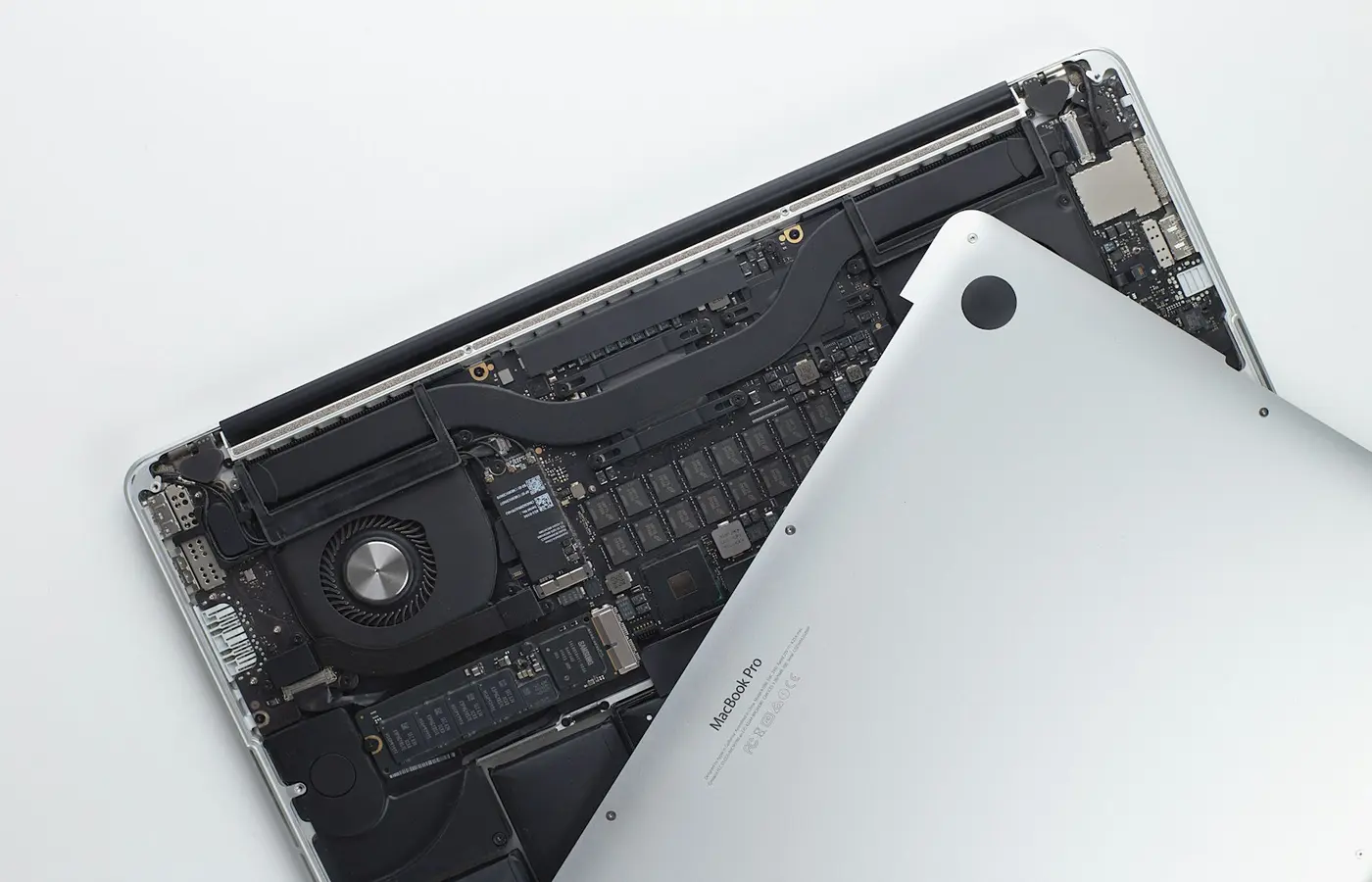
An SSD might sit directly under the bottom cover while the battery is beneath the motherboard. A fan may be visible but require removal of a heat pipe, speaker, or ribbon cable. A keyboard may technically be replaceable but only after a near-complete teardown—or only as part of a top-case assembly.
These distinctions affect ownership more than a simple yes-or-no repairability label. If your likely maintenance need is storage expansion, an accessible SSD may be enough. If you expect to keep the laptop through a battery replacement cycle, battery access and official parts support deserve more weight.
Judge access difficulty and repair risk, not just replaceability
A laptop can have replaceable parts and still be a poor candidate for inexperienced repair. Before choosing it, read enough of the procedure to understand what the repair actually demands.
Look for these friction points:
- Fasteners: Proprietary screw heads, many screw lengths, hidden screws, or screws underneath feet can increase the chance of cosmetic or mechanical damage.
- Clips and adhesives: Tight clips can crack a bottom cover; adhesive can complicate battery, display, or cable removal.
- Component layering: If several assemblies must come out before reaching the target part, labor and risk rise.
- Ribbon cables and connectors: Small connectors can be damaged by incorrect lifting, pulling, or tool use.
- Power isolation: A guide that requires disconnecting the internal battery is signaling an important safety and damage-prevention step, not an optional formality.
- Software completion steps: Firmware configuration, diagnostics, or calibration can make a physically successful repair incomplete.
The ASUS X15/X16/X17 Series service manual instructs users to disconnect peripherals and power before opening the bottom cover. Its battery guidance also recommends professional supervision for installation and points owners toward authorized service. That is a practical example of why “the battery can be replaced” should not be translated into “any buyer should replace it.”
When professional service is the better choice
Budget for authorized or qualified repair rather than attempting the work yourself when the process involves a swollen battery, extensive adhesive, display removal, liquid damage, motherboard-level faults, uncertain part compatibility, or a device still covered by support terms you do not fully understand.
Stop if a repair guide differs from your physical device, a connector will not release with the documented method, a replacement part lacks a verifiable part number, or the battery shows swelling, damage, or unusual heat. Forcing a component is often how a manageable repair becomes a larger one.
Confirm parts availability, pricing, and regional support before purchase
A published manual and a listed component are encouraging, but neither guarantees that you can buy the part. Availability is time-sensitive, country-specific, and often conditional on stock, service eligibility, or use of an authorized repair provider.
Check official sources in this order:
- The manufacturer’s self-repair or parts portal for your country.
- The support page for the exact model and regional SKU.
- Authorized-service contact information for your location.
- The repair guide’s part list, including all required secondary components.
- The retailer’s return policy, in case the delivered configuration does not match what was advertised.
Microsoft says its self-repair program offers a select range of replacement components and service guides, and advises owners to review the materials for their model before purchasing parts or beginning work. See the company’s self-repair information page. The key word is “select”: do not infer that every component, every model, or every market has direct consumer access.
Acer’s EPEAT service information similarly describes spare-parts options for certain EPEAT-registered products, while noting that parts may be provided through replacement service or authorized repair providers. That can still be valuable support, but it is different from an online store where every owner can immediately purchase every part.
When comparing two laptops, check likely high-impact items rather than trying to predict every future repair. For many buyers, those are the battery, charger, display assembly, keyboard or top case, cooling components, and SSD. Record the date you checked, the exact part number, the sales channel, and whether the item was genuinely available or merely listed.
Do not use an old parts listing as proof of future supply. If long-term repairability is central to your decision, favor the laptop whose current support route is clearest, even if another model has one more accessible component on paper.
Read the warranty and repair terms before opening the laptop
Warranty coverage, paid repair, accidental-damage protection, battery wear, and consumer-law rights are separate issues. Read the terms applicable to your country and product rather than relying on broad online claims about what “voids” a warranty.
For example, Apple’s Mac laptop repair page states that its limited warranty covers manufacturing issues for one year and excludes accidental damage and batteries that wear down through normal use. It also notes that consumer-law rights may apply in a buyer’s country or region. This is a useful reminder that a worn battery and a manufacturing defect are not necessarily handled under the same route.
ASUS’s EPEAT service information states that service by parties other than ASUS, its service centers, or authorized providers may affect warranty status for the products addressed by that policy. The precise consequence depends on the applicable terms, location, product, and work performed.
Before you buy, verify:
- The length and scope of the standard warranty.
- Whether accidental damage has separate coverage or a separate price.
- How battery wear is treated.
- Whether self-service parts or repairs are formally supported for the model.
- Whether damage caused during disassembly is excluded.
- Where authorized repair is available in your region.
- What consumer-protection rights apply locally.
Do not assume that merely opening a laptop automatically removes all warranty rights. Equally, do not assume that a self-repair attempt has no consequences if it damages a component. The exact wording and local law matter.
Use this repairability checklist at checkout
Use this short checklist before placing an order:
- Save the complete model number, regional part number, and retailer SKU.
- Find an official service manual, repair guide, or parts diagram for that exact model or generation.
- Check whether the battery, storage, and memory are removable, integrated, or unspecified.
- Identify whether the keyboard, display, charging port, and cooling system are separate parts or bundled assemblies.
- Read the disassembly sequence and note adhesives, tools, battery-disconnect steps, and warnings.
- Search official parts and authorized-service channels in your country for likely replacement items.
- Confirm whether required parts are sold to consumers, supplied through service, or unavailable to verify.
- Read warranty, accidental-damage, and paid-repair terms before opening the device later.
- Keep the retailer’s return-policy terms available until you have confirmed the delivered configuration.
Choose a more documented alternative when you cannot identify the repair procedure, the relevant part numbers, or any support route for your region. Choose authorized service when the repair is high-risk, the necessary part is bundled into a major assembly, or warranty and consumer-rights questions remain unclear.
Repairability is best treated as a chain, not a badge. A laptop is easier to own for the long term when its documentation, physical design, parts access, and service terms all point in the same direction.
Frequently asked questions
Does a replaceable SSD mean a laptop is repairable?
No. A removable SSD is useful for storage replacement or upgrades, but it says little about the battery, keyboard, display, charging port, cooling system, or motherboard. Check each component that matters to your expected ownership period.
Can I replace a laptop battery myself without voiding the warranty?
It depends on the manufacturer, model, country, repair method, and any damage caused during the work. Read the exact warranty and self-repair terms before proceeding. A documented battery procedure does not automatically mean the manufacturer recommends every owner perform it.
How can I tell whether replacement laptop parts will still be available later?
You cannot guarantee future stock from a current listing. You can reduce uncertainty by checking the official parts channel, authorized-service network, and service documentation before purchase. Record the exact part number and whether the component is directly sold, supplied through repair service, or not currently verifiable.
Is soldered RAM always a reason to avoid a laptop?
Not always. Soldered RAM removes a future upgrade path and can complicate repair, but it may be acceptable if the laptop’s installed capacity is sufficient for its intended life and other priorities matter more. The practical rule is to buy enough memory upfront and avoid assuming it can be expanded later.