
Is a 1440p Gaming Laptop Worth It? How to Match the Screen to the GPU
Find out when a 1440p gaming laptop makes sense by matching its display, GPU configuration, games, refresh-rate target, and scaling options.
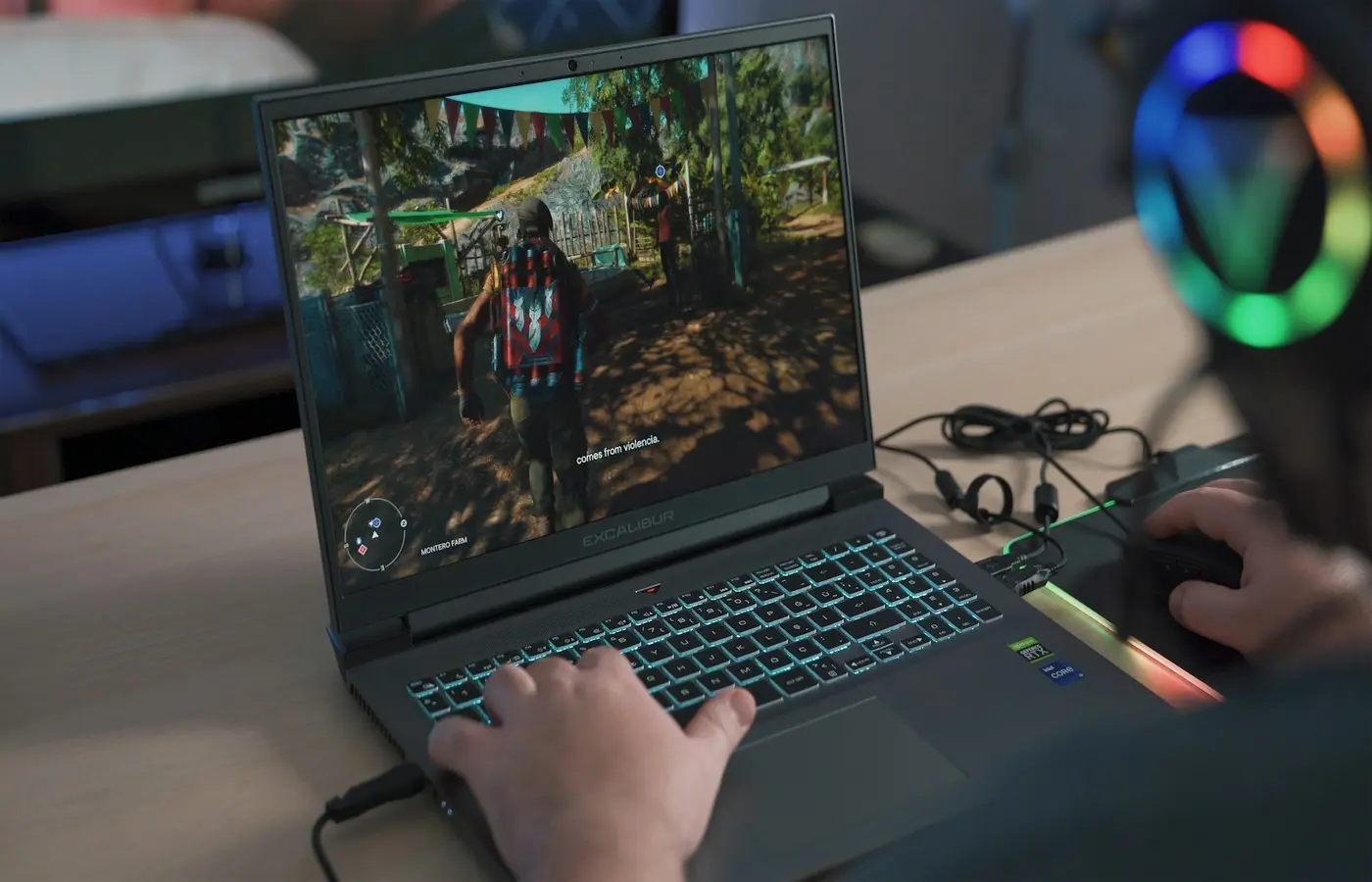
A 1440p gaming laptop is worth buying when you want a sharper screen for both games and everyday work, and you are willing to make realistic choices about graphics settings, frame-rate targets, and the exact GPU configuration.
It is not an automatic upgrade over a 1080p laptop. A 1440p panel asks the GPU to render substantially more pixels at native resolution, while many gaming laptops use the same GPU name across models with different cooling, power settings, memory, and display options. A 165Hz or 240Hz screen also does not mean every game will run at 165 or 240 frames per second.
The safer default for many buyers is a 1440p display paired with a configuration that can meet their preferred settings in the games they actually play. Buyers focused mainly on competitive games and extremely high frame rates may be better served by a 1080p panel, or by treating a 1440p panel’s maximum refresh rate as headroom rather than a target for every title.
The short answer: choose 1440p when your games and GPU target fit
In laptop listings, “1440p” usually refers to a 2560 × 1440 display, sometimes described as QHD. Do not rely on that shorthand alone: confirm the native resolution in the specification sheet or the configuration page for the exact laptop part number.
A 2560 × 1440 screen contains about 78% more pixels than a 1920 × 1080 screen. That can make text, interface elements, detailed game scenes, and desktop work look more refined, particularly on a 15- or 16-inch laptop used at a typical desk distance. It also gives the GPU more work to do when a game is rendered at native resolution.
A 1440p gaming laptop is usually a sensible choice for:
- Players who divide time between games, school, office work, creative applications, and general desktop use.
- Buyers who prefer image detail and a more spacious desktop over maximizing frame rate in every game.
- Players of story-driven, strategy, simulation, racing, and other games where visual quality matters as much as the highest possible frame rate.
- Buyers prepared to adjust demanding graphics settings or use game-supported upscaling when native rendering is not the best balance.
A 1080p laptop may be the better fit for:
- Competitive players whose priority is reaching very high frame rates with lower latency and fewer compromises.
- Buyers with a fixed budget who would have to accept a materially weaker GPU, less memory, or a poorer overall configuration to get a 1440p panel.
- Players who want to use demanding games at high settings for several years but do not intend to use resolution scaling or reduce settings.
Neither choice is universally better. The useful question is not “Is 1440p better than 1080p?” It is: “Can this exact laptop run my games at settings and frame rates I will actually enjoy?”
Start with the exact GPU configuration, not the GPU name
A mobile GPU name is only the start of the comparison. Two laptops advertised with the same GPU can behave differently because the surrounding system is different.
Before estimating whether a 1440p gaming laptop suits you, verify these details for the exact regional SKU:
| What to verify | Why it matters |
|---|---|
| Full GPU model name | A shortened retailer label may omit generation or memory details. |
| GPU memory capacity | Available graphics memory can affect which texture settings and rendering features are practical in demanding games. |
| Manufacturer power or performance information | Some manufacturers publish graphics-power settings or performance modes; others do not. Treat missing information as uncertainty, not as proof of a higher-power configuration. |
| CPU and system memory | The CPU and memory can limit frame rates, especially in esports games and CPU-heavy simulations. |
| Cooling and performance mode | Fan profiles, firmware, ambient conditions, and power mode can affect sustained behavior. |
| Graphics-switch or MUX behavior | Internal-display performance and feature behavior can vary by implementation and mode. |
| Exact panel option | A product family can include several displays with different resolution, refresh rate, brightness claims, finishes, and adaptive-sync support. |
Manufacturer specification pages, downloadable configuration sheets, and manuals are the best starting point. Retailer listings can be useful, but reconcile their details against the manufacturer’s exact part number before ordering. A listing that says “RTX,” “QHD,” or “high refresh rate” is not a complete configuration record.
Be equally cautious with comparisons that use only the GPU name. Independent benchmark results can help only when the tested laptop, resolution, game version, graphics preset, power mode, memory setup, and relevant rendering features are documented. Results from a laptop with a different chassis, firmware, cooling design, or graphics setting should not be treated as a prediction for the one in your cart.
Match resolution and refresh rate to the games you actually play
The display’s refresh rate is a capability, not a performance promise. A 165Hz panel can display up to 165 updates per second when the system delivers them, but a demanding game may run well below that figure at native 1440p with your preferred settings.
Start with a short list of the games you expect to play most often. Then decide what matters in each one: image quality, consistent frame pacing, very high frame rate, ray-traced effects, competitive responsiveness, or a mix.
For esports-focused players
If you mostly play competitive shooters, fighting games, or other titles where you prioritize responsive input and high frame rates, 1080p remains a practical option. Rendering fewer pixels can leave more performance headroom for high refresh targets.
That does not make a 1440p panel unsuitable. It means you should be comfortable choosing competitive settings, lowering expensive effects, or rendering below native resolution when that better serves the game. Confirm that the laptop’s display mode, graphics-switch setting, and game support work as expected before treating its refresh-rate number as the deciding feature.
For visually demanding single-player games
A 1440p display can be especially appealing when visual detail is part of the experience. But this is also where settings discipline matters most. Ray tracing, high-quality shadows, dense geometry, volumetric effects, and very high texture settings can have very different performance costs depending on the game and hardware.
Do not assume that a laptop capable of playing a game at 1080p will deliver the same settings and frame rate at native 1440p. Instead, decide which compromises are acceptable: lower settings, a lower frame-rate target, upscaling, or selectively disabling the most demanding effects.
For mixed-use buyers
For someone who games but also writes, studies, codes, edits documents, or manages photos, 1440p is often easier to justify. The benefit is present whenever the laptop is used, not only while gaming.
A high refresh rate can also make ordinary scrolling, cursor movement, and window animation feel smoother. That is a usability preference, however, not a reason to overpay for a panel if the rest of the configuration is weak.
Consider screen size, panel quality, and everyday use before paying for pixels
Resolution is only one part of a display. A good purchase decision considers the whole panel and how the laptop will be used away from a benchmark chart.
On a 15- or 16-inch laptop, 1440p can provide a noticeably denser workspace than 1080p. Some people will prefer the extra desktop room; others may increase operating-system scaling to keep text comfortable. If possible, view a similarly sized high-resolution display in person before assuming that more pixels automatically mean a better experience for your eyesight and preferred interface scale.
Check the following before purchase:
- Native resolution: Verify 2560 × 1440 or the actual stated pixel dimensions. Some laptops use 2560 × 1600 panels instead, which have a taller 16:10 aspect ratio and different pixel count.
- Refresh rate: Confirm the refresh rate attached to the selected panel, not merely the laptop family.
- Adaptive-sync support: Verify whether it is explicitly supported, in which operating modes, and whether the claim applies to the internal display.
- Panel finish: Matte and glossy displays can behave very differently in bright rooms.
- Brightness and color claims: Treat manufacturer figures as claims for the stated panel. Do not transfer measurements from a different panel option or review unit.
- Aspect ratio: A taller panel can be valuable for work, while game support and black-bar behavior can vary by title.
- External display connections: Check the manual for the exact USB-C, DisplayPort, HDMI, and graphics-routing implementation. A physical port alone does not establish every external-display capability.
If an independent review includes display measurements, make sure the review identifies the same laptop configuration and panel. Laptop makers frequently sell one chassis with several panel suppliers or options. A measurement from another version may be informative, but it is not confirmation of the screen you will receive.
Use settings and resolution scaling as part of the buying decision
Buying a 1440p laptop does not require playing every game at native 1440p with every setting maximized. A useful gaming setup is flexible: the panel gives you a high-resolution option, while the game settings let you balance image quality and performance title by title.
A practical order of adjustment is:
- Start at native resolution with sensible settings. Avoid assuming that every setting labeled “ultra” offers a meaningful visual improvement for your screen size and viewing distance.
- Reduce the most expensive options first. Shadows, ray tracing, reflections, volumetric effects, view distance, and anti-aliasing choices can have very different costs depending on the game.
- Use game-supported temporal upscaling where appropriate. If a game supports an upscaling technology compatible with your hardware, test its quality-oriented modes before reducing the output resolution.
- Choose a balanced target. Consistent performance at settings you enjoy is generally more useful than chasing a maximum frame-rate number in one scene.
- Treat frame generation separately from base performance. It can improve apparent motion smoothness in supported games, but it is not a universal substitute for adequate underlying performance and may involve image-quality or latency trade-offs.
The availability and behavior of upscaling, frame generation, latency tools, and ray tracing vary by GPU generation, game version, driver, operating mode, and laptop implementation. Check the game’s own graphics menu and current support documentation rather than buying a laptop on the assumption that every advertised feature will apply to every title.
You can also run games at 1080p on a 1440p screen, but the result is not always as clean as rendering at the panel’s native resolution. Because 1920 × 1080 does not scale evenly into 2560 × 1440, the display or GPU must scale the image. Image quality can vary with the game, scaling method, sharpening setting, and panel implementation. This is another reason to regard upscaling and settings adjustments as tools to evaluate, not guaranteed fixes.
A checkout checklist for a 1440p gaming laptop
Before placing an order, save the product page and verify the configuration you are buying. Listings can change, and a laptop name alone may cover several different versions.
Use this checklist:
- Record the manufacturer’s full model or part number and your region.
- Confirm the display’s native resolution, size, aspect ratio, refresh rate, finish, and advertised adaptive-sync support.
- Confirm the complete GPU model and graphics-memory capacity.
- Look for manufacturer documentation on performance modes or graphics-power information. If it is not disclosed, do not fill the gap with assumptions.
- Check CPU, installed memory capacity, memory upgrade path, and storage configuration.
- Read the manual for ports, charger rating, external-display connections, and graphics-routing details.
- Check whether memory or storage upgrades require removing the bottom cover, and consult official service guidance before assuming that an upgrade is straightforward.
- Compare the retailer’s listing with the manufacturer’s specification page for the same part number.
- Read the return policy carefully, especially if the panel option is a major reason for buying.
- Review regional warranty terms and support procedures.
- Make a plan for the most demanding games you expect to play over the laptop’s useful life: lower settings, upscaling, a lower frame-rate target, or an external display later on.
Avoid making the final decision based on a permanent “best value” claim unless price and availability have been checked for that exact configuration on the day you buy. A better screen does not compensate for insufficient memory, an unsuitable GPU configuration, poor port selection, or a return policy that leaves you unable to verify the panel you received.
The practical verdict
Choose a 1440p gaming laptop if you value a sharper all-purpose display and are comfortable matching game settings to the hardware. It is particularly compelling for mixed-use buyers and players who want better image detail without treating maximum refresh rate as a requirement in every game.
Choose 1080p instead if your priority is competitive gaming at the highest practical frame rates, especially when the budget would otherwise force a compromise in GPU, memory, or overall configuration.
The safest purchase is not the laptop with the largest resolution or refresh-rate badge. It is the exact configuration whose panel, GPU implementation, ports, upgrade path, and return terms fit the games and work you will actually do.
Frequently asked questions
Is a 1440p gaming laptop better than a 1080p gaming laptop?
Not automatically. A 1440p display can offer a sharper image and more desktop space, but it increases the rendering workload at native resolution. It is better for buyers who value image detail and mixed-use productivity, while 1080p can be the more practical choice for very high-frame-rate competitive gaming or tighter budgets.
Can I play games at 1080p on a 1440p laptop screen?
Yes. Most games allow lower output resolutions, but 1080p does not scale evenly to a 2560 × 1440 panel, so it may look softer than native 1440p. Try game-supported upscaling and targeted settings changes before assuming lower output resolution is the best option.
Does a 165Hz or 240Hz 1440p display mean games will run at that frame rate?
No. The refresh rate describes what the panel can display when the system supplies enough frames. Actual frame rate depends on the game, GPU configuration, CPU, memory, resolution, graphics settings, power mode, cooling conditions, and enabled rendering features.
What should I check besides the GPU name before buying a 1440p gaming laptop?
Check the full regional part number, GPU memory capacity, disclosed performance or power information, CPU, system memory, panel specification, graphics-switch behavior where relevant, ports, charger, storage and memory upgrade options, warranty, and return policy. Confirm every item against the exact configuration rather than the broader laptop family name.


