
What GPU Do You Need for 1440p Laptop Gaming? VRAM, Power Limits, and Settings Explained
Choose a laptop GPU for 1440p or 1600p gaming by checking measured performance, VRAM, power limits, cooling, and the settings you use.
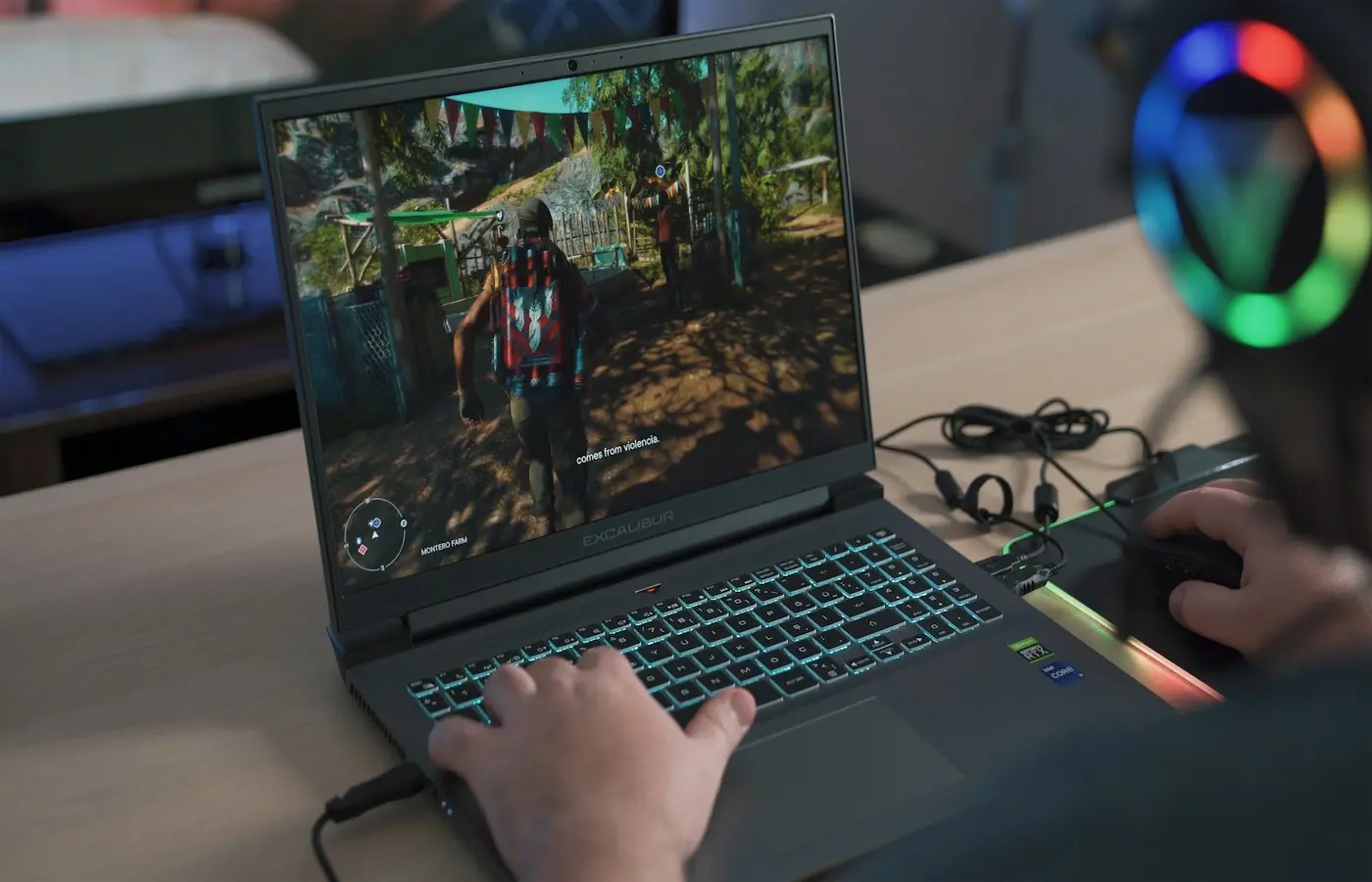
The safe answer: For a 2560×1440 or 2560×1600 gaming laptop, shop for an exact configuration that has demonstrated acceptable performance in your games at that resolution. Treat 8GB of VRAM as a conditional floor, not a guarantee. If you expect high-resolution textures, demanding ray tracing, extensive mods, or several years of use, 12GB or more is preferable when the complete laptop also delivers enough processing performance.
A GPU model name alone is not enough. Power allocation, cooling, firmware, graphics mode, CPU behavior, memory configuration, and game settings can make two laptops with the same nominal GPU perform differently.
Editorial disclosure: This is a research-based buying guide. Laptop Advices did not test the laptops or GPUs discussed here, and no original benchmark, battery, thermal, acoustic, or display measurements are presented. The available research does not support naming one current laptop GPU as a universal 1440p winner, so the recommendations below are framed as performance targets and checkout checks rather than a model ranking.
The safe GPU target for 1440p laptop gaming
Start with the experience you want, not the panel badge. A 240Hz display does not mean every game must run at 240 frames per second, just as a 1600p panel does not require every game to be rendered natively at 1600p.
| Intended use | Performance to seek in exact-laptop tests | Reasonable compromises | VRAM target to investigate |
|---|---|---|---|
| Competitive games | Stable performance around your chosen 120fps, 165fps, or higher target, with frame-time data where available | Lower effects, shadows, and render resolution | 8GB may be sufficient, but verify each game |
| Mainstream high-settings gaming | Roughly 60–90fps at 1440p or 1600p in the games you play | Quality upscaling or selected reductions from Ultra | 8GB is workable only when testing shows consistent behavior |
| Demanding single-player games | A stable base frame rate near or above 60fps, including acceptable lows | High instead of Ultra, upscaling, reduced heavy effects | 12GB or more offers preferable headroom |
| Ray tracing or texture-heavy mods | Stable native or upscaled base performance before frame generation is counted | Reduced ray tracing, selective texture changes, upscaling | Prefer 12GB or more, subject to game-specific testing |
These are shopping targets, not promised results. Before buying, find tests of the complete laptop at 2560×1440 or 2560×1600. The test should identify the laptop part number or configuration, GPU power mode, CPU, memory, firmware or driver context, and whether the laptop used a direct discrete-GPU display path.
Average frame rate is useful, but it does not reveal every problem. Frame-time graphs or 1% low results can expose uneven delivery that an average hides. Also inspect recorded gameplay for texture pop-in, traversal stutter, or delayed asset loading when memory capacity is in question.
Why 1440p and 1600p demand more than a GPU badge
The native pixel counts explain why a laptop that performs comfortably at 1080p may struggle at its higher-resolution internal display:
- 1920×1080: 2,073,600 pixels
- 1920×1200: 2,304,000 pixels
- 2560×1440: 3,686,400 pixels
- 2560×1600: 4,096,000 pixels
A 2560×1440 image contains about 78% more pixels than 1920×1080. A 2560×1600 image contains about 78% more than 1920×1200 and about 11% more than 2560×1440. That does not translate into an identical frame-rate reduction because games can be limited by the CPU, GPU, memory, or engine in different scenes. It does, however, increase the potential graphics workload.
Three specifications must be kept separate:
- Display resolution is the panel’s physical pixel grid.
- Output resolution is the resolution sent to that display.
- Internal render resolution is the resolution at which the game produces much of the image before scaling or reconstruction.
A game can output at 2560×1600 while rendering internally at a lower resolution through an upscaler. Dynamic-resolution systems can change that internal resolution during play to maintain a performance target.
Refresh rate is separate again. A 165Hz panel can still present a 60fps game correctly, although it cannot create missing game frames by itself. Higher refresh remains useful for competitive games, desktop responsiveness, and variable-refresh operation, but it is not evidence that the GPU can render demanding games at the panel’s maximum rate.
How power limits and cooling change performance
Laptop GPUs operate inside a shared system rather than on an unrestricted graphics card. Manufacturers choose a graphics power allocation that the chassis, cooling system, firmware, and charger are intended to support. CPU and GPU boost behavior may also interact because both components produce heat and can draw from a combined platform budget.
That creates several reasons for performance variation between laptops carrying the same GPU name:
- Different manufacturer-configured GPU power limits
- Cooling systems with different sustained capabilities
- Quiet, Balanced, Performance, and Turbo profiles
- Shared CPU-GPU power-management behavior
- Firmware and control-software versions
- Single-channel versus dual-channel or otherwise different memory layouts
- Hybrid graphics versus a direct discrete-GPU display path
- Charger capacity and whether the test was conducted on wall power
- Ambient temperature and the duration of the workload
A higher disclosed power limit can indicate more potential performance, but it is not a guaranteed ranking. The GPU may receive less power in a CPU-heavy game, encounter another limit, or run into diminishing returns. A nominal maximum also says little about what the machine sustains after warming up.
Compare looped game results or prolonged workloads, not only a short benchmark pass. A useful review should state the performance profile, fan mode, graphics mode, memory configuration, charger status, test resolution, and software context. If those details are missing, treat the result as approximate rather than directly transferable to the laptop in your cart.
How much VRAM is enough at 1440p or 1600p?
VRAM holds data the GPU needs quickly, including textures, geometry, frame buffers, shadow data, and resources used for ray tracing. Demand can increase with resolution, texture quality, ray-tracing settings, mods, game updates, and background applications using GPU acceleration.
Eight gigabytes can be enough, but only conditionally. It is a plausible starting point for competitive games, less demanding titles, and players willing to adjust textures or ray tracing. It is less reassuring for buyers who want maximum textures in demanding new games without checking individual results.
Twelve gigabytes or more is a safer headroom target for high textures, ray tracing, large texture mods, or a longer ownership horizon. Capacity still does not make a slower GPU automatically faster. A GPU with more memory can lose to a stronger GPU with less memory when neither workload exceeds the smaller capacity.
Do not judge memory requirements from an allocation counter alone. A game may reserve more VRAM than it currently requires, while another may stay within the reported capacity yet show compromised texture quality or asset-streaming behavior. Look for controlled tests that disclose the game version, driver, resolution, settings, and exact GPU configuration. Ideally, the analysis should include frame-time behavior and visual inspection rather than only an average frame rate.
When an 8GB configuration is substantially cheaper, ask a practical question: Are you willing to lower textures, disable demanding ray-tracing effects, or use upscaling in the games that exceed its comfortable limits? If yes, it may remain the better-value machine. If not, buying more headroom is safer than assuming future optimization will remove the constraint.
Ray tracing, upscaling, and frame generation
Settings determine the GPU you need almost as much as resolution does. Ultra presets often bundle several expensive options whose visual differences are modest during normal play.
Use this adjustment order when a game performs poorly:
- Reduce heavy ray-tracing options. Reflections, global illumination, and path-traced modes can impose substantial processing costs and may add memory pressure.
- Lower selected effects. Volumetrics, shadows, reflections, crowd density, and hair simulation can be expensive depending on the game.
- Reduce textures when memory-limited. Texture quality may have a modest processing cost when sufficient VRAM is available, but it can contribute to stutter or visible streaming when capacity is exceeded.
- Enable a quality-focused upscaling mode. This lowers internal rendering work while retaining the panel’s output resolution.
- Use more aggressive scaling only when needed. Image stability and fine detail can deteriorate as internal resolution falls.
Frame generation requires separate treatment. It inserts generated frames between conventionally rendered frames, so the displayed frame counter can rise substantially. It does not make the underlying simulation or input response equivalent to a game natively rendering at that output rate. Image quality and responsiveness still depend on the base frame rate, game implementation, scene, and software version.
When reading benchmarks, check whether the reported result is native, upscaled, or frame-generated. A chart that mixes those modes without clear labels cannot answer how the GPUs compare under equal conditions. For purchasing, prioritize an acceptable base frame rate first; treat frame generation as an optional smoothness tool rather than a substitute for adequate underlying performance.
How to compare laptops before checkout
Retail listings frequently compress important details into a short title. Reconcile the listing with the manufacturer’s exact regional part number before paying.
Use this checklist:
- Exact laptop part number: Model-family names can cover different displays, GPUs, memory, and storage.
- Complete GPU name: Confirm that it is the laptop version and note its installed VRAM.
- Graphics power information: Look for the manufacturer’s stated configuration, but verify sustained behavior through independent testing.
- Performance modes: Check which mode produced the benchmark and whether it requires louder fans or special software.
- CPU and memory: Match the tested processor, memory capacity, module arrangement, and speed where disclosed.
- Display: Confirm 2560×1440 or 2560×1600, refresh rate, variable-refresh support, and whether the review tested the same panel.
- Graphics switching: Determine whether a multiplexer, direct discrete-GPU mode, or equivalent display path is available.
- Charger: Confirm the supplied charger’s specification and whether full performance requires it.
- Ports and outputs: Check the exact external-display resolution and refresh support you need rather than relying on the connector’s shape.
- Storage and serviceability: Consult the service manual for available storage slots, access procedures, and replaceable memory.
- Warranty and return policy: These are regional terms. Verify dead-pixel coverage, upgrade implications, return windows, and the authorized repair path.
An outside benchmark applies closely only when its configuration and operating mode resemble the machine being sold. If the reviewer tested a different CPU, lower-resolution display, firmware version, memory layout, or GPU power implementation, use the result as context—not as a promise.
Who should buy more GPU—and who can spend less
Spend less if you mainly play competitive or older games, accept optimized settings, and have found exact-laptop testing that meets your frame-rate target. Paying for a much higher tier solely because the display is labeled 1600p is unnecessary when you are comfortable with upscaling or a reduced render resolution.
Buy more GPU and VRAM headroom if you want demanding games at native resolution, high textures, substantial ray tracing, texture mods, or a longer useful life with fewer settings compromises. Extra capacity is most valuable when it accompanies enough GPU performance and adequate chassis cooling.
Consider a lower-resolution laptop if consistent native rendering matters more than fine pixel density. This can be a better-balanced choice than buying an expensive GPU merely to drive a dense internal panel.
Consider a desktop if maximum sustained gaming performance, component replacement, or future GPU upgrades matter more than portability. An external monitor can improve ergonomics and provide another resolution choice, but it does not increase the laptop GPU’s underlying capability.
The best laptop GPU for 1440p gaming is therefore not a badge or fixed VRAM number. It is the GPU implementation in an exact laptop that meets your chosen base frame-rate target, in your games, at documented settings—without requiring compromises you already know you will dislike.
Frequently asked questions
Is 8GB of VRAM enough for 1440p laptop gaming?
It can be. Eight gigabytes is a conditional floor for buyers who play lighter games or accept reduced textures, ray tracing, or render resolution when necessary. It is not a universal guarantee. Check per-game frame-time and texture behavior at 2560×1440 or 2560×1600. For demanding settings, mods, or a longer ownership horizon, 12GB or more provides preferable headroom when paired with a sufficiently fast GPU.
Is 2560×1600 harder to run than 2560×1440?
Yes, when other conditions are equal. A 2560×1600 image contains 4,096,000 pixels, about 11% more than the 3,686,400 pixels in 2560×1440. The actual performance difference varies by game and can be smaller when another component is limiting performance.
Does a higher-wattage laptop GPU always perform better?
No. A higher power allocation can provide more performance potential, but cooling, firmware, CPU power sharing, workload characteristics, and diminishing returns all affect the result. Compare sustained measurements from complete laptops rather than ranking them by a wattage figure alone.
Should you use native resolution, upscaling, or frame generation?
Use native resolution when it delivers the image quality and base performance you want. Quality upscaling is a sensible first compromise when native rendering is too demanding. Frame generation can improve displayed smoothness in supported games, but it should be evaluated separately because it does not replace a healthy base frame rate or produce equivalent input responsiveness.


