
Laptop GPU TGP Explained: How Power Limits Affect Gaming Performance
Learn what laptop GPU TGP means, why identical GPU names can perform differently, and how to compare gaming laptops before buying.
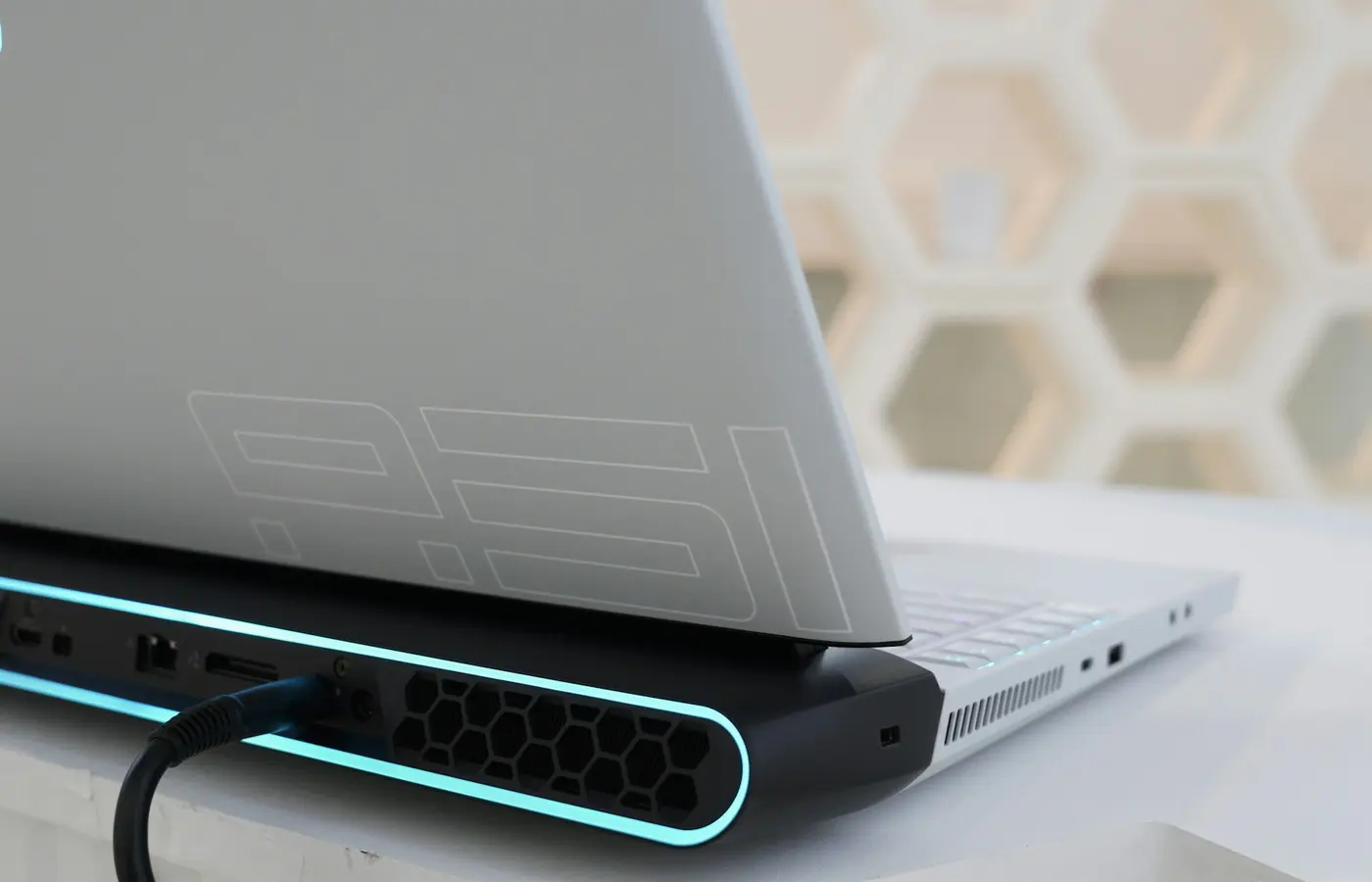
Two gaming laptops can carry the same GPU name and still deliver meaningfully different results in games. The safer buying method is to compare the complete laptop configuration: the exact GPU implementation and listed graphics-power limit, CPU, display resolution, cooling design, performance mode, charger, and independent testing for that specific model.
Editorial disclosure: This is a research-based guide, not a hands-on review. Laptop Advices has not tested or measured the laptops discussed here. GPU power figures and gaming results should be checked against the manufacturer documentation and independent testing for the exact regional configuration you plan to buy.
Laptop GPU TGP matters most when you are choosing between systems with the same GPU badge—particularly a thin, portable gaming laptop and a larger performance-focused model. It is useful information, but it is not an FPS score and should not be treated as one.
The buying answer: compare the configuration, not the GPU badge
A GPU name identifies the graphics processor family, not necessarily the performance level of its implementation in every laptop. Laptop makers can configure graphics power differently according to their chassis, cooling system, firmware, and intended balance between performance, size, noise, and battery use.
That means an “RTX Laptop GPU” label alone cannot settle a comparison. A retailer may list two systems under the same GPU name while omitting the information that explains why one costs more—or why a thinner model may not match the gaming performance of a heavier alternative.
Start with these questions:
- Is the GPU name identical, including the full tier and generation?
- Does the manufacturer list a graphics power figure for this exact model or SKU?
- Is the quoted number a base figure, a maximum figure, or a maximum that depends on a boost feature or performance mode?
- Are the CPU, memory capacity and configuration, screen resolution, and storage configuration comparable?
- Does an independent review test the same chassis and a closely matching configuration under documented conditions?
A generic GPU power range is not proof of the limit in a particular laptop. One overview of laptop GPU power limits notes that manufacturers can configure the same GPU differently across systems, but it should be used only as context—not as confirmation of an individual model’s specification (Victory Computer). The manufacturer’s product page, downloadable specification sheet, or support documentation for the exact part number is the stronger starting point.
What laptop GPU TGP means—and what it does not tell you
TGP commonly means Total Graphics Power. In practical buying terms, it describes the power budget or limit that a laptop maker configures for the discrete GPU. More available GPU power can give a GPU more room to sustain higher operating clocks in workloads that are limited by graphics performance.
However, product pages do not always use the same terminology. You may encounter:
- TGP or total graphics power
- GPU power or graphics power
- Maximum graphics power
- TDP, sometimes used loosely in retailer listings
- A maximum figure that includes a conditional boost allowance
- A manufacturer-specific performance mode or control-software setting
These labels are not automatically interchangeable. A listing that says “up to” a certain wattage may describe a best-case mode rather than the limit used in every workload. A figure may also depend on the laptop being connected to its supplied AC adapter and set to a particular performance profile.
Treat the wording as part of the specification. If one listing says “up to 115W” and another says “100W,” do not assume the difference is exactly 15W in every game. First establish what each manufacturer means, whether boost headroom is included, and which operating mode applies.
TGP also does not tell you:
- The frame rate a laptop will achieve in a specific game
- Whether its CPU will limit performance at your chosen settings
- How well the system will maintain performance after it warms up
- Whether the laptop’s display resolution is appropriate for its GPU
- How loud the fans will be
- Whether the laptop is good value at its current price
Think of TGP as one important constraint on potential GPU behavior. It is not a substitute for configuration-specific gaming results.
Why more GPU power can help, but does not guarantee a faster laptop
In a GPU-limited game, additional graphics power may allow the GPU to maintain higher clocks and render more frames. This is why two laptops with the same GPU family can perform differently. A lower-power design may prioritize portability or quieter default behavior, while a larger system may allocate more power to the GPU in its highest-performance profile.
The important word is may. Performance scaling varies with the game, graphics settings, resolution, upscaling settings, CPU, memory configuration, drivers, firmware, and the laptop’s operating mode. A laptop that is CPU-limited in a particular title may see little benefit from additional GPU power. At a higher resolution or with more demanding visual settings, the same comparison may become more GPU-limited and show a different result.
Do not apply a universal rule such as “a certain wattage increase equals a certain percentage more FPS.” That shortcut is unreliable across GPU generations and laptop designs.
An example from current retailer-oriented reporting makes the basic point: systems with the same graphics name can have different configured power limits, and cooling and firmware influence whether that power is usable over time (Box). That is a useful warning, but it is not evidence that any two specific laptops will differ by a predictable amount.
For a purchase decision, look for an independent review that documents all of the following:
- Exact laptop model and, ideally, the tested CPU, GPU, RAM, and display configuration
- Game title, resolution, graphics preset, and upscaling or ray-tracing settings
- Whether the laptop was plugged in
- The selected manufacturer performance mode
- Driver, BIOS, or firmware context where the reviewer provides it
- Whether results reflect a short benchmark run or sustained play
If a review does not identify the configuration or test conditions, use it as background rather than a direct ranking.
Cooling, chassis size, and performance modes affect sustained behavior
A maximum graphics-power figure needs chassis context. The laptop must deliver power to the GPU and move heat away from the relevant components while the game is running. That does not mean every large laptop will outperform every thin one, or that a particular cooling feature guarantees better results. It means the specification sheet alone cannot demonstrate sustained gaming behavior.
Before buying, inspect what the manufacturer actually documents for the exact chassis revision:
- The supplied AC adapter rating
- Available performance, balanced, quiet, or custom profiles
- Whether the GPU power figure is attached to a particular mode
- Vent placement and cooling description, if provided
- Whether the system supports a documented graphics-switching or discrete-GPU mode
- Memory and storage access through the service manual, where available
Then look for independent testing that observes a sustained workload rather than only a single short benchmark. Useful reporting may include GPU power draw, clock behavior, temperatures, fan behavior, and frame-time consistency. Those figures remain the reviewer’s measurements, not Laptop Advices measurements, and they apply only to the tested configuration and conditions.
Do not infer thermal performance from a marketing term such as “vapor chamber,” from the number of visible vents, or from charger wattage. These details can help explain a design, but they cannot replace evidence from a matching system.
Performance modes need equal caution. A laptop may offer a high-performance setting that improves gaming results when plugged in, but it can also change fan behavior and power use. Confirm the mode used in published testing. Comparing one laptop’s quiet profile with another laptop’s performance profile is not a useful basis for choosing between them.
How to compare two gaming laptops with the same GPU name
Use this sequence before placing an order. It reduces the risk of comparing a fully documented configuration with a retailer listing that leaves out the decisive details.
1. Identify the exact model and regional SKU
Record the full model number from the manufacturer page or specification PDF. Names that look nearly identical can represent different screens, CPUs, memory arrangements, GPU power settings, or chassis revisions.
A retailer listing is useful for finding a candidate laptop, but treat it as provisional until its details match official documentation. If the retailer and manufacturer disagree, ask the seller for the precise part number in writing or choose a listing with clearer documentation.
2. Confirm the complete GPU name and listed graphics-power wording
Do not stop at a short GPU label. Copy the exact power wording into your comparison notes, including qualifiers such as “maximum,” “up to,” or a named boost feature. If no official figure is available, mark it as unknown rather than filling the gap with a generic GPU range.
3. Compare the CPU and memory setup
The same GPU can be paired with different processors and memory capacities. Memory configuration can matter as well: a system with limited capacity or a less capable arrangement may affect games and other workloads differently from a better-equipped version.
4. Match the display target to the GPU and your games
A high-resolution display can be attractive, but it creates a more demanding rendering target in native-resolution gaming. Check its resolution, refresh rate, and available graphics modes. Decide whether you will play at native resolution, use upscaling, or prefer lower settings for higher frame rates.
5. Check graphics-switching information where documented
Some laptops offer a documented way to select or favor the discrete GPU for certain use cases. This can affect how a system behaves in games, but its presence is not a blanket performance guarantee. Confirm whether it exists in the exact configuration and how the reviewer tested it.
6. Find independent testing of the matching configuration
Prioritize a review that identifies the tested model and conditions. If the review covers a different screen, CPU, or GPU power setting, treat it as an approximate chassis reference, not a result you can transfer directly to the version in your cart.
7. Check the ownership details before deciding
Review ports, charger size, upgrade access, keyboard layout for your region, warranty terms, and the retailer’s return policy. A laptop that is slightly slower in a verified comparison can still be the better purchase if it suits your travel, desk setup, budget, and upgrade plans better.
| Check | Laptop A | Laptop B | What to verify |
|---|---|---|---|
| Exact regional part number | Manufacturer product page or specification PDF | ||
| Full GPU name | Avoid shortened retailer labels | ||
| Listed GPU power wording | Note “up to” figures and performance-mode conditions | ||
| CPU and memory configuration | Capacity, memory type, and upgrade path where documented | ||
| Display resolution and refresh rate | Compare the gaming target, not only the panel badge | ||
| Charger and performance modes | Confirm supplied adapter and plugged-in test mode | ||
| Independent test match | Record review date, configuration, and test conditions | ||
| Return and warranty terms | Check the seller and your region before ordering |
When a lower-power GPU laptop may still be the better buy
The highest listed graphics-power figure is not automatically the best value. A lower-power GPU implementation may be the more sensible choice when portability, charger size, desk space, budget, or lower-demand games matter more than extracting the highest possible frame rate.
A lower-power option can make sense if:
- You carry the laptop frequently and would rather have a thinner or lighter system.
- You mostly play less demanding games or accept tuned settings rather than maximum presets.
- You prefer the laptop’s display, keyboard, ports, warranty, or upgrade path.
- The model has well-documented behavior and fits your expected resolution.
- Its verified price is meaningfully better in your region.
A higher-power configuration deserves closer consideration if you mainly play demanding games while plugged in, use a higher-resolution external display, or want more graphics headroom over the laptop’s useful life. Even then, verify that the system can sustain its advertised mode and that the rest of the configuration does not undermine the advantage.
Do not make a price recommendation from an old review or an undated retailer listing. Prices and availability change by region and SKU. Check the final checkout configuration, confirm the seller’s return terms, and save the specification page before ordering.
The practical rule
Buy the laptop with the better verified configuration-specific performance and ownership fit, not simply the larger TGP number.
For two laptops with the same GPU name, a manufacturer-listed graphics-power figure is an important clue. But the final choice should account for the exact SKU, CPU, memory, display target, plugged-in performance mode, cooling evidence, charger, serviceability, and independently documented gaming results. When those details are unavailable, uncertainty is the honest conclusion—not a reason to assume that the laptop with the louder GPU badge or larger advertised number will be faster.
Frequently asked questions
What does TGP mean in a gaming laptop?
TGP usually means Total Graphics Power. It refers to the graphics power budget or limit configured by the laptop manufacturer for the discrete GPU. It can influence performance, but it is not a direct measure of gaming frame rate.
Can two laptops with the same RTX Laptop GPU have different gaming performance?
Yes. They can differ in configured GPU power, cooling, CPU, memory, display resolution, firmware, and performance mode. Compare the full configuration and seek independent testing of the exact or closely matching model.
Is the highest GPU wattage always the best choice?
No. A higher listed limit can help in GPU-limited workloads, but it does not guarantee better sustained results or better value. Portability, screen resolution, cooling behavior, charger size, noise tolerance, price, and warranty can all matter more for a particular buyer.
How can I find a laptop’s GPU power limit before buying?
Start with the manufacturer’s page, specification PDF, support documents, and control-software documentation for the exact regional part number. Look for graphics power, maximum graphics power, TGP, or wording tied to a named performance mode. If official documentation is unclear, ask the seller to confirm the exact SKU and use independent reviews only when their tested configuration matches closely.


