Will an M.2 NVMe SSD Fit Your Laptop? Check Length, Keying, and Compatibility
Check whether an M.2 NVMe SSD fits your exact laptop by verifying drive length, slot type, keying, clearance, interface, and capacity support.
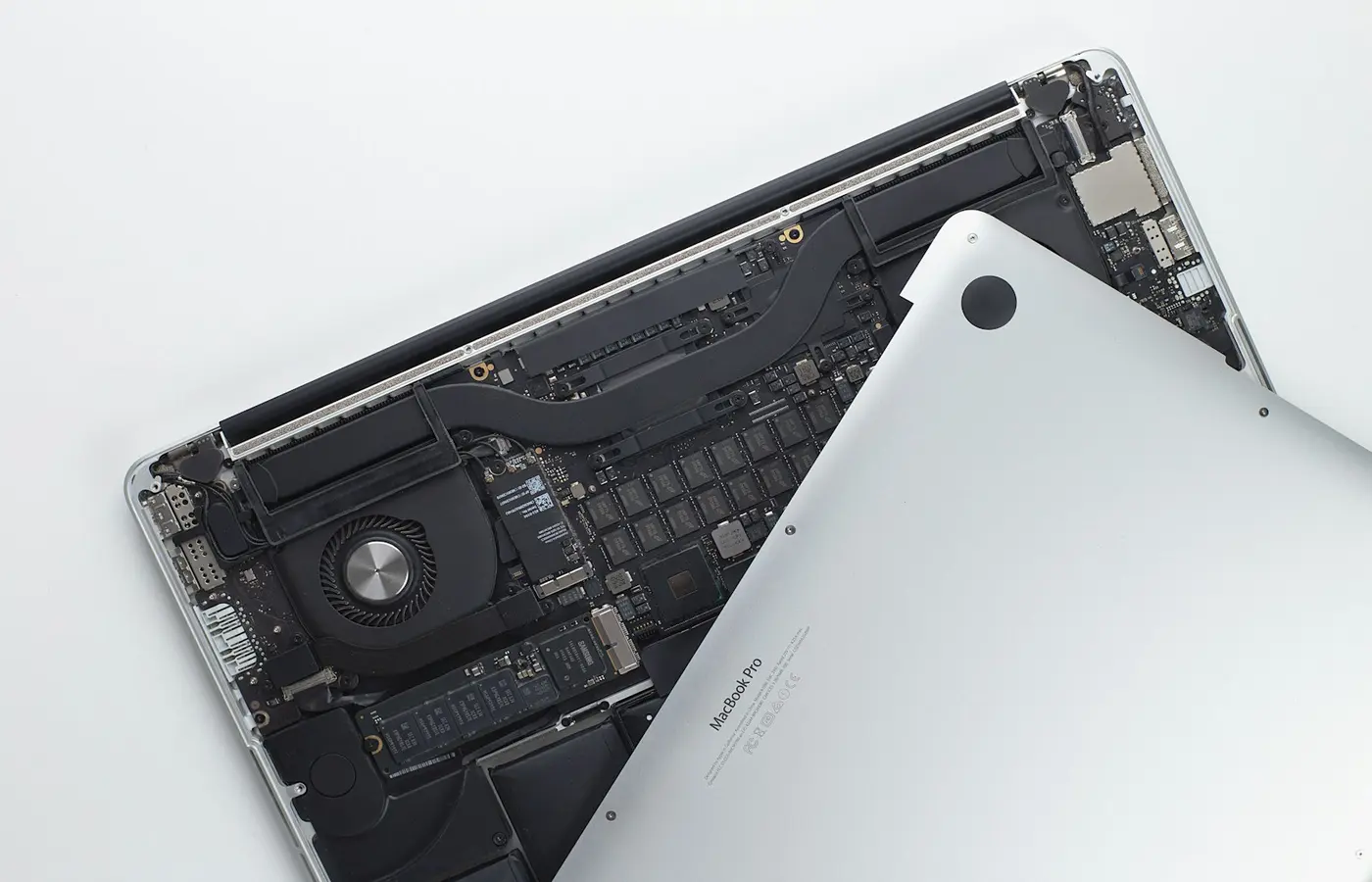
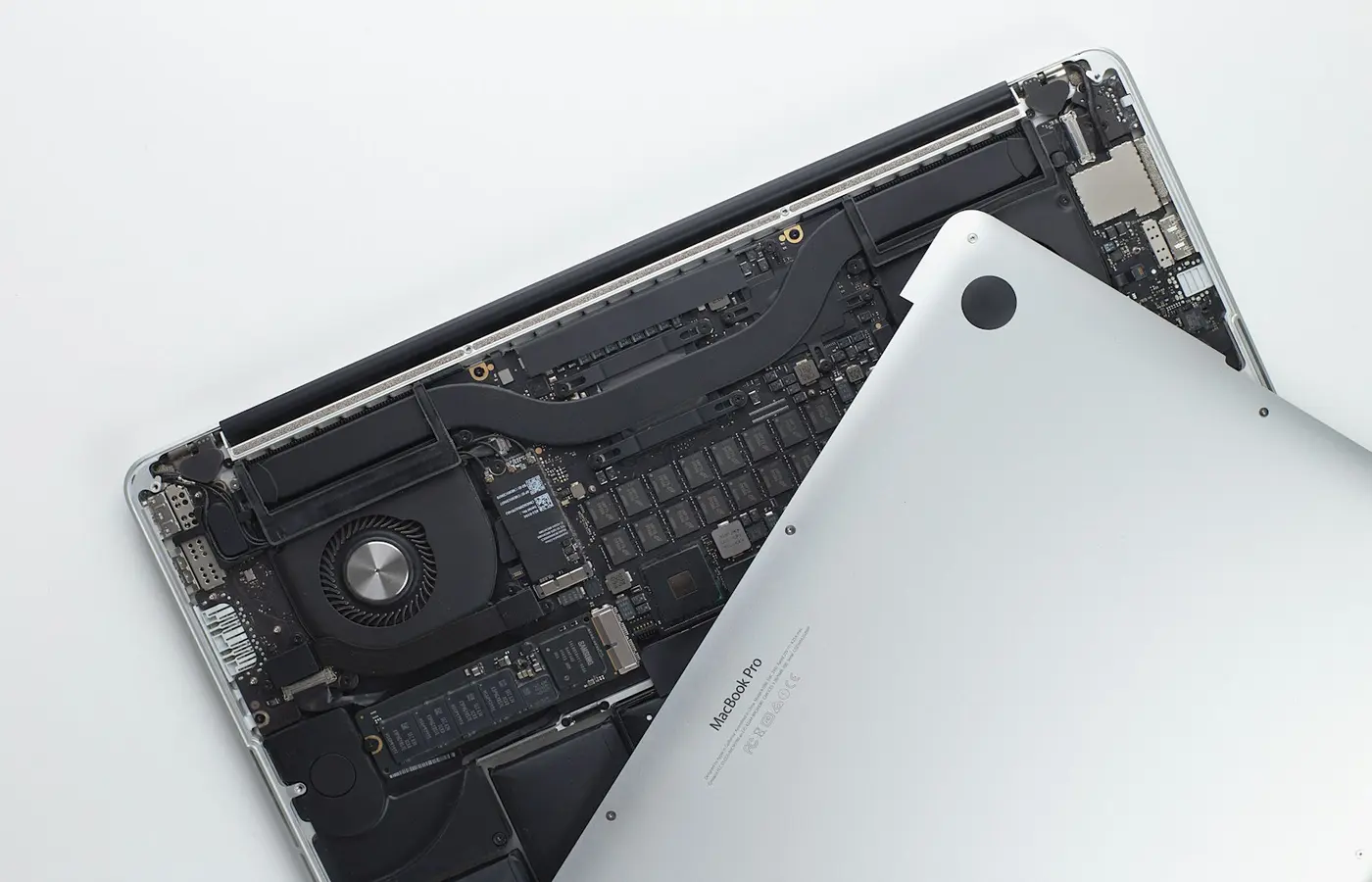
An M.2 NVMe SSD fits a laptop only when the exact laptop supports its physical length, connector arrangement, storage interface, internal clearance, and practical capacity. “M.2” alone is not a compatibility answer: it describes a card format used by several kinds of hardware, including storage and wireless cards.
The safest approach is to begin with your laptop’s full model number or service tag, then compare its official storage documentation with the specifications of the SSD you plan to buy. Do that before treating a retailer’s compatibility filter, an open-looking slot, or a matching notch as proof.
Start with the exact laptop model, not the SSD listing
A laptop family name is often too broad for an upgrade decision. Manufacturers can sell several configurations under one family name, with different processors, storage boards, slot counts, drive lengths, and factory-installed SSDs. Regional variants can differ too.
First, identify the laptop as precisely as possible. Check the label on the underside, the BIOS or firmware information page, or the manufacturer’s support application. Record:
- The complete model number, not just the product family
- The service tag, serial number, or machine type if the manufacturer uses one
- The region or SKU where available
- The existing SSD’s model or part number
- Whether you are replacing the current drive or adding a second one
Then find the manufacturer’s support page for that exact system. Look for its specifications document, service manual, parts list, or storage table. These documents are more useful than a generic laptop listing because they may state the supported form factor, interface, capacity, and number of storage locations.
MSI’s storage specification guidance, for example, advises confirming the notebook model before checking supported storage. That is the right order for any brand: identify the laptop first, then assess candidate drives.
If official documentation is unavailable, contradictory, or clearly describes a different variant, pause before ordering. A manufacturer support channel or qualified service provider is a safer next step than making a purchase based on a visually similar model.
Check the M.2 length and the mounting position
M.2 SSD sizes are usually written as four digits. The first two digits describe the width in millimetres; the last two describe the length. Common laptop SSD sizes include:
| M.2 size | Width × length | Typical implication |
|---|---|---|
| 2230 | 22 mm × 30 mm | Short drive used in some compact laptops and handheld devices |
| 2242 | 22 mm × 42 mm | Shorter drive used in selected systems |
| 2260 | 22 mm × 60 mm | Less common in current consumer laptops |
| 2280 | 22 mm × 80 mm | Common full-length laptop and desktop SSD size |
A 2280 drive is not automatically interchangeable with a 2230 drive simply because both are 22 mm wide. The laptop needs a mounting point, screw position, or standoff at the appropriate length. Empty space beyond the installed SSD does not prove that a longer card can be secured safely.
Dell’s M.2 overview explains the numerical naming convention and the importance of physical card dimensions. More importantly, model-specific documentation can distinguish supported lengths within the same machine. Dell’s Latitude 5300 2-in-1 storage table, for instance, lists separate 2230 and 2280 storage options. That is an example of why the laptop’s own table matters; it is not evidence that another laptop supports the same choices.
Check both sides of the fit question:
- Does the official documentation list the SSD length you want?
- Does the service manual or parts diagram show an approved mounting position for that length?
If either answer is unclear, choose only a drive size explicitly documented for the laptop or seek confirmation before buying.
Confirm that the slot supports NVMe, not just M.2
M.2 is a physical format, not a guarantee of NVMe support. An M.2 storage device may use SATA or PCIe, and an NVMe SSD uses PCIe rather than SATA for its storage connection.
That distinction creates a common mistake: a drive may appear to fit the socket but still be unsupported because the laptop expects a different interface. Conversely, an M.2 SATA SSD should not be assumed to work in a slot documented only for PCIe/NVMe storage.
The storage table for the exact laptop should state one or more of these terms:
- SATA or M.2 SATA
- PCIe
- NVMe
- A PCIe generation and lane configuration, such as PCIe Gen 3 x4
The Latitude 5300 2-in-1 documentation is a useful illustration of the distinction: it separately lists M.2 SATA storage and PCIe NVMe options, with different form factors and capacities. That is why “M.2 slot” is incomplete information.
Do not rely on the SSD listing alone. A retailer can accurately describe a drive as “M.2 NVMe 2280” while that drive remains unsuitable for your particular laptop. Compare the drive maker’s specification sheet with the laptop maker’s storage documentation line by line.
Read keying as a compatibility check, not a shortcut
M.2 cards have one or more notches along their edge connector. These notches are called keys. You may see references to:
- B-key
- M-key
- B+M-key
Keying can help identify whether a card can physically mate with a particular socket, but it is only one check. It does not, by itself, prove that a laptop supports the SSD’s protocol, PCIe lane arrangement, boot behavior, firmware, or capacity.
MSI’s storage device information describes B-key, M-key, and B+M-key terminology and stresses checking the notebook’s supported connector and socket. Dell similarly notes that M.2 supports different card types and functions in its M.2 guide.
Treat the notch pattern as a warning system rather than a purchase decision:
- If the keying clearly does not match, stop: the drive is not the right physical match.
- If the keying appears to match, continue checking the documented interface, length, mounting point, and clearance.
- If the documentation and the apparent keying seem to disagree, trust the exact-model documentation and ask the manufacturer for clarification.
An M-key slot does not guarantee that every NVMe SSD will work. Likewise, a B+M-key drive is not universally compatible just because it may physically mate with more than one socket type.
Check thickness, cooling hardware, and shared-slot limits
Length and keying do not reveal every physical limitation inside a thin laptop. An SSD can have the correct 2230 or 2280 label but still conflict with a shield, bottom cover, battery, heat spreader, or nearby component.
Before purchase, inspect the exact model’s service manual or parts diagrams for these details:
- Whether the system has an empty M.2 storage slot or only one replaceable boot-drive slot
- Whether a factory SSD uses a thermal pad, metal cover, bracket, or shield that must be retained
- Whether the storage bay has a documented spacer, caddy, or mounting hardware
- Whether the manual shows an adjacent WLAN card or another component occupying nearby space
- Whether the drive must be single-sided rather than double-sided
A single-sided SSD has components on one face of the circuit board; a double-sided SSD has components on both. The difference can matter in compact systems with limited vertical clearance. HP’s SSD buying guide specifically advises buyers to check space restrictions and whether a single-sided or double-sided design is appropriate.
Do not assume that an aftermarket heat sink will fit inside a laptop. Many desktop-oriented M.2 heat sinks are too tall for a notebook chassis, and a drive with a preinstalled heat spreader may interfere with the laptop’s own cover or thermal hardware. Follow the official service documentation and warranty terms if the laptop needs to be opened; compatibility checks should come before installation planning.
Treat capacity and PCIe generation as documented limits
A larger or newer NVMe SSD may physically fit and still be a poor compatibility bet. The laptop manufacturer may list a maximum supported capacity, qualified factory drive options, or a particular PCIe generation and lane configuration.
Use those documents carefully. A listed maximum can mean different things depending on the manufacturer: it may be a stated platform limit, the largest configuration sold at launch, or the largest capacity validated when the manual was published. Unless the manufacturer explicitly clarifies which it is, treat it as the safest documented ceiling rather than a universal technical law.
The same caution applies to PCIe generations. A PCIe Gen 4 or Gen 5 SSD may not deliver its intended link speed in a laptop designed around an earlier platform, and the drive’s retail page cannot establish what your laptop supports. Check the exact laptop specifications, current BIOS notes if relevant, and the SSD maker’s requirements.
The Dell Latitude 5300 2-in-1 table again shows why precise documentation helps: it identifies PCIe Gen 3 interfaces and separate capacity limits for particular storage classes. Its values apply to that model’s documented configurations, not to laptops generally.
When your laptop’s official material does not publish a current capacity limit, avoid claims that a given size “will definitely work.” Instead, verify whether the manufacturer provides an approved-parts list, a support response, or a later BIOS note addressing storage compatibility.
Use this pre-purchase compatibility checklist
Before ordering an M.2 NVMe SSD, make sure you can answer every relevant item below from official documentation and the candidate drive’s specifications.
- What is the laptop’s complete model number, SKU, or service tag?
- Is this an existing-drive replacement or an upgrade into a documented empty slot?
- How many storage slots does this exact configuration have?
- Which M.2 length does the laptop support: 2230, 2242, 2260, 2280, or another size?
- Is there a documented mounting point for that drive length?
- Does the storage slot support PCIe/NVMe, SATA, or a specifically named drive type?
- Does the drive’s keying match the documented socket, without using keying as the only compatibility check?
- Does the laptop require a single-sided drive or a particular shield, bracket, or thermal arrangement?
- Is the intended capacity within the laptop maker’s documented support information or approved-parts guidance?
- Does the retailer offer a return policy that allows for a genuine compatibility mismatch?
Use retailer pages to compare candidate SSD specifications, but reconcile those details with the SSD manufacturer’s data and your laptop’s official documents. If your laptop documentation does not clearly establish the length, interface, and slot availability, do not buy based on an assumed match.
Frequently asked questions
Can an M.2 SATA SSD fit in an NVMe slot?
It may physically appear compatible in some cases, but physical fit is not enough. M.2 SATA and M.2 PCIe/NVMe use different storage interfaces. Buy the drive type explicitly supported by the exact laptop’s storage documentation.
Will a 2280 NVMe SSD fit if my laptop came with a 2230 drive?
Not necessarily. The laptop needs a documented 2280 mounting position and sufficient internal clearance. A 2230 factory SSD does not prove that a 2280 drive is supported, even when the compartment looks long enough.
Does an M-key M.2 slot guarantee that every NVMe SSD will work?
No. M-keying is a useful physical compatibility check, but it does not establish supported protocol details, capacity, firmware behavior, clearance, or boot support. Confirm the laptop’s official storage table before purchase.
How can I tell whether my laptop has a second M.2 SSD slot?
Check the service manual, specifications page, and parts diagram for your exact model. Do not assume a visible connector is a storage slot; M.2 connectors can serve other hardware functions. If the official documentation does not identify a second storage slot, treat the laptop as a replacement-drive upgrade until the manufacturer confirms otherwise.
The practical answer is simple: buy an M.2 NVMe SSD only after the exact laptop documentation confirms a compatible length, interface, mounting arrangement, and usable clearance. A matching M.2 label or notch is a starting clue, not a complete compatibility result.