
Will Your Apps Run on a Windows-on-Arm Laptop? A Pre-Purchase Compatibility Checklist
Check essential apps, drivers, peripherals, games, and workplace tools before buying a Windows-on-Arm laptop—or choose x86 instead.
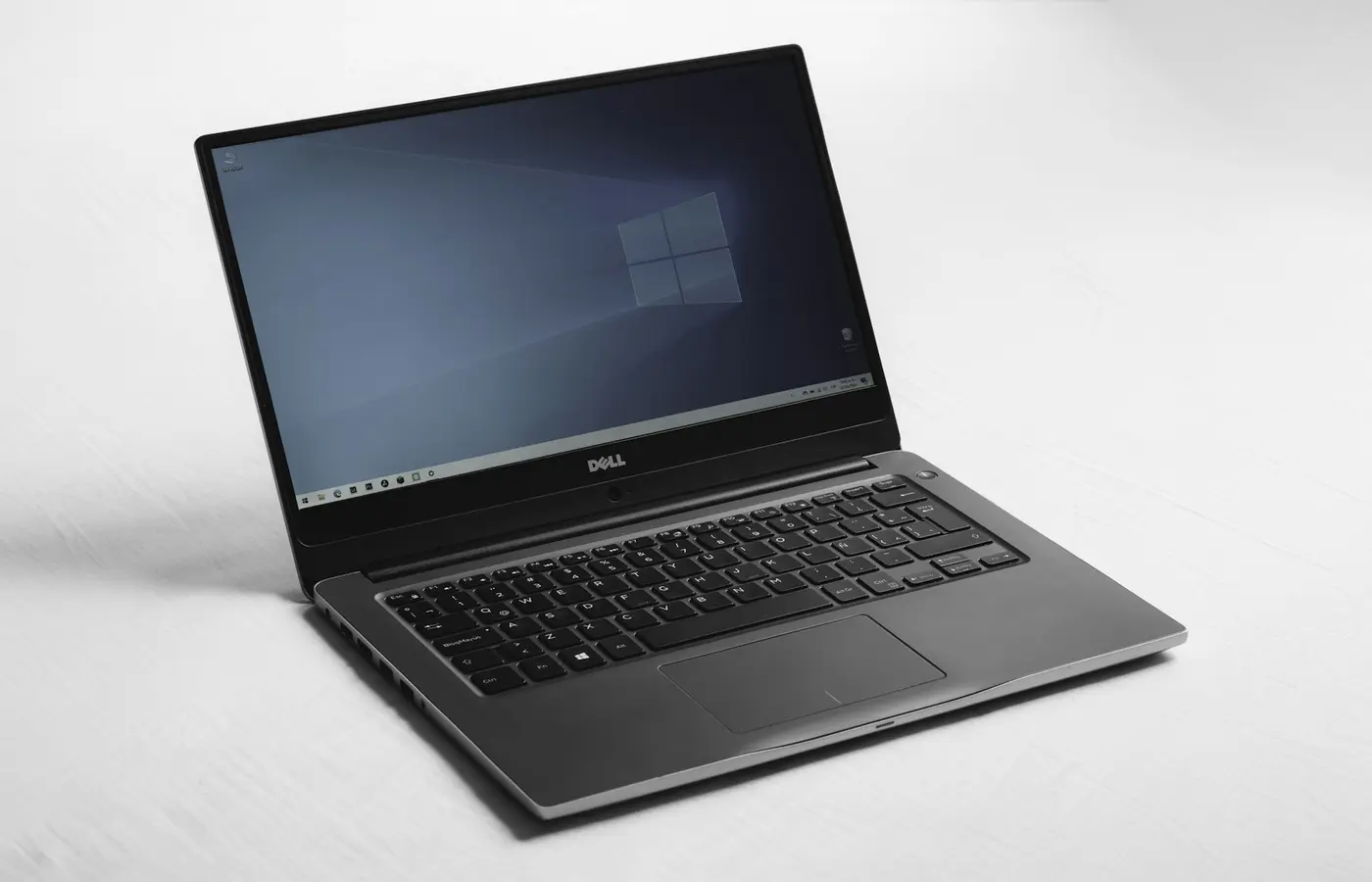
A Windows-on-Arm laptop can be a good purchase if your essential software, peripherals, and workplace tools are confirmed to work. But Windows 11’s ability to run many conventional Windows applications does not make every workflow compatible.
The safe approach is simple: make a list of the apps and hardware you cannot replace, then verify each one before ordering. If an essential program depends on an unverified driver, a corporate security tool, a niche peripheral, or a game with anti-cheat software, an x86 Windows laptop remains the lower-risk choice.
Windows 11 on Arm can run native Arm64 applications and can emulate many x86 and x64 desktop applications. Microsoft explains that Arm-native applications are generally preferable for performance, responsiveness, and battery efficiency, while non-native applications may run through emulation. That is useful flexibility, not a blanket compatibility guarantee. Microsoft’s Windows on Arm overview and Windows Arm-based PCs FAQ are good starting points, but the final answer must come from the developer or hardware maker for your specific requirement.
Know what you are checking before you buy
There are three practical outcomes for software on a Windows-on-Arm PC.
| Compatibility outcome | What it means | What to verify |
|---|---|---|
| Native Arm64 | The developer supplies a version built for Windows on Arm. | Confirm that the download, release notes, or system requirements explicitly list Windows Arm64 or Windows on Arm. |
| Emulated x86 or x64 | Windows translates a conventional Windows application so it can run on Arm hardware. | Confirm that the exact app version works, including its plug-ins, licensing system, updates, and connected hardware. |
| Blocked by a dependency | The application itself may install, but a required driver, service, plug-in, or security component does not support Arm. | Find explicit support for every required dependency, not just the main application. |
On Windows 11, x86 and x64 apps can run under emulation. Microsoft says that Windows 11 Arm-based PCs running version 24H2 include its Prism emulator, which is intended to improve emulated application performance. That does not mean an emulated app will match the behavior of its native version on every laptop, or that all related components will work.
The distinction matters because an application is rarely only an application. It may also use a printer driver, USB device service, kernel-level security component, virtual machine, browser extension, plug-in, license dongle, or background updater. Any one of those can determine whether your workflow works.
Start with your non-negotiables, not a compatibility list
Do not begin with a general list of “popular apps that work.” Begin with the software and hardware you would consider a deal-breaker.
Create a short list in priority order:
- Work and school essentials: office suite, browser, video meeting client, VPN, remote-desktop tool, endpoint security, device-management software, authentication app, and any required browser extension.
- Professional applications: accounting, legal, medical, design, CAD, engineering, audio, video, development, database, or industry-specific software.
- Personal essentials: photo library tools, backup software, password manager, tax software, accessibility tools, and games you play regularly.
- Connected hardware: printer, scanner, dock, external display adapter, audio interface, webcam, drawing tablet, calibration device, gaming controller, keyboard, mouse, and storage device.
For each item, record the exact product name, version, and installation source. “Adobe software,” “my work VPN,” or “a Canon printer” is not specific enough. The relevant detail may be a particular plug-in, VPN client version, printer model, or workplace security package.
Then check the publisher’s current download page, system requirements, release notes, and support documentation. Look specifically for terms such as Arm64, Windows on Arm, Snapdragon, or Windows 11 Arm-based PCs. A generic statement that an app supports Windows 11 is useful, but it is not necessarily confirmation of Windows-on-Arm support.
Microsoft points buyers to its Windows on Arm compatibility resources, but vendor documentation should carry more weight when an application is essential. A vendor is best placed to say whether its current version, plug-ins, and support team cover Windows on Arm.
Check the Windows version and the exact laptop configuration
Do not assume every Arm laptop ships with the same Windows release, ports, wireless hardware, or bundled software. Before purchase, confirm the exact configuration offered by the seller:
- Full laptop model and processor name
- Installed Windows edition and version, where listed
- Memory and storage configuration
- USB port types and quantities
- Video-output capability and charging behavior for each port
- Wireless connectivity specifications
- Included charger and power rating
- Region-specific keyboard, warranty, and return terms
This is especially important if you are expecting Prism-related emulation improvements. Microsoft’s FAQ ties Prism availability to Windows 11 version 24H2 on Arm-based PCs. A listing that merely says “Windows 11” does not tell you enough to make a specific compatibility assumption.
Retailer listings can also combine several configurations under one product page. Cross-check the retailer’s part number against the manufacturer’s specifications before you rely on a port layout, storage option, or operating-system detail.
Use this checklist for every essential application
Work through the following steps before placing an order.
1. Identify the exact version and install method
Check whether you use a current cloud-delivered version, an older perpetual-license release, an employer-provided installer, or a legacy disc/download. Compatibility can vary between versions of the same product.
Also note whether the application comes from:
- The Microsoft Store
- A vendor download page
- A corporate software portal
- A school-managed installer
- A game launcher
- A virtual machine or remote desktop environment
An app that works when downloaded directly may not be the same as the managed version your employer requires.
2. Look for an explicit Arm64 statement
The strongest evidence is a current statement from the software publisher that names Windows on Arm, Arm64, or a supported Arm-based Windows platform. Treat this as more useful than an old forum post, a retailer review, or an unlabeled social-media claim.
If no Arm64 version exists, determine whether the vendor says the x86 or x64 release is supported through Windows 11 emulation. Microsoft notes that emulation has an overhead, so do not assume equivalent speed, battery life, feature support, or stability simply because an application launches.
3. Check for drivers, plug-ins, and background services
This is the most commonly missed step. Microsoft states that kernel-mode drivers and user-mode print drivers must be built natively for Arm. In other words, Windows can emulate many applications, but it cannot use x86 or x64 drivers as a substitute for native Arm drivers. See Microsoft’s Windows on Arm FAQ for the driver requirement.
Ask these questions:
- Does the app install a driver?
- Does it require a USB license key or proprietary hardware?
- Does it rely on a printer, scanner, audio interface, or capture device?
- Does it need a plug-in compiled for a particular architecture?
- Does it install a virtual network adapter, filter, or endpoint-security service?
- Does it use a virtual machine, emulator, or container tool?
If the answer is yes, verify the dependency separately. The main application being installable does not prove the complete workflow is supported.
4. Confirm workplace approval before purchase
For work or school use, ask IT rather than relying on broad Windows compatibility claims. Provide the exact laptop model, processor platform, Windows version, and the names of required tools.
Ask whether the organization supports its:
- VPN client
- Endpoint protection or antivirus agent
- Device-management enrollment
- Remote-access client
- Smart-card, certificate, or authentication software
- Network printer setup
- Virtual desktop or virtual machine environment
A managed environment may reject an unsupported device even if the basic application can run under emulation. If IT cannot confirm support, do not assume you can resolve the issue after delivery.
5. Plan a real return-period test
When a requirement cannot be confirmed in documentation, buy only from a seller whose current return policy gives you enough time to test the full workflow. Read the policy for your region and seller before checkout, including any restocking, condition, activation, or return-shipping requirements.
Test promptly after delivery. Install the exact software, sign in to the required accounts, connect the required devices, and perform realistic tasks. Do not wait until the final day of the return window to discover that your scanner software, VPN, or game anti-cheat system is the missing piece.
Peripherals need more than a matching connector
A USB-C, USB-A, HDMI, Bluetooth, or Wi-Fi label tells you that a connection may be possible. It does not prove that all features of the connected device will work.
For each accessory, check the hardware maker’s current support and driver-download pages for the exact model. Look for an explicit Arm64 or Windows-on-Arm driver where a driver is involved. This is particularly important for:
- Printers and multifunction devices
- Scanners and document cameras
- USB docks and display adapters
- Professional audio interfaces and MIDI hardware
- Capture cards and broadcast equipment
- Drawing tablets and display calibration hardware
- Gaming peripherals with configuration software
- Older specialty devices, including serial or industrial adapters
A device may connect and still lose advanced functions. A printer may provide basic printing but not its full scanner, fax, maintenance, or color-management software. A dock may pass power and USB devices but need separate confirmation for the external display setup you intend to use.
Microsoft’s troubleshooting guidance for x86 desktop applications specifically identifies non-Arm driver dependencies as a potential compatibility problem. If a peripheral is essential, do not settle for “it should work.” Find the correct driver or support statement for that exact model.
Games, creative tools, and specialist software require stronger proof
Some categories deserve a higher evidence standard because they frequently involve components beyond the main program.
Games and game launchers
A game can be compatible in one sense and unusable in another. The game executable may launch under emulation, while the launcher, anti-cheat system, controller utility, mod loader, or virtual-reality component does not support the platform.
Before buying for a particular game, check current documentation from the game publisher, the launcher, and any required anti-cheat provider. Do not treat reports about another game from the same publisher as proof. Compatibility can change with game updates and anti-cheat revisions.
Creative and audio-production workflows
Creative suites may have a native main application but rely on older plug-ins, graphics extensions, USB license managers, audio drivers, or control-surface software. Confirm every piece of the workflow, including export codecs and connected devices.
Audio work needs special caution: an interface that appears in Windows may still need a native driver and control panel for low-latency recording or routing features. Verify the exact interface model and driver package with its manufacturer.
CAD, engineering, and industry software
CAD, simulation, scientific, medical, and line-of-business software can be particularly dependent on certified drivers, license systems, add-ins, local databases, or specialized devices. If a vendor does not explicitly support Windows on Arm, treat compatibility as unconfirmed even if the installer starts.
Development and virtualization
Development tools are often flexible, but the workflow may not be. Check the architecture required by compilers, debuggers, device emulators, containers, virtual machines, local database servers, and test hardware. An x64 utility running under emulation is not the same as confirmation that a complete development stack is supported.
Microsoft provides emulation settings and troubleshooting options for some apps that have issues under Prism. Those options can be useful after purchase, but they are not a reason to buy an Arm laptop for an unverified mission-critical workflow.
When an x86 Windows laptop is the safer purchase
Choose an x86 Windows laptop when any non-negotiable requirement falls into one of these categories:
- The software publisher does not support Windows on Arm and you cannot test safely.
- Your employer cannot confirm its VPN, security, management, or authentication stack.
- A required peripheral has no native Arm64 driver or no clear support statement.
- Your workflow depends on older plug-ins, hardware keys, legacy applications, or specialist extensions.
- A game depends on unverified launcher or anti-cheat support.
- You need a virtual-machine, development, or professional workflow that has not been validated on the intended platform.
That is not an argument that x86 is always faster, cheaper, or better for every buyer. It is a compatibility-risk decision. x86 Windows laptops are the safer default when your work depends on conventional Windows drivers or software whose vendor has not committed to Windows-on-Arm support.
The practical buying rule
Buy a Windows-on-Arm laptop when your essential applications have native Arm64 versions or well-documented, acceptable emulated support; your required peripherals have native Arm-compatible drivers where needed; and your workplace accepts the platform.
Choose an x86 laptop when a single must-have tool remains uncertain. One unsupported driver, VPN, anti-cheat component, or specialist plug-in can outweigh every advantage of a new laptop platform.
The best pre-purchase question is not “Can Windows on Arm run Windows apps?” It is: “Can this exact laptop run my complete workflow, including the software and hardware around the app?” If you cannot answer that confidently before the return deadline, buy the lower-risk platform.
Frequently asked questions
Can Windows-on-Arm laptops run regular x86 and x64 Windows apps?
Many can. Windows 11 on Arm supports x86 and x64 application emulation, while native Arm64 applications run directly on the platform. Microsoft explains the overall model in its Windows on Arm overview. Compatibility and behavior still depend on the exact app and its dependencies.
Do printers, docks, and other peripherals need Arm64 drivers?
Driver-dependent hardware may need native Arm support. Microsoft states that kernel-mode drivers and user-mode print drivers must be native Arm builds. Verify the exact peripheral model with its manufacturer, and separately check basic operation, advanced features, configuration software, and display output if relevant.
How can I tell whether an app is running natively or through emulation on Windows on Arm?
Start with the developer’s download page or release notes: a Windows Arm64 build is the clearest indication of native support. You can also review Windows Task Manager’s architecture information for a running process, but the vendor’s support documentation remains the better source for whether the complete application is supported.
Should I buy an x86 laptop if my employer requires specific security or VPN software?
Yes, unless your employer’s IT team confirms that its exact security, management, authentication, and VPN tools support the Arm laptop and Windows version you plan to buy. A personal app working under emulation does not prove that an organization-managed security stack will install, enroll, or remain supported.


