
How to Check Whether a Laptop SSD Can Be Upgraded Before You Buy
Verify a laptop’s SSD slots, supported drive size and interface, service access, warranty terms, and migration options before buying.
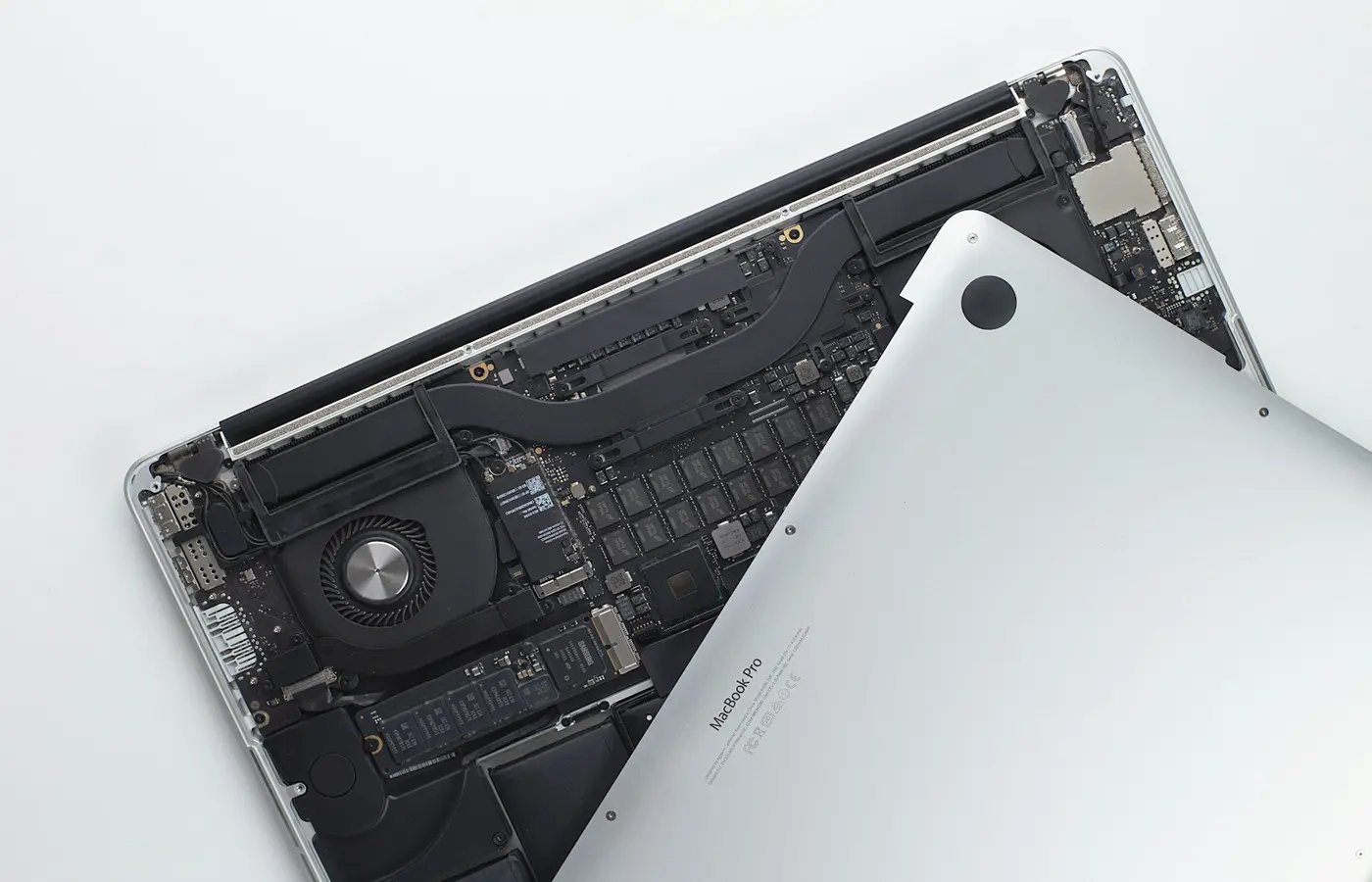
The safe answer: consider a laptop’s SSD upgradeable only when documentation for the exact model and configuration confirms a replaceable drive or an available storage slot. A family name, retailer claim, or generic “M.2” specification is not enough.
There are three materially different outcomes:
- Expansion: an empty, usable slot allows you to add a second SSD.
- Replacement: the installed SSD is removable, but it occupies the laptop’s only storage slot.
- No supported internal upgrade: the storage is non-removable and there is no documented expansion slot.
The distinction matters. Expansion can preserve the original operating-system drive, while replacement requires a backup and migration or clean installation. A laptop with non-removable storage may leave external storage as the only practical capacity upgrade.
This guide provides a verification process rather than declaring an entire laptop family upgradeable. Internal layouts can change with generation, region, battery size, graphics option, board revision, or configuration.
Step 1: Identify the complete model and SKU
Begin with the identifier that distinguishes the laptop you will actually receive—not the shortened name in a search result.
For a laptop you are considering, look for one or more of the following on the manufacturer’s product page, specification sheet, written quote, or retailer listing:
- Full manufacturer part number or SKU
- Machine type and model
- Regional product number
- Exact generation
- Complete configuration code
For a laptop you already own, check the chassis label, original packaging, firmware setup screen, purchase record, or the manufacturer’s support utility. Depending on the brand, the relevant identifier may be called a product number, machine type, serial number, or service tag.
A serial number can sometimes lead to the as-built configuration, but do not publish it or share it unnecessarily. When requesting help, the non-unique model or product number is usually the safer starting point.
Record the following before continuing:
| Item | What to record |
|---|---|
| Product family | The broad marketed name |
| Exact identifier | SKU, part number, or machine type and model |
| Region | Country or sales market |
| Listed storage | Capacity and drive type, if specified |
| Seller | Manufacturer or retailer |
| Check date | When the listing and documents were reviewed |
If the retailer does not show a manufacturer part number, ask for it in writing. Do not assume the pictured configuration is the one being sold. Also compare the retailer’s storage description with the manufacturer’s record for that part number; seller data should be treated as provisional when the two disagree.
Step 2: Find the service manual and storage specifications
Use a model-specific maintenance or service manual as the primary document. Search the manufacturer’s support site using the exact identifier collected in Step 1.
Review documents in this order:
- Maintenance, hardware, or service manual covering the exact model
- Official technical specifications for the same configuration or machine type
- Manufacturer parts database or as-built configuration record
- Official customer-replacement instructions, if separate
- Retailer descriptions and third-party compatibility tools only as secondary leads
In the service manual, look for sections named “solid-state drive,” “storage,” “M.2 drive,” “removal and replacement,” or “system-board components.” You need more than a statement that the laptop can be configured with an SSD. Find the board diagram, drive-removal procedure, parts table, or supported-storage table.
Check the manual’s revision date and its list of covered model numbers. One PDF may cover several visually similar variants that do not share the same storage layout. If a table divides support by processor, graphics configuration, screen size, or product number, follow the row matching your configuration.
A third-party teardown can help clarify what a connector looks like, but it is not proof unless the model, configuration, and board revision match. Do not transfer a teardown finding from a related laptop merely because the chassis name looks similar.
Step 3: Decode the slot count, drive size, and interface
Turn the documentation into a compatibility record. You need answers to four separate questions:
- How many storage positions or connectors exist?
- How many are occupied in this configuration?
- Is the installed drive removable?
- What physical size and electrical interface does each position support?
Count usable slots, not mentions of storage options
A specification sheet may list several factory storage choices without indicating that they can be installed simultaneously. Likewise, a board diagram may show a connector that is unavailable in a particular configuration or intended for another component.
Look for an explicit diagram or table establishing whether the laptop has one SSD slot, two SSD slots, or onboard storage plus a separate slot. Then subtract the slots occupied in the selected SKU.
Do not count a possible second slot as usable until the documentation confirms its purpose and the parts required to fit a drive.
Match the physical dimensions
M.2 describes a family of card form factors, not one universal laptop SSD. Common storage descriptions include numbers such as 2242 and 2280: the first two digits indicate a nominal width of 22 mm, while the remaining digits distinguish the card length.
The laptop needs a connector and a mounting point for the required length. A 2280 drive should not be assumed to fit a position documented only for 2242, even if both are M.2 devices. Do not improvise a mounting method or leave a drive unsecured.
Match the storage interface
An M.2 slot does not automatically establish NVMe support. The documentation must identify the storage interface, such as PCIe/NVMe or SATA. Keying and physical fit alone do not prove that the laptop and drive can communicate.
Dell’s NVMe SSD guide similarly advises checking documentation for the specific computer and matching both drive size and interface. It also warns that models within one product line can support different M.2 sizes.
Record the answer in concrete terms—for example, “one occupied removable M.2 position; documented for 2280 PCIe/NVMe storage”—rather than simply writing “has M.2.” Only use that description if the exact model’s documents support every part of it.
If the manufacturer lists a maximum SSD capacity, treat it as a documented or validated configuration limit, not automatically as a proven technical ceiling. A larger drive might work, but compatibility should not be promised without model-specific support or evidence.
Step 4: Distinguish expansion, replacement, and soldered storage
Once the layout is known, classify the upgrade path.
Empty second slot: expansion
This is generally the least disruptive result, but verify that the second position is enabled and available in the selected configuration. Check whether it needs a model-specific screw, bracket, cable, shield, or thermal component.
A visible unoccupied connector is not sufficient if the manual does not identify its function or supported drive type.
One occupied removable slot: replacement
The SSD can be replaced, but there is no internal place to keep the original drive during migration. The new drive must match the documented form factor and interface. You will also need a backup and either a cloning arrangement or operating-system installation media.
Do not buy a replacement drive before confirming how the existing device will be removed and how the new system will boot.
Non-removable storage: no direct replacement
Call storage soldered or onboard only when a board diagram, parts list, service procedure, or manufacturer statement supports that conclusion. The absence of an SSD removal section can be a warning, but it is not definitive proof by itself.
Also avoid the opposite mistake: onboard storage does not necessarily mean that expansion is impossible. A laptop may have non-removable primary storage and a separate documented SSD slot. Check both questions independently.
Step 5: Check service access, warranty, and required parts
Hardware compatibility does not guarantee that the upgrade is sensible for an owner to perform.
Read the official procedure from the beginning, including prerequisites and safety notices. Check for:
- Required screwdriver type and other specified tools
- Base-cover removal method
- Battery-disconnection instructions
- Fasteners that remain captive or differ in length
- Drive screw, carrier, bracket, shield, cable, or thermal pad
- Parts that must be replaced rather than reused
- Operations reserved for trained or authorized service personnel
Do not assume the necessary mounting hardware is included merely because the board has a slot. Check the manufacturer’s parts catalog or ask the seller what comes fitted in that exact SKU.
Warranty rules vary by manufacturer, product, service procedure, country, and applicable law. Avoid universal claims that opening a laptop either preserves or voids coverage. Read the current regional warranty terms and customer-service guidance, and request written clarification tied to the exact product if necessary. Damage caused during an upgrade may be treated differently from a failure unrelated to the replacement part.
If upgradeability is a condition of purchase, review the seller’s written return policy before ordering. Make sure the return window allows enough time to verify the delivered part number without opening or altering the machine in a way that affects eligibility.
Step 6: Choose a migration plan before replacing the only drive
Storage compatibility and data migration are separate problems. Decide how the laptop will become usable after the hardware change.
Adding a second blank SSD
If the laptop has a confirmed empty slot, the original system drive can remain in place. The new drive may need to be initialized and formatted using the operating system’s supported tools. Confirm which drive will remain the boot device before changing firmware settings.
Cloning the existing SSD
Cloning may require a compatible external enclosure or adapter when the laptop has only one slot. The enclosure must support the source or destination drive’s physical type and interface; an enclosure described only as “M.2” may not support every M.2 SSD.
Follow the cloning software vendor’s requirements. Do not assume cloning will preserve every recovery partition, encryption state, vendor utility, or boot configuration.
Performing a clean installation
A clean installation requires current installation or recovery media, access to required drivers, and any manufacturer-specific recovery instructions. Confirm activation and licensing requirements with the operating-system and laptop vendors rather than relying on a copied product key from an unknown tool.
Before either migration method:
- Make a separate, verified backup of important files.
- Record or securely retrieve device-encryption recovery information.
- Confirm that the backup can be accessed from another device.
- Obtain installation or recovery media before removing the working drive.
- Keep the original SSD unchanged until the replacement boots and the data is verified.
If the laptop belongs to an employer or school, stop and consult its administrator. Encryption, device management, support agreements, and data-handling rules can make an otherwise compatible replacement inappropriate.
Stop when documentation is missing, contradictory, or unsafe
A missing answer is not permission to assume compatibility.
Before purchase, stop if:
- The seller will not provide the full manufacturer part number.
- The manual covers several variants but does not identify which layout applies.
- The retailer advertises two slots while the official material documents only one.
- The interface or supported drive length is not stated.
- A second position is shown but required parts or electrical support cannot be confirmed.
Ask the manufacturer or an authorized service provider for written confirmation naming the exact model or SKU. If that is unavailable, choose a laptop with clearer documentation and an acceptable return policy.
Before opening an owned laptop, stop if:
- You cannot confirm the correct service procedure.
- Battery-disconnection or electrical-safety steps are unclear.
- The manual reserves the procedure for trained service personnel.
- Required mounting or thermal parts are missing.
- The base cover resists removal beyond what the official procedure describes.
- Warranty or managed-device restrictions remain unresolved.
Do not resolve contradictory documents by experimenting on the laptop. Record the document titles, revision dates, covered models, and conflicting statements, then ask for model-specific clarification or use professional service.
A final pre-purchase checklist
Before treating the answer to “Can you upgrade this laptop SSD?” as yes, confirm all of the following:
- The exact SKU or regional part number is known.
- The official manual explicitly covers that identifier or variant.
- Total and occupied storage-slot counts are established.
- The existing drive is confirmed removable, or an empty slot is confirmed usable.
- Supported drive length and storage interface are documented.
- Any screw, bracket, shield, cable, or thermal part is available.
- The official service procedure is suitable for the intended installer.
- Regional warranty and seller return terms have been checked.
- A backup and migration or clean-installation plan exists.
If even one material point remains uncertain, do not buy the SSD—or the laptop—on the assumption that it will work. Clear, configuration-specific documentation is more reliable than an M.2 badge or a broad promise of “upgradeable storage.”
Frequently asked questions
Does an M.2 slot automatically mean a laptop supports an NVMe SSD?
No. M.2 describes a physical form-factor family. The slot may be documented for SATA storage, PCIe/NVMe storage, another device type, or only certain card lengths. Verify the interface and supported dimensions in the exact laptop’s official documentation.
Can software tell me whether my laptop has an empty SSD slot?
Software can identify installed drives and controllers, but it may not reliably establish whether an unused physical slot exists, whether it has the necessary mounting point, or which drive sizes it supports. Use the service manual, parts record, and board diagram.
Can a 2280 SSD replace a 2242 SSD in a laptop?
Only if the manufacturer documents support for a 2280 drive in that position and provides the correct mounting point. Both may be 22 mm wide, but their lengths differ. Interface compatibility must also be checked separately.
Does opening a laptop to replace the SSD affect the warranty?
There is no universal answer. Warranty and customer-serviceability rules depend on the manufacturer, model, region, procedure, and applicable law. Check the current regional terms and official service guidance before opening the laptop, and seek written clarification when the documents are unclear.


