
How to Upgrade Laptop RAM Safely: Compatibility to Verification
Check soldered memory, SO-DIMM type, capacity, slot layout, service steps, and post-install tests before upgrading laptop RAM.
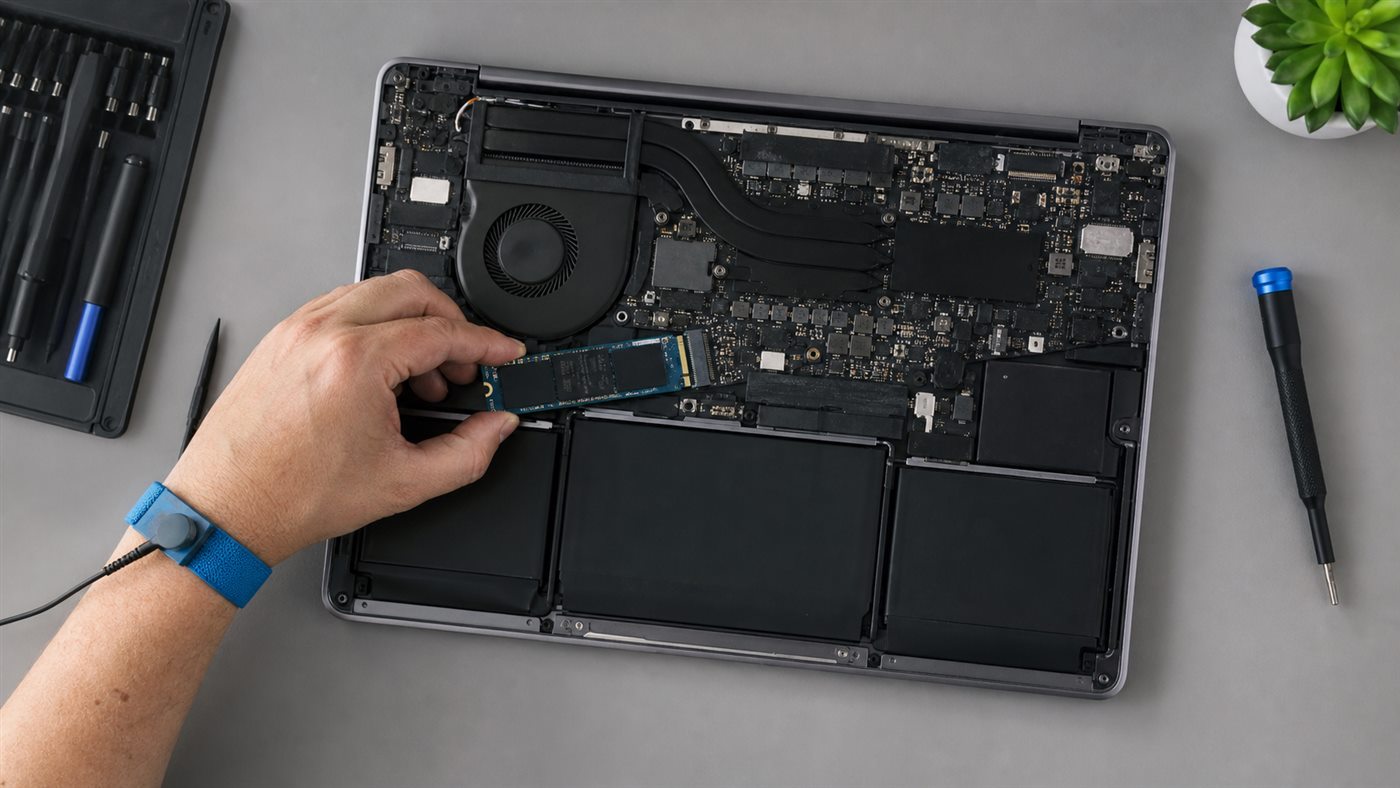
Do not buy RAM until the laptop proves it can accept it. Many thin notebooks solder all memory; others combine soldered memory with one SO-DIMM slot. DDR4, DDR5, LPDDR, capacities, ranks, speeds, and physical formats are not freely interchangeable.
Compatibility checklist
Find the model and machine type on the chassis/support page, then use its service manual to confirm:
- socketed rather than fully soldered memory;
- DDR generation and SO-DIMM form factor;
- number of slots and currently installed modules;
- supported total and per-slot capacity;
- manufacturer memory-removal procedure;
- whether the internal battery must be disconnected or disabled;
- warranty implications in your region.
Use our 16GB versus 32GB decision guide to confirm that capacity is actually the bottleneck.
Safe installation steps
- Back up important work, shut down fully, and disconnect the charger and peripherals.
- Use a clean nonconductive workspace and ESD precautions. Never work on carpet.
- Remove the bottom cover only in the service manual’s order and with the specified bit.
- Disconnect or disable the internal battery as documented.
- Release the SO-DIMM retaining arms if replacing a module; hold modules by their edges.
- Align the notch and insert the module at the documented angle. It should not require force.
- Press down evenly until both retaining clips engage. Confirm the module sits level.
- Reconnect the battery and inspect for loose tools, cables, or clips before closing.
Do not invent a screw map from a similar model. Stop if the notch does not align, the board flexes, a connector tears, or the battery looks swollen.
Verify before normal use
Start the laptop and allow the first boot extra time for memory training. Check capacity in firmware and the operating system. Run Windows Memory Diagnostic or the manufacturer’s official hardware diagnostic, then use the system normally while watching for crashes or errors.
If the laptop does not boot, disconnect power, reopen using the manual, and reseat the module. Restore the original RAM to distinguish compatibility from installation damage. A diagnostic error means the new configuration is not trustworthy; test modules individually only when the manual permits it.
Seek professional repair for liquid damage, swollen batteries, broken connectors, stripped screws, inaccessible memory, or persistent errors. If storage is the intended upgrade, follow the NVMe SSD procedure instead.
Conclusion
A RAM upgrade is successful only when the module is compatible, seated safely, reported at the expected capacity, and passes diagnostics. If the laptop is soldered or the manual does not authorize access, choose an external workflow improvement or a replacement computer rather than forcing the chassis.
Frequently asked questions
Can I install faster RAM than the laptop supports?
It may downclock, fail to boot, or be unsupported. Match the service manual and memory-vendor configurator instead of assuming.
Must both RAM modules match?
Matched capacity and specifications reduce risk and simplify channel behavior. Model-specific mixed configurations can work, but require documentation.
Why is some memory unavailable to Windows?
Integrated graphics, firmware, and hardware reservations use part of system memory. A small reserved amount is normal; a large unexplained loss needs diagnosis.


